USB digital signage: what it handles well, where it breaks, and what replaces it



USB digital signage plays media straight from a flash drive through the TV's own player: no network, no dashboard, no subscription. That covers one screen with content you change twice a year, and it stops covering you the moment a second location appears. Therefore the real question concerns update frequency rather than price.
The short answer: when USB digital signage is enough
One screen, content that updates a few times a year, and a display you can reach in under 10 minutes — USB digital signage works only when all three conditions hold at once. Break any one of them and the flash drive turns into a recurring errand that digital signage software removes entirely.
A USB stick usually covers you when you:
- run a single screen, or two displays that update together in one room;
- publish only images and video files, nothing live;
- update the content less than once a month;
- walk up to the display with a remote control in hand;
- accept that nobody will notice if the screen goes black overnight.
A cloud platform usually wins when you:
- update content weekly or faster;
- run screens that different teams update independently;
- manage 3 screens or more, or any second location;
- switch content between breakfast, lunch and dinner;
- monitor which screens report online right now;
- verify that a paid campaign actually played;
- publish dashboards, queue data, weather or web pages;
- let several teams publish without overwriting each other;
- cannot afford a wrong price staying on screen for a week.
The flash drive wins on day one and loses over a year. Compared to a per-screen subscription, its cost does not disappear — it simply moves from the invoice into somebody’s calendar. The line between the two runs through the management layer: a flash drive stores files, while a digital signage CMS decides what plays where.
What USB digital signage actually is
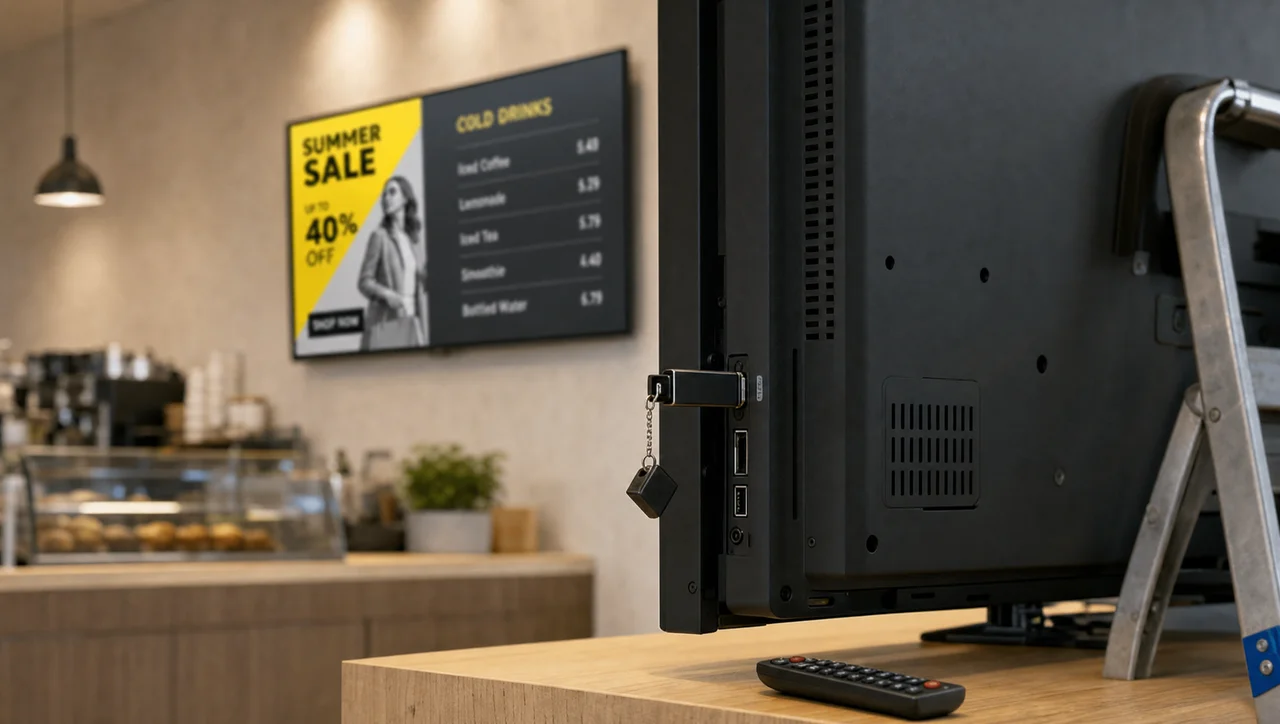
USB digital signage works as a playback method rather than a platform: the television’s built-in media player reads a folder from the flash drive and loops the files in file-name order. That still counts as digital signage in the broad sense of the term, just without the management layer. It cannot schedule, monitor or report anything, because no management layer sits in the chain, no account exists, and no connection runs back to the display.
The workflow runs like this:
- Design images or video on a computer.
- Export to a format the TV decodes, usually JPG, PNG and MP4.
- Copy the files onto the flash drive.
- The display reads the files only from its USB port, so walk over and connect the drive there.
- Switch the HDMI or USB input and start slideshow mode with the remote.
- Repeat every step whenever anything changes.
Playback behaviour belongs to the television, not to you. Displays from two manufacturers update the same folder differently: codec support, maximum bitrate, image resolution, transition timing, sort order and behaviour after a power cut all vary by model and firmware. Screens you never check after an update can show a black frame for weeks, and the same screen that plays a file cleanly today can stall on it after a firmware update.
“USB digital signage software” does not exist as a download. Searches for a USB signage app return either Android player apps that still connect to a network for management, or TV firmware features. Specifically, the flash drive stores files — it cannot schedule, monitor or report anything.
The search results themselves show where the term sits. Run “usb digital signage” through Google in the US and the first page fills with hardware retailers, display manufacturers and marketplace listings rather than software vendors.
That matters for a buyer, because the query returns a catalogue of players and monitors instead of an answer to the question underneath it: whether this screen needs a player at all. Compared to a software search, a hardware search moves the decision to a purchase before the requirement is settled.
What cloud software adds on top of a flash drive
Cloud digital signage software splits into two parts that a flash drive merges into one: a digital signage player that connects over HDMI and plays content, and a web dashboard that decides what plays, on which screen, at what time. Those two parts and the network between them are how digital signage works in every platform on the market.
The publishing loop looks like this:
- Upload the file once into the media library.
- Add it to a playlist.
- Pick a screen, a screen group, a location or a schedule.
- Publish.
- Verify remotely that the display picked it up.
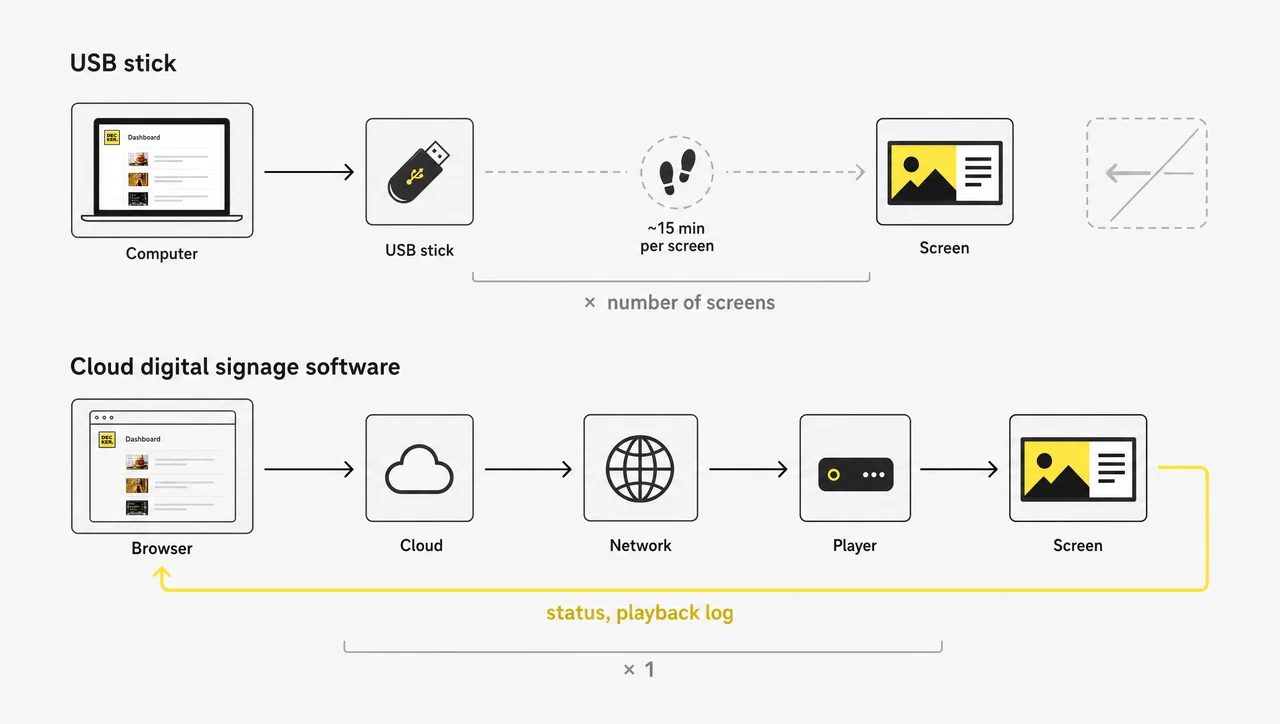
One screen and 40 screens take the same four steps inside a cloud platform, and both update from the same publish action. The screen count stops driving the workload at that point, and that single property accounts for most of the difference between the two approaches. The digital signage player also caches its playlist locally, so a network drop pauses updates rather than playback. Displays connected through HDMI check in with the dashboard on their own, and the screen reports its own state without anybody walking over.
Beyond content delivery, a content management layer adds what a television cannot do at all: role-based access, campaign start and end dates, playback logs, screen monitoring and per-screen status. In other words, the flash drive answers “what did I copy”, while digital signage software answers “what plays in store 12 right now”.
USB digital signage vs cloud software: a 15-point comparison
The 15 points below compare USB digital signage with a cloud platform on the decisions that start to matter from 3 screens upward. Every display raises the same question in twelve of those 15 rows: does somebody have to physically visit it to change anything?
| Point | USB stick playback | Cloud platform |
|---|---|---|
| Where content lives | On the drive, in the TV | In the cloud, cached on the player |
| Hardware to start | A flash drive | One player per display |
| Remote content update | No | Yes |
| Physical visit per update | Every time | No |
| Several screens | One drive each, by hand | One dashboard, screen groups |
| Several locations | Travel or courier | Same publish action |
| Scheduling by time or day | TV-dependent, usually none | By time, day, screen, group, location |
| Live web content and dashboards | No | Yes |
| Interactive and touch content | No | Yes |
| Screen monitoring | None | Online/offline state per screen |
| Proof that content played | None | Playback logs and screenshots |
| Playback during a network drop | Continues | Continues from local cache |
| Player software updates | Manual, per TV | Over the air |
| User roles and permissions | None | Role-based access |
| Cost curve as you grow | Linear staff time | Flat process, per-screen pricing |
Read the table as a threshold rather than a scoreboard. One screen with a yearly poster makes 13 rows irrelevant; five screens across two sites makes the same 13 rows expensive, and a network spanning several locations turns every row into a recurring cost line. As a result, the honest comparison depends less on features than on update frequency.
Where a USB stick is genuinely the better choice
Five situations still favour removable media, and these are the cases where a subscription platform adds nothing that you would actually use.
One screen that updates twice a year. A safety briefing in a workshop, a hotel or healthcare waiting-room welcome message, or an evergreen brand video behind a retail counter. When the file changes twice a year, a subscription buys you nothing.
Short events. One display updates once and retires with the event: a three-day trade show booth, a conference room, a pop-up. Staff prepare the loop before the event and retire it afterwards, so remote control carries no value.
Locations with no network at all. Basements, warehouses and vehicles sometimes carry neither Ethernet nor usable Wi-Fi nor cellular coverage. A digital signage player connects to the network for its first registration and for every later update, so the flash drive remains the only method that works there.
Hardware-free budget setups. Displays you already own connect to nothing extra and add no monthly line item, which makes a legitimate way of getting started with digital signage on a first screen.
Emergency backup. Even on a managed network, an approved MP4 on a drive in the manager’s desk covers the day a player fails and a replacement sits 48 hours out.
Each screen in those five cases updates on its own schedule, or once, or never: one screen, one moment, one file. However, none of the five describes a business that adds locations. None of them describes a business that grows.
Where USB playback starts to cost you
A cloud platform exists because of the nine limits below, and they appear in roughly this order for every business that adds a second screen.
Every change needs a person at the display. A screen on a flash drive updates only when somebody arrives with a new one: price update, new promotion, corrected typo — each one means export, copy, travel, connect, switch input, verify. The task itself takes minutes, and the trip around it takes the rest of the afternoon.
Content goes stale and nobody notices. Expired promotions, last season’s menu boards, wrong opening hours over a holiday weekend. Since the screen reports nothing, the first error report usually arrives from a customer.
Scheduling barely exists. Most televisions cannot switch a breakfast loop to a lunch loop at 11:00, and the timers that do exist switch inputs rather than playlists. Different content per daypart therefore requires a person with a drive at 11:00 every day.
No screen monitoring and no proof of play. Screens you cannot check remotely stay dark until a customer mentions it, because a black screen, a wrong HDMI input and a failed mount all look identical from head office: silence. For paid advertising or franchise compliance, silence does not count as a report.
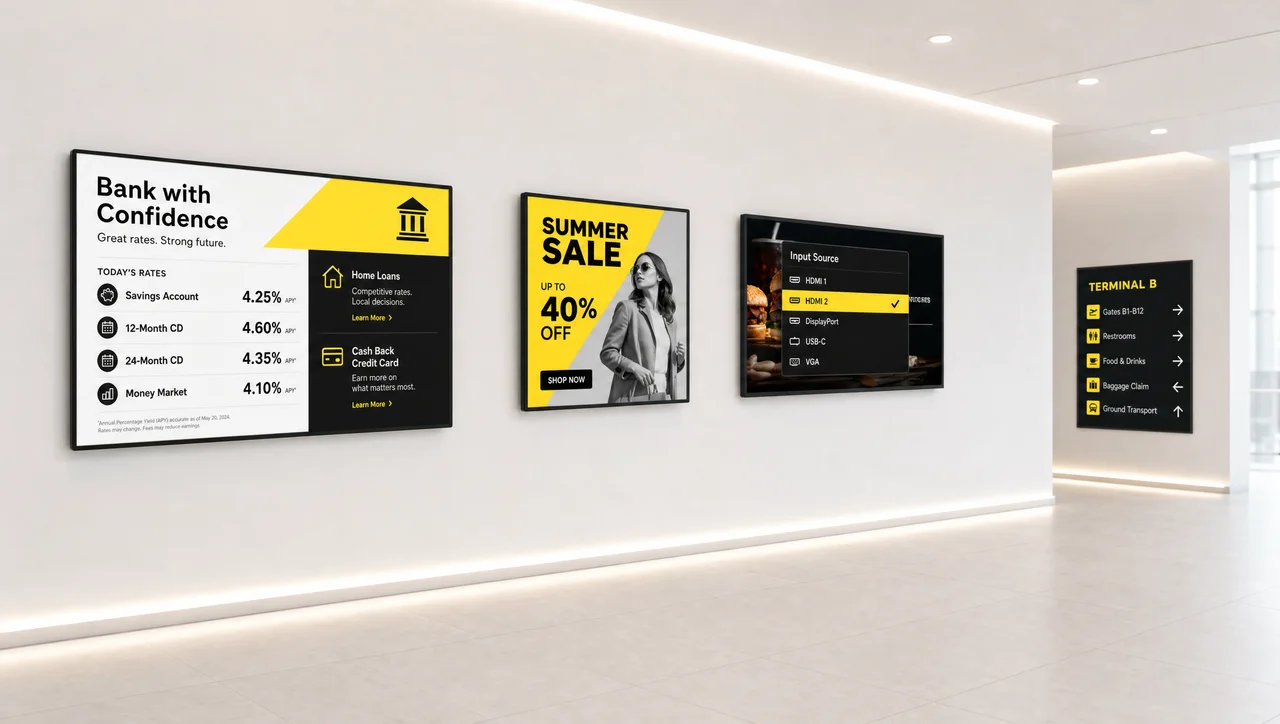
Compatibility drifts between displays. Displays differ in codec support, maximum resolution, file sort order, autoplay after a power cut and loop behaviour, so one folder that checks out everywhere means luck rather than a plan.
No dynamic content. Live dashboards, queue times, weather, stock levels, campaign QR codes, or anything a POS integration drives — none of it survives the trip onto a flash drive.
Brand consistency erodes at scale. With one drive per site, local staff eventually edit files locally. Screens across 10 sites then update at 10 different moments, and nobody can prove which version of your brand is current.
Drives get lost, damaged and mixed up. Screens end up running whichever version stayed in the drawer: removable media walks off, dies, or lands in an untrusted laptop, and nobody checks which version sits on it before plugging it in.
No governance. No roles, no approval step, no history of who published what. A screen showing the wrong thing leaves nobody to ask, because USB digital signage keeps no audit trail the way a dashboard does. As a result, the nine limits above compound instead of staying separate.
Does a cloud platform go dark when the internet drops?
No — and this objection stops more migrations than any other. A digital signage player downloads its playlist and caches the files locally, so playback continues through an outage; the connection matters for pushing new content, for schedule changes and for screen monitoring, not for showing what already sits on the device.
Two consequences follow. The screen keeps playing through the outage, so what you lose is freshness rather than the picture. The display still reports itself offline to the dashboard — which a flash drive can never do, because it holds nothing to report with.
“Cloud means streaming” misreads how signage works. Streaming a 4K loop over Wi-Fi all day would be a design flaw; players cache locally and sync only the changes. Therefore a shop with unstable Wi-Fi remains a valid deployment, while a shop with no connectivity at all does not.
The real cost: hardware is cheap, staff time is not
A flash drive costs under $50 even in a commercial-grade brand, and a cloud platform charges per-screen pricing every month, so USB playback looks cheaper until you price the 15 minutes that each screen costs per update. Each display consumes that quarter of an hour on file preparation, travel, switching the input source, and a check that the loop restarted.
Screens then update at a predictable rate, and one cycle costs:
- 1 screen updates in about 15 minutes;
- 5 screens in one building update in about 1.5 hours, including walking between rooms;
- 10 screens across 3 locations update in about 4 hours, mostly travel;
- 50 screens update in about 12.5 hours, or two working days per cycle.
The break-even point is arithmetic rather than opinion, and it fits in one line:
annual staff hours = screens × updates per year × 0.25
Run that against a loaded hourly rate and the picture stops being abstract. The table below excludes travel between sites, so a multi-location network lands well above these figures.
| Scenario | Staff hours per year | At $20/hour | At $35/hour |
| 1 screen, 4 updates a year | 1 | $20 | $35 |
| 3 screens, monthly updates | 9 | $180 | $315 |
| 5 screens, twice a month | 30 | $600 | $1,050 |
| 25 screens, monthly updates | 75 | $1,500 | $2,625 |
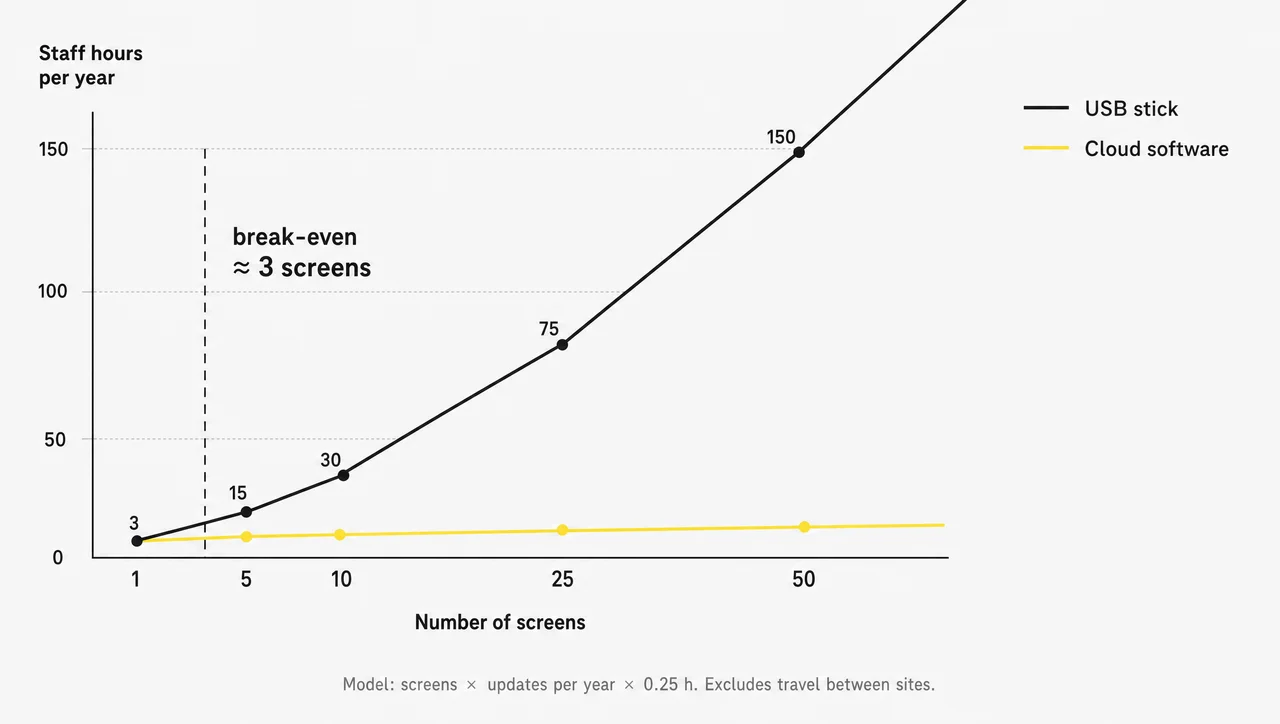
Compare the right-hand column with a per-screen quote and the answer stops depending on anyone’s opinion. Run the same arithmetic monthly and the flash drive stops being free somewhere around the third screen. Manual processes also fail, and the failures cost money: a wrong price runs for a week, a promotion never goes live. A display can stay dark for nine days before anyone checks it, and each of those events pulls the crossover earlier still. Hardware, licences and installation add their own lines to the cost of a digital signage deployment, and staff time sits on top of all of them.
Note: this page uses 15 minutes per screen per update as a modelling assumption, not a measured benchmark. Specifically, substitute your own figure — the shape of the curve holds, only the crossover point moves.
Important: one number travels through almost every article on this topic — that 68% of customers buy a product because a sign caught their eye. It comes from a FedEx Office survey on physical storefront and in-store signs, not on screens, and certainly not on the choice between a flash drive and a platform. Three further figures circulate the same way, attributed to Statista, Nielsen and Gartner, without a traceable study behind any of them. Treat a signage statistic as unusable until the primary source names both the sample and what it measured.
As a result, the only cost figure worth planning around is the one your own screens produce. Everything else in this section is a model you can re-run with your own rate.
Security and access control: removable media vs managed players
Offline does not mean safe, and USB digital signage quietly creates exposure that digital signage security on a managed platform closes. Displays in public areas carry an open USB port, and drives that circulate between office laptops and those screens connect whatever the laptops picked up.
Public security guidance documents the same short list: malware travelling on removable media, drives swapped by anyone with thirty seconds of unsupervised access, TV firmware nobody patches for years, and no record of which file version reached which display. Nothing in that chain requires a sophisticated attacker. Any managed platform that stores accounts also falls under CCPA/CPRA in California, so the audit question covers the drive and the dashboard alike.
A managed platform moves those controls somewhere an administrator can see them: TLS 1.3 encrypts traffic between player and server, accounts carry role-based permissions instead of a shared drawer key, and a log records who published what.
Vendors selling into the US market run that account data under CCPA/CPRA, and a platform with European users adds GDPR-aligned rights and support for Global Privacy Control signals. Both belong on a shortlist question rather than in an article, since terms change faster than published comparisons.
How to set up digital signage from a USB stick, step by step
USB digital signage runs reliably when you prepare it properly, and most complaints about the method trace back to the 7 steps below rather than to the flash drive itself. Work through them once and the loop survives power cuts.
- Check the display. The display decides everything downstream, so confirm the model reads media from USB, then check supported formats, maximum resolution and whether it resumes playback after a power cut. Not every smart TV does.
- Format the drive. Use exFAT for files above 4 GB and FAT32 otherwise, since FAT32 cannot store a single file larger than 4 GB. Avoid NTFS: Windows offers it by default, and displays in a large share of models cannot mount it at all, which produces a drive that checks out on the laptop and shows nothing on the screen. An 8 GB drive covers most image-and-video loops.
- Prepare the media. Each display renders at its own native resolution, usually 1920×1080 in landscape, so check that figure in the manual, export to it and encode video as H.264. Newer codecs are the common failure point here: H.265 gives smaller files, television decoder support for it varies by model and year, and a file the TV cannot decode plays as a black frame rather than an error message.
- Name files for playback order. Most televisions sort alphabetically, so prefix files 01, 02, 03 and keep everything in one folder.
- Connect and select the source. The display will not switch on its own, so connect the drive, check the input is set to USB, open the media browser and start slideshow or Play All mode.
- Configure loop and timing. Each display keeps these settings on its own, so set slide duration, disable transitions you did not ask for, and check that autoplay after power-up is on where the model allows it.
- Test the full loop twice. Watch it end and restart, then cut the power and confirm it resumes. Keep a duplicate drive as a spare.
A screen running cheap flash memory fails without warning, so buy drives from a known manufacturer, replace them yearly and check the loop after every swap. Next, decide whether you want to repeat this routine indefinitely.
Signs it is time to switch — and how to migrate without downtime
Four signals mean USB digital signage has outgrown its job: you update content more than once a month, you manage more than 3 screens, you need different content at different times of day, or you have started asking whether a display is actually on. Any two signals together make a subscription pay for itself within a quarter.
Migration does not require a shutdown:
- Start a trial, create an account and connect one screen as a pilot.
- The display connects to a digital signage player over HDMI — purpose-built player hardware or an equivalent device.
- Register the player and upload the files already sitting on your drive.
- Rebuild the loop as a playlist and set the schedule you always wanted.
- Connect a POS or data source through the API if your prices change often — a POS integration through the API syncs data automatically, and screens with that link update their prices without an export step, whether they run restaurant menu boards or retail price cards.
- Check that screen remotely and confirm the loop plays before you update the other displays.
- Keep the flash drive in the drawer as a fallback for two weeks, then retire it.
Screens connect to the platform one at a time, so nothing goes dark during the transition. Displays you have not migrated yet keep playing from the drive, and the screen you already moved updates from the dashboard. In addition, one screen usually updates less often than the rest — the far one, the one behind the counter — and that is the screen to check the pilot against.
When a cloud subscription is not worth it
A cloud platform does not pay back in every case, and vendors rarely publish this section. Five situations below describe where the licence does not pay back.
Under 3 screens with quarterly updates. At one update per quarter, manual work totals about an hour a year, and a subscription cannot pay that hour back. No subscription recovers it.
Displays with no connectivity and no path to it. Displays without a network cannot register at all, since a digital signage player connects to the cloud once for setup and again for every later update. The flash drive therefore stays the correct engineering answer.
Single-file, single-purpose screens. Screens running one unchanged safety video for three years need no scheduling, no screen monitoring and no roles, so nothing on the platform side would ever update.
Temporary installations under two weeks. Onboarding, hardware and configuration outlast the deployment itself.
Content nobody owns. When no person or team answers for what appears on the screens, a cloud platform will not create that accountability — it will only give the confusion better tooling. Fix ownership first.
Overall, the threshold sits around three screens and monthly updates. Below it, keep the drive; above it, the arithmetic stops being close.
In other words, check the tier limits before the rollout plan depends on them.
Pros, cons and the final verdict
Both approaches carry real trade-offs that the comparison table above compresses into single cells, so here they run in full.
USB stick playback — strengths: near-zero starting cost, no subscription, works with most existing displays, no network dependency, and roughly five minutes from unboxing to first frame.
USB stick playback — weaknesses: manual updates only, no scheduling, no screen monitoring, no proof of play, no dynamic content, no permissions, per-TV compatibility surprises, and a workload that grows with every display you add.
Cloud digital signage software — strengths: screens update from one publish action regardless of their number, schedule by daypart, verify playback remotely, run live and interactive content, control who publishes, and keep playing from local cache during outages.
Cloud platform — weaknesses: every display needs its own player and licence, setup adds a step, and anything new depends on a connection that has to check in.
The conclusion is narrow. A flash drive does not work as a cheap version of digital signage; it does a different job that happens to put pixels on a display, and it defers cost rather than removing it. One screen that updates twice a year justifies it; one purpose and one file keep it justified.
For anything that grows, the deciding criterion sits below the feature list: specifically, whether the vendor confirms playback from the device side or only reports that content went out. Independent verification hardware such as Decker Verifier monitors player and display separately and restarts a frozen screen remotely without a service visit.
How to test the decision on one screen
One screen settles this question faster than any comparison table. One screen keeps running the current loop from a flash drive, while a second screen publishes the same files through digital signage software from Decker.
Compare the time each display took over 14 days, and connect the pilot screen to a POS or data source only after the loop itself publishes correctly. The number that comes out belongs to your own operation rather than to a vendor estimate. As a result, the decision rests on measured time instead of a feature list.
Questions and Answers
1 Can I use a USB stick for digital signage?
Yes, when the display carries a USB port and a built-in media player. The display loops a folder of images and video from the drive, which covers one screen whose content updates once or twice a year.
2 Is USB digital signage really free?
Each screen costs a few dollars up front and roughly 15 minutes per update afterwards, so the recurring cost of USB digital signage is staff time rather than licence fees. Add travel between locations and the price of errors nobody catches.
3 Can I update a USB signage screen remotely?
No. The screen updates only when somebody stands in front of it with a new drive, because USB digital signage cannot reach back to any dashboard.
4 Can a USB stick schedule different content during the day?
Almost never. Most televisions ship without content scheduling at all, and the timer functions that exist switch the input or the power state rather than the playlist.
5 Does cloud digital signage stop when the internet goes down?
No. The digital signage player caches its playlist locally and keeps playing; the connection carries new content, schedule changes and status reporting rather than playback itself.
6 Is a USB stick safer because it is offline?
Not by default. A display in a public area exposes an open USB port, removable media connects a well-known malware path straight to it, and TV firmware often goes unpatched for years. A managed platform, in contrast, encrypts transport with TLS 1.3 and logs access, which CCPA/CPRA data requests later depend on.
7 Do I need a smart TV for cloud digital signage?
No. A display with an HDMI input connects to any player, because the digital signage player supplies the intelligence. That also means you can reuse commercial screens you already own.
8 Do I need one player per display?
Yes — each screen connects to its own player in the standard setup, since content, schedule and status tie to a specific device. Displays in a video wall share one player as the single exception, and each screen still updates from the same playlist.
9 Which option suits a small business better?
One screen that updates seasonally: the flash drive. Screens numbering 3 or more, or content that updates monthly, or any second location: a cloud platform, because manual workload crosses the cost of a licence at that point.
10 What file formats should I use on a USB stick?
JPG or PNG for images and MP4 with H.264 video travels safest across TV brands. Check your specific model’s supported resolution and bitrate before producing a full loop.
11 Can I run dynamic or live content from a USB stick?
No. Web pages, dashboards, weather, live feeds and anything a POS integration drives need a network connection and a managed player, so USB digital signage stays limited to pre-rendered files.
12 When should I replace USB playback with a cloud platform?
When the update workload stops being occasional. As a rule of thumb: more than three screens, or updates more often than monthly. A display you cannot verify remotely counts as the third signal on its own.
Sources
- CISA, Using Caution with USB Drives — removable-media risk and autorun controls.
- NIST NCCoE, Reducing the Cybersecurity Risks of Portable Storage Media (SP 1334) — why unmanaged flash drives stay a malware path.
- Microsoft, exFAT File System Specification — file-size limits behind the FAT32 and exFAT choice in step 2.
- Panasonic, signage playback from USB memory — a manufacturer's own description of what a display's built-in player does and does not cover.
- California Attorney General, California Consumer Privacy Act — the CCPA/CPRA rights referenced in the security section.
- FedEx Office, Standout Signs Contribute to Sales — the primary source behind the 68% figure, and the scope it actually covers.