What Is Digital Signage? The Complete Guide to Displays, Software, Uses & Technology


Digital signage is a network of electronic displays that show dynamic video, image, and data content instead of static printed signs, managed remotely through software so a business can update menus, promotions, wayfinding, or internal messages the moment something changes.
Key takeaways:
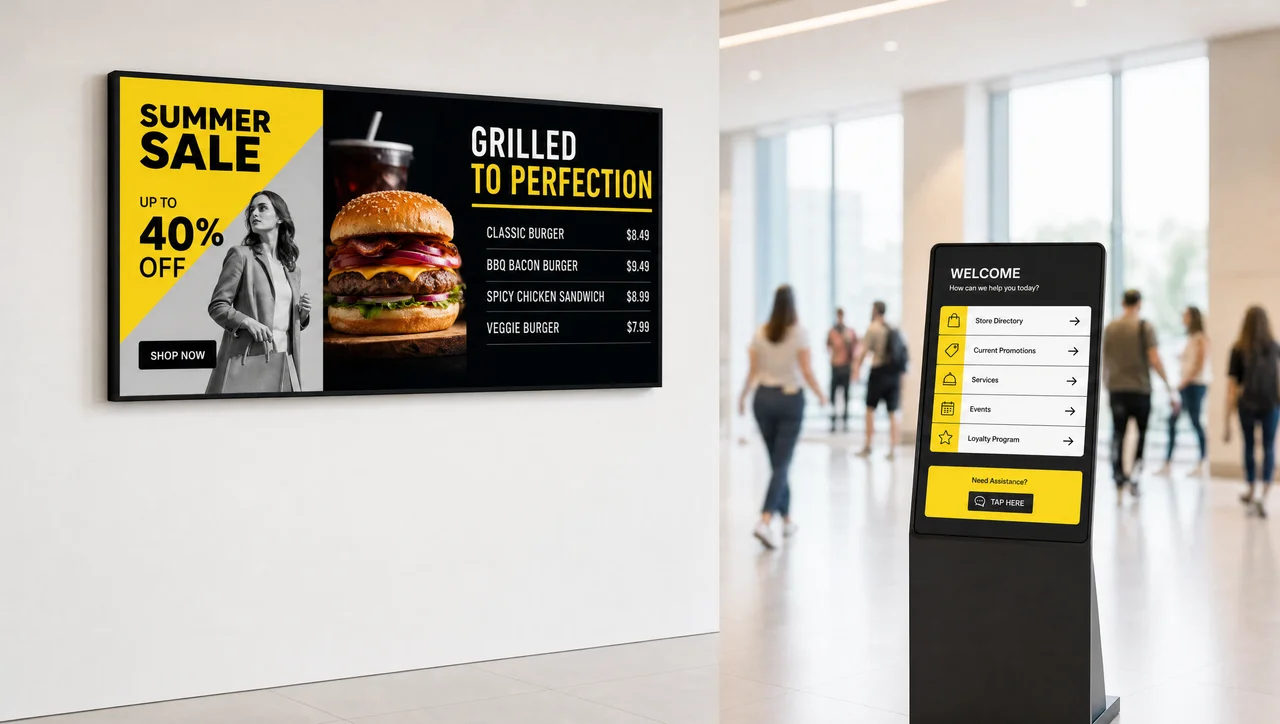
- Digital signage combines three layers working together: a display screen, a media player that runs the content, and content management software (CMS) that creates, schedules, and pushes updates to every screen.
- It differs from a plain TV or monitor mainly through the software layer — the CMS is what turns a screen into a managed, remotely updatable communication channel.
- Common formats include menu boards, video walls, interactive kiosks, wayfinding directories, and digital bulletin boards, spanning retail, restaurants, corporate offices, healthcare, and education.
- Choosing a digital signage system comes down to four decisions: display type and panel technology, software features, network setup, and how content will actually be created and kept current.
What Is Digital Signage? (Definition)
Digital signage is the use of networked electronic displays — screens, video walls, or kiosks — to show digital content that can be changed remotely instead of being printed once and left in place. That’s the short digital signage definition; in practice it covers everything from a single countertop screen to a nationwide network of thousands of digital signs. Where a static sign is fixed the moment it’s printed, a digital sign pulls its content from software, so the same screen can show a lunch menu at noon and a dinner menu at six without anyone touching the hardware.
Put another way, the digital signage meaning boils down to one shift: content lives in software instead of on paper, so it can change as often as the business needs it to.
A useful way to think about digital signage is as four layers stacked together, not just “a screen.” There’s the display itself (the hardware people see), a media player or built-in processor that decodes and runs the content, a content management system that designers and marketers use to build and schedule what appears, and a network connection that ties it all back to a central dashboard. Remove the software layer and a digital sign is just an expensive monitor; remove the network and it becomes a standalone screen that has to be updated by hand, one device at a time.
That distinction — networked versus standalone — matters in practice. A networked digital signage system lets one person update hundreds of screens across different locations from a single dashboard, push different content to different store groups, and see which screens are online. A standalone digital signage setup, by contrast, usually means content is loaded onto a USB drive or SD card and played on a loop until someone swaps the file, which works for a single storefront window but doesn’t scale.
Modern platforms have also moved beyond simple looping playlists. Many systems now support rule-based automation — content that changes based on time of day, weather, or a live data feed — and some are starting to layer in audience-sensing hardware or what’s increasingly marketed as digital signage AI: content selection that adjusts itself based on data rather than a person manually swapping a playlist. That capability is still an add-on rather than the default for most deployments, most fully developed today in dynamic and AI-powered signage.
Not to be confused with interactive digital signage — touch-enabled kiosks built for two-way input rather than one-way display, with navigation and selection layered on top of standard playback.
How Does Digital Signage Work?
A digital signage deployment runs on a simple loop: hardware displays the content, a media player retrieves it, a CMS lets someone create and schedule it, and a remote dashboard confirms it’s actually playing. Learning how to use digital signage day to day mostly means learning these four stages, which apply whether it’s a single café screen or a thousand-store rollout.
1. Set Up and Connect the Hardware
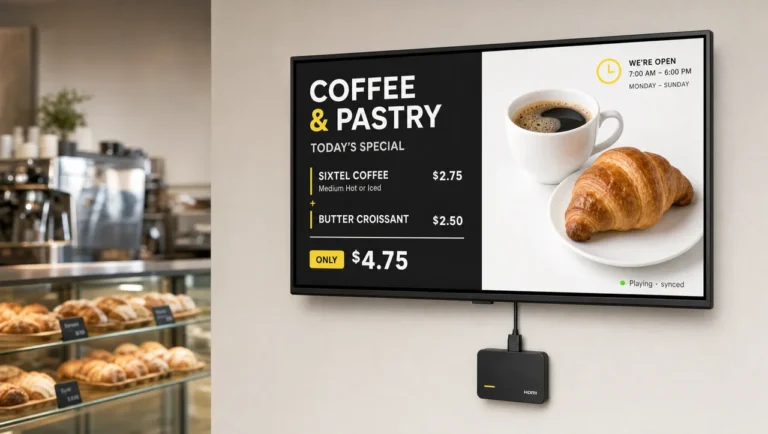
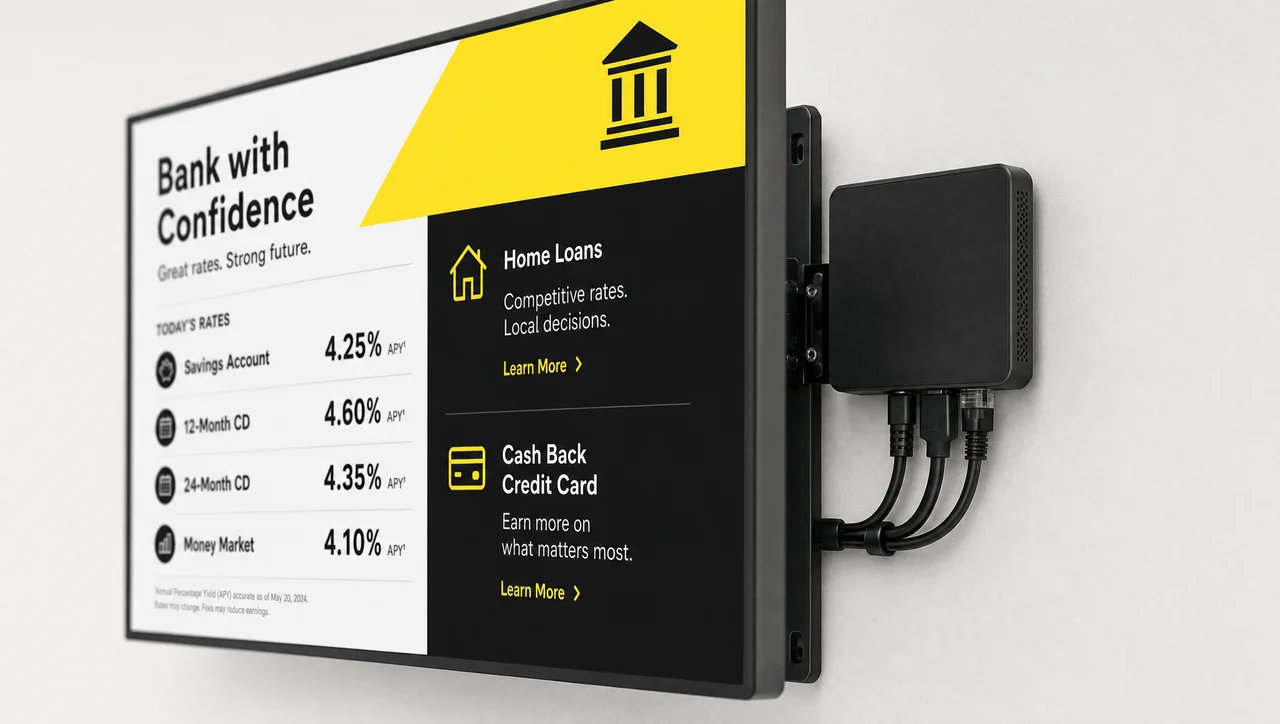
The starting point is a display — a commercial TV, monitor, or purpose-built panel — paired with a media player or set-top box that plugs in over HDMI. Some newer commercial displays, often called SoC (system-on-chip) displays, have a media player built directly into the screen, which removes one box and one cable from the install. Either way, the device needs a stable internet connection, wired or Wi-Fi, before it can pull content from the cloud.
2. Create Content with a Content Management System (CMS)
Once the hardware is online, content gets built inside the CMS — usually a drag-and-drop editor for layouts, image and video uploads, and templates for common formats like menu boards or promotional slides. Many platforms include a stock media library or design templates so a small business doesn’t need a design agency to get a screen looking professional on day one.
3. Publish, Schedule and Distribute Content
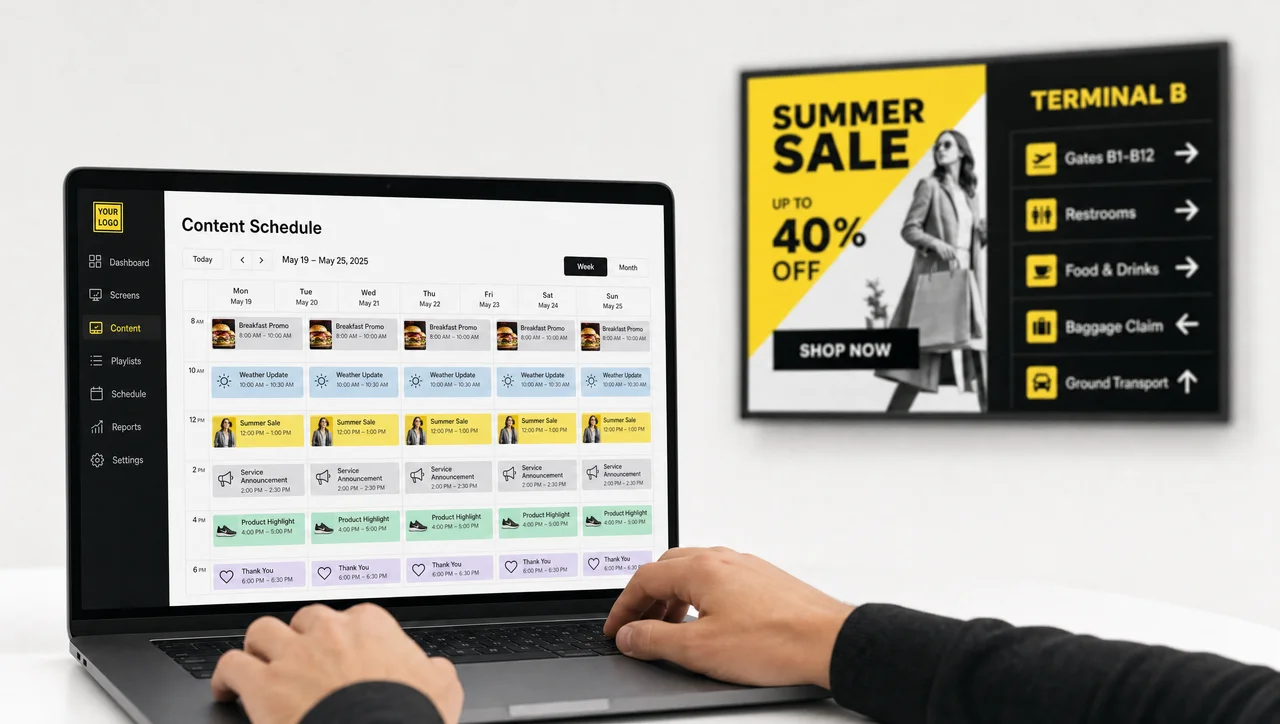
Content is rarely just uploaded and left alone — it’s organized into playlists and assigned to specific screens or screen groups, with a schedule controlling what shows and when (breakfast menu from 6–11 a.m., promo loop after that). This is also where automation lives: a scheduling rule can swap creative for a weekend sale without anyone manually pushing an update at midnight.
4. Manage and Monitor Remotely
The last piece is the feedback loop. A central dashboard shows which screens are online, lets an admin push content changes across a whole region in one action, and flags a screen that’s gone offline or frozen so it can be restarted remotely rather than discovered by an employee — or a customer — days later. For networks with dozens or hundreds of screens, this remote-monitoring layer is usually the difference between digital signage as a convenience and digital signage as something the business can actually rely on operationally.
Key Components of a Digital Signage System
The core digital signage components are four: display hardware, a media player, content management software, and the network that connects them — each one is worth understanding before buying.
Hardware: Displays, Media Players & Mounting
The display itself can be a commercial-grade TV or monitor, an interactive touchscreen, a projector, or a purpose-built kiosk — the right choice comes down to the same professional vs. consumer-grade trade-off that decides how many hours a day it needs to run and how visible it needs to be. Behind the screen sits the media player: either a dedicated box (commonly Android-based, sometimes Windows or a specialty streaming device) or a system-on-chip player embedded in the display. For permanent installs, choosing commercial-grade mounting solutions — wall mounts, video-wall brackets, floor stands, or ceiling rigs — is its own decision.
Content Management System (CMS): Core Functions
The CMS is the software layer that turns a screen into something a marketing or ops team can actually run day to day. At minimum it needs to let someone design or upload content, schedule and distribute it to specific screens or groups, manage devices and permissions remotely, and report on what played and when. Better platforms add a drag-and-drop layout builder so non-designers can update a screen without touching code, plus analytics that answer the very practical question of whether content is actually running on schedule.
- Create and update content (images, video, layouts, templates)
- Schedule and distribute to individual screens, groups, or entire regions
- Manage devices and user roles remotely
- Track analytics and confirm playback
Content
Content is whatever actually plays on the screen: video clips, static images, live data feeds like weather or social media, animations, or user-generated content pulled in from a hashtag or review feed. Most platforms support all of these natively rather than requiring a separate video-editing step for each format.
- Video clips and animations
- Static images and slideshows
- Live data feeds (RSS, weather, social media)
- Audio and interactive web apps
Network & Connectivity
Every networked screen needs a reliable internet connection — wired Ethernet is generally steadier than Wi-Fi for a permanent install — and a plan for what happens if that connection drops. Cloud-based platforms push updates over the internet and typically cache the last content locally so playback continues through a brief outage; on-premise setups keep a local server on-site instead, which some large enterprises still prefer for network-isolation reasons.
Types of Digital Signage Displays (By Hardware Form Factor)
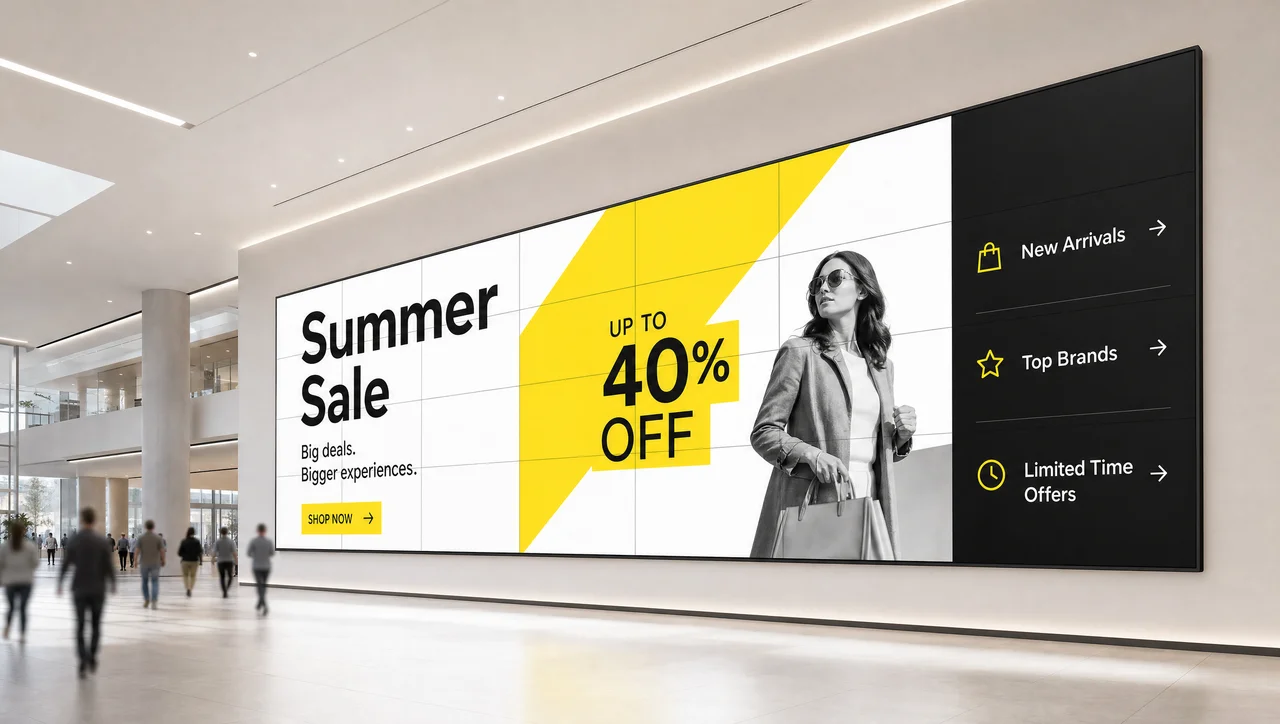
Digital signage displays come in several hardware form factors, and picking the right one is mostly about where the screen will sit and how far away people will be standing. The most common categories:
- Large-format displays (LFDs) — commercial TVs and monitors from roughly 32” to 98”, the default choice for menu boards, lobbies, and retail promotions.
- Interactive flat panels (IFPs) — touch-enabled large displays used for kiosks, wayfinding, and meeting-room collaboration.
- Video walls — multiple panels tiled together into one large seamless image for spaces where a single screen isn’t big or dramatic enough.
- Kiosk displays — free-standing units, often touch-enabled, for self-service, wayfinding, or check-in.
- Outdoor displays — weather-resistant, high-brightness panels rated for sun glare and temperature swings, typically certified to at least IP65 — the industry standard confirming a display is dust-tight and sealed against water jets from any direction under IEC 60529 testing (IP66 steps up to withstand a stronger, higher-volume jet).
- Specialty and mobile displays — window-facing displays, shelf-edge screens, and portable units for events.
Types of Digital Signage Solutions (By Application / Content Format)
Beyond hardware shape, digital signage is often described by what it’s used to do. The same LFD panel might be running any of the following, depending on the software and content behind it:
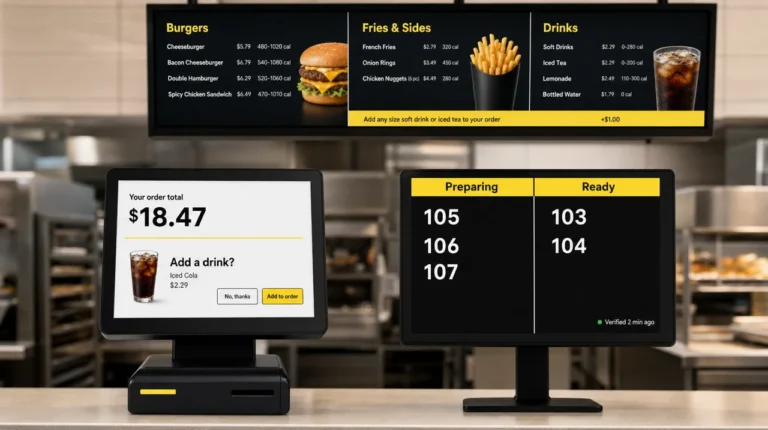
- Digital menu boards — restaurant and café pricing/menu displays, often synced to a POS system
- Interactive digital signage — touch-based kiosks and directories built for self-service navigation and two-way input
- Digital billboards / DOOH (digital out-of-home) — outdoor advertising displays
- Digital posters and window displays — retail storefront and promotional graphics
- Wayfinding displays — building and campus navigation
- Shelf-edge displays — small screens for in-aisle retail pricing and promotions
- Room signage — meeting-room booking and status panels
- Video walls — large-format immersive installations
- Digital concierge / infotainment screens — hospitality and lobby experiences
- Live TV and topic boards — sports bars, waiting rooms, and lounges
Display Panel Technologies: LCD vs LED vs OLED vs QLED vs dvLED
The panel underneath the glass is where digital signage technology actually differs from screen to screen: LCD, LED, OLED, QLED, and dvLED are the five main types, and the differences come down to brightness, contrast, lifespan, and how well the panel handles running for long hours every day.
LCD (Liquid Crystal Display)
LCD panels use a backlight shining through liquid crystals to form an image, and they remain the most common, most affordable digital signage panel type for general indoor use.
- ➕ Pros: widely available, bright, cost-effective, easy to service and replace
- ➖ Cons: thicker bezels than newer technologies, backlight can create less-perfect black levels than emissive displays
LED (Light-Emitting Diode)
In digital signage, “LED display” most often refers to an LCD panel with LED backlighting rather than a fully LED-emissive panel (that’s dvLED, below) — the LED backlight simply improves brightness, contrast, and energy efficiency over older backlight technologies.
- ➕ Pros: energy efficient, strong contrast and color quality, long lifespan
- ➖ Cons: static images left on screen for very long periods can risk image retention on some panels
OLED (Organic LED)
OLED panels are emissive — each pixel produces its own light rather than relying on a backlight — which allows for true blacks, ultra-thin panels, and even flexible or transparent display formats.
- ➕ Pros: exceptional contrast, ultra-thin and lightweight, supports flexible/transparent designs
- ➖ Cons: typically more expensive, less common in large outdoor installs
QLED (Quantum Dot LED)
QLED is an LCD variant that adds a quantum-dot film in front of the backlight to widen the color range and boost brightness beyond a standard LED-LCD panel.
- ➕ Pros: wide color gamut, high brightness, strong contrast ratio for the price
- ➖ Cons: still LCD-based, so viewing angles and light bleed can lag behind OLED
dvLED (Direct View LED)
dvLED panels are built from small LED clusters tiled directly together with no traditional bezel, which is what makes seamless video walls possible at almost any size or shape, including curved installations.
- ➕ Pros: bezel-free, scalable to huge sizes, high brightness suited to bright environments
- ➖ Cons: higher upfront cost, pixel pitch (spacing between LEDs) needs to match viewing distance or the image looks coarse up close
Other Display Technologies: Projection, E-Ink, 3D LED, Transparent OLED
A handful of more specialized technologies show up in specific use cases: projection screens for very large or temporary installs, monochrome e-ink displays for low-power, always-on signage like directories or shelf labels, glasses-free 3D LED displays increasingly used in DOOH advertising, and transparent OLED panels that let a screen double as a see-through window or display case.
Display Resolution for Digital Signage (1080p vs 4K vs 8K)
Resolution determines how sharp the image looks up close, and the right choice depends on screen size and viewing distance more than raw preference. A small menu board a few feet from customers benefits from 4K; a large outdoor billboard viewed from across a parking lot often doesn’t need it, since individual pixels are never seen at that range anyway.
| Resolution | Pixels |
| Full HD (1080p) | 1,920 × 1,080 |
| 4K (Ultra HD) | 3,840 × 2,160 |
| 8K | 7,680 × 4,320 |
Higher resolution also means larger file sizes and more demanding media players, so a jump to 4K content is worth pairing with a player that’s actually rated to decode it smoothly.
Professional vs. Consumer-Grade Displays: Key Differences
A consumer TV and a commercial digital signage display can look identical on the showroom floor, but they’re built for very different duty cycles. Consumer displays are typically designed for a few hours of evening viewing; running one 16–24 hours a day, every day, tends to shorten its usable life and can void the warranty entirely, since most consumer warranties explicitly exclude commercial or continuous use.
| Criteria | Professional / Commercial-Grade | Consumer-Grade |
|---|---|---|
| Rated operating hours | 16/7 or 24/7 | A few hours per day |
| Brightness | Commercial panels run 250–700 nits indoors, up to 5,000+ nits for direct-sun outdoor spots | Consumer TVs typically top out around 200–350 nits |
| Backlight lifespan | Commonly rated 30,000–50,000 hours before brightness drops to half its original level | Rated for lighter, shorter daily use, so the same clock runs down faster in continuous duty |
| Orientation | Portrait and landscape both supported | Landscape only, in most cases |
| Built-in media player | Often includes an integrated SoC player | Rarely designed for digital signage software |
| Cost | Higher upfront | Lower upfront, but shorter effective lifespan for signage use |
For a screen that will run all day in a storefront or lobby, commercial-grade hardware is generally worth the higher upfront cost; for a low-traffic internal display used a few hours a day, a well-chosen consumer panel can be a reasonable compromise.
Commercial-Grade Mounting Solutions
Mounting is easy to treat as an afterthought, but a poorly chosen mount is one of the more common causes of an install going wrong — either physically (a screen that isn’t secure) or operationally (a screen nobody can reach to service). Four things are worth checking before buying a mount:
- Durability — rated to hold the display’s weight and, for outdoor or drive-thru locations, built to handle vibration and weather
- Ease of install & maintenance — tilt or swing-out mounts make cable access and repairs far faster than a flush-fixed bracket
- Secure design — anti-theft hardware and cable management for high-traffic public spaces
- Safety certifications — compliance with relevant building and accessibility codes for public installations. Under ADA rules, wall-mounted displays and kiosks that protrude into a walkway must keep their leading edge between 27 and 80 inches above the floor (or limit the protrusion to 4 inches if they fall outside that band), and touch controls need to sit within a 15-to-48-inch reach range so a person using a wheelchair can operate them.
Digital Signage Content: Types & Best Practices
What actually plays on a screen matters as much as the hardware running it — a great display with weak content still reads as a bad sign.
Types of Digital Signage Content
Most digital signage content falls into a handful of formats: video clips and short-form animations, static images and photo slideshows, live data feeds (RSS headlines, weather, social media walls), and increasingly, user-generated content pulled from a branded hashtag or review platform.
Best Practices for Creating Effective Content
- Use clear fonts and generous text sizing — signage is usually viewed from a distance, so body text that looks fine on a laptop screen is often unreadable from ten feet away.
- Work within the display’s resolution — design at the screen’s native resolution to avoid blurry scaling, and leave a safe bleed area so nothing important sits at the very edge.
- Favor pictures over blocks of text — a signage screen is glanced at, not read; one strong image usually communicates faster than a paragraph.
- Apply “less is more” — a slide crowded with every possible detail asks a passing viewer to do more work than the average dwell time allows, so trimming to one clear message per slide almost always performs better.
What Is Digital Signage Used For? Applications & Use Cases
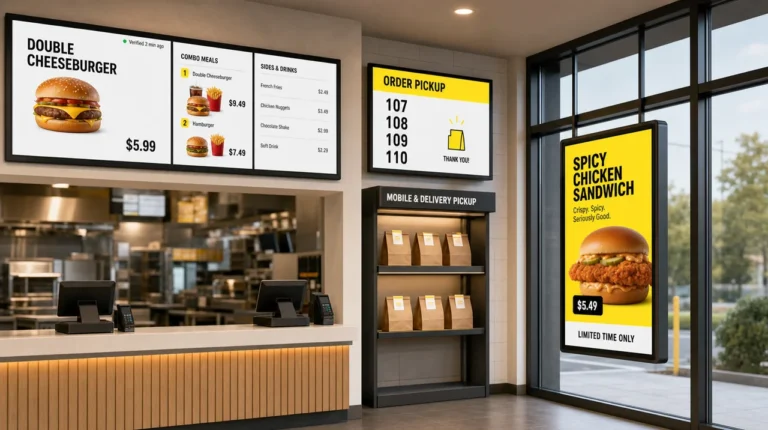
What is digital signage used for, in practice? Anywhere a business needs to display changing information: retail promotions, restaurant menu boards, corporate lobbies and internal communications, healthcare waiting rooms, school announcements, transportation schedules, and more. A restaurant menu board is one of the simplest, most familiar examples of digital signage in action; a wayfinding kiosk in a hospital lobby is another. The specific use case shapes everything else in this guide, from which display type makes sense to how content gets created and scheduled.
Retail, restaurants, healthcare, and education are among the industries that use digital signage, each with its own day-to-day patterns for content and scheduling.
See It In Action! Request a demo and find out how Decker verifies every screen is actually playing — no truck roll required.
Digital Signage for Marketing & Advertising
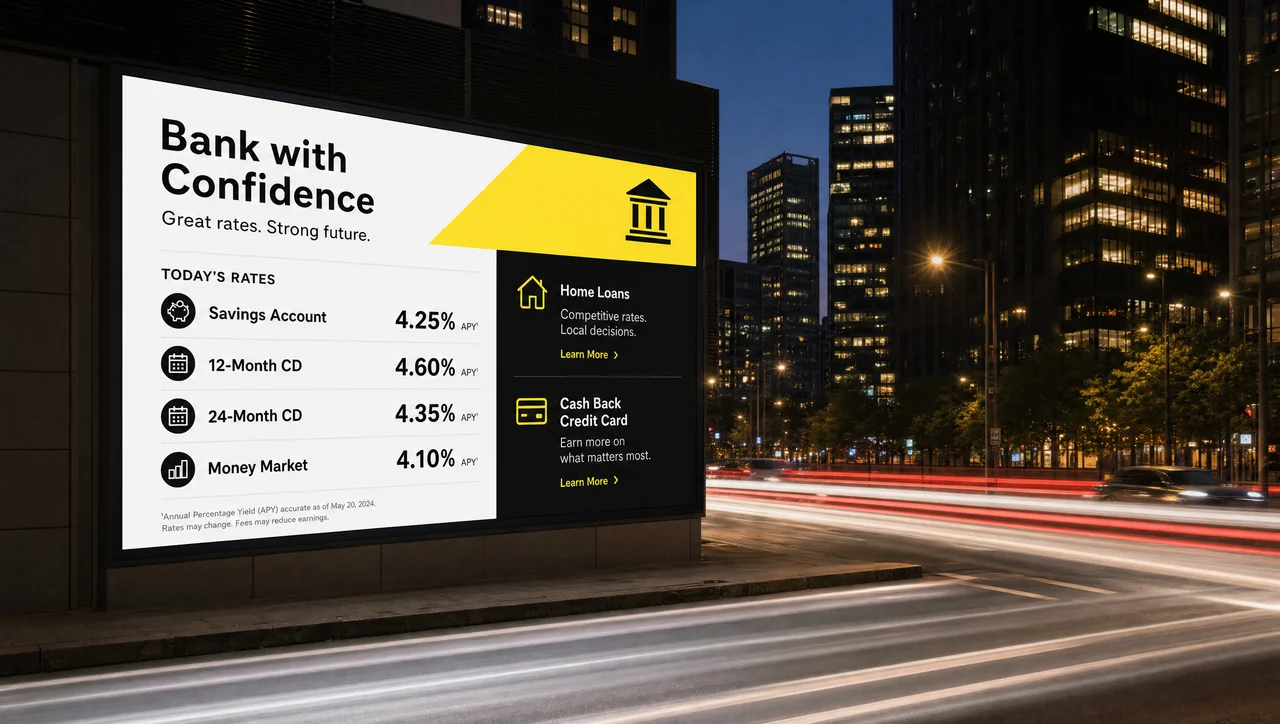
Beyond internal communication, digital signage is widely used as an advertising medium — both indoors (in-store promotional loops, mall directories) and outdoors as digital out-of-home (DOOH) advertising on billboards and transit displays. The appeal for advertisers is largely about cutting through banner blindness: a static poster fades into the background after a few days, while motion and changing content tend to catch the eye longer, and content can be swapped by daypart, audience, or even ad-blocker-proof placement in ways print never could.
US advertisers are shifting real budget into this channel: digital out-of-home ad spend in the US is on track to reach roughly $4.8 billion in 2026, up about 14% from 2025, with programmatic DOOH buying — automated, real-time ad placement rather than manually booked campaigns — crossing $1.2 billion for the first time, according to eMarketer’s 2026 forecasts. That growth shows up in behavior, not just spend: research from the Out of Home Advertising Association of America and The Harris Poll found that 76% of consumers took some action after seeing a DOOH ad — watching a related video, visiting the advertised store or restaurant, or talking about it with someone else. That said, digital signage advertising works best as part of a broader indoor/outdoor strategy rather than a wholesale replacement for it — a single format rarely covers every part of a campaign.
Benefits of Digital Signage
The core case for digital signage is that it replaces a slow, manual update process with one that takes minutes instead of days, while also being more attention-grabbing than static print. The most commonly cited advantages:
- Attention-grabbing — motion and dynamic content draw more glances than a static poster in the same spot
- Higher engagement — interactive and well-timed content tends to hold attention longer than print
- Real-time updates — pricing, availability, or alerts can change instantly across every connected screen
- Customization & personalization — different content by location, time of day, or audience segment
- Cost-effectiveness & ROI over time — no reprinting costs once the hardware is in place
- Energy efficiency — modern commercial displays are considerably more efficient than older signage lighting
- Unified branding — every location shows the same up-to-date creative, with no risk of an outdated poster lingering in one store
- Reduced paper waste — no printed menus, posters, or notices to replace and discard
- Diverse solution options — from a single café screen to a thousand-location retail rollout, the same underlying technology scales
Common myth: “free digital signage software” rarely means unlimited, ongoing use at no cost — free tiers from most vendors cap the number of screens, watermark content, or limit template access, with paid plans required once a business grows past a handful of displays. Always check a vendor’s actual published terms rather than assuming “free” means “free forever, no limits.”
Disadvantages & Challenges of Digital Signage
Digital signage isn’t the right fit for every situation, and it’s worth being clear-eyed about the trade-offs before investing:
- Higher initial investment than printed signage — hardware, software licensing, and installation all cost more upfront than a printed poster
- Technical expertise required — network setup, device troubleshooting, and content design all take some learning curve, especially for a first deployment
- Risk of distraction or information overload — too many screens, or screens crammed with too much content, can overwhelm rather than inform
- Screen fatigue — in spaces where customers or employees see the same rotating loop daily, poorly refreshed content stops getting noticed at all
For a business with a handful of static announcements that rarely change, or a very low-traffic location where the upfront hardware cost won’t be recouped, a well-designed printed sign can still win out among the wider digital signage pros and cons.
What to Expect from a Complete Digital Signage Solution
A full-service digital signage vendor typically bundles three categories together rather than selling a bare screen:
- Hardware — displays, media players, mounts, and installation or staging support
- Content management — the CMS platform, design tools, and templates
- Services — pre-sales consultation, custom configuration, and ongoing support, sometimes bundled into hybrid hardware-plus-SaaS financing so a business isn’t paying for screens and software separately
Vendors differ mainly in how much of this they handle directly versus leaving to the customer — some ship hardware and expect self-install, others manage the full rollout end to end.
How to Choose the Right Digital Signage Software
Software is usually the harder decision than hardware, since it’s what a team will actually use every day. Four criteria are worth prioritizing:
- Cloud-based digital signage access — manage every screen from a browser, without needing to be on-site or connected to a local server
- Ease of use — a drag-and-drop interface that a marketing or ops person can run without design training
- Scheduling & monitoring — the ability to plan content ahead of time and confirm, remotely, that it’s actually playing
- Content format support — native support for video, images, live data feeds, and common design-tool exports (rather than requiring manual file conversion)
Some platforms go further and verify that content is actually displaying correctly — checking screen and player status after publishing rather than assuming delivery equals playback, which becomes more valuable the more screens a network has to manage remotely.
Weighing platforms this way is really a matter of how to choose a digital signage provider, and, separately, whether the business needs standalone software or a full digital signage software vs. CMS platform.
How to Choose the Right Digital Signage Display
Once the software side is settled, four practical factors drive the hardware decision:
- Location — indoor or outdoor, direct sunlight exposure, and viewing distance all affect brightness and panel choice
- Content type — mostly static images and menus need less horsepower than a video-heavy or interactive experience
- Level of interactivity — a touch panel costs more and needs sturdier hardware than a passive display
- Budget — balancing panel technology, size, and mounting cost against how long the screen needs to last
Best Practices for Securely Managing Digital Signage
A screen connected to the internet and running 24/7 in a public space is still a network endpoint, and it needs to be secured like one. A short set of practices covers most of the risk:
- Choose a scalable MDM/UEM platform — mobile device management or unified endpoint management tools let IT lock down and monitor signage devices the same way they manage phones or laptops.
- Configure standardized device settings — apply the same security baseline (passwords, update policy, network access) across every screen rather than configuring devices one at a time.
- Lock devices into kiosk mode — restrict the device to the signage app only, so it can’t be used to browse the open internet or access other software.
- Monitor screen health continuously — remote monitoring catches a compromised or malfunctioning device faster than waiting for someone to notice in person.
- Apply role-based access control — limit who can push content or change settings, so one compromised login doesn’t expose the whole network.
- Run a pilot before full rollout — testing security configuration on a handful of screens surfaces problems before they’re replicated across hundreds of devices.
Important nuance: password protection, screen locking, role-based access, and encrypted updates meaningfully reduce risk when configured correctly, but they’re security measures, not third-party-audited certifications — don’t assume a platform is independently certified unless the vendor has published an actual audit or compliance report.
Data handled through a signage platform — customer information on interactive kiosks, employee data on internal dashboards — should also fall under the same privacy obligations as the rest of a company’s software, including US state privacy laws like the CCPA/CPRA where applicable.
For teams already using Decker for menu boards or POS-synced content, remote screen and player verification handles exactly this kind of monitoring across every location without a truck roll — the most direct fix when screen uptime across many stores is the main pain point.
Digital Signage Statistics, Market Data & Case Studies
Market size, named case studies, and controlled attention research all point the same way: digital signage keeps growing, and the businesses that have actually measured it — McDonald’s drive-thrus, Coca-Cola’s shelf displays — have the numbers to show it beats static signage on attention, recall, and sales.
Market Size & Growth
Estimates for the global digital signage market in 2026 land somewhere between roughly $21 billion and $35 billion, depending on which research firm’s methodology you’re reading — the spread comes from firms defining “digital signage” a little differently (some count only hardware and software, others fold in installation and managed services). Grand View Research puts the market at approximately $31–33 billion in 2026, growing at a compound annual growth rate (CAGR) of about 8.2% through 2033; MarketsandMarkets estimates a narrower $21.07 billion in 2026 rising to $30.91 billion by 2032 (6.6% CAGR); and Mordor Intelligence sizes it at $29.95 billion in 2026, projecting $44.6 billion by 2031 (8.28% CAGR).
Despite the range, every major firm agrees on the direction: high-single-digit to low-double-digit annual growth, driven by retail, QSR, and corporate deployments, with hardware still the largest single spending category and Asia-Pacific consistently cited as the fastest-growing region. That consistent growth across independent firms is itself a reasonable answer to “what is the future of digital signage” — more screens, more cloud-managed software, and a growing share of AI-assisted content, rather than any single dramatic shift.
Case Studies: McDonald’s and Coca-Cola
McDonald’s rolled out digital menu boards to more than half of its US restaurants as part of its “Experience of the Future” initiative, using them for the basics — swapping breakfast and lunch menus automatically, running limited-time offers without reprinting — and then went further in 2019 by acquiring the AI personalization company Dynamic Yield specifically to power its drive-thru boards, so a screen can prioritize hot drinks on a cold morning or a chicken sandwich if that’s what’s trending at a given location that day, without a manager touching the content.
For a rigorously documented example with hard numbers, the closest verifiable public data point isn’t McDonald’s specifically but a Forrester Consulting “Total Economic Impact” study commissioned by Samsung (December 2016), based on interviews with existing outdoor-digital-menu-board customers and modeled onto a composite 10-location deployment. Forrester found a 196% return on investment with an 11-month payback period, a $1.65 million net present value over five years, a 9.1% increase in drive-thru traffic volume, a 2.5% increase in average order value, roughly $30,000 in annual printing-cost savings per location, and a 5% reduction in monthly food waste from easier menu-availability updates. It’s worth naming this study specifically rather than the vaguer “McDonald’s saw a 20% sales lift” figures that circulate in marketing blogs without a traceable source — the Forrester numbers are the ones that actually hold up.
Coca-Cola’s most directly comparable digital signage example is a digital shelf-edge deployment by Coca-Cola HBC Russia, built on the SpinetiX platform, in a Moscow supermarket chain. The company brought in eye-tracking equipment to measure shopper attention before and after installing the digital shelf displays and found a 35–67% increase in attention and purchase potential across different shopper segments compared with static shelf signage — a rare example of a beverage brand publishing real measurement data rather than a marketing claim.
Attention & Engagement Statistics
Digital signage draws substantially more attention than static signage in side-by-side research: Intel’s own published solution-brief research found digital displays captured more than 400% more views on average than a static sign in the same location.
A separate, older but frequently cited benchmark — an Arbitron out-of-home video study from 2010 (Arbitron’s media-research business was later absorbed into Nielsen) — found an 83% recall rate for digital signage content, meaning most viewers who saw a digital display could later recall having seen it. These two figures, both traceable to named studies rather than generic “industry research,” are the ones worth repeating; a lot of the “400%” and “83%” figures floating around signage blogs cite each other rather than the original source, so it’s worth tracing them back before quoting a number with more precision than the underlying study actually supports.
Questions and Answers
1 What does digital signage mean?
Digital signage is technology that combines electronic displays, a media player, and content management software to show dynamic video and image content in public or private spaces, for advertising, information, or internal communication.
2 What is a digital signage display?
A digital signage display is the electronic screen or monitor itself — the hardware used to show video, images, animations, and other dynamic content for communication or advertising purposes.
3 What is digital signage software?
Digital signage software is the platform that lets a business manage the content shown on its screens — creating, scheduling, and pushing updates out. Fuller platforms also handle device management, so content and hardware are controlled from one place rather than two.
4 What is the best digital signage software?
There’s no single “best” platform — it depends on the business’s screens, content needs, and budget. In general, it’s worth prioritizing ease of use, remote/cloud management, reliable scheduling, and solid device monitoring over a long feature list that won’t actually get used.
5 What is a digital signage content management system (CMS)?
A digital signage CMS is the tool inside a signage platform that manages all the content: storing images, video, and PDFs, and organizing them into playlists or channels that get pushed out to specific screens on a schedule.
6 What is “digital signage Software as a Service” (SaaS)?
SaaS digital signage — sometimes described as digital signage as a service — means the software and a business’s content live online, accessed through a browser or app rather than installed locally, and hosted by the vendor rather than run on the customer’s own servers, usually billed as a subscription, whether free or paid. Some platforms take this a step further with HTML digital signage: content built as a standard web page (HTML, CSS, and JavaScript) that any browser-capable player can render, instead of a proprietary file format — useful for teams that already have web-design skills in-house.
7 What hardware components are required for digital signage?
At minimum, a digital signage setup needs a display, a media player (or a display with one built in), and a reliable internet connection. Larger deployments add mounting hardware, network infrastructure, and centralized device-management software.
8 What is a Smart TV?
A Smart TV is a television with built-in internet connectivity — a “connected TV,” a term popularized by manufacturers like LG and Samsung — giving it access to streaming apps and a browser without a separate box. Some Smart TVs can run basic signage apps directly, though dedicated commercial displays are usually a better fit for continuous signage use.
9 What is a tickertape?
A tickertape is scrolling text content, usually run along one edge of a screen (commonly the bottom), used to display headlines, alerts, or a live social-media feed alongside the main content.
10 Can you use any screen for digital signage?
Technically, most modern TVs and monitors can display digital signage content. In practice, commercial-grade displays hold up better for the long, continuous run times that signage requires, thanks to better cooling and higher-brightness panels built for that duty cycle.
11 Who uses digital signage?
Almost any business trying to improve customer experience, engagement, or revenue uses digital signage in some form — it’s especially common in retail, hospitality, education, healthcare, transportation, and banking.
12 Is digital signage expensive?
Costs vary widely by scale. Starting from scratch, a small system of around three screens typically runs somewhere in the neighborhood of $1,000–$5,000, while a mid-sized deployment of up to ten screens is more commonly in the $5,000–$15,000 range — figures that shift a lot based on display quality, software tier, and installation complexity, so treat these as rough starting points rather than a quote.
13 How effective is digital signage?
A well-planned digital signage campaign can meaningfully boost brand awareness and engagement — dynamic content is widely reported to draw more attention than static signage in the same location, though the actual impact depends heavily on content quality, placement, and how often it’s refreshed.
14 What is the best operating system for digital signage?
There’s no universal answer — it depends on hardware preference, content needs, and integration requirements. Android and Android TV are common budget-friendly choices for small and mid-sized deployments, as an alternative to Windows or macOS-based players.
15 Can digital signage be managed remotely?
Yes. Cloud-based software or MDM tools let an administrator update content, change device settings, and troubleshoot issues without visiting the screen in person.
16 Can I remotely turn off my digital signage displays when they’re not in use?
Yes, on most modern platforms — administrators can schedule displays to power down outside business hours, turn off individual screens that aren’t in use, and run remote diagnostics without a site visit.
17 How does MDM help manage digital signage displays and content?
Mobile device management (MDM) gives IT centralized, remote control over signage devices: locking screens into kiosk mode, scheduling content pushes, rolling out software updates, and monitoring device health from one dashboard instead of managing each screen individually.
18 Is digital signage secure?
It can be, when set up correctly. Password protection, screen locking, role-based access controls, and encrypted software updates all reduce risk — but security depends on how the system is configured and maintained, not just on the platform chosen.
Sources
- Wikipedia — Digital signage
- Intel — targeted-marketing research brief on screen attention and recall
- Arbitron — out-of-home video attention and recall study
- Forrester Consulting (commissioned by Samsung) — Total Economic Impact of outdoor menu boards
- California Department of Justice — California Consumer Privacy Act (CCPA)
- U.S. Department of Justice — ADA Standards for Accessible Design