
Digital signage for education that proves what is on every screen
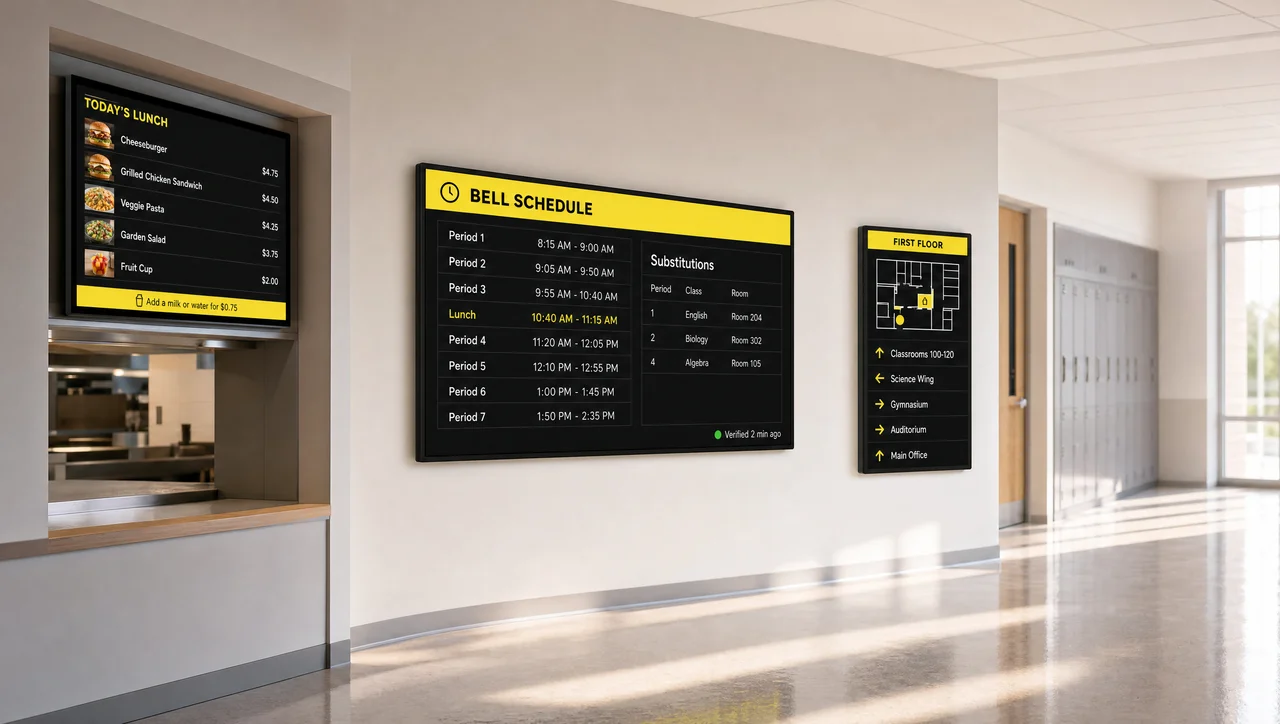
Decker builds digital signage for education that publishes campus content and then confirms it plays — specifically, that announcements, bell schedules, cafeteria menus and lockdown alerts reach every display, checked screen by screen by a separate verifier device.
-
Verified, not sent
Hallway and cafeteria boards Decker Verifier checks whether the lunch menu really plays on the board and restarts a dead screen before a student tells the front office.
-
Alert takes over
Lockdowns and snow dismissals One message overrides every playlist across a building, a campus or the district, then rolls back to bell schedules on the all-clear.
-
No IT ticket
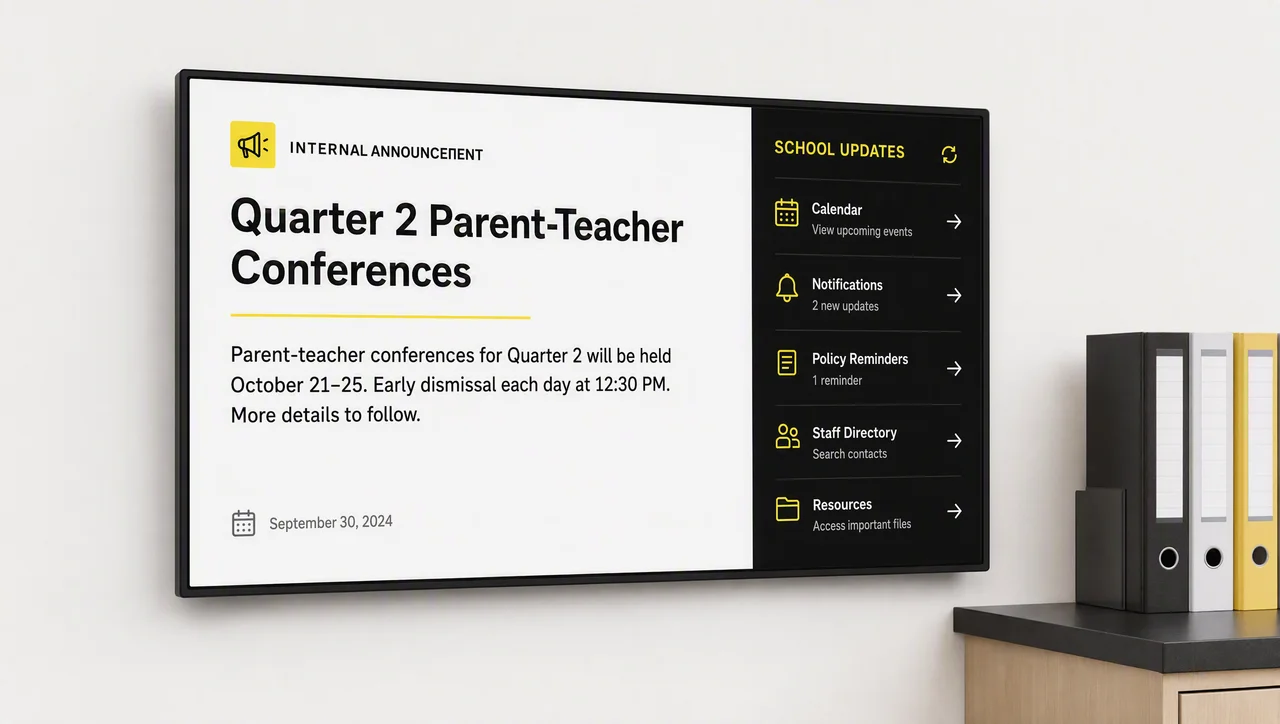
Front office and food service post In addition, role-based rights keep the takeover with designated staff, while the office posts announcements and food service updates menus.
What schools and campuses put on screen
Digital signs for schools rarely carry one job: Decker runs the hallway board, the cafeteria menu and the lobby welcome as one network that keeps three playlists current from a single browser tab, which is why digital displays for schools need separate content owners, not separate systems.
-
Announcements and campus news
Screens publish morning announcements, closures, club news and seasonal greetings the moment the office approves them. A ticker refreshes external headlines on its own, so a student lounge never shows last week’s message.
-
Bell schedules and room availability
Displays outside classrooms, labs and shared spaces update rotation days, exam times, cancellations and shuttle changes as soon as the office edits them. The same calendar drives room-booking screens with live booking status.
-
Cafeteria menus and nutrition
A cafeteria screen shows daily specials, allergen notes, nutrition facts and meal prices from a template that food service staff update in seconds — the approach behind digital menu boards for school lunch lines.
-
Wayfinding and visitor guidance
School screens guide parents and new students to a room without a stop at the front desk. Demand peaks during orientation week and parent-teacher nights, when wayfinding and directory screens take the load off reception.
-
Student work and school spirit
Screens display art galleries, sports scores, competition results, honor rolls and birthday shoutouts, which turns idle hardware into recognition. Staff set school colors and the crest once in a school template, and every display keeps that branding.
-
Welcome and visitor messaging
Entrance and reception screens greet alumni, district staff, board members and guest speakers by name, and swap between visiting groups in the same morning. Beyond that, campus screens handle the one job that no printed notice can: interrupting everything else.


Emergency alerts take over every screen in the building
Emergency messaging on school screens carries one requirement that ordinary content does not: it must interrupt whatever plays, on every display, at once. Decker overrides the full screen across one building, a campus or an entire district, then restores the normal playlist when the incident clears.
Typical takeover scenarios in schools:
- Lockdown or shelter-in-place instructions push to every screen simultaneously
- Early dismissal for severe weather repeats the message at exits and pickup areas
- Fire drill routes display per building, so each wing sees its own exit path
- A hazard confined to one area targets that building group only
- All-clear notices restore the schedule through an automatic rollback
School screens reach the people who can see them. Signage covers one channel in a notification plan alongside SMS, phone trees and the PA system — emergency alerts and screen takeover work next to those tools, not instead of them. However, that override only helps when the screen itself still works.
Why school screens fail quietly — and how you find out first
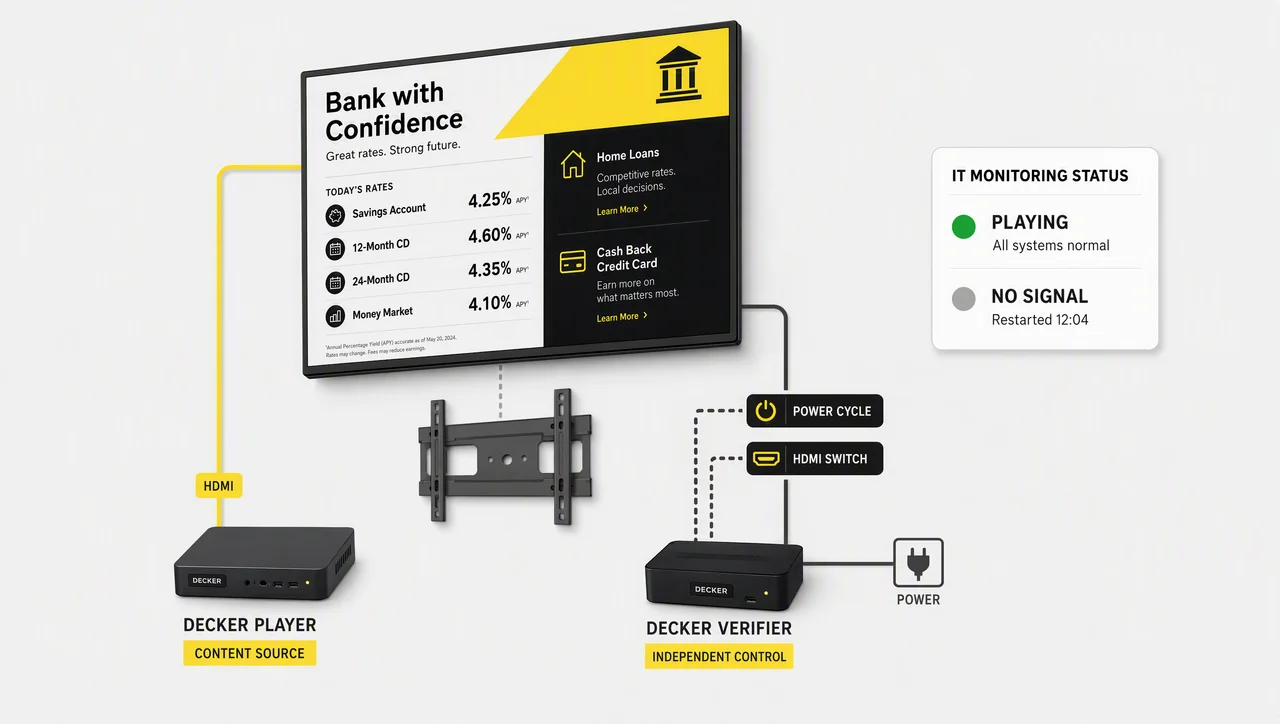
Most school digital signage reports that content was sent, not that a screen shows it. A player freezes after a power blip, a display comes back on the wrong HDMI input, a cleaning cart knocks a cable loose over the weekend — and the dashboard still says “published.” The gap usually closes on Thursday, when a student mentions the cafeteria board has shown Tuesday’s menu since Tuesday.
Decker closes it with hardware. Decker Player drives each display over HDMI; Decker Verifier monitors both the player and the screen from a second, independent device, switches the HDMI source back, power-cycles either device on a rule, and recovers playback without a service visit. Because the Verifier runs independently of the player, a frozen player never blinds the monitoring.
That also produces a number schools have never had: real uptime per display. School digital signage spread over 12 buildings and 200 screens finally reports hours of confirmed playback per building, per month — so the middle school with three dark screens since October surfaces in a report rather than in a parent complaint.
How digital signage for education works
Digital signage for education takes four steps that need neither a designer nor a network engineer on staff. The education digital signage stack stays deliberately short: a display, a player, a template, a schedule.
-
Step 1.
Mount displays and connect a player
Reuse the TVs already hanging in the hallway, the gym lobby and the cafeteria, or add new ones, then connect one Decker Player per screen over HDMI. One player drives one display, so a campus screen network of 40 screens needs 40 players and a Verifier behind the boards nobody stands next to all day.
-
Step 2.
Build content from school templates
Start from education templates, drop in your school colors, crest and team photos, and save layouts the office reuses every week. Staff edit announcements, lunch menus and event slides in a browser — no design software and no district design budget.
-
Step 3.
Schedule by time, day and location
Schedule breakfast menus for the morning, announcements through class hours, athletics and event promos after last bell. Decker groups screens by building, floor, room type or audience, so one edit lands only where it belongs.
-
Step 4.
Publish, then confirm playback
Publish to one classroom screen or to every school screen in all 12 buildings from the signage CMS. The dashboard then reports player and screen status and flags the gym lobby board that stopped showing what it received. As a result, nobody drives across the district to find out.
What to look for in digital signage software for schools
The best digital signage for schools proves itself on a school day that runs a substitute list at 7 a.m., a drill at 10, a menu change at 11 and a game score at 4. Six things decide whether the system survives that day.
-
Role-based access for teachers, IT and admins
Role-based permissions on campus screens keep the emergency channel and the master template with designated staff, while a teacher publishes club news to the classroom wing and gains no rights to the lobby wall.
-
Offline playback when the network drops
Displays keep playing cached content through an internet outage, so a Wi-Fi problem never leaves a blank screen in a public hallway. Updates and status reporting resume once the connection returns.
-
Screen and player status you can actually see
Digital signage software for education should tell IT that a display stopped, rather than leave the team to learn it from a student. The dashboard reports status and last playback per device, remotely.
-
Media zones for more than one message
Split a display into zones so the bell schedule, a news ticker and the weather share one screen without competing full-screen slides — useful at the main entrance, which students pass in a few seconds.
-
Scheduling by building, room and audience
Content targeted by location, time and audience prevents message fatigue: health notices at the nurse’s office, spirit content in the gym, homeroom announcements in the classroom wing, each on its own rotation.
-
Hardware you can recover remotely
Every screen eventually misbehaves. In a district that means either a ticket and a drive to the elementary building across town, or a remote restart from the same dashboard the office publishes from. Specifically, that choice repeats every week once the network passes a dozen screens.


Screens by education level, from elementary to colleges
Educational digital signage that works in a kindergarten hallway rarely works in a university lobby, because the audience, the content owner and the risk change at every level. Decker fits digital signage for education to each of the five levels below.
-
Elementary and primary schools
Core values, behavior reminders, healthy-habit prompts and class projects. Screens hang low in hallways and cafeterias and carry simple, high-contrast layouts with few words per slide.
-
K-12 middle and high schools
Morning announcements, bell schedules and rotation days, lunch menus with nutrition data, club sign-ups, competition results, career days and exam-prep reminders across entrances, hallways and cafeterias.
-
Vocational and technical schools
Job fairs, apprenticeship openings, lab safety protocols and industry news, plus student portfolios and hands-on project video that shows prospective students what the program actually builds.
-
Colleges and universities
Digital signage for colleges spans multiple buildings and campuses: department-level content control, lecture and speaker series, alumni events, intramural results, directory and kiosk screens and multilingual slides for international students.
-
Special education centers
Visual schedules, routines and transition cues that follow a predictable format and lower anxiety, along with individual achievements and behavior goals. In addition, every level draws its content from systems the school already runs.

Works with the systems your campus already runs
Decker connects digital signage for education to the bell schedules, game times and room bookings that staff already keep in their own tools, so campus screens stay current and nobody retypes a schedule twice.
-
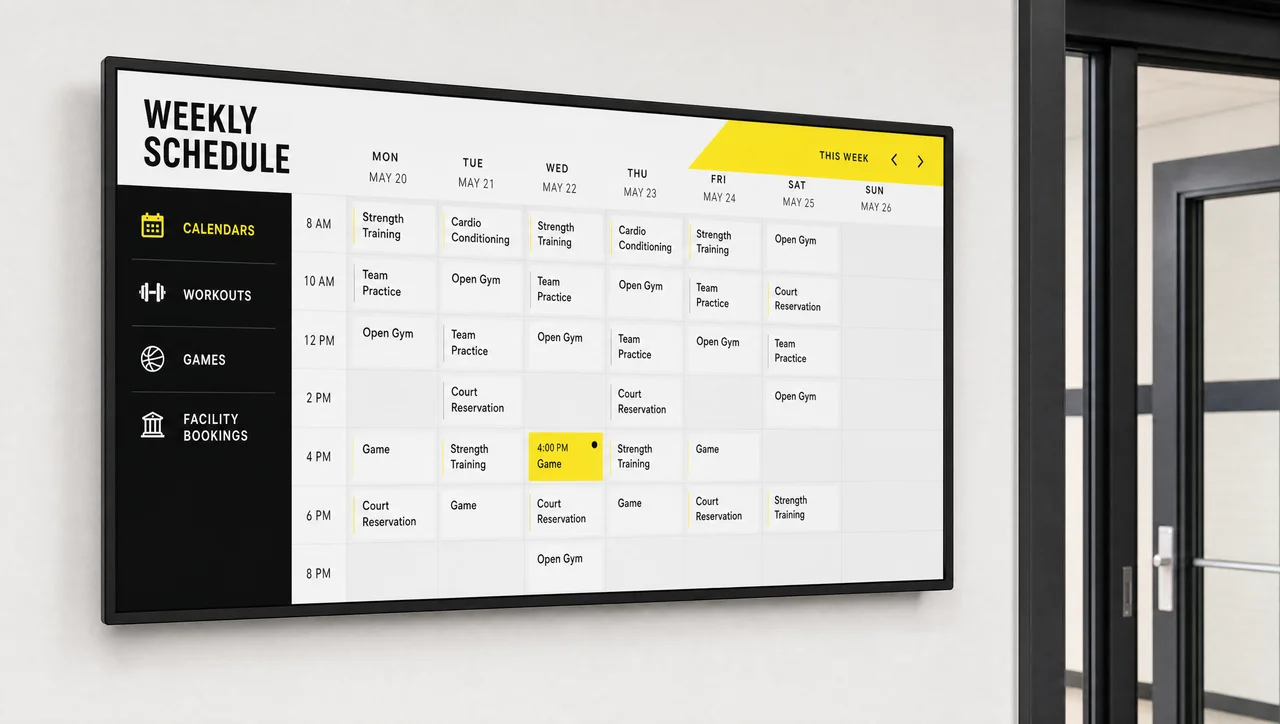
Calendars
Class, athletics and room calendars drive schedule screens automatically.
-
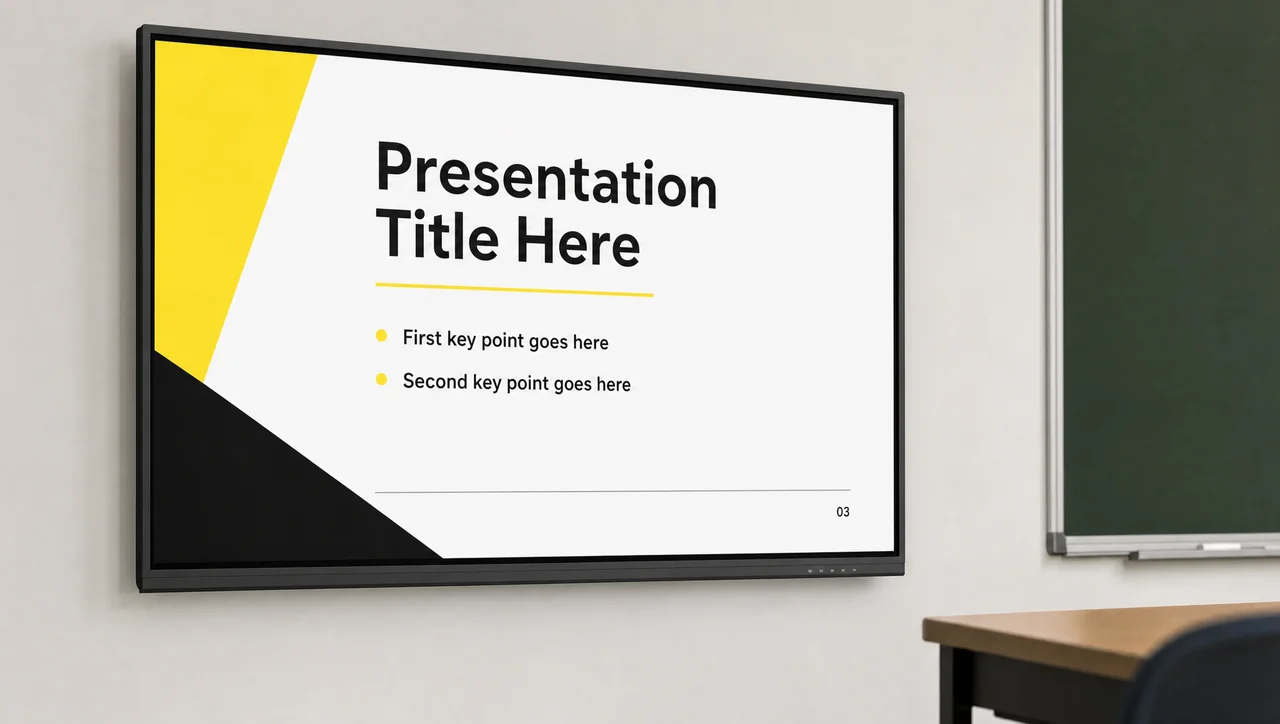
Slides and presentations
Teacher-built slides display on classroom and hallway screens as published.
-
Productivity suite
Intranet notices and staff communications reach screens without re-entry.
-
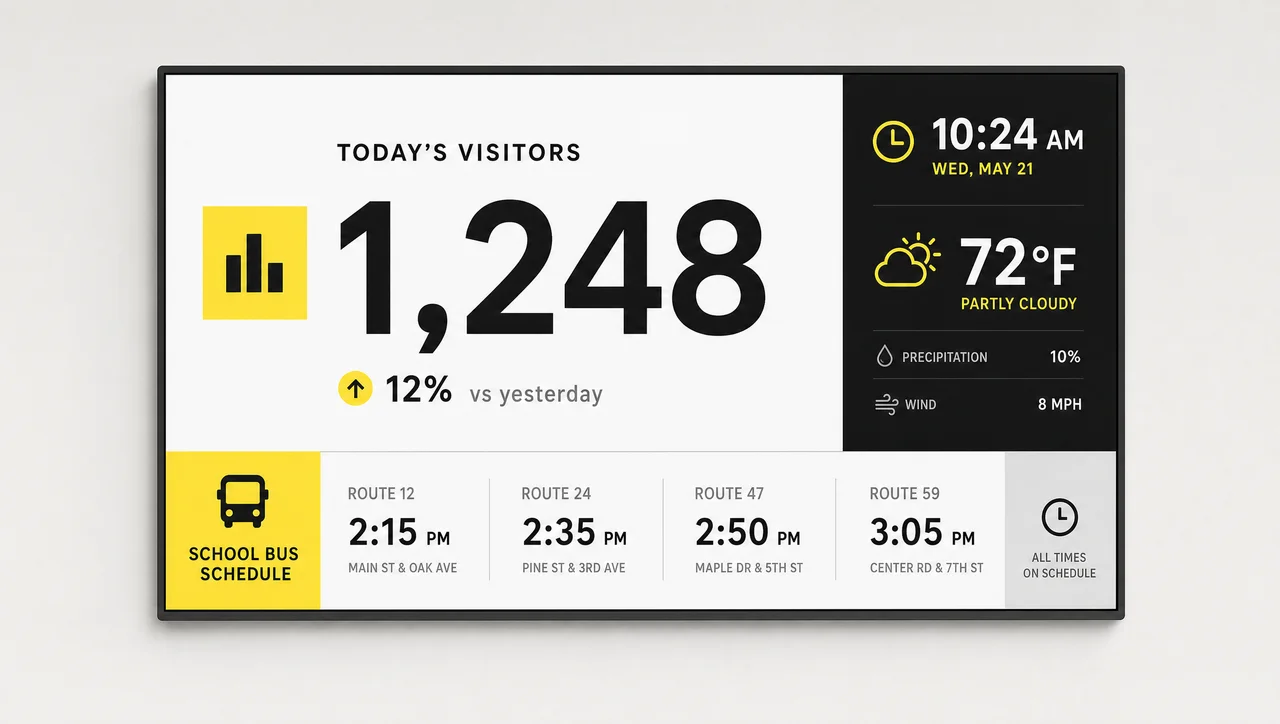
Dashboards and live data
Attendance, weather, transport and fundraising counters update themselves.
When digital signs for schools are not worth it
Digital signage solutions for schools earn their cost through frequency and scale, and five situations argue for buying something else that fits the job better — or nothing at all.
- One or two screens, updated a few times a year. A printed poster and a laminator cost less than a player, a mount and a subscription. Digital signage for schools starts paying back at about 5 screens, or at weekly content changes.
- You need a roadside marquee, not a screen network. Electronic school signs on the front lawn use outdoor LED cabinets with their own controller, sold by sign manufacturers. If a digital marquee for schools covers the only digital sign you need, buy the marquee — Decker runs indoor display networks.
- The displays cannot reach the network at all. If IT will not open a path from the display VLAN, playback continues from local cache, but nothing updates and nothing gets reported. Verification needs a route back.
- You want signage as your system of record for emergencies. Screens inform whoever looks at them. Legal notification duties belong to the district’s mass-notification system.
- The content carries student-level personal data. Grades, IEP details and health information do not belong on a public display, whatever the software allows.
⚠️ “Free digital signage for schools” is not the same as a free school signage system. A free license still leaves the player behind each screen, the mount, the network drop and the person who walks over when a display freezes. Price the whole screen, not the software line.
Built for the way a school building actually runs
- Empty for the summer
- Digital signs for schools power down for weeks and come back on schedule
- One IT team, many buildings
- Remote restart instead of a drive to the elementary school across town
- Staff who log in rarely
- Templates a new front-office hire uses without a training session
- Hallways nobody watches
- Unattended school screens are checked by hardware, not by a passing student
Related scenarios
Campus screens rarely stop at announcements, and these five scenarios extend the same network that already runs the hallway boards.
-
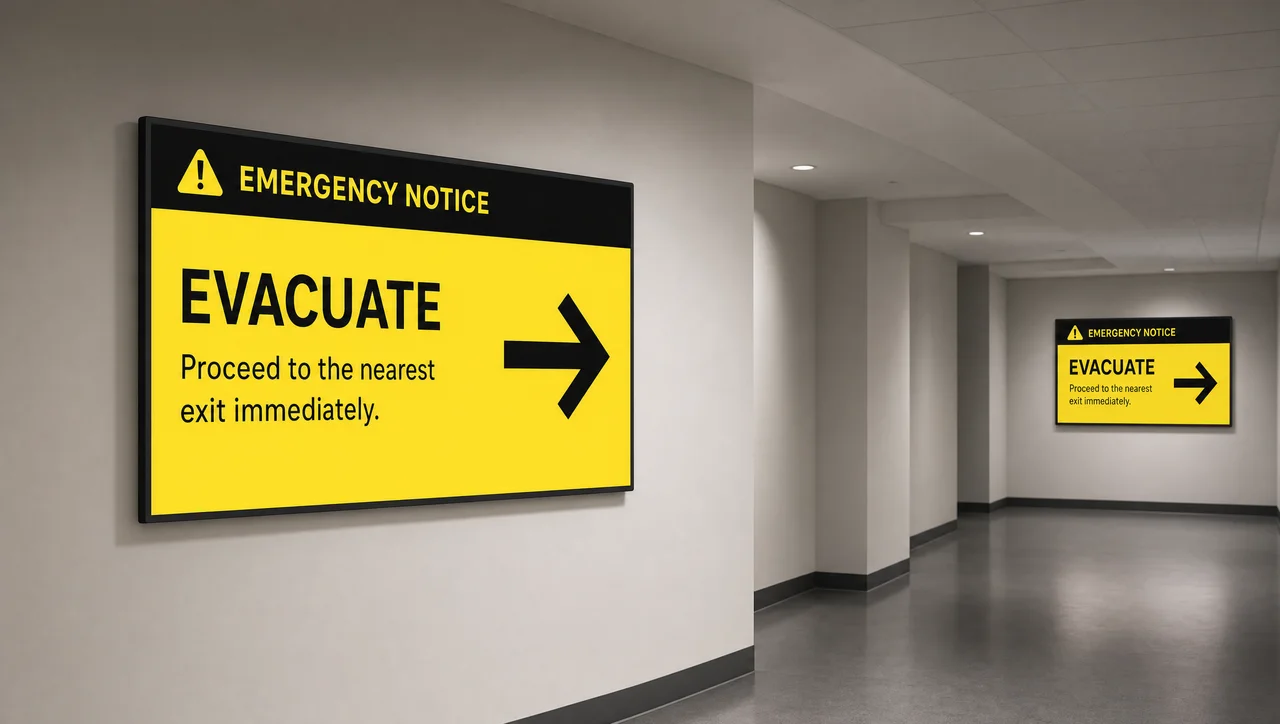
Emergency Alerts
Screen takeover across buildings Instant override of scheduled content, then automatic rollback.
-
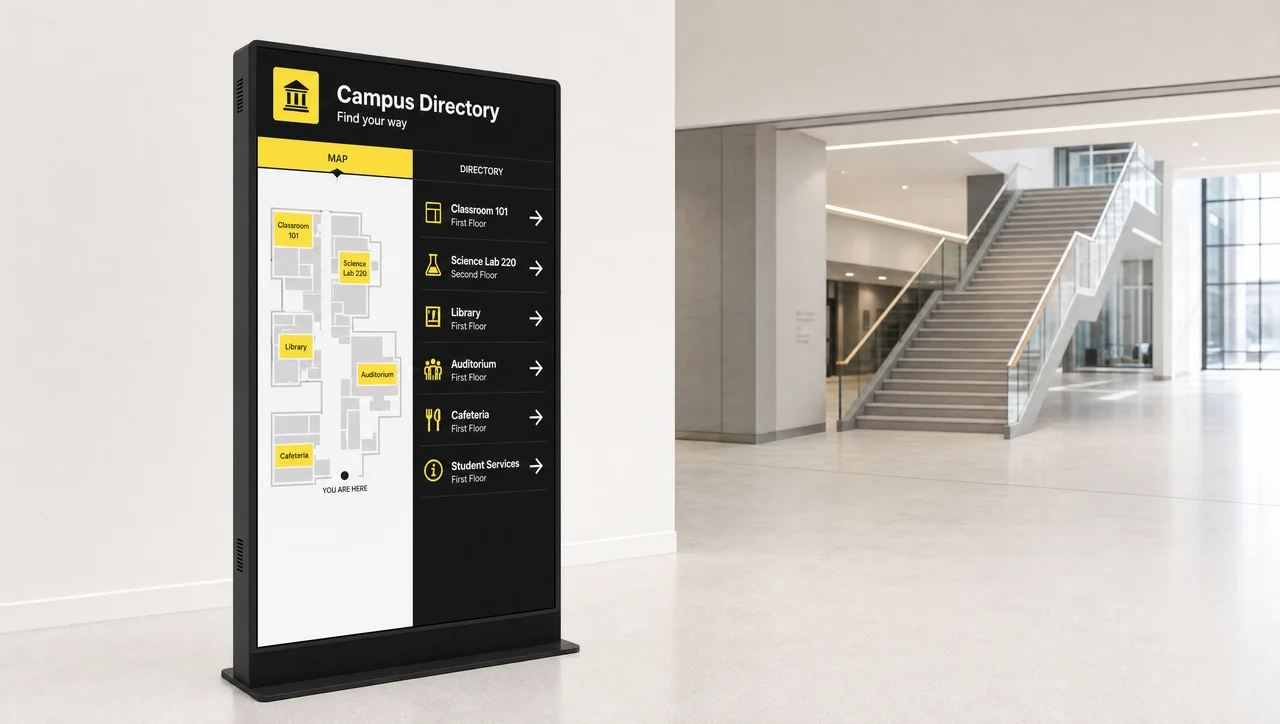
Wayfinding
Maps and campus directories Building maps, room finders and parking guidance for visitors.
-
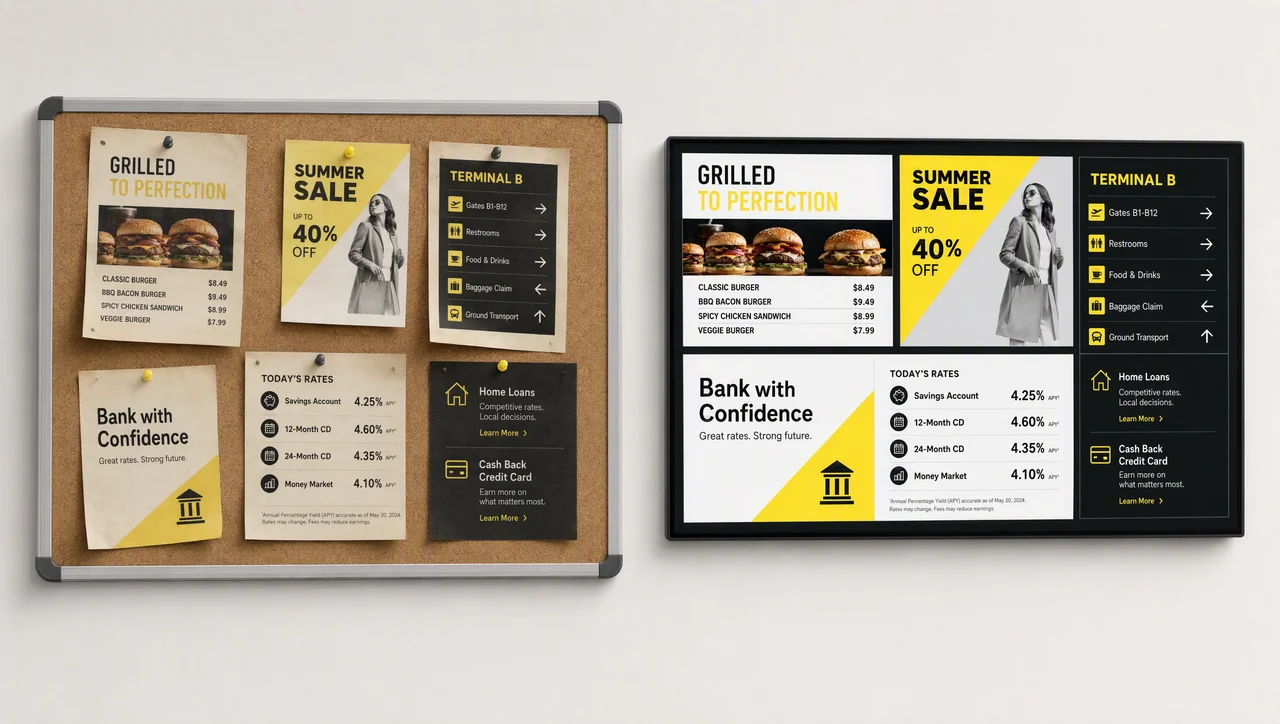
Bulletin Boards
Digital notices and postings Replaces the cork board with a screen anyone can update.
-
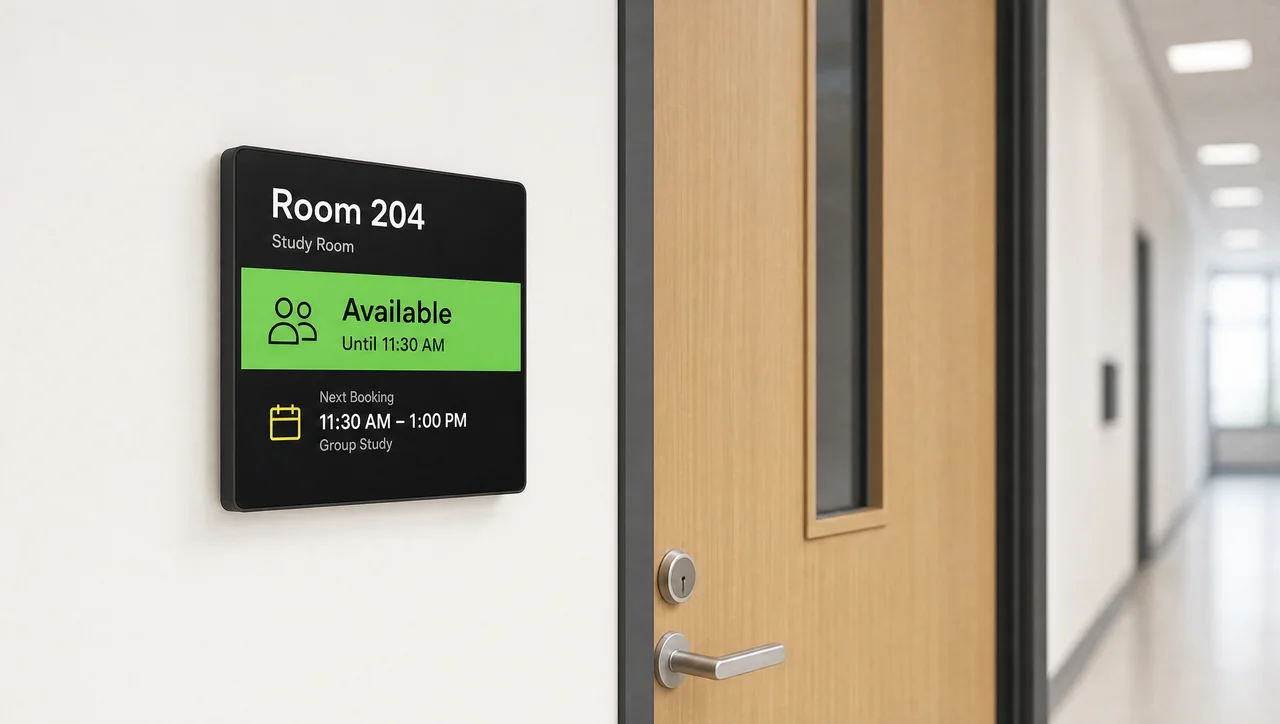
Meeting Rooms
Booking and availability screens Live room status outside classrooms, labs and conference rooms.
-
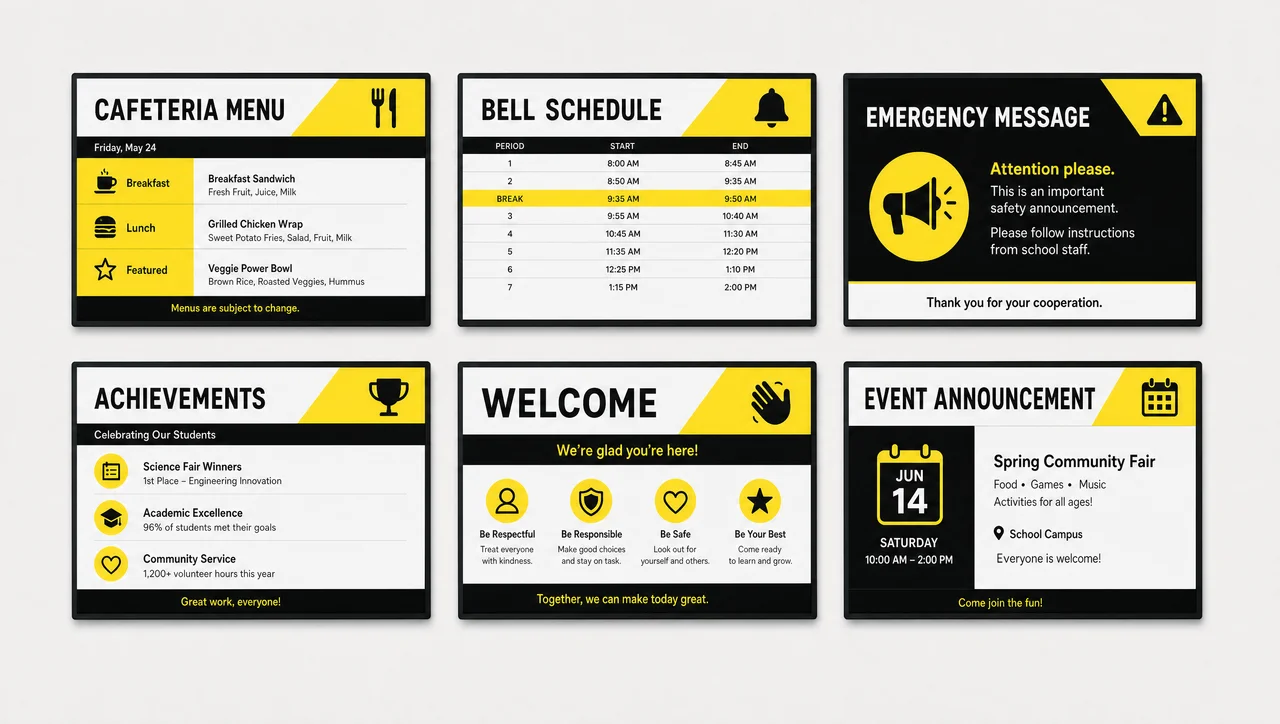
School Templates
Ready layouts for campus screens Menus, schedules, alerts and recognition slides to start from.
Education digital signage FAQ
What is digital signage in education?
A campus screen network shows announcements, schedules, menus, wayfinding and safety alerts across a school or campus, managed centrally instead of printed and posted by hand. Each screen runs a media player and pulls its content from one dashboard.
What equipment does a school need?
Digital signage for education needs a display per location, one media player per display, a mount, power and a network path. Decker supplies the player and adds a Verifier where a dark screen would go unnoticed — an outdoor entrance board or a cafeteria line, for example.
Can we run digital signage in schools for free?
School screens run on free tiers too, but most cap you at 3 screens or strip features while leaving hardware and installation to you. Budget per screen rather than per license; current Decker plans sit on the pricing page.
Are electronic signs for schools the same thing as indoor screens?
Not quite. Electronic school signs usually mean an outdoor LED marquee at the entrance, driven by its own controller. Indoor digital school signs — hallway, cafeteria, lobby and classroom displays managed as one digital school signage network — cover a different job, and Decker runs that one.
Can one district office manage several buildings?
Yes. Decker groups screens by building, campus or room type, and content publishes to one group, several groups or everything at once. Individual schools keep rights to their own displays while the district retains the emergency channel and the master template.
What happens when the internet goes down?
Players keep showing cached content through an outage, so hallways do not go blank. New publishes and status reporting queue until the link returns; the Verifier still checks locally observed screen state through its own path.
How do teachers publish without breaking anything?
Role-based permissions limit each account to specific screens and templates. A teacher posts club news to the classroom wing; only designated staff trigger an emergency takeover or edit district-wide layouts.
Is student data safe on campus displays?
Public school screens must never carry student-level personal data, and role-based access keeps ordinary accounts away from anything sensitive. Alpha Intec, Inc., registered in Delaware, operates Decker and handles personal data under CCPA/CPRA, with access, correction and deletion rights for users in the EEA, the UK and Switzerland.
How long does a rollout take?
A single building with mounted displays typically goes live in days: connect players, load a template set, group screens, publish. Multi-campus rollouts run building by building, and installation and maintenance can be handled alongside your AV contractor. As a result, the first school screens go live long before the purchase order for the rest clears.
See it running on your own screens
Decker runs a walkthrough of digital signage for education on the school screens your district already owns — 20 screens or 2,000 — and quotes the rollout from your building list.


