
How Decker Digital Signage Software Works
Decker connects your POS or ERP data to menu templates, updates only the elements that changed, publishes updates to your screens, and monitors device health after deployment.
- The Decker workflow, step by step
- What the Decker system includes
- What you need to get started
- How data reaches your screens and updates menus
- How Decker monitors screens and recovers from outages
- What you get after launch
- Terms and definitions
- Who handles implementation and support
- Frequently asked questions
The Decker Workflow, Step by Step
Here is the core Decker workflow for a single location or a multi-location business:
-
Step 1
Connect a screen and media player
Connect the display to a media player and add the device to the location’s infrastructure. Decker can then manage that screen and centrally publish menus, promotions, and other content.
-
Step 2
Configure your account and screen structure
An administrator defines locations, screen groups, user roles, and permissions. This turns separate displays into one centrally managed content network with controlled publishing and access.
-
Step 3
Send POS or ERP data to the platform
The system receives products, prices, and other information from your business system. Decker uses current, synchronized data instead of static images, eliminating manual edits on every screen.
-
Step 4
Connect your data to a menu template
Decker maps items from your source system to elements in the screen layout. Each price, product, or promotional block is tied to a specific place in the template, so only the relevant element needs to be updated.
-
Step 5
Detect changes and update only what is needed
When a price or item status changes in your source system, the platform identifies the affected SKUs, finds their linked layout elements, and replaces only those values. Formatting, fonts, and template structure remain intact.
-
Step 6
Publish to one screen, a group, or your entire network
Decker sends processed updates to connected devices and displays. Publish to one location, a selected group, or the whole network, with schedules based on time of day, day of week, or a specific campaign.
-
Step 7
Monitor screen health after publishing
Decker continues tracking device status and content delivery after publication, helping you quickly identify an offline screen, a failed update, or a disconnected location.
-
Step 8
Recover from display or TV failures
If a location loses power or a display switches inputs, your operations team can use remote TV controls, image-presence checks, and power management to restore service.
What the Decker System Includes
Decker has four core components: a web-based management interface, playback devices and screens, an integration layer, and monitoring. Together, they form a complete operating environment.
-
Web-based management
Use the Decker dashboard to configure content, menu templates, schedules, campaigns, and permissions for your screen network.
-
Playback devices and screens
Media players connected to displays deliver menus, promotions, and other content according to your schedules and playback rules.
-
Integration layer
Sends product, price, availability, and other menu data to Decker from your POS, ERP, or another connected source.
-
Monitoring
Tracks device health and playback after publication, identifies failures, and provides real-time visibility into your screen infrastructure.


What You Need to Get Started
Prepare the following equipment, data, access, and connectivity for a successful launch:
-
Hardware
Each location needs a display, a media player, and basic network infrastructure. The player delivers content and runs playback schedules on the screen.
-
Data and integrations
You need source menu data and a connected POS, ERP, or other system that supplies updates. Define API requirements before implementation when an API integration is part of the project.
-
Access and roles
Decide who will manage the system and what each user can do. Set up dashboard access, user roles, and permissions for content, publishing, and screen monitoring.
-
Reliable operation
Stable operation requires properly installed screen hardware and a reliable internet connection for every playback device.


How Data Reaches Your Screens and Updates Menus
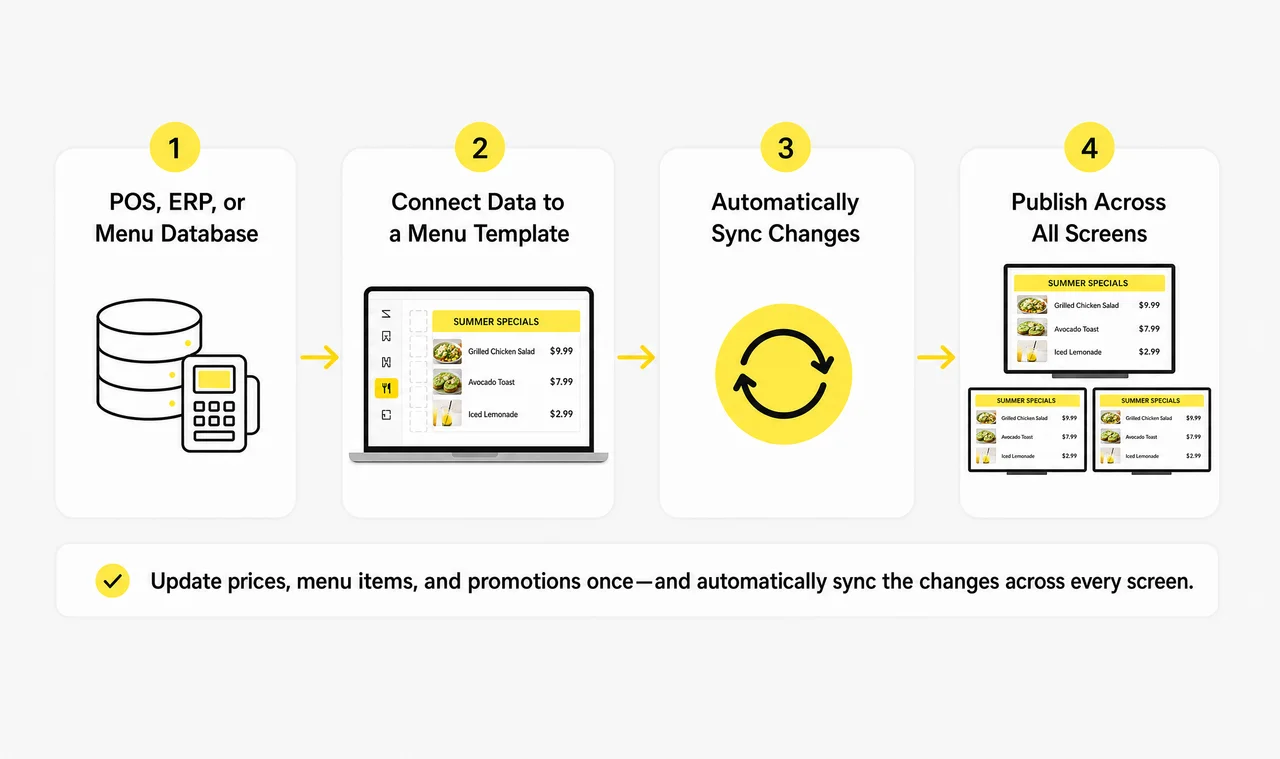
Decker receives information from your source system, links products and prices to a menu template, updates only changed elements, and publishes the result to one screen, a group, or your entire network.
-
1. Connect a data source
Decker can use your POS, ERP, or another business system containing products, prices, categories, and availability. Once connected, the platform receives current menu data from one source of truth.
-
2. Link products and prices to a menu template
Decker maps products, prices, and other fields to the correct places in your menu template. Each item is assigned to a specific card, row, or promotional block.
-
3. Update only the items that changed
When an item changes in the source system, Decker identifies the change, finds the linked template element, and updates only that value instead of rebuilding the entire screen.
-
4. Publish to one screen, a group, or the entire network
Send updated content to selected screens, a group, or your whole network. Schedule it by time of day, day of week, or campaign.
-
5. How is automation different from manual updates?
A manual workflow requires exporting data, editing the layout, and republishing after every change. Decker receives the change, finds the right template element, updates its value, and sends the result to the screen automatically.
How Decker Monitors Screens and Recovers from Outages
After publication, Decker continues monitoring your display infrastructure. It tracks device health, highlights failures, and helps restore screens when a location has a playback problem.
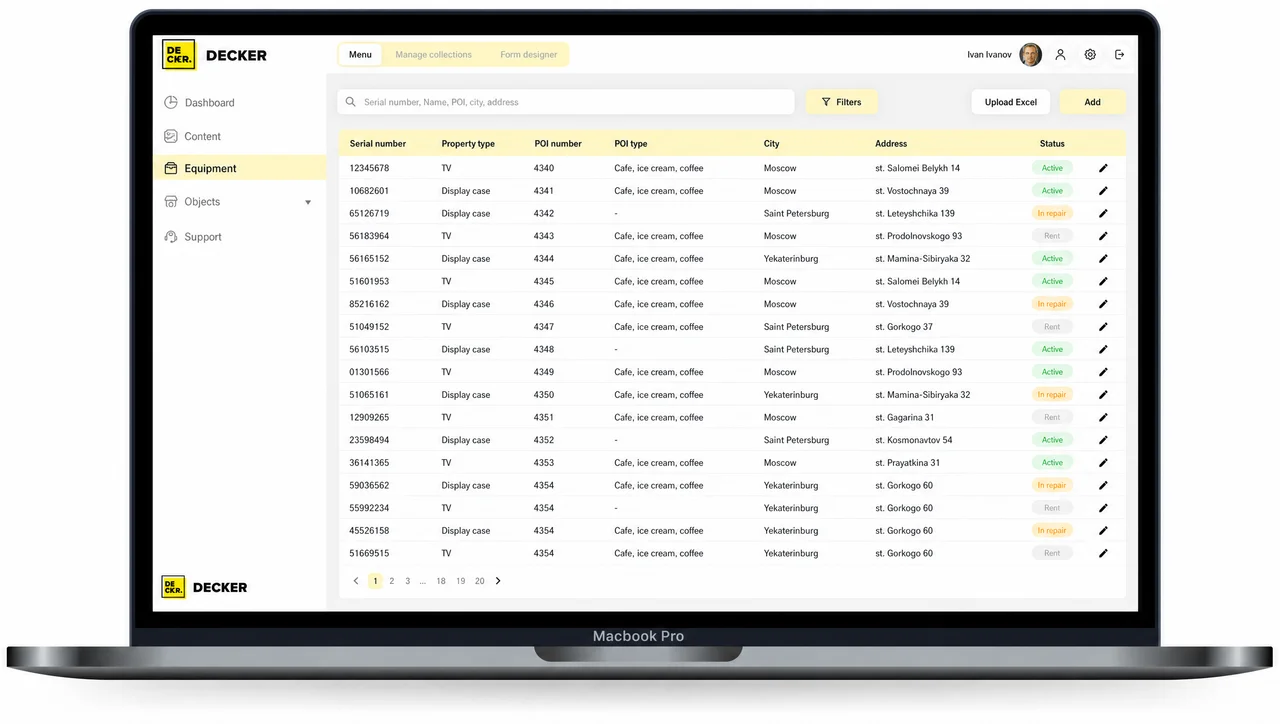
Track screen and device health
See what happens on connected screens after publication, including device status, content delivery, and on-screen playback.
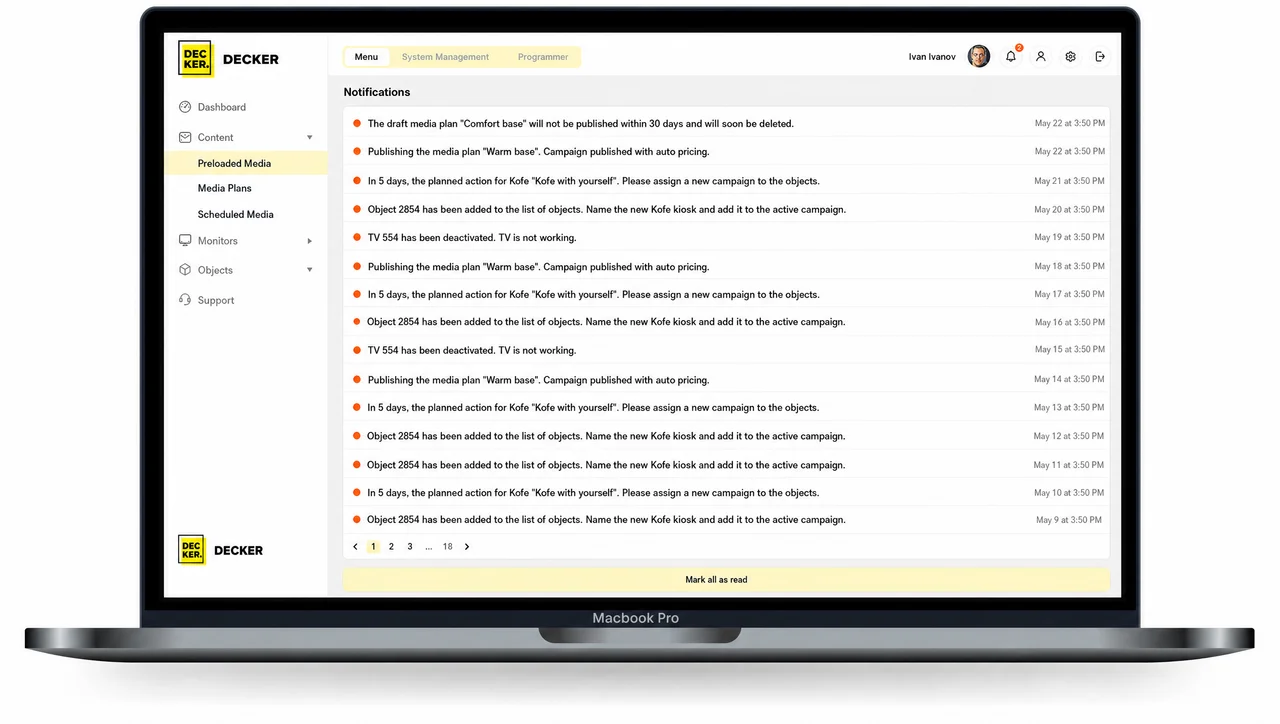
Receive failure and exception alerts
The platform supports multiple location groups and display types under one management model, giving multi-location businesses a single place to upload, update, and monitor content.
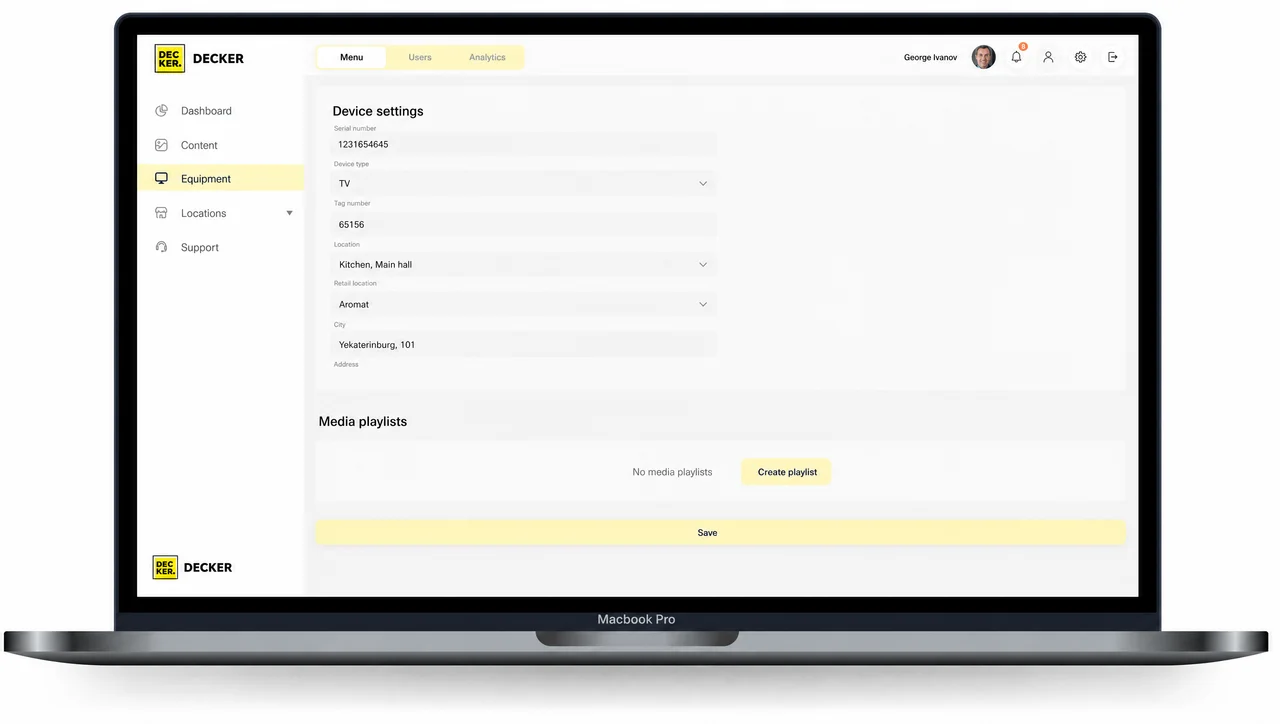
Restore displays remotely
After a power outage, a display may start on the wrong input or stop showing the intended content. Remote recovery can switch to the correct HDMI input, verify that an image is present, and manage power.
What You Get After Launch
After launch, data, templates, publishing, and monitoring work together in one connected system:
-
Data connected to digital menus
POS, ERP, or other source data works directly with your menu templates and on-screen content.
-
Targeted updates
When a price, item, or status changes, the system updates the relevant template element without rebuilding the entire screen.
-
Publishing to selected screens
Publish content to one display, a screen group, or the entire connected network using your playback rules.
-
Post-publication monitoring
The system keeps tracking device health, content delivery, and screen exceptions after content is sent.
-
Built for one location or an entire network
Use the same platform for a single site or multiple locations with shared screen groups and access roles.


Terms and Definitions
POS / ERP — business systems that supply Decker with menu items, prices, categories, and availability data.
SKU — a unique product identifier used to connect an item in your source system to the correct digital menu element.
TV control device — hardware for remotely managing and monitoring a display, including input switching, image detection, and power control.
RBAC — role-based access control, which assigns permissions according to each user’s role and separates control over content, publishing, locations, and screens.
Offline cache — a locally stored copy of content that keeps menus playing when the device temporarily loses its connection.
Who Handles Implementation and Support

Frequently Asked Questions
How quickly do prices update on screens?
After a price changes in the source system, Decker identifies the affected SKUs, updates their linked template elements, and publishes the update. Timing depends on synchronization settings and data volume.
Can I update one screen, a screen group, or a single location?
Yes. Decker can publish to one screen, a selected screen group, or your entire network of connected devices.
What happens after a power outage?
If a display starts on the wrong input, remote recovery can switch inputs and restore operation without requiring on-site staff.
Do I need a designer to change prices?
No. Decker updates only the required template value. Formatting, fonts, and structure remain unchanged.
Which systems can provide menu data to Decker?
Decker connects to POS, ERP, and other business systems through its integration layer. API integration is also available.
How does publishing work across multiple locations?
Publish to every location at once or to a selected group. Configure playback rules separately for each location or apply one shared configuration.
What happens when a price or item changes in the source system?
Decker receives the new data, finds the linked menu-template element, and updates only the required on-screen value.
Does Decker update the entire screen or only the changed element?
Only the changed element. This speeds up updates, preserves menu structure, and avoids unnecessary manual work.
How does the system monitor screens after publishing?
Decker tracks device status, content delivery, and on-screen playback. If something deviates from plan, the system helps identify the problem quickly.
See how Decker can work for your business
See how Decker receives data from your business systems, updates digital menus, manages publishing, and monitors your screen infrastructure.


