
Office Digital Signage for Lobbies, Floors, and Meeting Areas
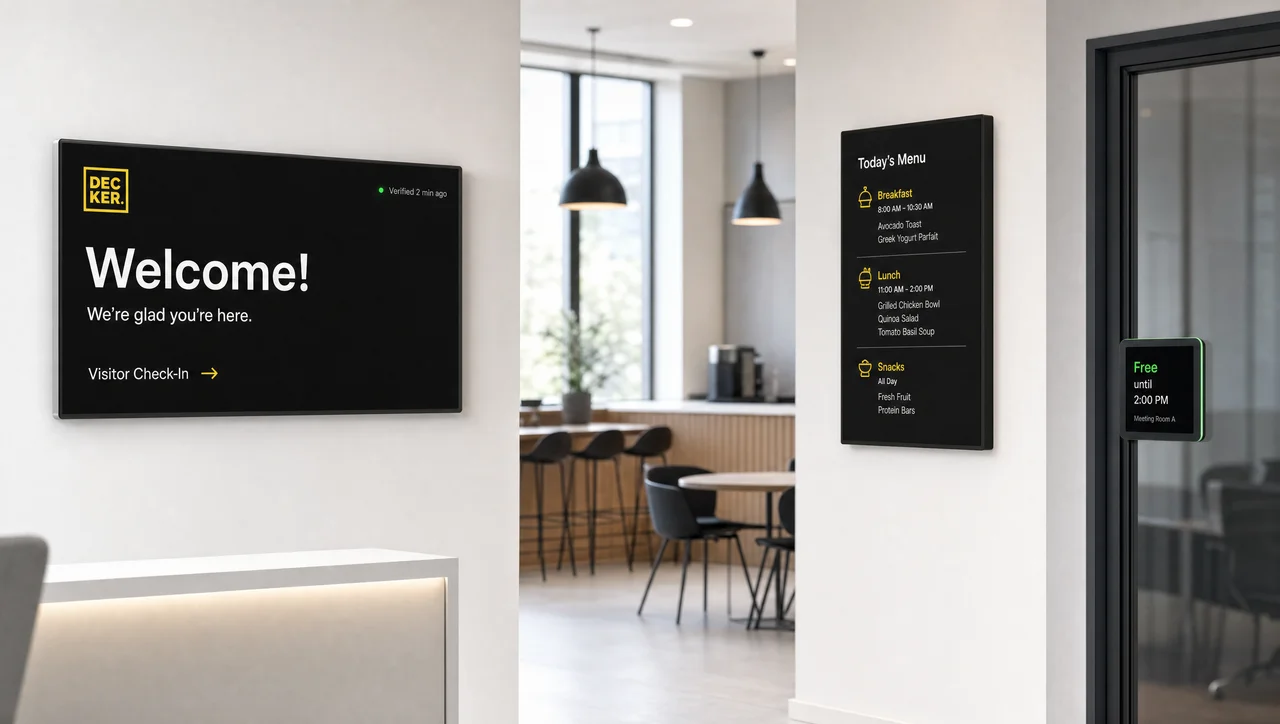
Office digital signage puts screens in lobbies, break rooms, open floors, and outside meeting spaces, and runs them all from one CMS. Decker gives each zone its own playlist, powers screens on and off with office hours, and, unlike a TV on a timer, restores a lobby screen that wakes on the wrong input without a site visit.
-
Lobby never dark Restored without a site visit
Verifier switches HDMI back and restarts a lobby screen that woke on the wrong input, before the first visitor walks in.
-
Office hours Screens follow your workday
Screens power on before staff arrive and switch off at night and on weekends, on the schedule you set for each floor.
-
Zone by zone Lobby, kitchen, and floor playlists
Each zone gets its own playlist and schedule; in addition, every floor runs from one dashboard.
What Is Office Digital Signage?
Office digital signage is a set of screens in an office building that uses one CMS to show each space what its visitors and employees need, from a lobby welcome to today’s cafeteria menu. Like other digital signage solutions, it runs on three parts: a screen, a small player behind it, and CMS software that publishes and schedules content.
Digital signage in office spaces rarely needs new displays. The TVs and monitors already on the walls of most offices can join the network through digital signage hardware that plugs into HDMI. What makes in office digital signage different from a TV in the kitchen is control: every screen gets images, video, and short messages for its spot, at the right hour, without anyone touching a remote.
A digital signage office setup answers two questions: where each screen hangs, and what that spot needs. Company-wide news for staff at every site is a separate job for digital signage for corporate communications. Next, the zones decide where the screens go.
Where to Put Digital Signage in Office Spaces: Screens by Zone
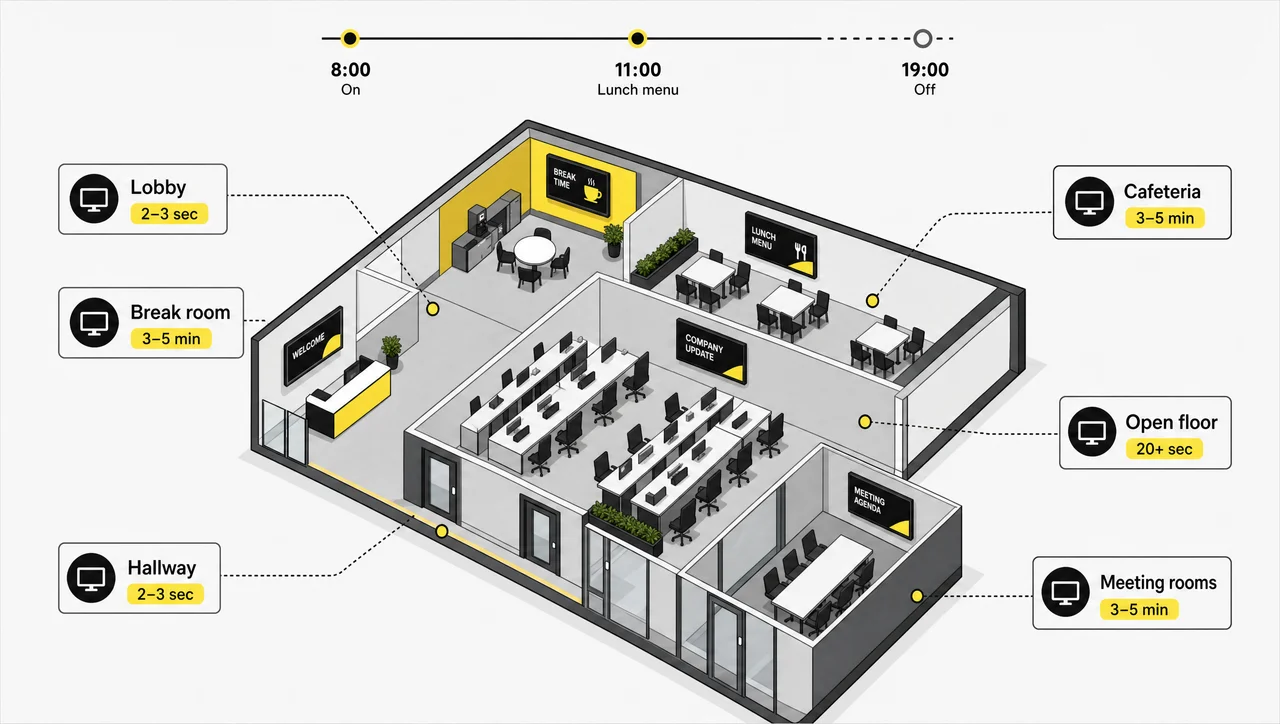
In an office, digital signage works best in the spots where people either pause or look for information: the lobby, break rooms, the cafeteria, open floors, hallways, and the doors of meeting spaces. Each zone needs a different screen and different content, so office screens are planned zone by zone, not screen by screen.
-
Lobby: first impressions
In the lobby, office building digital signage greets visitors, shows awards and team photos, and tells guests where to go. Screens at the front desk have their own guide to reception and elevator screens, and floor maps belong to office building wayfinding digital signage.
-
Break rooms: where people pause
People stay in a break room for a few minutes, long enough to read. News headlines, weather, upcoming events, and team milestones work here, and a screen can hold several items in rotation.
-
Cafeteria: menus and hours
Today’s menu, opening hours, and dietary and allergen notes belong on a portrait screen next to the line. Decker built its platform on digital menu boards, so a cafeteria menu with daily specials runs on the same tools.
-
Open floors: goals within sight
Team goals and deadlines work on a wall that people see from their desks, not a screen hung directly above them. Live figures fit team goal dashboards.
-
Hallways and elevator banks: seconds of attention
People pass a hallway screen in a few seconds. One short message per slide works here: a reminder, a safety note, or a single piece of news.
-
Doors of meeting spaces: status at a glance
A small screen by the door shows the room name, whether the room is free, and the next booking. The format has its own page on meeting room screens.
-
Brand walls: one big image
Multi screen digital signage for office branding joins several displays into one picture behind the front desk or in a showroom. Layouts, mounting, and content for this format sit with video walls. In addition, buildings that share a roof with a plant floor add production-area screens to the same network.


Benefits of Office Digital Signage
The benefits of digital signage in an office building come from the spaces themselves: visitors find their way, meeting spaces stop getting double-booked, and paper disappears from walls and doors.
-
Less paper on walls and doors
In most offices, printed notices fade, curl, and stay up long after the event. A screen replaces the corkboard, and an item with an end date removes itself, so the break room never shows last month’s party.
-
A better first impression
A lobby screen that greets a visitor by company name and shows the team’s recent awards sets the tone before anyone reaches the front desk. It also tells each visitor where to sit and who will meet them.
-
Fewer knocks on meeting space doors
A status screen by each door shows whether the room is free and when the next meeting starts. People stop opening doors to check, and ad hoc calls find an empty room faster.
-
The same look on every floor
Templates keep the logo, colors, and fonts identical on every screen, from the lobby to the fifth-floor kitchen. Nobody prints a flyer in the wrong font again.
-
Digital signage for office productivity
Team goals and deadlines on a shared wall keep everyone looking at the same numbers without another meeting. Screens also cut the walks to the front desk to ask where a room is.
-
Building information in one place
In an office building with several tenants, lobby screens show the tenant list, building notices, and maintenance windows. As a result, the building manager stops taping notices to the elevator doors.

What to Show on Office Screens, Zone by Zone
Office screens work when each zone gets content that fits how long people stay there: seconds in a hallway, a few minutes in a break room, and the length of a wait in the lobby. Use this table as a starting plan:
| Zone | What to show | Screen orientation | How often to update |
|---|---|---|---|
| Lobby | Visitor welcome, awards, team photos, brand video | Landscape | Per visit and weekly |
| Break room | News headlines, weather, events, birthdays, work anniversaries | Landscape | Daily |
| Cafeteria | Today’s menu, hours, dietary and allergen notes | Portrait | Daily |
| Open floor | Team goals, deadlines such as “expense reports due Friday” | Landscape | Live or weekly |
| Hallway and elevator bank | One short message: a reminder or a safety note | Portrait | Weekly |
| Door of a meeting space | Room name, free or busy, next booking | Small landscape | Live, from the room calendar |
Room status and upcoming meetings come from calendar integrations, and ready-made layouts for each zone are in the free signage templates. Fire and evacuation instructions cannot wait for their turn in a rotation, so they need an emergency alert that takes over every screen. Next, the content only works if each screen is the right size and in the right spot.
Office Screen Placement: Size, Height, and Brightness
Size an office screen by its farthest viewer: for text, the picture should be at least one-sixth as tall as that distance, and for photos or video, at least one-eighth. This 4/6/8 rule comes from audiovisual design practice and matches the display sizing method of the AVIXA standard. A 16:9 screen’s picture height is about half its diagonal, so the rule turns into sizes you can buy:
| Zone | Farthest viewer | Content | Minimum picture height | Typical 16:9 screen |
|---|---|---|---|---|
| Door of a meeting space | 4 ft | Text | 8 in | 15–22 in |
| Hallway | 8 ft | Text | 16 in | 32 in |
| Cafeteria line | 10 ft | Text | 20 in | 43 in |
| Break room | 12 ft | Text | 24 in | 50–55 in |
| Open floor | 18 ft | Text | 36 in | 75 in |
| Lobby | 20 ft | Photos and video | 30 in | 65 in |
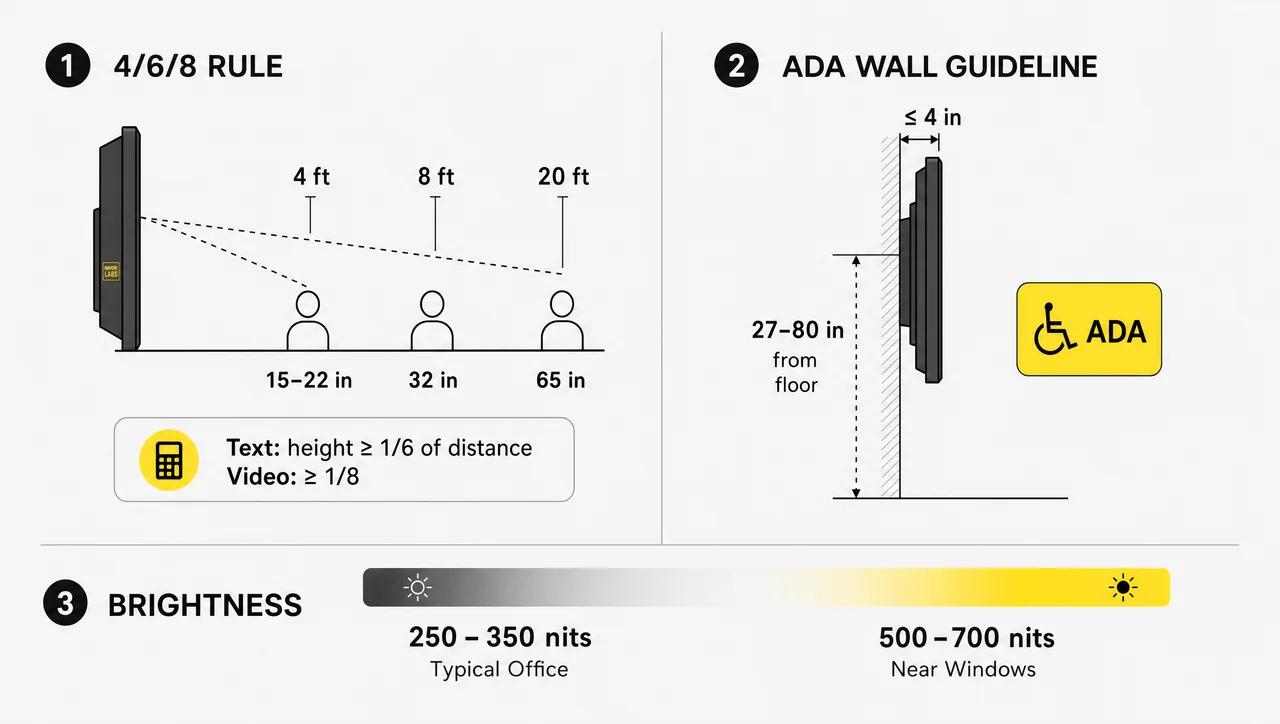
Height matters in hallways. Under the 2010 ADA Standards, a wall-mounted screen whose leading edge sits between 27 and 80 inches above the floor may stick out no more than 4 inches into a walkway. Therefore, choose a slim flat mount in corridors, or hang a deeper screen with its bottom edge above 80 inches.
Brightness follows the light in the room. Interior offices with controlled lighting need about 250–350 nits, while screens next to large windows or in glass lobbies need 500–700 nits and an anti-glare finish. Most commercial and smart TVs are among the supported screens, and a slim bracket with a recessed outlet keeps mounting and maintenance simple.
Where Not to Put an Office Screen
- Directly above desks. Moving content in someone’s line of sight all day distracts more than it informs.
- In a spot people pass in two or three seconds. A rotating playlist loses its audience there; a printed sign or one static slide works better.
- In a team of five people who share one room. A daily stand-up reaches everyone faster than a screen.
- Where nobody owns the content. A screen that shows the same slide for months becomes wallpaper. Therefore, name an owner before you mount it.
Digital Signage for Corporate Offices and Small Offices
Digital signage for corporate offices scales with the number of zones, not the headcount: a small office needs one to three screens, while a headquarters floor plan may call for dozens. Whether you plan screens for a headquarters or a two-room studio, the budget follows the screen count, and Decker plans scale with it.
-
Digital Signage for Small Office Spaces
Start with one to three screens and the TVs you already have: one in the entrance, one in the kitchen. Each TV gets a player, and one person updates both from a browser in a few minutes a week, so even small offices without IT staff keep screens current.
-
Large office floors: dozens of screens
Large offices group screens by floor and by zone type, so every break room shows the same menu of news while each floor’s hallway carries its own notices. Templates keep the brand identical on every floor.
-
Multi-tenant office building
The building team runs the lobby and elevator screens, while each tenant manages the screens inside its own suite. Separate screen groups keep a tenant’s notice off the building’s lobby screen, and access roles with user permissions separate the people who publish from those who only view the screens.
-
Office plus production under one roof
Some buildings mix offices, a production area, and a warehouse, with TVs that double as monitors for a web dashboard. Screens stay manageable one by one or as a group per area, so the plant floor and the office floor each get their own content. In other words, one CMS covers the offices, the production area, and the warehouse.


Digital Signage Software for Office Screens
Digital signage software for office screens has to handle floors, zones, and office hours, so the right content reaches the right wall at the right time. Decker’s digital signage office solutions cover four routines that every building repeats:
-
Screens grouped by floor and zone
Publish to one screen, one floor, every break room in the building, or all screens at once. A change reaches players in 1–5 seconds, and only the changed parts of a scene travel over the network.
-
Office hours on autopilot
Schedules follow the time of day and the day of the week, so the lunch menu appears at 11 a.m. and the lobby switches to a weekend loop on Saturday. Verifier also powers screens off at night and back on before staff arrive.
-
One layout per zone
Digital signage solutions for office zones start from templates: a welcome layout for the lobby, a menu layout for the cafeteria, and a notice layout for the floors. Local teams change the text, and the design stays put.
-
Slides and calendars you already use
Existing decks go on screen through Google Slides and PowerPoint integrations, and room calendars feed the screens by meeting space doors. As a result, nobody rebuilds a presentation just to show it in the kitchen.


Keeping Unattended Office Screens On
In most offices, screens hang where nobody watches them, so Decker pairs each player with Verifier, a separate device that notices a dark or wrong-input screen and fixes it remotely. The Decker Player connects over HDMI, gets content over Wi-Fi or Ethernet, and keeps playing from its offline cache when the network drops.
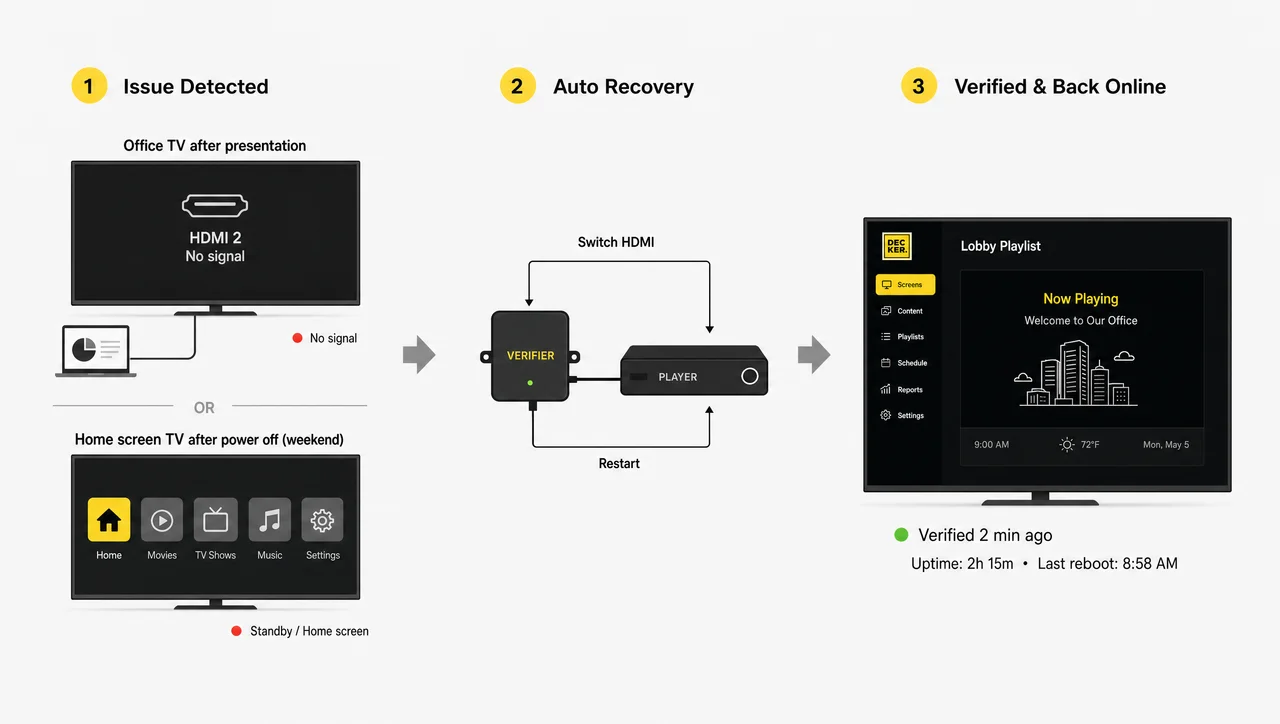
Two office situations show why this matters. First, a shared TV on an open floor gets used for a laptop presentation, and after the meeting it stays on the laptop’s HDMI input. Second, a weekend power cut turns the lobby screen back on to the TV’s home screen, and nobody is in the building to notice. In both cases Decker Verifier switches the HDMI source back, restarts the player or the display, and restores playback without a technician visit. The team gets an alert, and Verifier keeps an uptime log for every screen, so facilities know which zones actually showed content.
Myth: “If the screen is on, it is showing our content.” Not true: a TV can be on and stuck on another input, a home screen, or a frozen frame. Therefore, only a check of the screen itself shows what people in the lobby actually see.
How to Choose Office Digital Signage
The best digital office signage for your building is the one that passes six checks in your own office, starting with the screens you already have. Lists of the best digital office signage platforms compare features; these checks compare fit:
-
Step 1.
Does it run on the TVs and monitors already on your walls?
Most offices mix smart TVs, older displays, and monitors, and replacing them all doubles the budget.
-
Step 2.
Can you manage each screen alone and as part of a group?
A lobby screen needs its own content, while every kitchen screen can share one playlist. Check access roles too: not everyone who can view the screens should publish to them.
-
Step 3.
Can screens follow office hours?
Look for schedules by time and day, plus power-off at night and on weekends.
-
Step 4.
What happens when a screen goes dark on a Saturday?
Ask whether the system detects a wrong input or a dark display and fixes it remotely.
-
Step 5.
Can it show room calendars by meeting space doors?
Room status is the most checked screen in many offices.
-
Step 6.
Will your real content hold up for a week?
Run one screen for seven days with the web pages, videos, and slides you plan to use; next, connect the rest.
How to Set Up Office Screens With Decker
Office digital signage goes live in five steps, from a walk through the floor to a playlist on every zone. Each step follows how the Decker system works: a player behind the screen, a CMS in the browser, and Verifier watching the display.
-
Step 1.
Walk the floor and mark the zones
List every spot where people pause or look for information: the lobby, kitchens, the cafeteria, hallways, and meeting space doors. In most offices, a floor ends up with three to six zones.
-
Step 2.
Choose the screens
Reuse TVs that already hang in the right places, and size new ones with the placement table above. Check that each spot has power and a network drop.
-
Step 3.
Connect a player to each screen
Plug the player into HDMI and connect it over Wi-Fi or Ethernet. The screen then appears in your dashboard, ready for content.
-
Step 4.
Group screens and set office hours
Group screens by floor and zone, then set when each group turns on, when the lunch menu appears, and what runs on weekends.
-
Step 5.
Publish zone playlists and confirm
Publish a playlist to each zone. Verifier then confirms that every screen shows its content, and alerts you if one goes dark. As a result, the office runs on autopilot from day one.
Related Scenarios
-
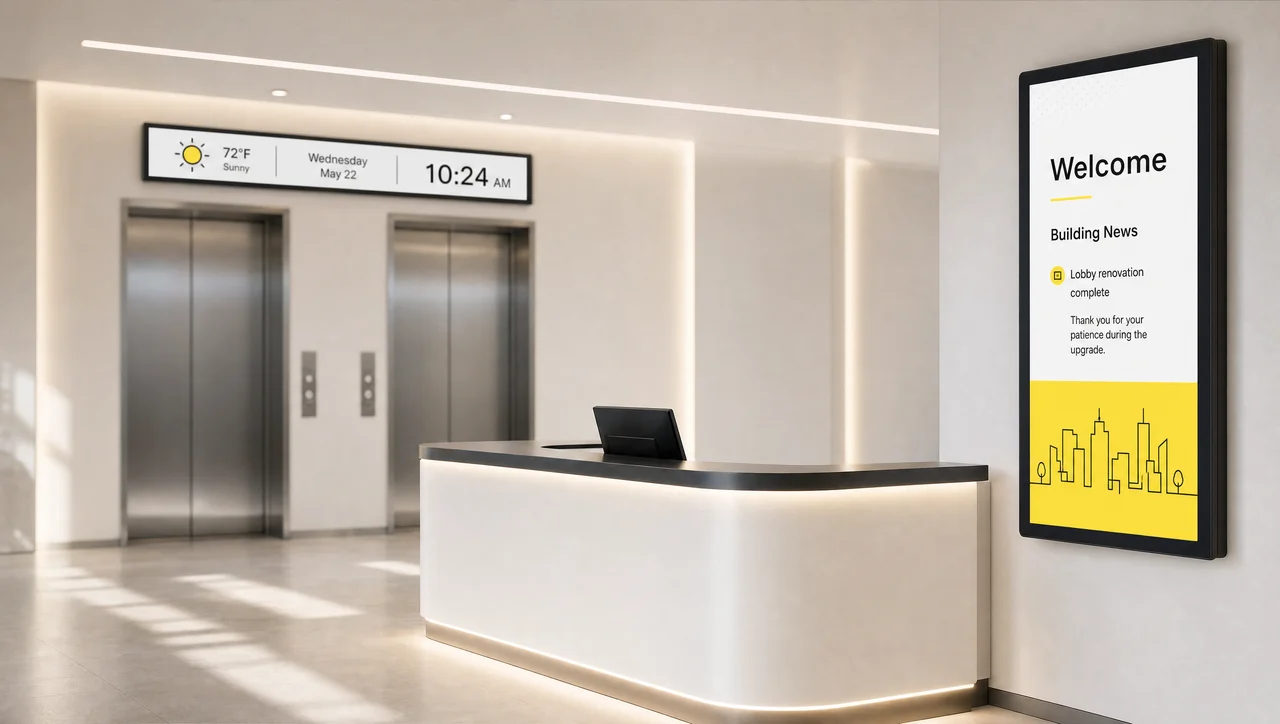
Reception and Elevator Screens
Welcome guests where they arriveGreet visitors at the front desk and share building news where people wait.
-
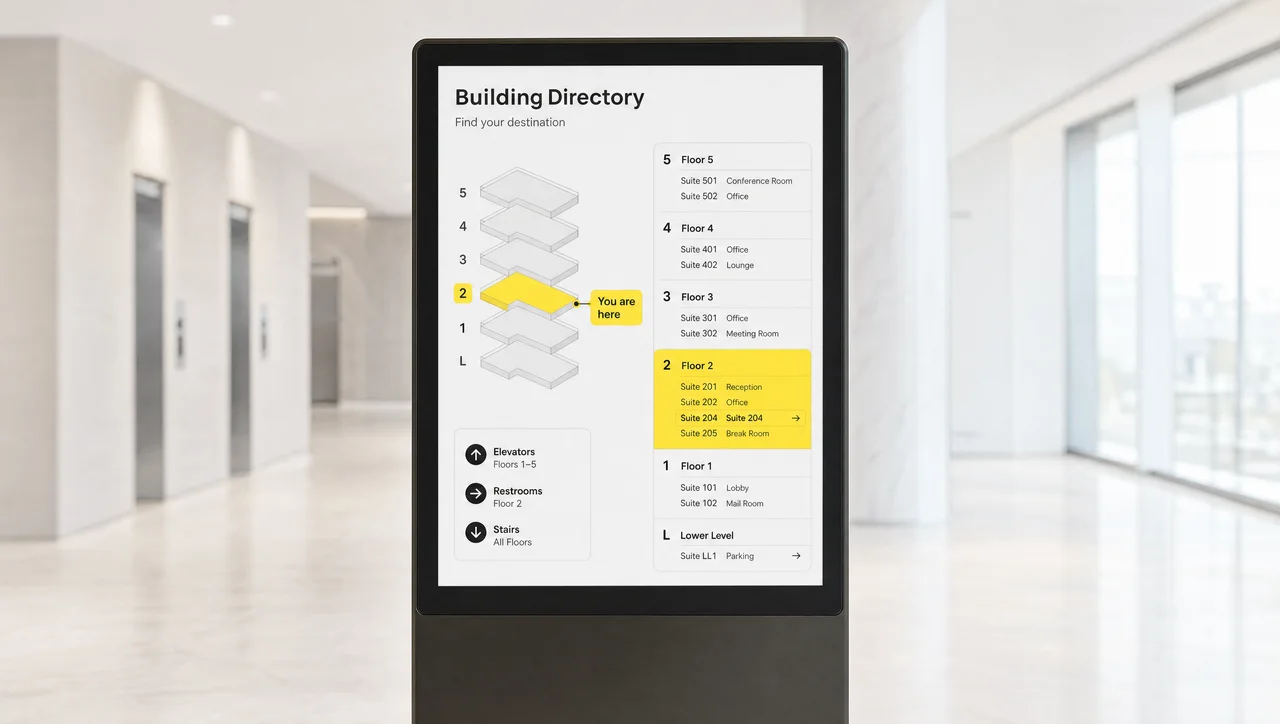
Wayfinding and Directories
Maps and tenant lists in the lobbyHelp a visitor find the right floor, suite, or room from the entrance.
-
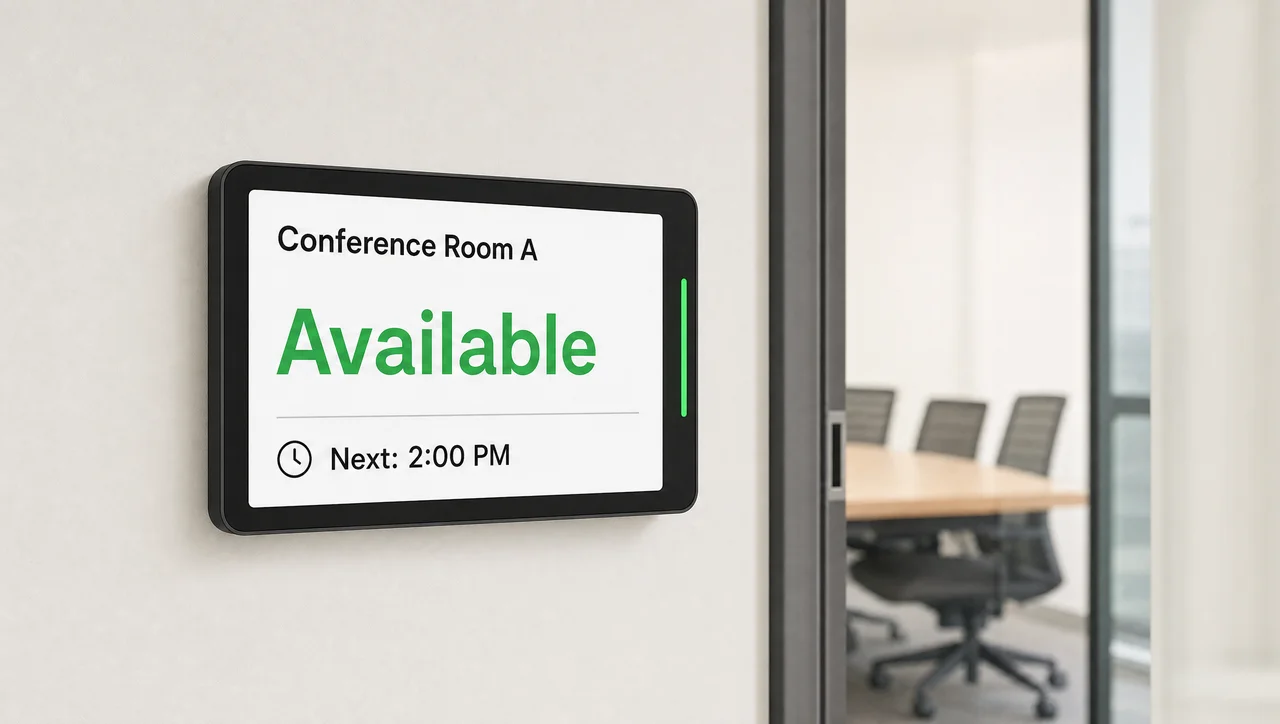
Meeting Room Screens
Room status on every doorShow whether a room is free and when the next meeting starts.
-
Video Walls
One big picture from many screensJoin several displays into one brand image behind the front desk.
-
Corporate Communications
Company news on every site's screensSend leadership updates and company news to screens at every location.
Office Digital Signage: FAQs
What is office digital signage?
It is a set of screens placed in office spaces, such as lobbies, break rooms, cafeterias, and hallways, that one CMS controls. Each screen shows content for its zone on a schedule, instead of running a TV channel or a slideshow from a USB stick.
Where should digital signage go in an office?
Put screens where people pause or look for information: the lobby, break rooms, the cafeteria line, open-floor walls, hallways, and meeting space doors. Avoid spots directly above desks and places people pass in two or three seconds.
Can a digital signage office setup use our existing TVs?
Yes. Digital signage for office TVs works through a small player connected over HDMI, so most smart TVs, monitors, and any other digital display for the office with an HDMI port can join. Check brightness and size against the zone before you reuse a screen.
What size screen does an office lobby need?
For photos and video seen from about 20 feet, a 65-inch screen meets the one-eighth rule used in AVIXA-based display sizing. For text read from the same distance, go larger or move the text closer, because text needs a picture height of one-sixth of the viewing distance.
How many screens does a small office need?
Usually one to three: one at the entrance and one in the kitchen or break room, plus one on the main floor if the team tracks shared goals. Start with the TVs you have and add screens only where people actually stop.
Does Microsoft have a digital signage app?
Microsoft does not sell a standalone signage CMS. Its Teams Rooms devices show meeting schedules and can play content from supported signage providers between meetings, which suits meeting spaces rather than lobbies, kitchens, and hallways.
Put the Right Screen in Every Office Zone
Tell us how many floors and zones your office has. We will map a playlist to each zone and, in addition, show how Decker keeps unattended screens on.


