Digital Menu Boards POS Integration

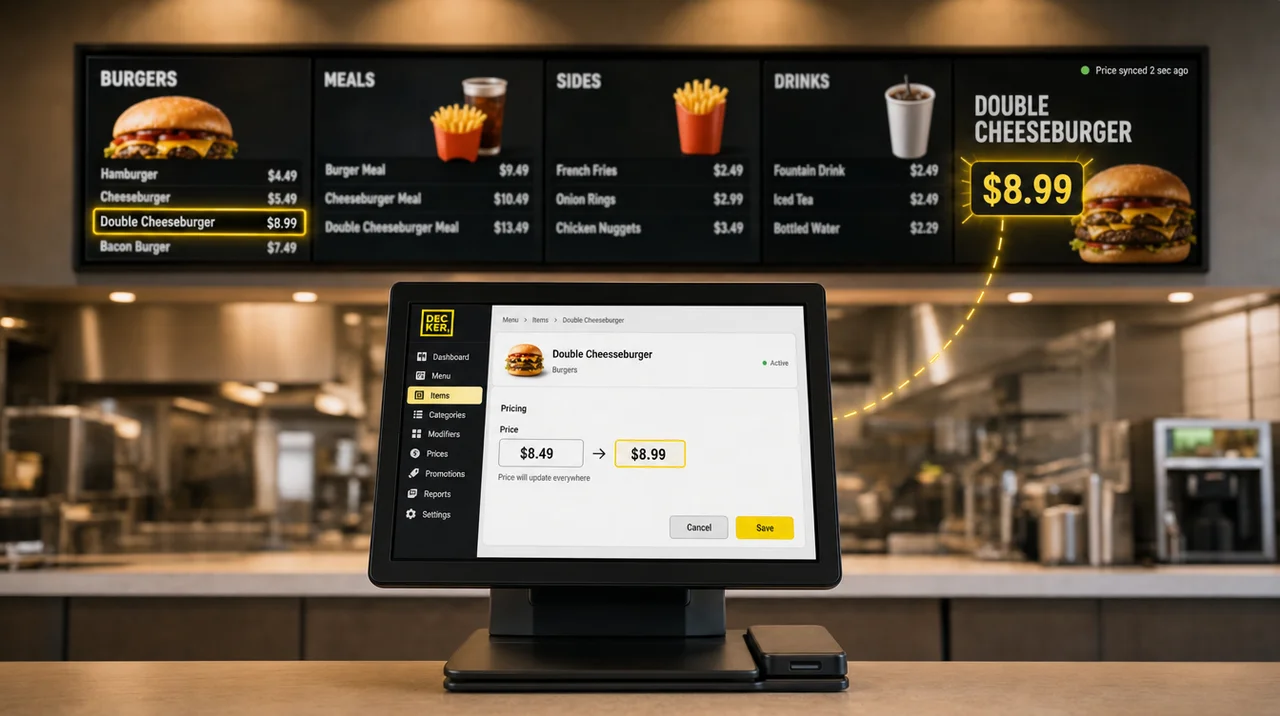
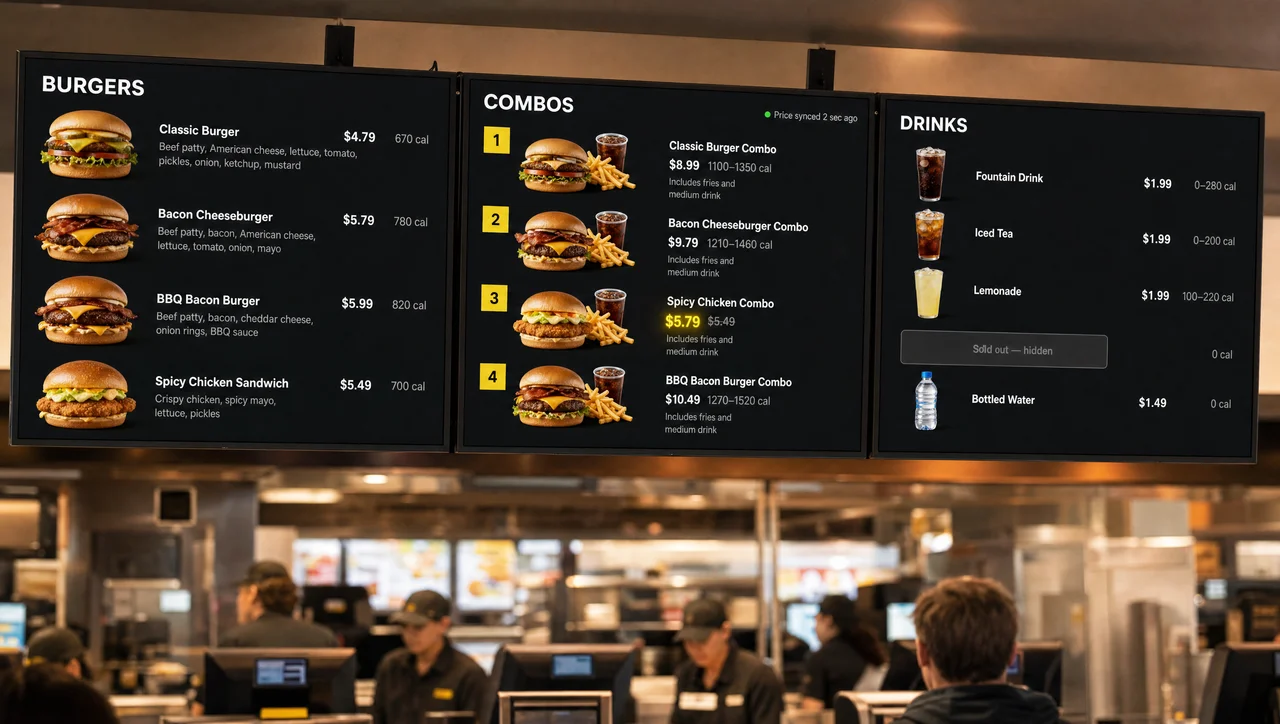
Digital menu boards POS integration showing a price edited at the register appearing on the menu board above the counter.

Digital menu boards POS integration in Decker reads items, prices, and availability from Toast, Square, Clover, or a spreadsheet. A price edited at the register reaches every menu board in 1–5 seconds, and an item marked 86’d leaves the screen, with no designer, USB stick, or second menu to update.

Verified on-screen playback
  • 1–5 seconds Register to every menu board

    A price edited in the POS redraws on each screen within seconds, and nothing else on the board reloads or flickers.

  • Any name, one item DBL CHZBGR = Double Cheeseburger

    AI matching links register names to the layout, so abbreviations and typos still land on the right price.

  • Checked on screen Decker Verifier watches the panel

    The add-on flags a black screen, a frozen player, a wrong price, or a sold-out item that is still showing.

How Digital Menu Boards POS Integration Works in Decker

Digital menu boards POS integration is a live link between your POS catalog and the menu layout: Decker reads each change, finds the matching price on the board, and redraws only that element in 1–5 seconds.

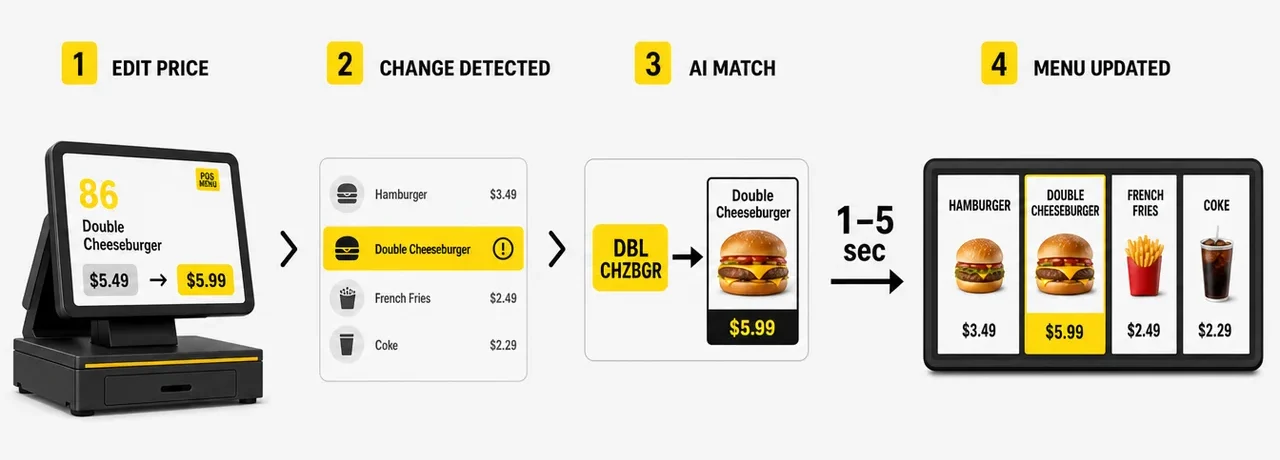
Menu POS integration in four steps from a price edit at the register to one redrawn price on the menu board.

The menu POS integration runs in four steps:

  1. Step 1.

    A change happens at the register

    A manager edits a price or marks an item 86’d in Toast, Square, or Clover, or updates the price spreadsheet. The change arrives as soon as the system reports it, or on a sync schedule you set.

  2. Step 2.

    The platform spots what changed

    The new catalog is compared with the previous version, and only the changed items go forward, so one new price never triggers a full menu rebuild.

  3. Step 3.

    Each item finds its place on the board

    Every price on the layout is tied to an item ID, a SKU, or a tag such as latte_price. When the register says DBL CHZBGR and the board says Double Cheeseburger, AI matching links the two through fuzzy matching and past matches.

  4. Step 4.

    Only that price redraws

    The new price replaces the old one in place, with the same font, format, currency, and rounding. The player redraws that element alone, and the rest of the board stays still.

Request a demo

POS Data Integration for Digital Menu Board Screens: What Syncs

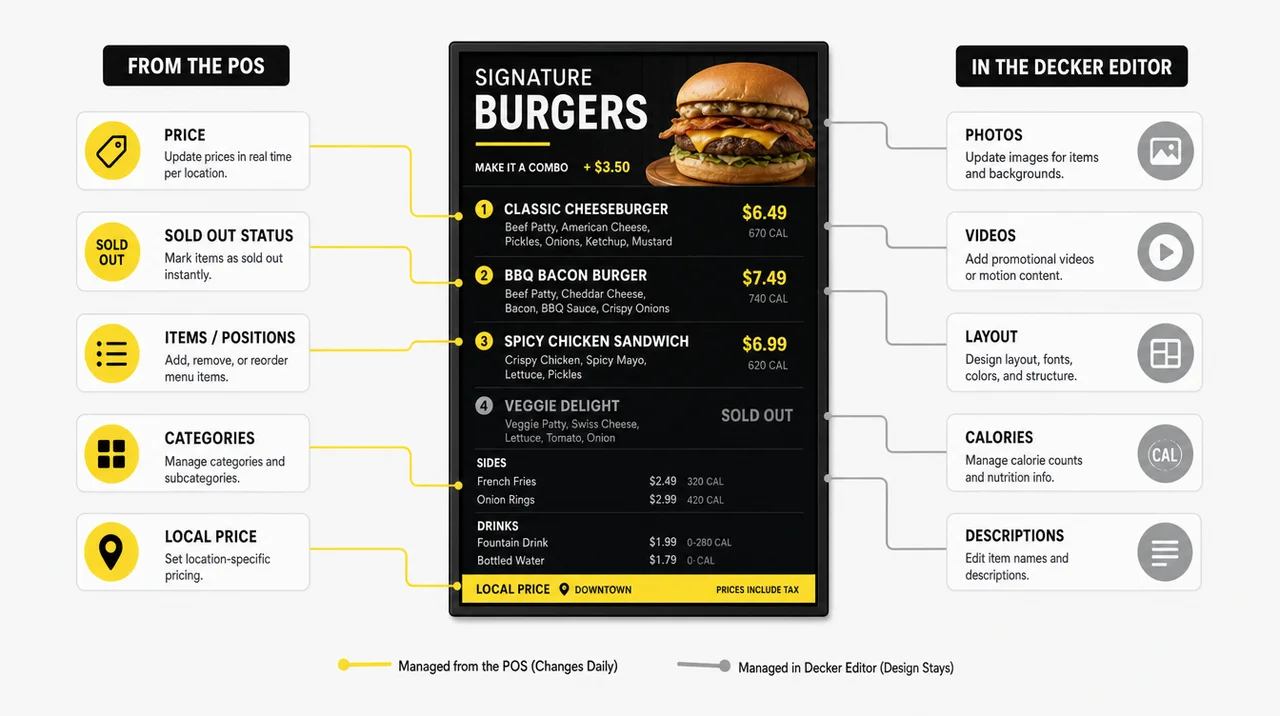
POS data integration for digital menu board screens moves the fields guests read, such as price, availability, and the item list, while photos, layout, and brand styling stay in the Decker editor. The register holds what changes daily, and the design holds what changes once a season.

Data Where it comes from What the menu board does
Price POS item or spreadsheet row Redraws the price within seconds
Sold-out status (86) Availability flag in the POS Removes the item from the screen
Menu items and categories POS catalog Keeps the screen in line with what the store sells
Local prices Each store’s own POS Shows that store’s price on its own boards
Calories and descriptions The menu item in Decker Stay in place when the price changes
Photos, video, layout The editor Change only when someone edits the design

Prices and 86s reach the screen on every change, because guests read them at the moment they order. Breakfast-to-lunch switches, limited-time offers, and seasonal panels run on rules and dates instead, so they never wait for the register. However, connected data alone does not fix a slow menu workflow.

Sync Prices to Menu Boards in Seconds, Not Days

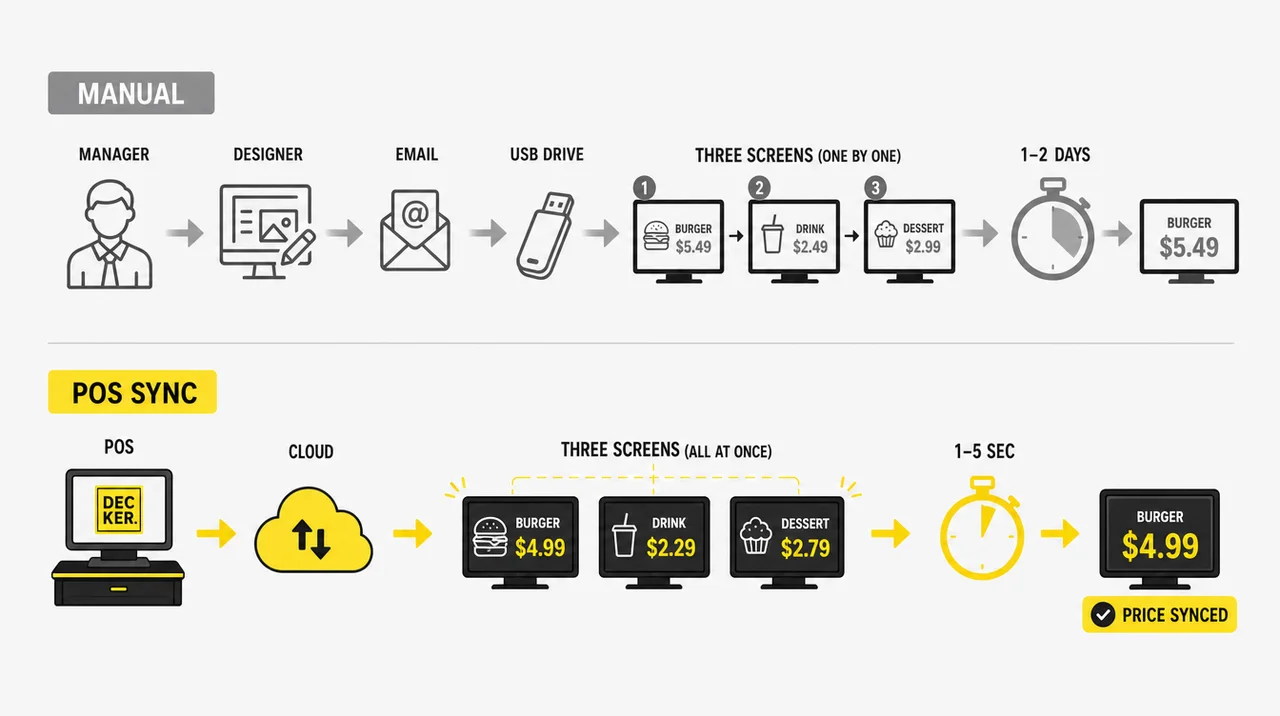
To sync prices to menu boards automatically, Decker makes the POS the only place a price lives, so a menu change takes one edit at the register instead of a designer, an email, and a USB stick. Food away from home prices rose 3.4% in the 12 months to August 2026, and limited-service meals rose 3.2% (BLS), so price edits keep coming.

One price change Manual menu board With POS sync
Who touches it A manager, a designer, and someone at each screen The manager, once, in the POS
The layout The designer reworks and exports the file The price swaps in place, fonts intact
Delivery A USB stick or an upload, screen by screen Every connected screen at once
Time to screen 1–2 days 1–5 seconds
Board vs. register Can disagree until someone notices Both read the same price

Sync prices to menu boards from the POS in 1 to 5 seconds instead of a 1 to 2 day manual update.

A dynamic menu board goes further than prices: rules swap panels by time of day, stock, or weather, and menu content automation covers those triggers.

Myth: “Every POS-connected menu board updates in real time.” Not always: some integrations pull data on a timer or through a daily export, so a new price can wait hours for the next pull. Ask any digital menu POS integration vendor how often it reads the register.

Next comes the question of where prices come from when your register is not on the usual list.

See Your Next Price Change Reach the Board

Edit one price at your register and time how long the board takes to show it. A free 30-day trial runs on up to five screens, no card.

Digital Menu Boards Integration Options: POS, Spreadsheet, or API

Digital menu boards integration in Decker starts from wherever your prices already live: a cloud POS, a spreadsheet, or a central system with an API. Pick the source once, and the boards follow it from then on.

  • Toast, Square, or Clover

    These registers connect directly and pass items, prices, and availability. The POS brands Decker connects to all send the same data, so a menu built for one store works for the next. Automatic price and 86 sync runs on the Professional plan.

  • A spreadsheet in place of a POS

    A register outside that list, or a chain that sets prices centrally, can keep items and prices in an Excel file. The sheet is read the same way as a POS, and the boards follow each new version of the file.

  • ERP or your own system through the API

    Chains that manage prices in an ERP or a custom back office connect through the API, which comes with the Premium plan. The same item matching and partial redraw apply to every source.

POS System With Digital Menu Board: Built-In Screens or a Connected Board

A POS system with digital menu board support usually means a register plus a menu board partner, because large cloud POS vendors route menu screens through their app marketplaces. Toast lists menu board partners in its integration marketplace (Toast support, December 2025), and Square points sellers to menu board apps in its App Marketplace (Square Community, May 2025). In practice, a restaurant POS with digital menu boards is two products that share one catalog.

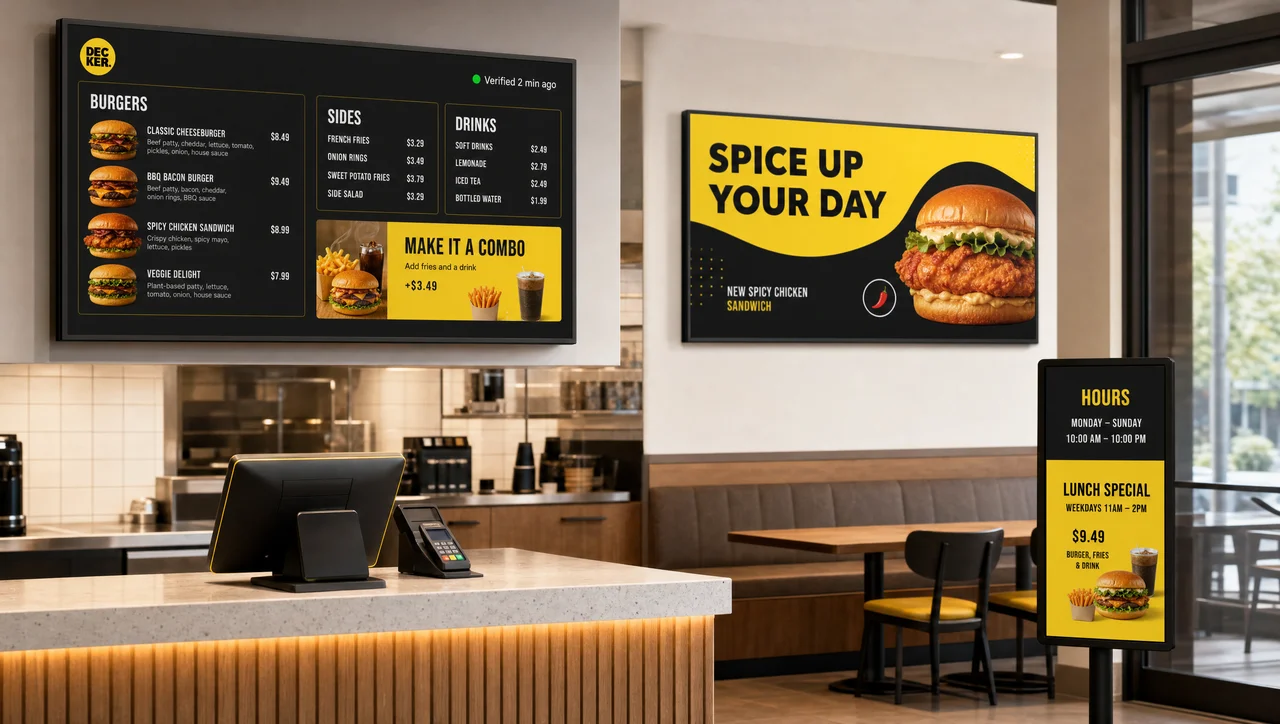
POS data integration for digital menu board screens with prices and sold-out items from the POS and photos from the editor.

What to check Why it matters In Decker
Where prices live Two copies drift apart Only in the POS or spreadsheet
Update speed A slow pull leaves old prices up Seconds per change
Screens Some kits need their own displays Any TV over HDMI
Proof on screen A price can sync and still not show Verifier checks the panel
Several stores Local prices must stay local Each store reads its own POS

If you are still picking a register, choosing a QSR POS system compares the options by store count and drive-thru share. Menu boards are only one of the screens a register can feed, and what POS digital signage covers beyond the menu walks through the rest. Once both sides are connected, the remaining work is keeping that link healthy.

Keeping a POS Digital Menu Board Accurate After Go-Live

A POS digital menu board stays accurate only while three links hold: the item match, the network, and the screen itself. These are the cases that break most often:

  • An item gets renamed in the POS.

    It is matched again through fuzzy matching and the pairs learned before, so Lg Fries and Large Fries stay one item.

  • A price sits inside a picture.

    A price baked into an image cannot update. Rebuild it once as a live price field, and it follows the POS from then on.

  • The internet drops.

    The player keeps the last menu in its offline cache, and new prices arrive as soon as the connection returns.

  • The POS link is switched off.

    Without the active POS integration digital menu boards rely on, automatic updates stop until you reconnect it in the integrations panel.

  • The screen goes dark or shows the wrong input.

    Decker Verifier for remote screen checks restarts the player or switches the HDMI input back and alerts the team.

Menu board POS sync works store by store: each location connects its own register, and its boards read only that register’s prices and stock. Chain layouts, dayparts, and LTO dates for counter-service brands are covered on QSR digital menu boards.

  • Each store reads its own register

    A sold-out item downtown leaves only the downtown boards. The airport store keeps selling it, because its screens follow its own POS.

  • Item IDs that differ by store

    Stores often ring the same burger under different names or IDs. Matching runs per store, so one shared layout still finds each store’s price.

  • A spreadsheet store next to POS stores

    A location without a supported register feeds the same layout from a price sheet, while the rest of the chain stays on Toast, Square, or Clover.

Project: Burger Shop Menu Boards Priced by the POS

Burger Shop client logo.
Challenge
Counter-menu prices at a Downtown Los Angeles burger shop were edited by hand, and each change could take days or weeks to show on its screens.
Solution
Decker linked the four counter screens to the shop's POS, so each price and each sold-out item now comes from the catalog the cashiers ring up.
Results
Menu updates now take minutes instead of days or weeks, and nobody rebuilds a file for a single price.
View Case Study

Set Up Digital Menu Boards POS Integration With Decker

Setting up the POS link takes five steps, starting from the register your stores already use. Promo loops, queue screens, and hours signs run on the other screens in your restaurant, managed from the same account.

  1. Step 1.

    Connect your POS or spreadsheet

    Open the integrations panel and authorize Decker in Toast, Square, or Clover, or upload your price sheet. The first sync pulls the full item list.

  2. Step 2.

    Review the matched items

    Check how menu items line up with prices on the layout. Renamed and abbreviated items match automatically, and you confirm the list once.

  3. Step 3.

    Plug in a Decker Player

    Connect Decker Player, an Android media player, to each screen over HDMI and join it to Wi-Fi or Ethernet. The TVs already over the counter can stay.

  4. Step 4.

    Change one test price

    Edit a price in the POS and watch the board follow within seconds. With Verifier on, the screen check confirms the new price is actually showing.

  5. Step 5.

    Connect the next stores

    Once the test store runs clean for a week, link each next store’s POS to the same layout. Price and 86 sync come with the Professional plan, and a 30-day trial is free on five screens.

Request a demo

POS Menu Board Sync: Questions Before You Connect

Which POS system integrates with a digital menu in Decker?

Toast, Square, and Clover connect directly, and each passes items, prices, and availability. A POS system that integrates with digital menu boards through Decker needs no second menu, because the register stays the only place you edit. Other registers can feed the boards from an Excel price sheet, and chains with an ERP can use the API.

How fast does a price change reach the menu board?

A new price appears on screen 1–5 seconds after the POS reports it. Only the changed price redraws, so guests at the counter never see a blank frame or a reload.

Do 86'd items disappear from the board automatically?

Yes. An item marked unavailable in the POS leaves every connected menu board and returns when the register marks it available again. Each store’s boards follow that store’s own stock.

What happens when an item's name changes in the POS?

The renamed item is matched to its place on the layout through fuzzy matching and earlier matches, so abbreviations and typos do not break the link. Prices tied to an item ID or SKU keep working even when the name changes completely.

Can I connect menu boards without Toast, Square, or Clover?

Yes. Keep items and prices in an Excel file, and the boards read it the same way they read a POS. A restaurant on an older register can start this way and switch the source later without redesigning the boards.

What happens to price changes made while a store is offline?

They wait for the connection. The board keeps showing the last prices it received, and every price or 86 edited in the POS during the outage reaches the screen once the store is back online. Tell the counter staff about any item that sold out in the meantime.

How much does POS integration for digital menu boards cost?

Decker bills per screen, not per POS or per location. One screen stays free on the Starter plan, automatic price and 86 sync comes with the Professional plan, and a 30-day trial covers up to five screens with no card. The plan sets the rate per screen, and what digital menu boards cost adds up the screens and players.

When does a restaurant not need digital menu boards POS integration?

A single café with one board whose prices change fewer than four times a year gains little from digital menu boards POS integration, because a manual edit takes minutes. The same goes for a menu with fewer than 10 priced items that rarely sell out, where a printed panel stays accurate for months. If the register is an older on-premise system with no cloud access and nobody keeps prices in a spreadsheet, there is no data source to connect yet. And a screen that shows only video or brand content, with no prices on it, has nothing for a POS to update.

Connect Your POS and Watch the Board Follow

Link your register, edit one price, and see every menu board update in seconds. One screen stays free.