
Hardware Digital Signage
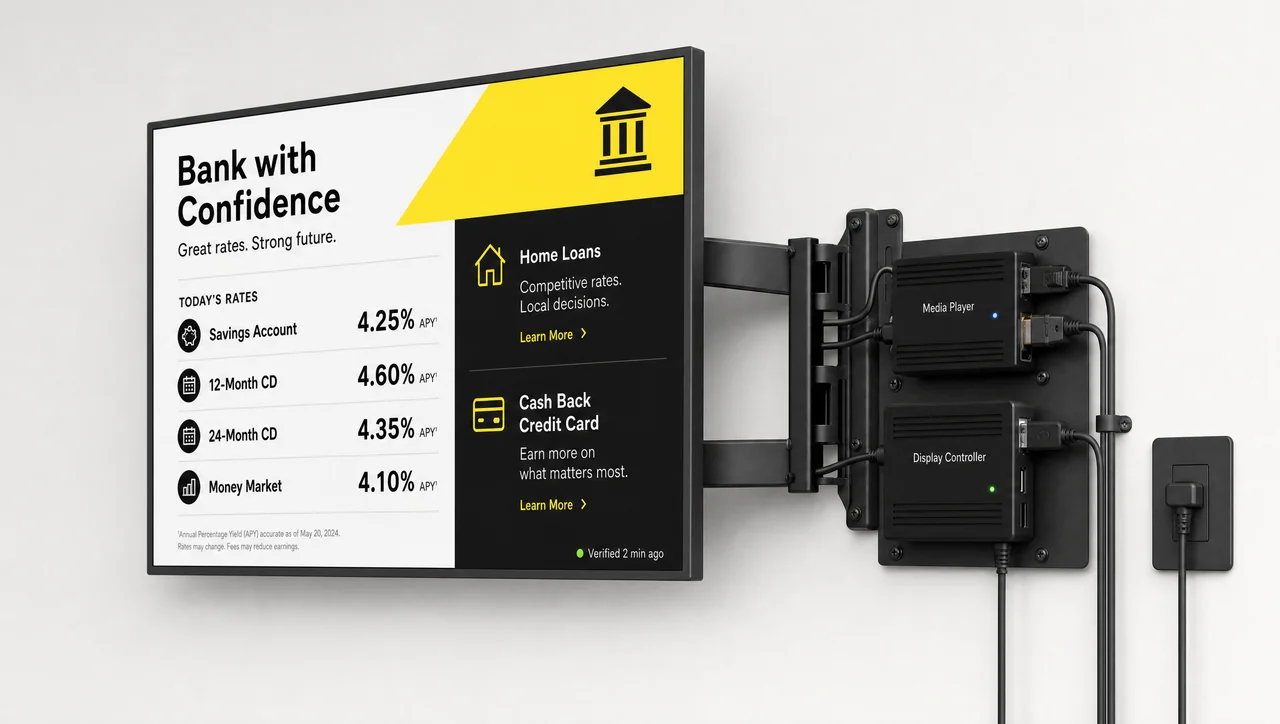
The hardware digital signage runs on is a commercial screen, a playback device, a network connection, protected power and a mount — plus one part most setups skip: a device that confirms the screen is really showing content. Decker builds that layer itself, so a screen network reports its actual state instead of assuming it.



-
2,600 devices Decker hardware in the field
Players and Verifiers run behind client screens in live networks, not as a pilot batch of test units.
-
Verified playback Proof instead of a delivery receipt
A second device checks that the display is actually showing content and records real uptime for every screen.
-
No service call Remote power and HDMI recovery
Screen and player restart remotely and the HDMI source switches back without sending a technician to the location.
Digital Signage Hardware Requirements
Digital signage hardware requirements come down to five things every screen has to cover: a display rated for long daily runtime, a playback device, a stable network connection, protected power and a secure mount. A screen that runs eight or more hours a day, every day, sits in a different duty class than a living-room TV, and the equipment list follows from that.
Brightness is where most specifications go wrong. An indoor panel in a lobby or a dining room works at 350–500 nits, a window-facing display needs 1,500–2,500 nits to stay readable against daylight, and an outdoor or drive-thru unit starts at 2,500 nits and runs to 5,000. A consumer TV sits at the bottom of that range, which is why storefront installations fail first.
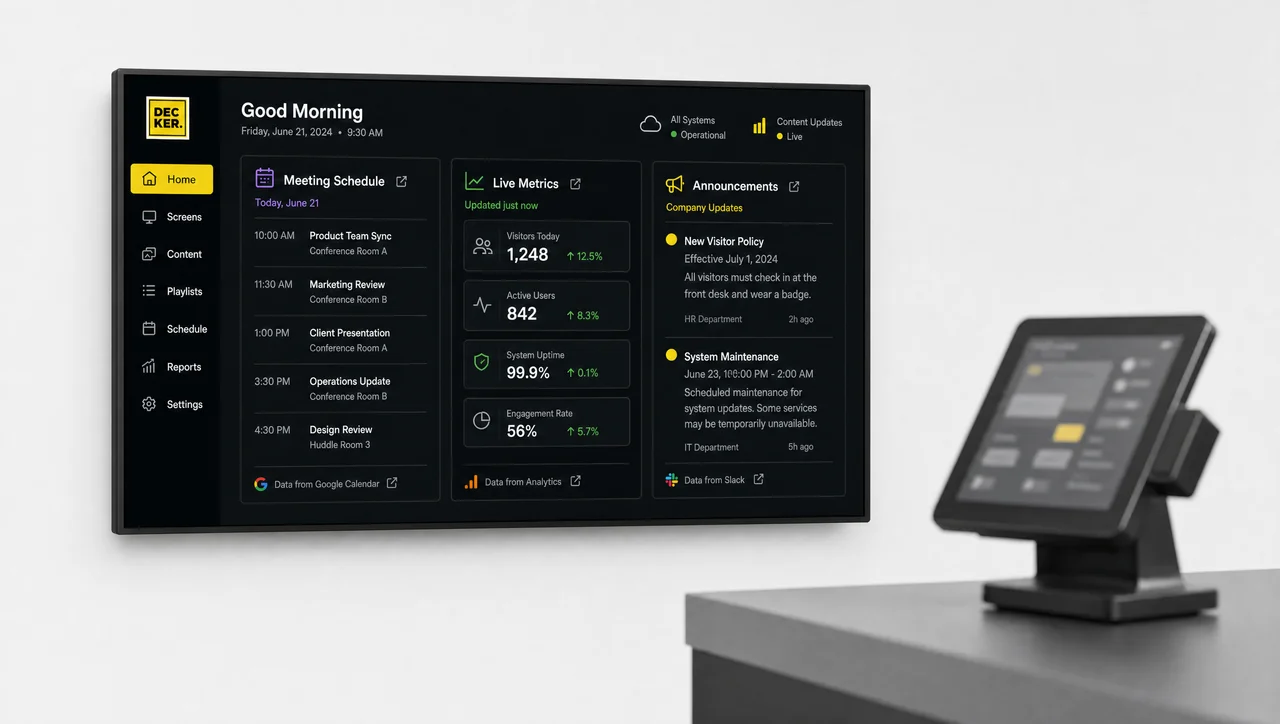
The second requirement is operational, not physical. Content has to reach the screen remotely from the digital signage software platform, and the state of the screen has to come back — otherwise every update and every failure turns into a trip to the location. That is the line between a managed setup and a TV with a file on a USB stick.
| Requirement | TV with a USB stick | Commercial setup |
|---|---|---|
| Daily runtime | 4–6 hours, home use | 16/7 to 24/7 operation |
| Content update | Manual, file swapped on site | Remote, from one dashboard |
| Schedules | None | By hour, day, location, format |
| Screen status | Unknown until someone looks | Reported to the platform |
| Recovery after a power cut | Someone drives out | Remote restart and HDMI switch |
| Orientation and mounting | Landscape, consumer stand | Portrait or landscape, VESA mount |
| Brightness | 250–350 nits | 350–5,000 nits by placement |
⚠️ “Digital signage without hardware” is not hardware-free: a smart-TV app still runs on the TV’s own processor, and a hardware-agnostic platform still needs a display, a network and power. What changes is who is responsible when the screen goes dark — you or the vendor. Comparing a managed setup with a TV, a print poster or a static sign is the honest version of that question.
Digital Signage Hardware Components
Digital signage hardware components split into four roles, and each screen needs all four: the display shows content, the playback device renders it on schedule, mounting, power and the network keep both alive, and a control device confirms the result. Above all four sits the software that publishes to them. Miss the control layer and the system reports “sent”, never “shown”.
-
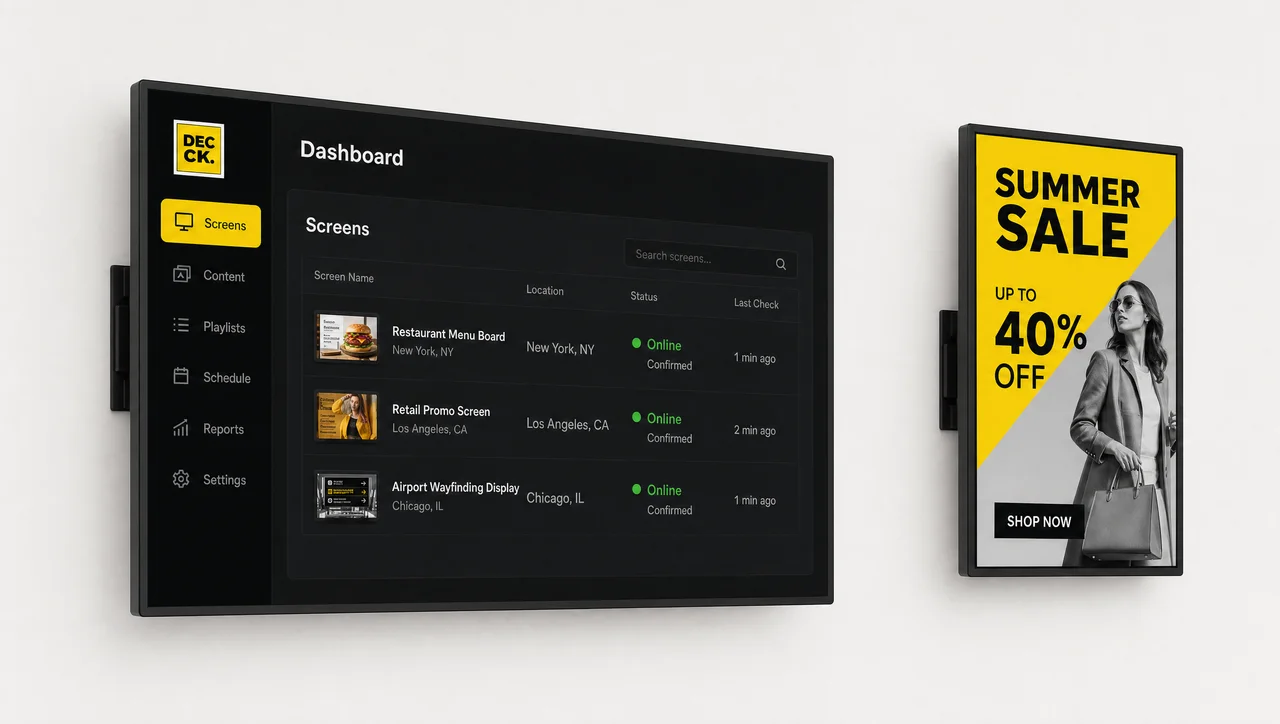
Screens and displays
Brightness, size, duty rating and placement decide the model.
-
 Learn more
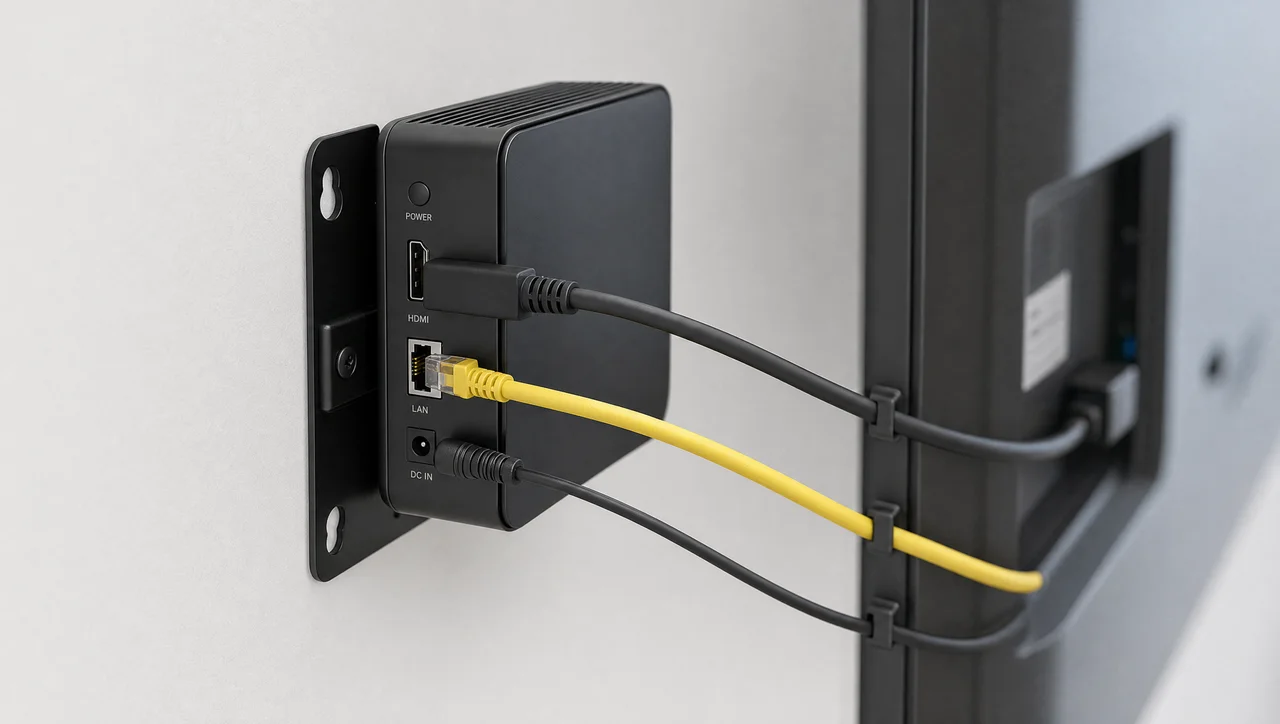
Playback device
Receives content from the platform and renders it on the screen by schedule.
-
 Learn more
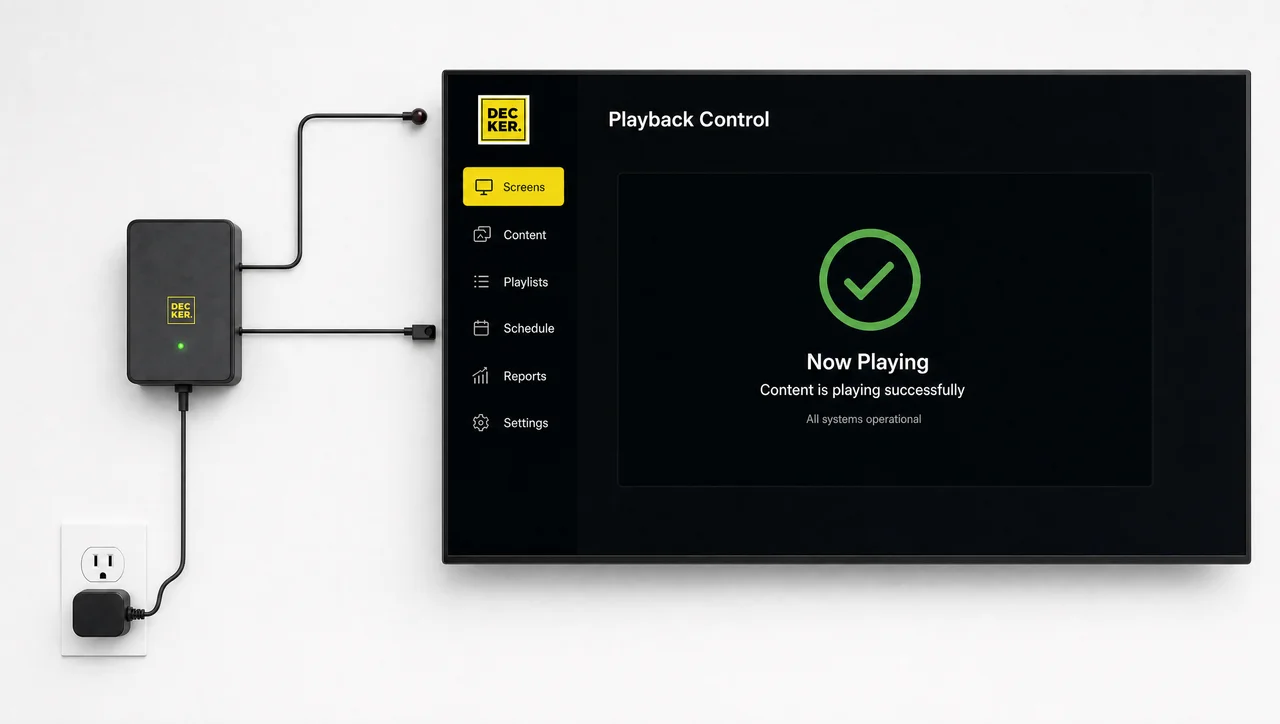
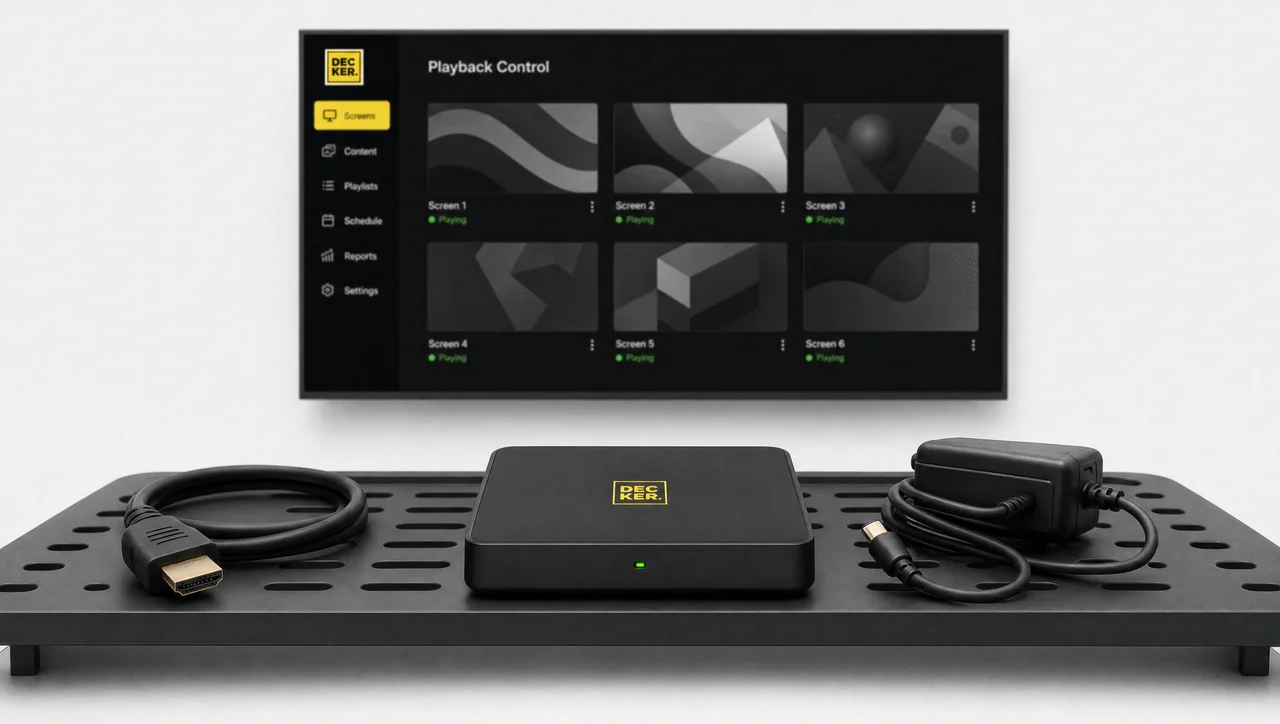
Playback control
Independently checks the display and the playback device and restores them.
-
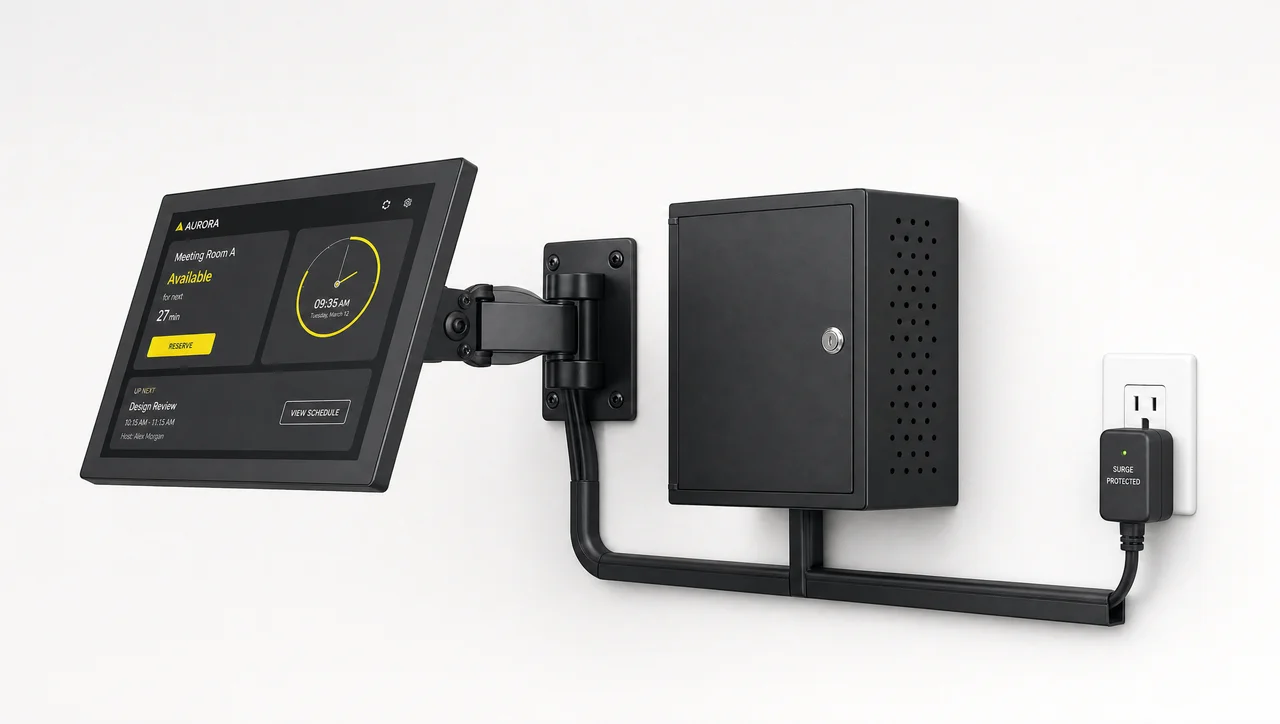
Mounting, enclosure, power and network
VESA mounts, enclosures, HDMI runs, surge protection, Wi-Fi or Ethernet.
-
The player category explained
What a digital signage player is, before you compare models.
Types of Digital Signage Devices
A digital signage device is defined by where it hangs and what it has to survive: an indoor menu board tied to the POS price list, a touchscreen kiosk in a lobby, a narrow strip at the shelf, a lane screen in a sealed enclosure, or several panels driven as one surface. The platform behind them is the same — brightness, enclosure and mounting are what change.
-
Commercial displays
-
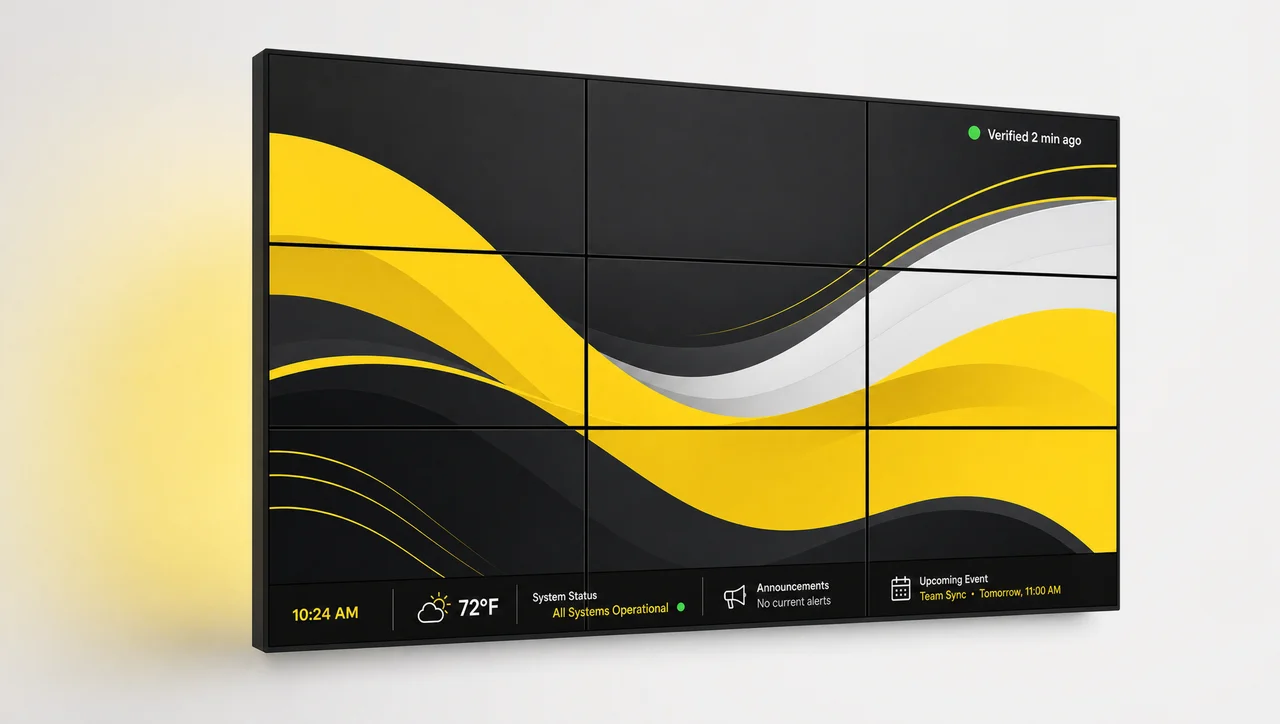 Video walls
 -
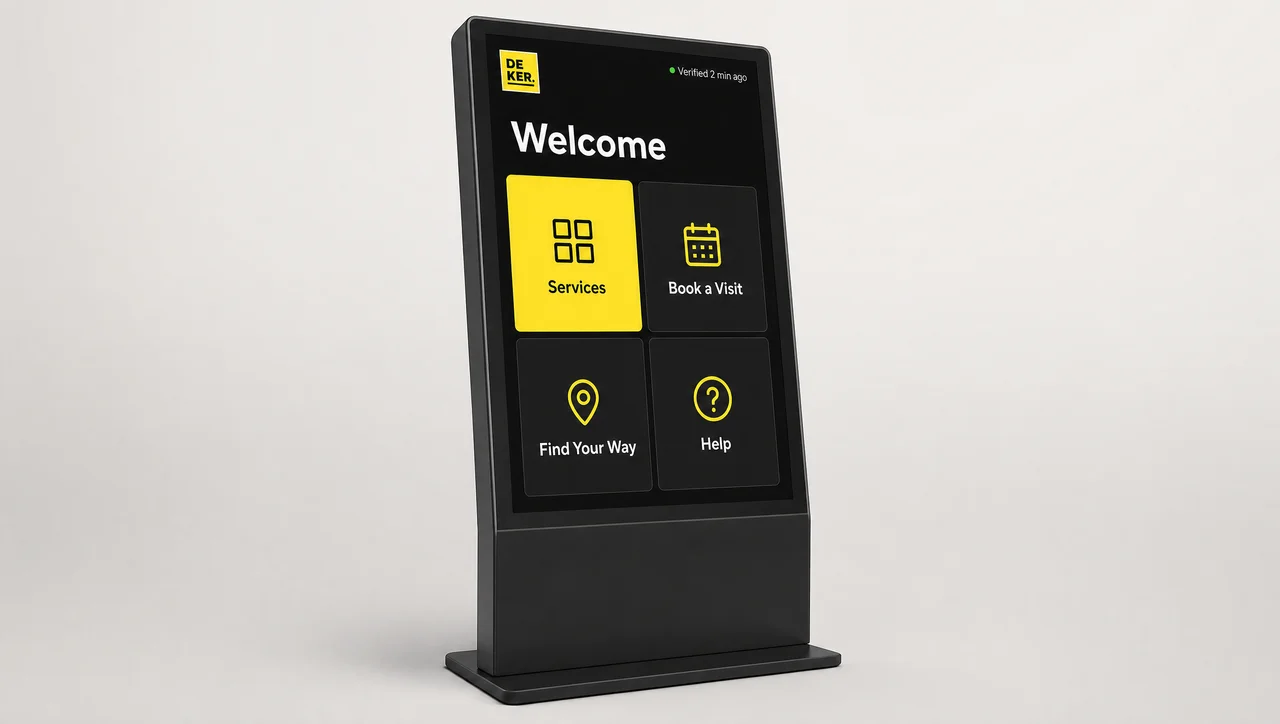 Interactive kiosks
 -
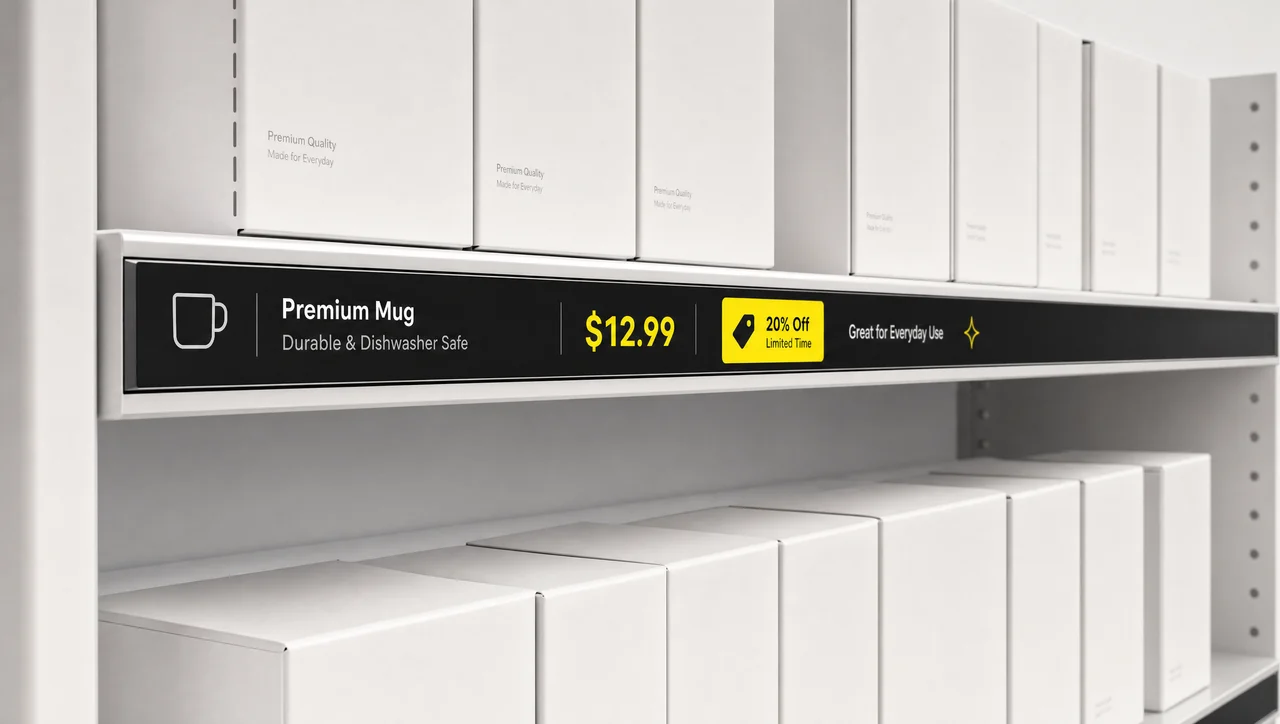 Shelf-edge screens
 -
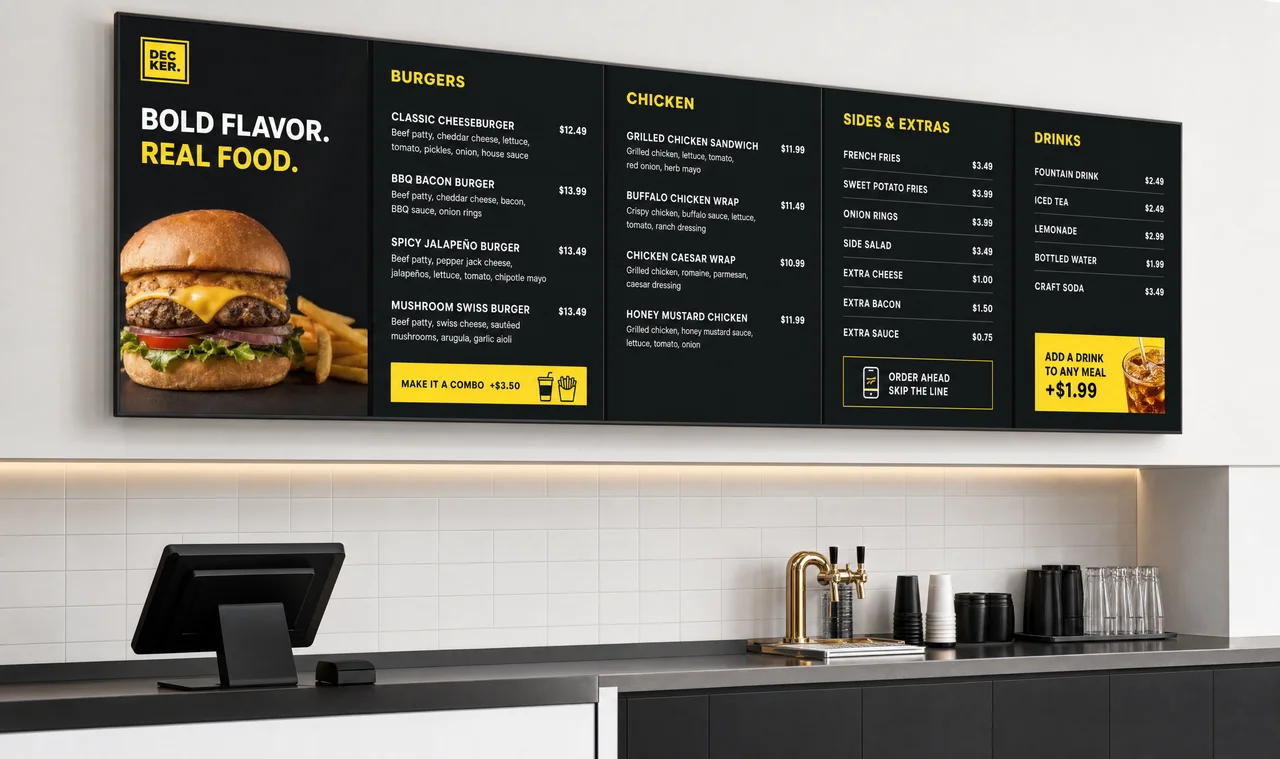 Menu boards
-
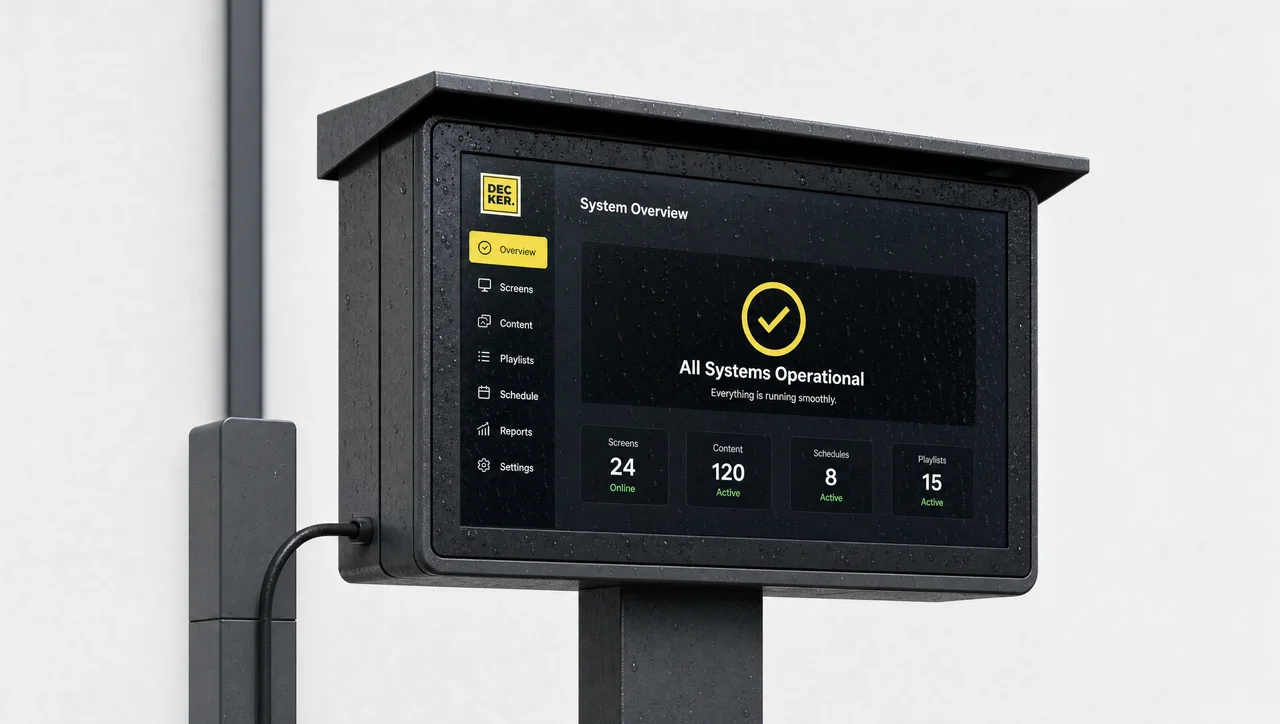 Outdoor and drive-thru screens
 -
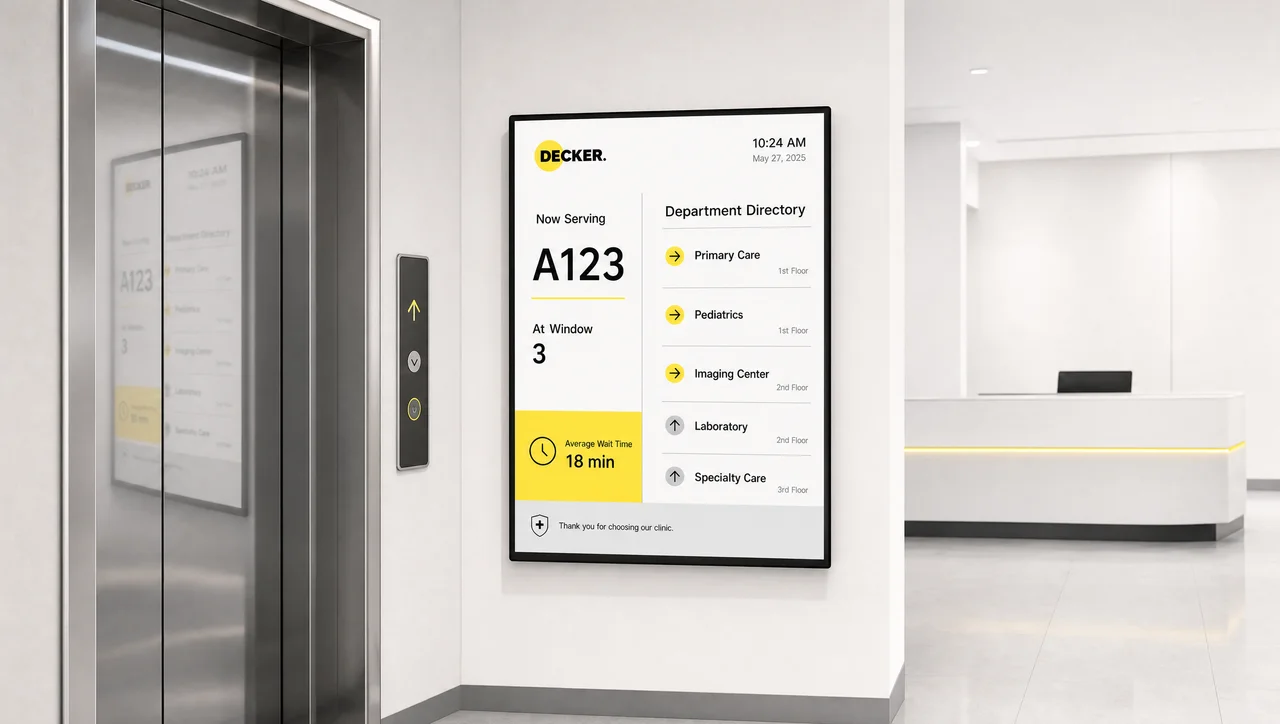 Elevator and reception screens
How Do You Use Digital Signage Hardware
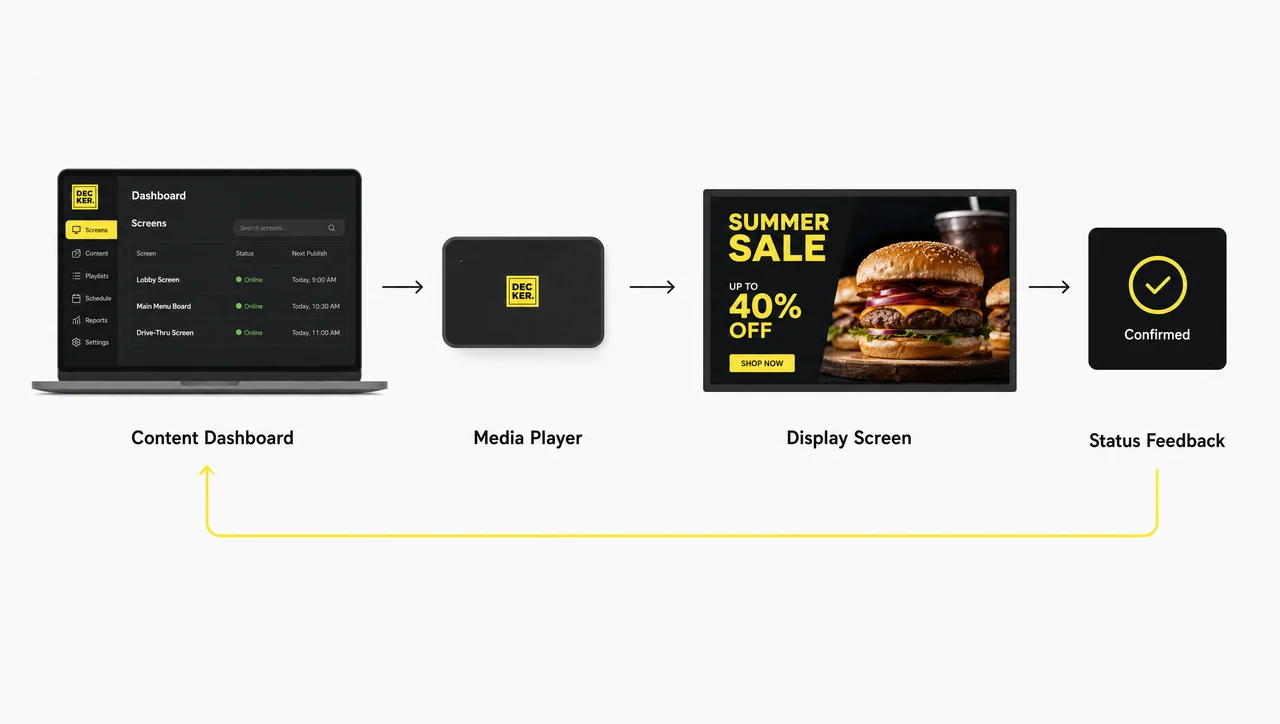
You use digital signage hardware through the platform, not through the device: content is uploaded once in the content management system for digital signage, published to a screen or a group, and the equipment handles delivery, playback and reporting. Nobody touches the screen after installation in normal operation.
-
Step 1.
Publish content and set the rules
The team uploads media or connects a data source, then sets when and where it plays — by hour, day, location or screen group. One publication can cover a single screen or an entire network.
-
Step 2.
The platform delivers the update
The playback device receives only what changed and keeps the rest from local cache. When a price moves in the POS, the new value reaches the screen in one to five seconds without a designer rebuilding the layout.
-
Step 3.
The screen plays on schedule
The device renders the scene and swaps elements without a reload or a flicker. If the network drops, playback continues from cache until the connection returns.
-
Step 4.
The system reports the result
Player and display status, image presence and content version come back to the dashboard, so a failure surfaces as an alert rather than as a complaint from the location.
Digital Signage Hardware Compatibility
Digital signage hardware compatibility is decided by three connections: an HDMI input on the display, a power source you can control, and a network path to the platform. Almost any commercial panel or professional-grade TV with a free HDMI input can join a Decker network, which is why most projects keep the screens already on the wall and change only what drives them.
Where compatibility gets specific is the control layer. Remote HDMI switching relies on HDMI-CEC or an infrared path to the display, and an infrared emitter needs line of sight to the panel’s receiver. Portrait installations, outdoor enclosures and video-wall controllers each add their own requirements, so screens are checked model by model before an order is placed.
Size and brand matter less than people expect. A 32-inch panel and an 86-inch one join the network the same way, professional and consumer-grade models both work through the playback device, and a display with no network of its own is no obstacle — connectivity lives in the device behind it, not in the screen.
-
Screen and hardware compatibility
-
 Apps and integrations
Digital Signage Hardware Installation
Digital signage hardware installation runs in one visit per location when the site survey is done first: mount, power, network, device, then activation in the platform. The order matters — pulling a network point after the screen is already on the wall is what turns a one-hour job into a second trip.
A typical installation sequence:
- Survey the site: viewing distance, ambient light, mounting surface, power and network points.
- Fit the mount and run the cables, leaving service access behind the panel.
- Connect the playback device and the control device to the display and to power.
- Register the device in the platform and assign it to a screen group.
- Publish a test scene and confirm playback status in the dashboard before leaving.
Upkeep follows the same logic: scheduled power cycling at night extends panel life, and remote diagnostics replace most routine visits. Practical details for mounts, cable runs and servicing are covered in installation and maintenance, and the food-service specifics for counters and lanes in menu board installation.
Digital Signage Hardware Selection
Digital signage hardware selection starts with the network, not the model: screen count, placement and content type decide the specification, and the same five inputs also tell you whether one location or a hundred are being planned. If you are still comparing approaches, our guide on choosing the right digital signage software covers the software side of the same decision.
-
Step 1.
Count the screens, now and later
Ten screens in one building and ten screens across ten cities are different projects. Rollout order and support model are set by the second number, not the first.
-
Step 2.
Map placement and operating hours
Ambient light, mounting surface and daily runtime set brightness, duty rating and enclosure. Window-facing and outdoor positions raise the brightness requirement several times over an indoor lobby.
-
Step 3.
Define the content
Static menus, video loops, live data from a POS or ERP, and interactive flows put different loads on the playback device. Content decides processing, not the other way round.
-
Step 4.
Check network and power
Ethernet where the connection must hold, Wi-Fi where cabling is impossible, surge protection everywhere. Controllable power is what makes remote recovery possible later.
-
Step 5.
Decide who owns uptime after launch
Either your team drives to a location when a screen goes dark, or the hardware reports and restarts itself. This is the choice that separates a set of screens from a managed network.
Hardware That Confirms What Is on the Screen
Decker treats the screen as a device that can fail, so every installation carries two devices instead of one: Decker Player runs the content, and Decker Verifier checks that the content is actually on the display. Most platforms in this category are software companies — they send content to screens and assume the screens showed it.
Decker Verifier works independently of the player. It monitors the state of the player and the display, controls power to both, switches the HDMI source and restores playback after a failure without a service visit. It also records how many hours each screen really showed content, which turns invisible downtime into a metric you can compare between locations.
What Digital Signage Hardware Costs
Digital signage hardware is bought once and paid for over years, so the useful number is cost per screen per year, not the price on the box. Four lines dominate it: the display, the devices behind it, the installation labour at each location, and the per-screen software subscription that keeps the network running. A fifth line hides behind them — every trip a technician makes after launch — and that is the one most budgets miss and the one verified playback removes.
Where networks actually save:
- Keeping existing displays and replacing only the playback device, which costs a fraction of a new panel.
- Scheduled overnight power-off, which reduces runtime hours on the panel and cuts energy use.
- Remote restart and HDMI recovery instead of a service call — the saving scales with distance between locations.
- Rolling hardware into a subscription (hardware as a service) when capital budget is tight, instead of buying outright.
Where a full setup is not worth it:
- One screen with content that changes a few times a year — a managed network solves a problem you do not have.
- Locations with no reliable network and no way to add one: without connectivity, remote management and verification cannot work.
- Temporary installations of a few weeks, where rental equipment is cheaper than owned hardware.
Current plans and what is included are listed on pricing, and the market-wide breakdown lives in our cost guide.
Where Decker Hardware Runs
-
 Learn more
Restaurants
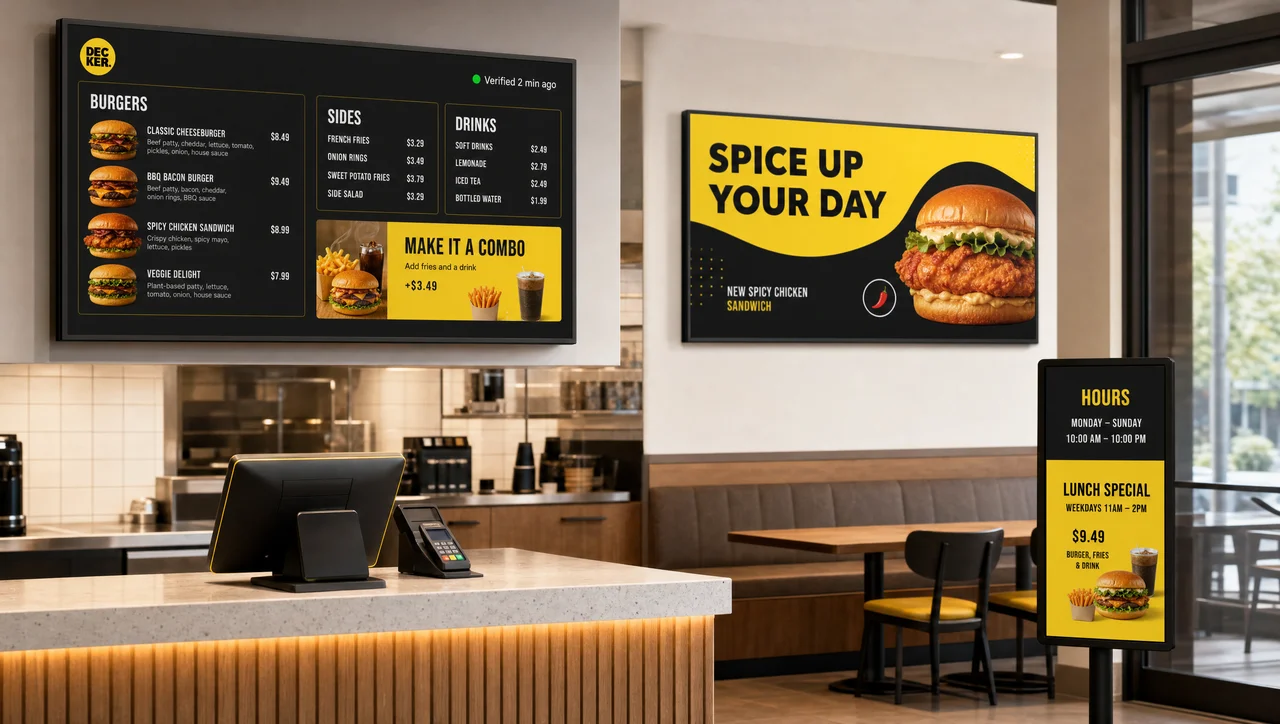
Menus, promos and queue screens in one systemWhole-venue setup for full-service dining rooms and counters.
-
 Learn more
QSR
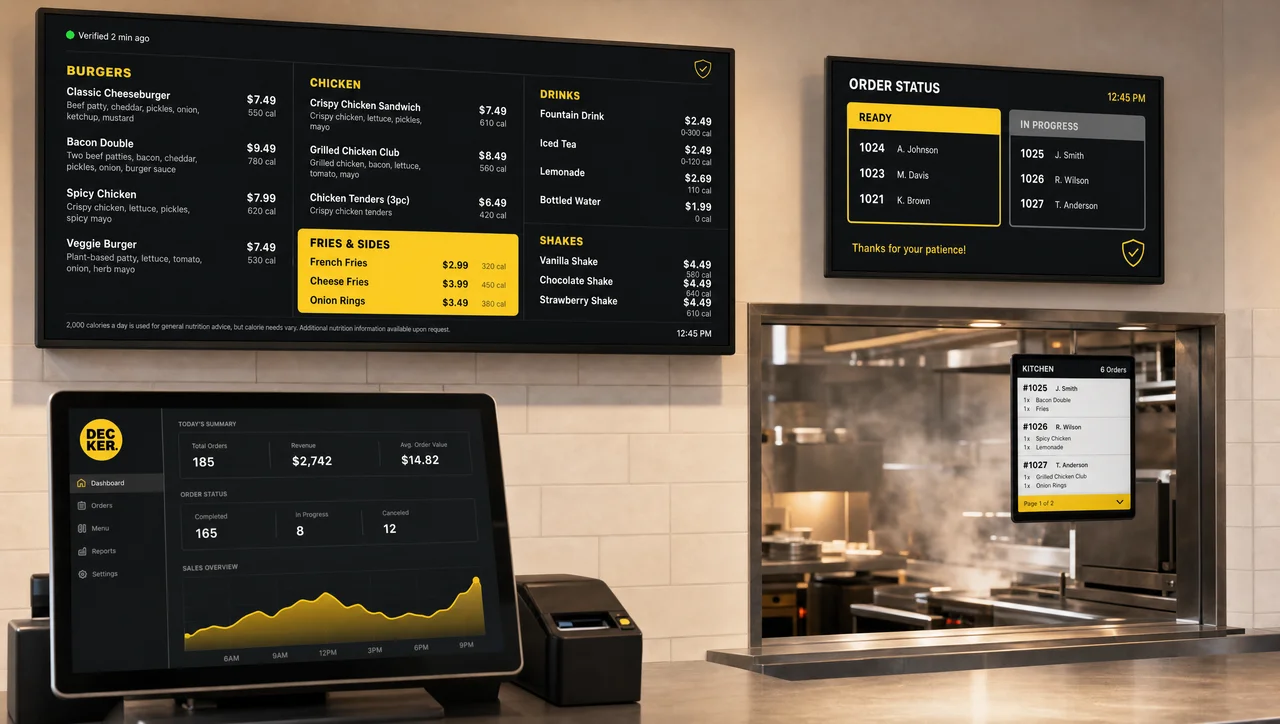
Counter, drive-thru and back-of-house screensHigh-turnover sites where a dark screen costs orders directly.
-
 Learn more
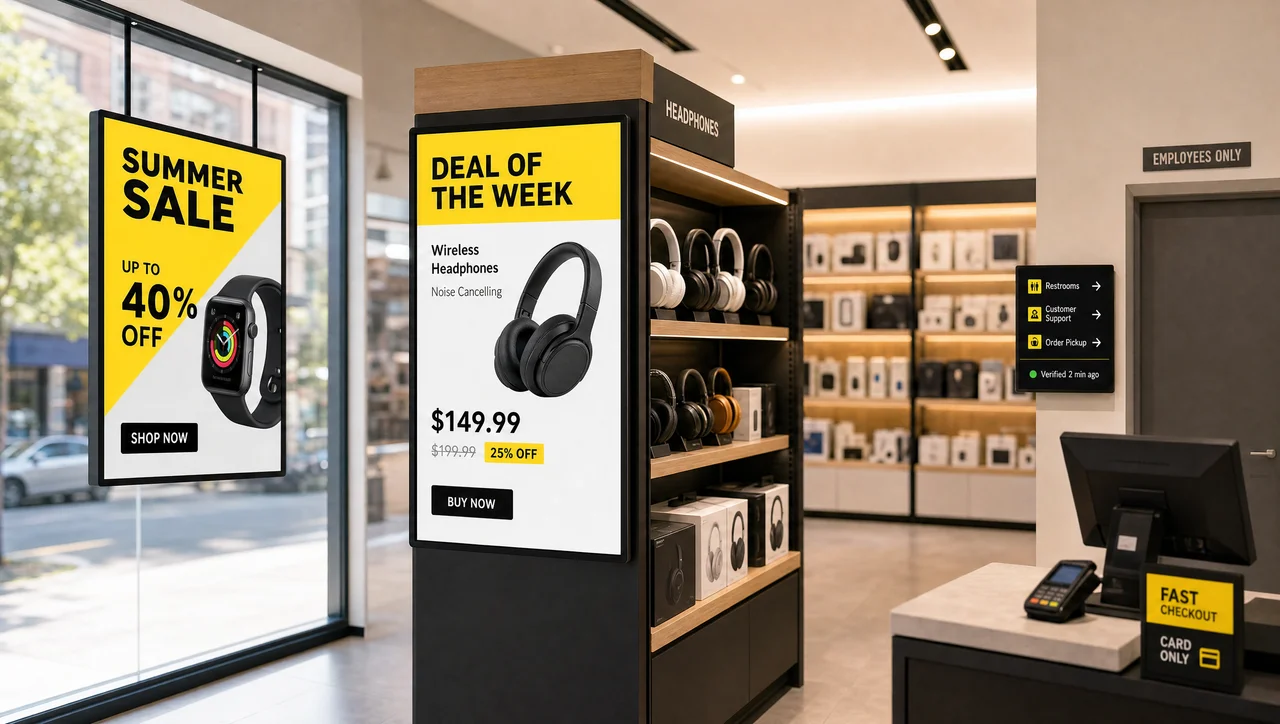
Retail
Promo, window and shelf-level displaysNon-food stores running campaign content across locations.
-
 Learn more
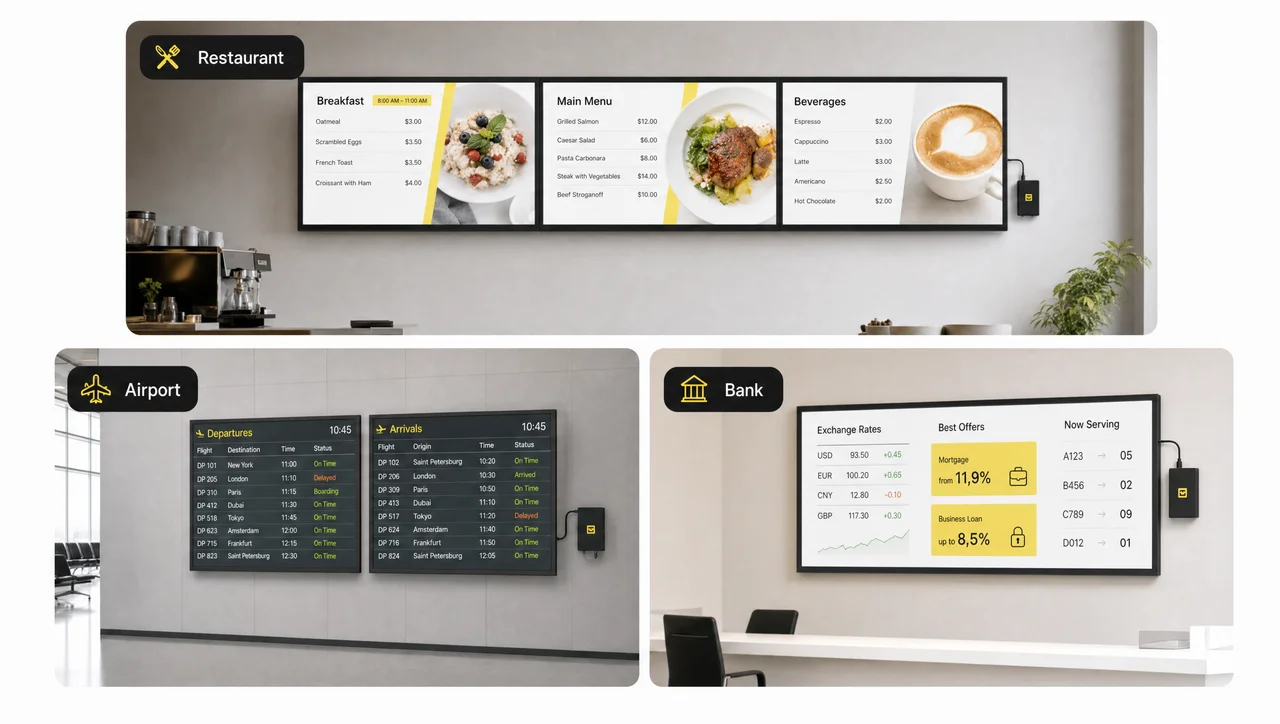
Digital menu boards
Screens tied to the POS price listPrices and availability follow the POS without manual edits.
-
 Learn more
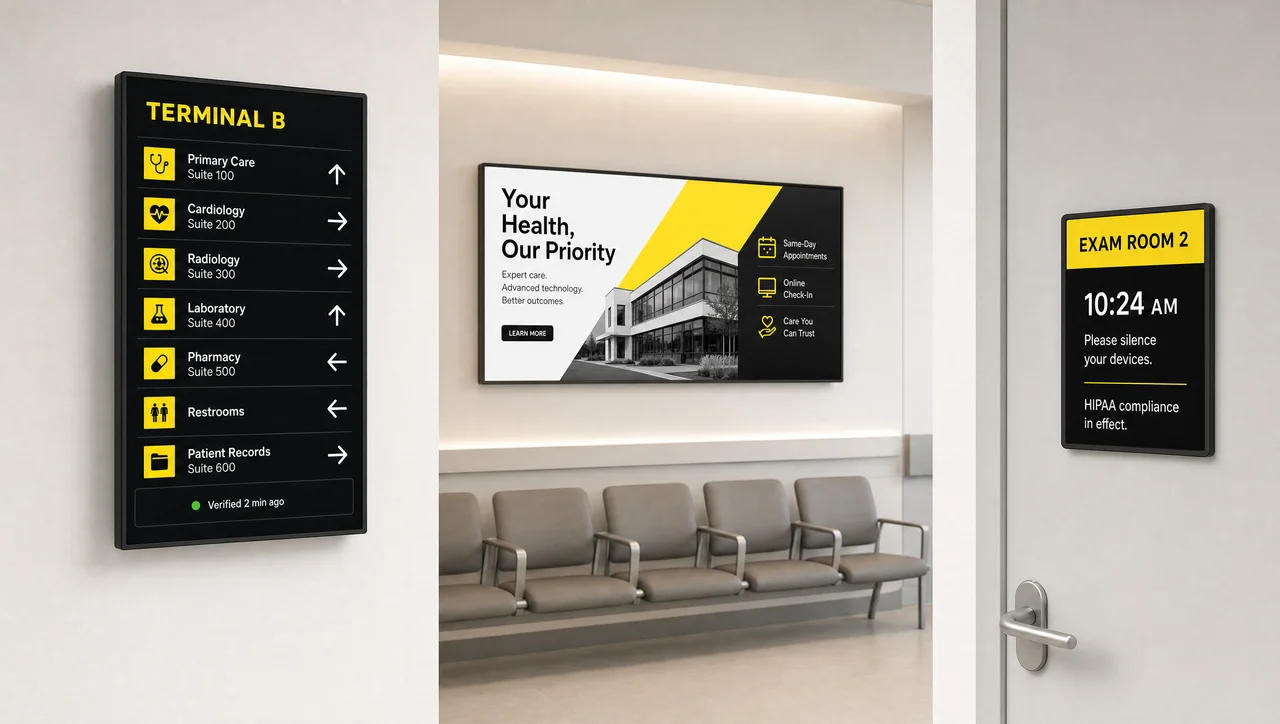
Healthcare
Waiting-room updates and department wayfindingScreens that stay correct when the information changes hourly.
-
 Learn more
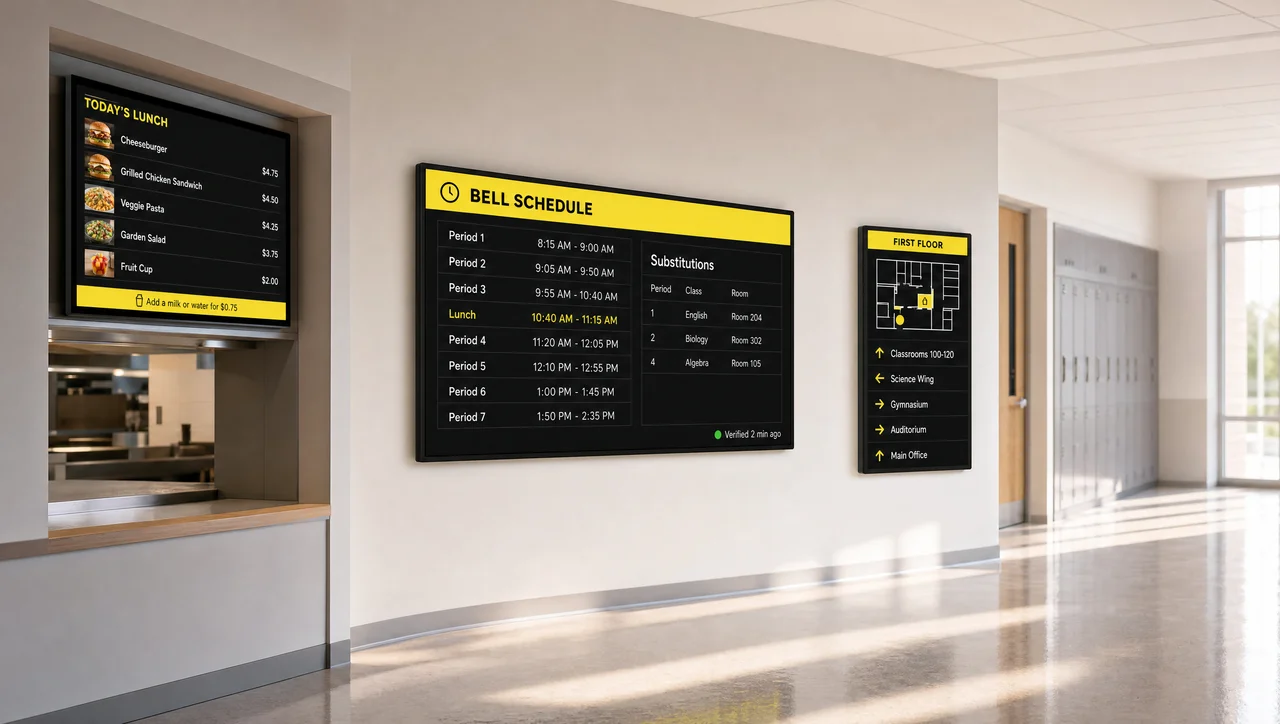
Education
Schedules, alerts and campus noticesOne network across buildings, with alerts able to take over every screen.
-
 Learn more
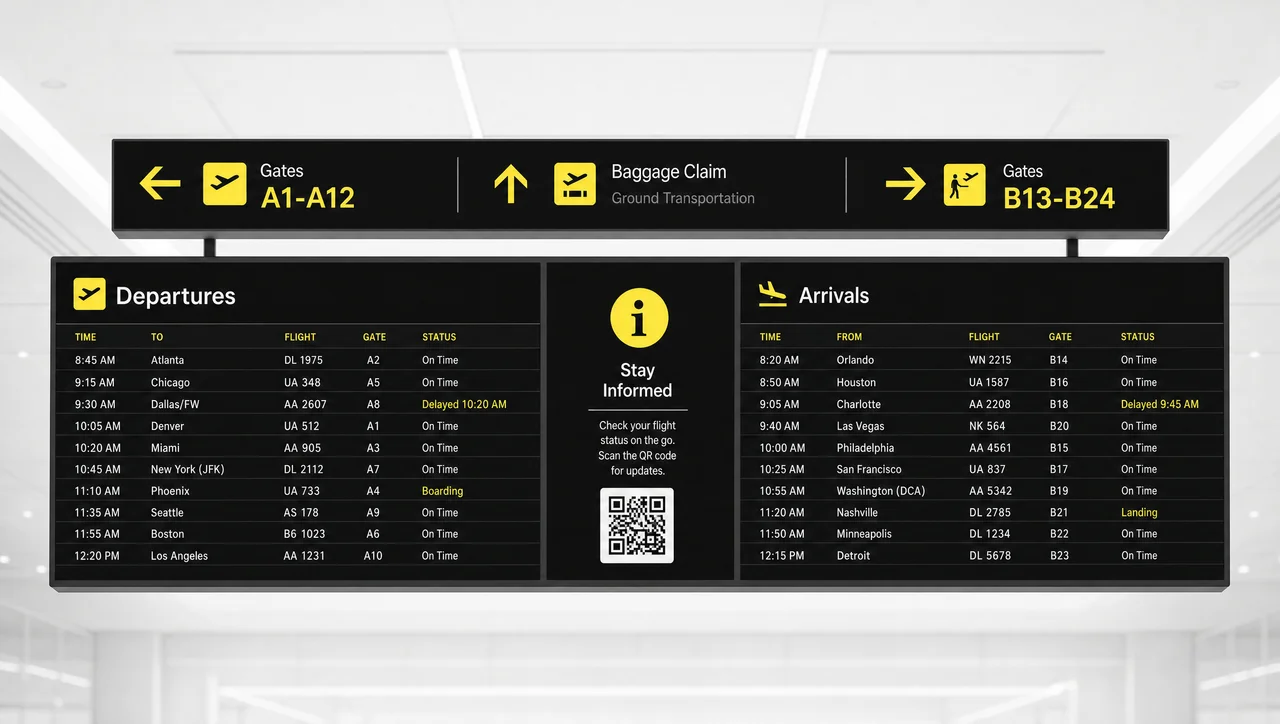
Airports
Live passenger information and wayfindingScreens that cannot go dark, on hardware that reports its own state.
-
 Learn more
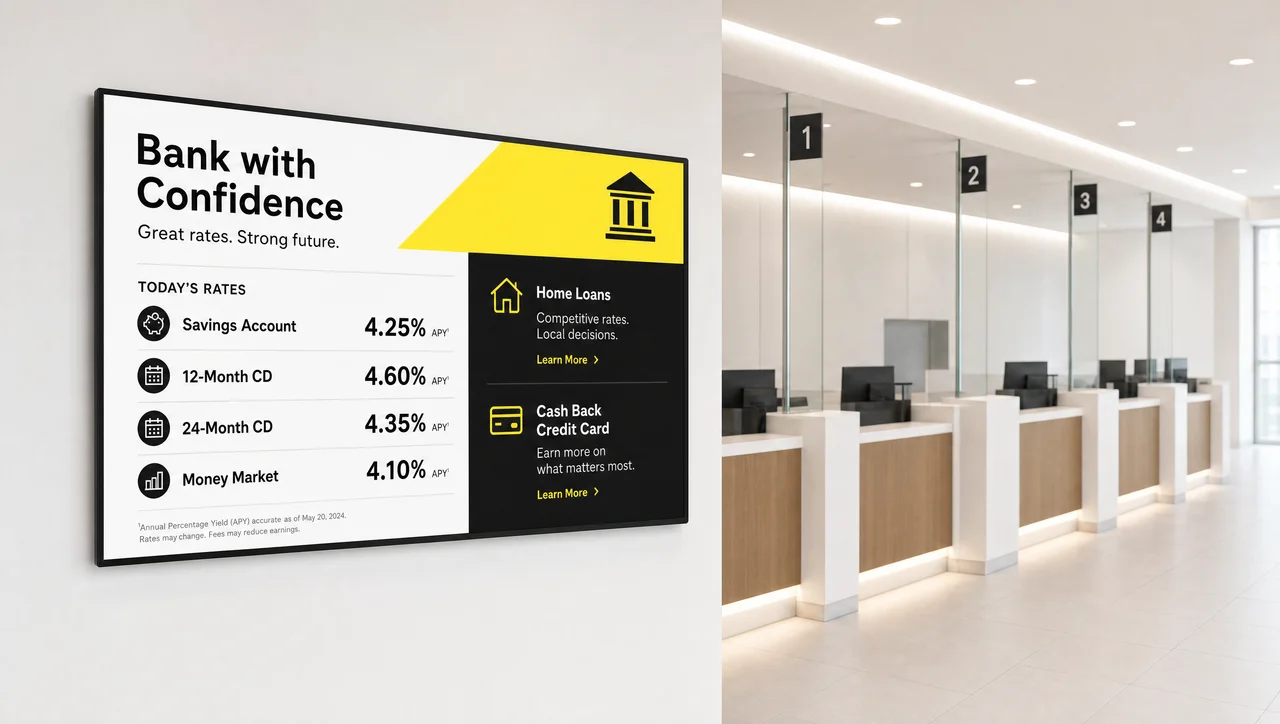
Banking
Rates, offers and branch noticesBranch networks where the same content has to be identical everywhere.
Numbers Behind the Hardware
- 13,700+
- screens connected to the Decker platform
- 490+
- locations running on Decker hardware and software
- 2,600
- Decker Player and Verifier devices deployed with clients
- 1–5 sec
- from a price change in the POS to the new price on screen
Frequently Asked Questions
What is the best digital signage hardware for commercial use?
The best digital signage hardware for commercial use is the set rated for the runtime you actually need: a display certified for 16/7 or 24/7 operation, a dedicated playback device rather than a TV app, and a way to restart both remotely. Consumer TVs and streaming sticks run the content, but they carry no duty rating and report nothing when they stop.
What is the best digital signage hardware for retail stores?
Retail splits into three positions with different requirements: window-facing displays need high brightness to fight daylight, in-store promo screens need standard commercial panels, and shelf-edge strips need narrow formats. All three run from the same platform, so the choice is per position, not per store.
Can I run digital signage without dedicated hardware?
You can run content from a smart TV app, and for one screen that changes rarely it is enough. Across several locations it breaks down: there is no duty rating on the panel, no remote recovery when the app closes, and no reliable status, so every failure becomes a site visit.
Will Decker hardware work with screens I already own?
In most cases yes. A commercial panel or professional TV with a free HDMI input, a controllable power source and a network path can join the network — the playback and control devices are added behind the screen you already have. Models are checked individually before an order.
Can I rent hardware instead of buying it?
Hardware can be bundled into the subscription rather than bought outright, which keeps the rollout off the capital budget and moves replacements to us. Which option fits depends on screen count and rollout schedule; see what each plan includes.
What hardware do I need for outdoor and drive-thru screens?
Outdoor positions need a high-brightness, weather-rated display in a sealed enclosure, plus protected power and a network path that survives the weather. The playback and control devices stay the same as indoors; the display and enclosure are what change.
How many screens can one setup manage?
The platform runs from a single screen to a network of thousands, and the hardware scales linearly: each display gets its own playback and control devices, and screen groups keep publication manageable as locations are added.
Build the Setup Around Your Screen Count
Send us your screen count, locations and what each screen shows, and we will come back with a hardware configuration and a quote. If you would rather see it running first, book a demo or request a quote.


