How to Choose the Right Digital Signage Software: A Buyer’s Checklist for CMS, Playback, and Cost


The right digital signage software proves every screen is playing, syncs your business data, and fits your team and budget. To choose the right digital signage software, define what each screen shows and who updates it, then score platforms specifically on CMS usability, scheduling, verification, device support, integrations, access, security, and total cost.
How to Choose the Right Digital Signage Solution: The Four Layers
A digital signage solution includes four layers: the software, the player, the network, and the service process that fixes a dark screen. How to choose the right digital signage solution therefore starts with checking all four, not one app. Displays only update when all four layers work, and a weak layer breaks the chain no matter how polished the dashboard of a digital signage platform looks.
- Software (CMS). Digital signage software stores media, builds layouts, schedules playlists, and publishes content to screen groups. Your marketing and operations teams live in this layer every day.
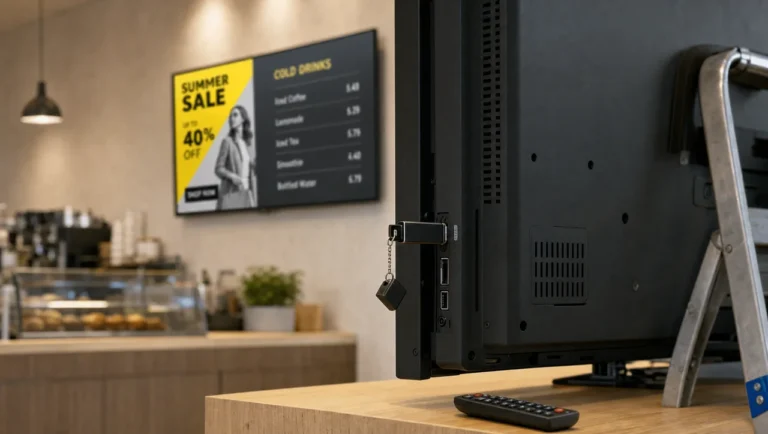
- Player. Each screen needs a player, a device or built-in app that syncs content and shows it on the glass. One player per screen is the standard setup, because it lets every display run its own playlist. Some smart TVs and commercial panels run a signage app directly; others take an external Android box or mini PC connected over HDMI.
- Network. Every screen depends on the network, which delivers updates and sends status back to the dashboard. A display on a good platform keeps playing from a local cache through an outage, then syncs again.
- Service and recovery. Screens fail, and someone has to spot the failed display and recover it. This layer decides whether a fault takes two minutes or a technician’s visit.
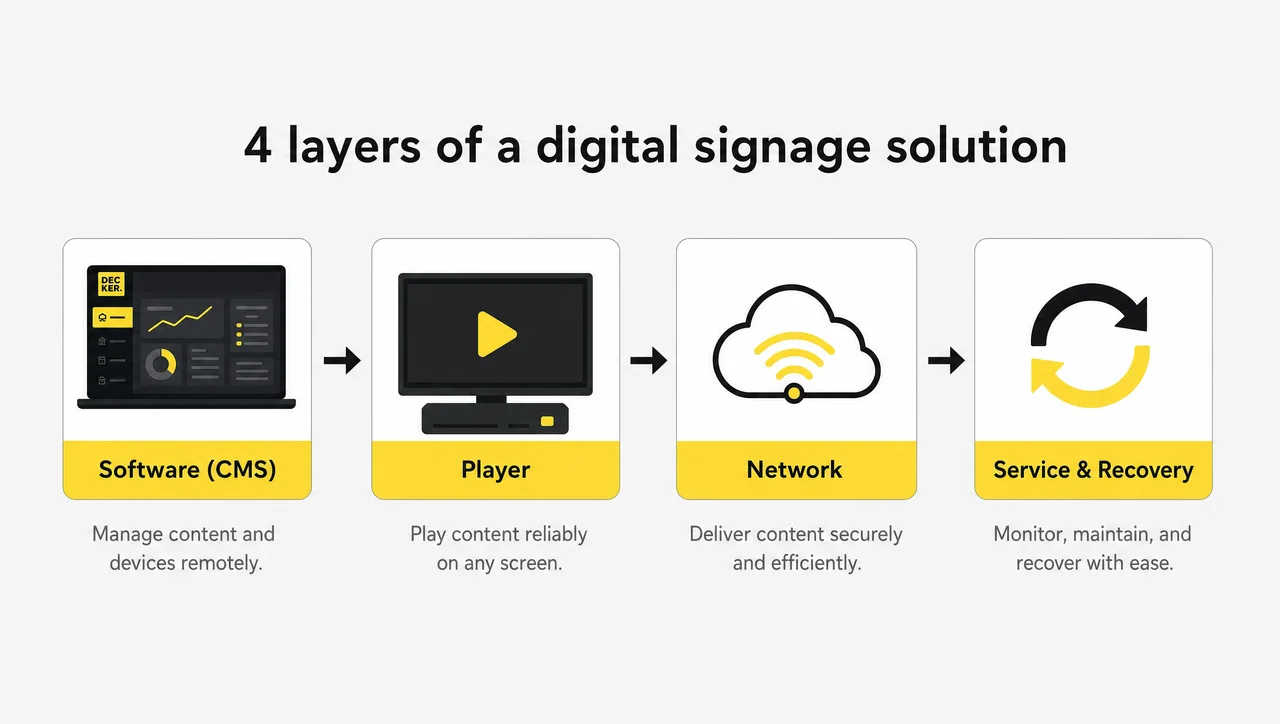
Choosing the right digital signage software therefore means judging one layer in the context of the other three. That distinction matters when a vendor quotes a low per-screen price: the quote covers the software, while players, mounting, and field service land on your side of the ledger.
Not to be confused with: a CMS handles the content-editing part of the stack, while full digital signage software adds device management, monitoring, and publishing rules. Our breakdown of digital signage software vs a CMS covers the difference in detail.
The software layer carries most of the decision, because it controls every other layer from one dashboard. Digital signage software alone cannot restart a TV that lost power, so check which recovery tools connect to the player. Next, map those layers to your own screens.
How Do I Choose Digital Signage Software? Start With Your Use Case
Digital signage software fits your business only when it matches the content you publish, the screen count, and the locations that you define first. How do I choose digital signage software that fits? Write down what each screen will show, where every display is located, and how many locations one account must manage. These answers remove half the market before the first demo, because a digital signage platform built for a single lobby screen behaves very differently across 200 locations.
Answer four questions in writing first:
- What will the screens show? Menus with live prices, promotions, staff announcements, live business data, and safety notices each need different features.
- Where will each display hang? Displays in a drive-thru lane, a store window, and a break room need different checks for brightness, mounting, and connectivity.
- How often does content change? Screens that update prices daily need data-connected templates; a quarterly poster rotation does not.
- Who publishes, and who approves? One owner works fine in a simple tool. Regional marketing, local managers, and franchisees need roles and permissions.
A screen count also changes the math: a digital signage platform that publishes well to 2 screens will not necessarily monitor 200 screens. The market splits into three clear tiers. Entry-level tools fit networks under 10 screens with simple content, mid-market platforms cover 10 to 100 screens with standard integrations, and enterprise platforms serve 100+ screens that need SSO, approval workflows, and deep system integration. Map your answers to the capabilities you need at each scale:
| Scenario | Must-have capabilities | Can wait |
|---|---|---|
| 1–2 screens, content changes rarely | Simple uploads, basic scheduling | Integrations, verification |
| One restaurant with menu screens | Point-of-sale data sync, dayparting, item availability sync | Multi-location workspaces |
| 10–50 screens across several sites | Screen groups, user roles, remote monitoring, alerts | Custom API work |
| 100+ screens, franchise or multi-state network | Per-location targeting, playback verification, uptime per screen, remote recovery, API, SSO | Touch interactivity |
| Offices, campuses, factories | Calendar and data feeds, urgent notice override, access control | Menu-specific tools |
Industry context shifts the priorities further. Restaurants weigh price accuracy, retailers weigh campaign timing, hospitals weigh patient information, campuses weigh schedules and notices, and transit hubs weigh live departure data. Our overview of industries that use digital signage shows how these priorities play out sector by sector. Food-service buyers should also study how digital menu boards pull prices from the point of sale, and teams that prefer a ready setup can start from digital signage solutions built for their sector.
Build a Requirements Matrix Before You Choose Digital Signage
A requirements matrix sorts every capability into must-have, should-have, and nice-to-have, so vendors answer your needs line by line. Must-have means the rollout fails without it, should-have means clear value with a workaround, and nice-to-have means useful later. Before you choose digital signage software, fill the matrix for your network size:
| Capability | Under 10 screens | 10–100 screens | 100+ screens |
|---|---|---|---|
| Browser-based dashboard and scheduling | Must | Must | Must |
| Offline playback from a local cache | Must | Must | Must |
| Dayparting and location rules | Should | Must | Must |
| Remote monitoring and alerts | Should | Must | Must |
| Data sync with POS, ERP, or data feeds | Should (menus) | Must (menus) | Must |
| User roles and permissions | Nice | Must | Must |
| MFA and audit logs | Should | Must | Must |
| Playback verification and remote recovery | Nice | Should | Must |
| Approval workflow | Nice | Should | Must |
| Uptime per screen reports | Nice | Should | Must |
| SSO and API access | Nice | Should | Must |
Send the matrix to every vendor on the shortlist and ask for a written yes, no, or roadmap date on each line. Digital signage software that cannot confirm a must-have in writing drops off the list, no matter how good the demo looks. Once the matrix is filled, the next step is scoring each platform on the same criteria.
How to Choose Digital Signage Software: 8 Core Criteria
Digital signage software earns a place on your shortlist through eight checks that expose real differences: CMS usability, scheduling, playback verification, device support, integrations, access control, security, and pricing. How to choose the right digital signage software therefore comes down to scoring every shortlisted digital signage platform on the same eight rows during each demo, so feature lists stop hiding the gaps. Weight the rows to match your priorities; the weights below help a multi-location network select the right digital signage software without guesswork.
| Criterion | Weight | What to check | Red flag |
|---|---|---|---|
| CMS usability | 15% | A non-technical user publishes a real layout in the demo | Only the sales engineer touches the dashboard |
| Scheduling | 10% | Rules by time, location, screen group, and campaign window | Playlists must be swapped by hand |
| Playback verification | 20% | Status of screen, player, and actual playback after publishing | “Online” is the only status shown |
| Device support | 10% | Supported operating systems, smart TV apps, external players | One display brand only |
| Integrations | 15% | Point of sale, ERP, API, calendars, data feeds | Integrations are “on the roadmap” |
| Access control | 10% | Roles per team and location, MFA, SSO | Everyone shares one admin login |
| Security | 10% | Encryption, access controls, privacy rights, audit reports on request | Security page with badges but no details |
| Pricing and service | 10% | Cost at 10, 50, and 200 screens; SLA; who fixes a failed screen | Price per screen with no mention of hardware or service |
1. CMS Usability for IT and Content Teams
A usable CMS lets a non-technical editor publish a real layout without help. IT and content teams judge a CMS by different standards: IT wants control and security, while the people who build content want speed. One screen publishing test tells you more than a feature list: ask a real content editor to create, schedule, and publish a layout during the demo. If that person needs help three times, adoption stalls after launch, and the screens fall back to stale content. Check content preview before publishing, drag-and-drop layouts, multi-zone templates, and a mobile-friendly dashboard for managers on the floor.
2. Scheduling, Dayparting, and Location Rules
Good scheduling publishes the right content by time, location, and screen group without manual playlist swaps. Scheduling decides whether screens run themselves: a screen group, location, time of day, business format, and campaign window should all feed the publishing rules, and overlapping schedules need a clear priority order with fallback content. The right digital signage software publishes to a screen by those parameters, so a breakfast menu switches to lunch automatically and a regional promotion reaches only the stores that carry it. Screens then update on schedule without anyone opening the dashboard.
3. Playback Monitoring and Verification
Playback verification confirms that the display itself is on and showing your content, not just that the player is online. A green “online” dot in most digital signage software tells you only that the player is reachable. No display status comes with that dot, so it cannot verify whether the TV is on, set to the right input, and showing your content. Screens can look online while showing nothing useful, so check what the dashboard reports when a TV sits on its home screen after a power cut. A display in each of 50 locations should report to the same digital signage software, which checks its status after every publish. A screen check like this separates basic monitoring from real verification, which the section below covers in detail.
4. Player and Operating System Support
The software must run on every player and smart TV system already in your fleet. A screen fleet rarely matches one brand, so check which operating systems and devices the software runs on: Android players, Windows mini PCs, ChromeOS devices, and commercial panels with a built-in system-on-chip such as Samsung Tizen and LG webOS. Any screen with an HDMI input can join a network through an Android stick that costs about $30 to $60. A mixed fleet of displays needs one workflow across brands, and a digital signage platform tied to a single screen brand cannot cover it. A display that loses power must come back to your content, not the TV home screen, so check this during the demo. Our test of software that works with any TV shows how each platform behaves after an outage.
5. Integrations and API Access
Native integrations sync prices, menus, and live data to screens without manual uploads. A screen connected to live data turns into a channel instead of a slideshow: restaurants need point-of-sale data, retailers need ERP or pricing feeds, and offices need calendars, business data, and alert systems. Confirm that each integration is native or documented through a REST API, and ask how long a change in the source system takes to appear on screen. When you select digital signage software for a chain, require that it integrates with your API and syncs data from the source system automatically instead of waiting for manual uploads.
6. User Roles and Access Control
Role-based access limits each user to the screens and content that the job requires. Access control keeps a local manager from overwriting a national campaign. You need roles per team and per location, an approval step for multi-contributor teams, audit logs, and single sign-on for larger organizations. In the right digital signage software, a screen publishes only what the assigned role permits, so marketing, operations, and local teams each keep the right permission level.
7. Security and Data Privacy
Secure digital signage software encrypts traffic with TLS 1.3, protects sign-in with MFA, and honors CCPA/CPRA and GDPR requests. Security questions belong in the first call, not the contract stage, so ask how each of these works in practice.
- Stored media should use strong encryption such as AES-256, on top of TLS 1.3 for data in transit.
- Platform access should use MFA, role-based permissions, and IP allowlisting, so only trusted networks and assigned users reach the dashboard.
- A digital signage platform that processes data of California residents must honor CCPA/CPRA requests for access and deletion.
- A digital signage platform with users in the EU or UK must handle GDPR rights such as access, correction, and erasure.
When a digital signage platform lists SOC 2 or ISO 27001, ask for the report or certificate and its date before you subscribe. Healthcare, government, and enterprise buyers handle confidential information on the same network, so they need these documents in writing. A badge without a document cannot replace an audit report.
8. Pricing Model and Service Levels
Transparent pricing shows the cost at 10, 50, and 200 screens and states who fixes a failed screen. Price and service levels belong together, because the cheapest license shifts maintenance to your team. Ask how the digital signage software is priced at 10, 50, and 200 screens, what the service plan covers, how fast a failed screen gets attention, and whether recovery happens remotely or requires a visit. Mature vendors publish an uptime SLA between 99.5% and 99.99% and respond to critical incidents within 1 to 4 hours, so ask for both numbers in writing. The pricing section below breaks down the cost structure in detail.
Worked Example: Scoring Two Digital Signage Software Options
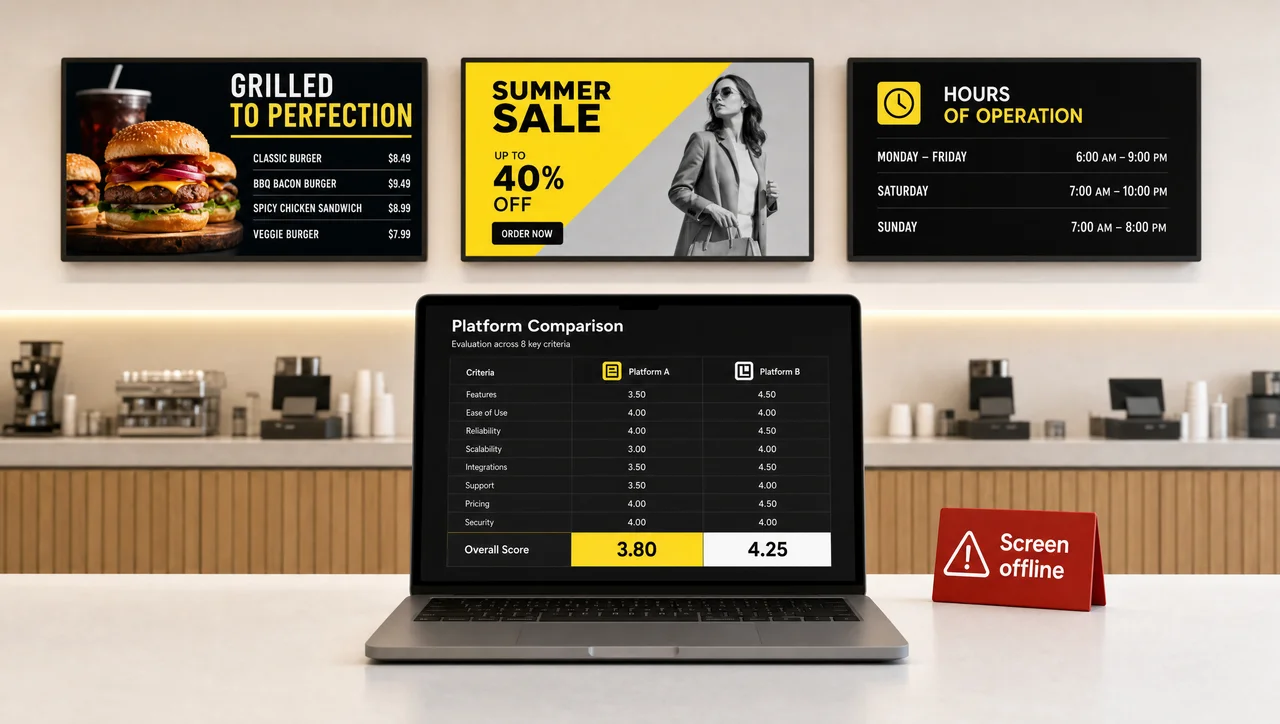
A weighted scorecard ranks platforms by multiplying each criterion score by its weight. Here it runs on two anonymized platforms that a 40-location restaurant group might shortlist, with scores from 1 to 5.
| Criterion | Weight | Platform A score | Platform A weighted | Platform B score | Platform B weighted |
|---|---|---|---|---|---|
| CMS usability | 15% | 5 | 0.75 | 4 | 0.60 |
| Scheduling | 10% | 4 | 0.40 | 4 | 0.40 |
| Playback verification | 20% | 2 | 0.40 | 5 | 1.00 |
| Device support | 10% | 5 | 0.50 | 4 | 0.40 |
| Integrations | 15% | 3 | 0.45 | 5 | 0.75 |
| Access control | 10% | 4 | 0.40 | 4 | 0.40 |
| Security | 10% | 4 | 0.40 | 4 | 0.40 |
| Pricing and service | 10% | 5 | 0.50 | 3 | 0.30 |
| Total | 100% | — | 3.80 | — | 4.25 |
Platform A wins on price, ease of use, and device support, and it publishes a demo layout fastest. Platform B wins the decision anyway, because verification and data sync carry 35% of the weight for a restaurant group that changes prices weekly and cannot send a technician to every dark screen. Change the weights for your own network: a single-site office that never syncs data can cut verification to 10% and raise CMS usability to 25%, and the ranking flips. The scorecard makes that trade-off visible before you choose digital signage software, not after the contract. Next, a quick decision tree tells you which class of platform deserves those scoring slots.
Which Digital Signage Solution Fits? A Quick Decision Tree
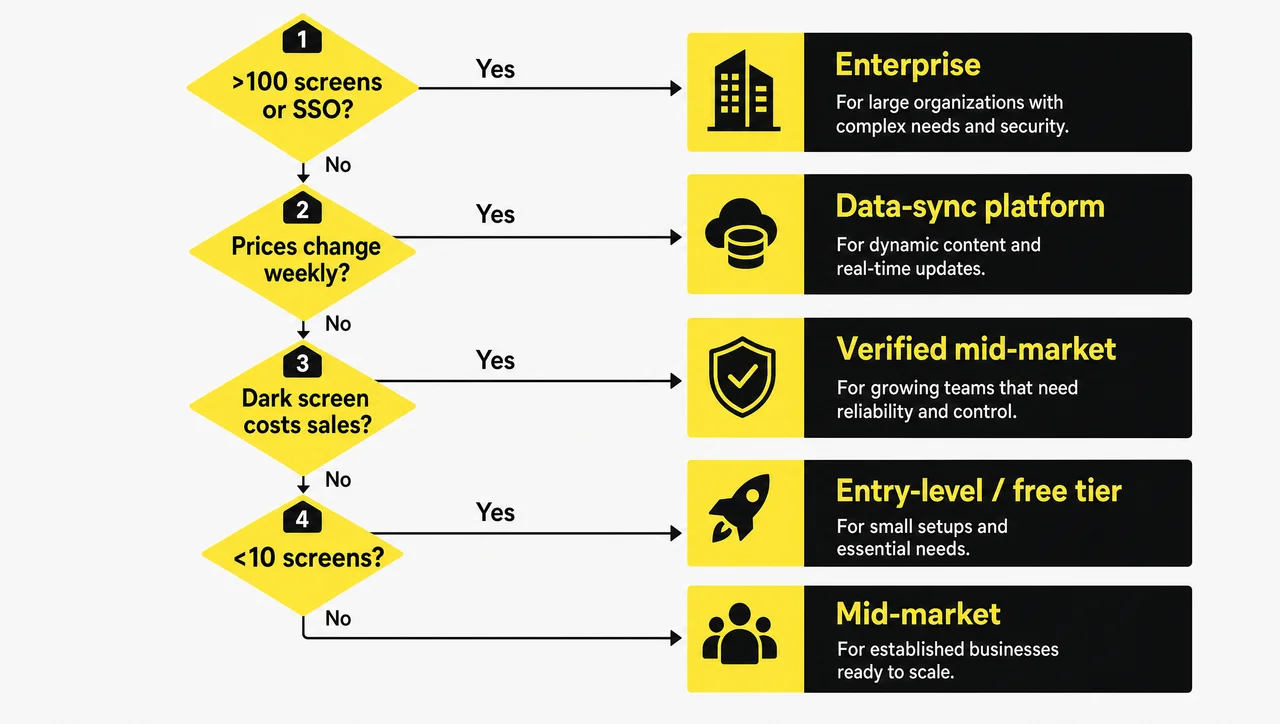
A decision tree narrows the digital signage solution classes that deserve a demo to one, using four yes-or-no questions:
- Do you run more than 100 screens, or need SSO and approval workflows? Yes: shortlist enterprise platforms with verification, API access, and dedicated service. No: go to question 2.
- Do prices, menus, or stock levels change weekly or faster? Yes: shortlist platforms with native POS or ERP data sync and template-based updates. No: go to question 3.
- Would a dark screen cost you sales or compliance within a day? Yes: require playback verification and remote recovery, even on a mid-market plan. No: go to question 4.
- Do you run fewer than 10 screens with content that changes monthly or less? Yes: an entry-level plan or a free tier covers the job. No: shortlist mid-market platforms with screen groups, roles, and monitoring.
| Your answers | Platform class to shortlist |
|---|---|
| Question 1: yes | Enterprise, with verification, API, and SSO |
| Question 1: no, question 2: yes | Mid-market or enterprise with native data sync |
| Questions 1–2: no, question 3: yes | Mid-market with verification and remote recovery |
| All no, under 10 screens | Entry-level plan or free tier |
The tree does not pick a vendor; it tells you which class of digital signage software deserves a demo slot, so the eight criteria compare like with like. Digital signage software that cannot detect a dark screen fails question 3 regardless of its price. However, the class only matters if the content workflow inside it fits your team, which is where the CMS test comes in.
How to Choose the Right Digital Signage CMS?
The right CMS syncs business data into the layouts of your digital signage platform, which removes the designer from every price change. To choose the right digital signage CMS, test the path that content takes: manual file uploads, template edits, or a live sync. That path determines how many hours your team spends on every change.
Every content management system falls into one of three models:
| CMS model | How a price change reaches the screen | Best for |
|---|---|---|
| File-based | Designer edits a file, exports an image, uploads it, reschedules the playlist | Static promotions, few updates |
| Template-based | Editor changes text fields in a saved layout, then republishes | Frequent but manual updates |
| Data-connected | The CMS reads point-of-sale, ERP, or API data and regenerates the layout automatically | Menus, prices, stock levels, live business data |
Beyond the model, check four capabilities:
- Templates and layouts. Reusable layouts keep branding consistent across locations and let editors change content without a design tool; ready menu board templates show how a data-connected layout keeps prices and branding aligned.
- Approval workflow. Multi-contributor teams need a review step before content goes live.
- Multi-location targeting. Displays in different stores should update with different prices, offers, or languages without duplicate playlists.
- Content sources. Check playback of video, images, web pages, RSS and JSON feeds, and live data.
A data-connected digital signage CMS reads the source system directly. Screens connected to point-of-sale data update within seconds when a price, item, or availability changes. The display then updates only the values that changed instead of reloading the full layout, and items marked unavailable disappear from the menu before a guest tries to order them. Choosing the right digital signage software for a menu-driven business starts with this test, because every manual step multiplies across locations.
“Any CMS can show live prices” is not true. A file-based digital signage platform cannot read your point-of-sale system; someone still exports and uploads a new image for every change. Ask the vendor to change a price in the source system during the demo and time how long it takes to appear on screen. However, a screen that updates fast still means little if nobody knows whether it is actually on.
“Content Sent” Is Not “Content on Screen”: Verification and Remote Recovery
Playback verification proves that each screen actually shows your content, while most digital signage software only confirms delivery. That gap lets dark screens go unnoticed for days. A screen can pass a player check while the TV is off, sits on the wrong HDMI input, or shows a setup menu after a power cut.
Myth check: “Delivered” does not mean “playing.” A publish log proves the file left the server. No display state appears in that log, so it cannot verify the TV was on, on the right input, and showing that file at 8 a.m. on Monday.
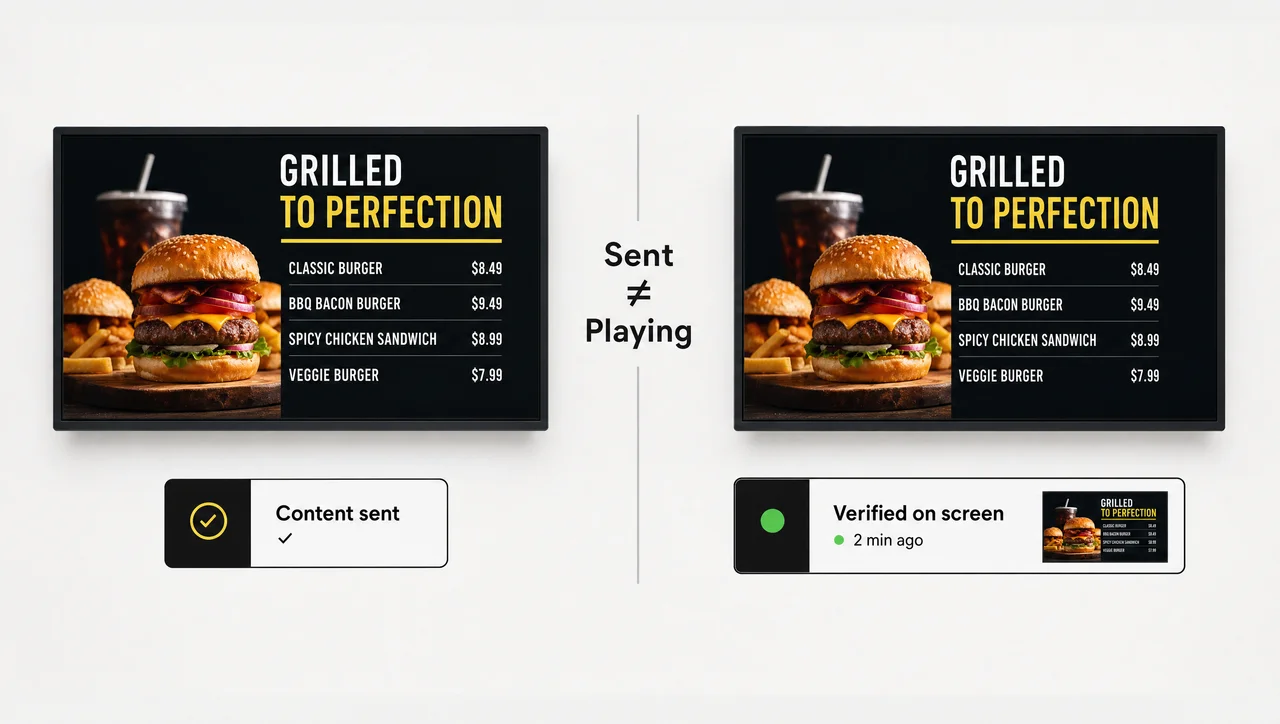
Verification closes that gap with a second device that watches the first. The strongest platforms split the job between two pieces of hardware:
- Media player: a display receives published content through the player, which renders it on the glass.
- Verification device: a display check after publishing confirms screen status, player status, playback, and connection signals, with photo evidence logged per publish.
When something fails, recovery starts from the dashboard. Screens restart remotely, recover their HDMI source, or accept power control, so most faults close without a truck roll. Remote actions run on compatible hardware, and automatic input switching requires a TV with HDMI-CEC. A screen that cannot recover remotely gets flagged for on-site service, so technicians travel on evidence rather than on a complaint.
Displays get checked very differently under each approach:
| Capability | Software-only monitoring | Hardware-verified platform |
|---|---|---|
| Confirms content was delivered | Yes | Yes |
| Confirms the display is on and showing content | No | Yes |
| Monitors screen and player separately | No | Yes |
| Restarts a screen or switches HDMI input remotely | Reboot at best | Yes, on compatible hardware |
| Tracks uptime per screen | Estimated from player pings | Measured from verified playback |
| Logs evidence for audits or advertisers | Publish log only | Photo evidence per publish |
Displays on a verified network report uptime per screen, a number you can compare between locations. Decker is cloud-based digital signage software built around this model: Decker Player renders content, Decker Verifier confirms what actually played, and screens restart or recover their HDMI source remotely on compatible hardware. The platform runs on more than 13,700 connected screens across 2,000+ locations, and Decker’s internal analytics record up to 80% faster menu and content updates and up to 60% less avoidable screen downtime once data sync and verification go live.
Specifically, most vendor claims avoid the verification question, which brings us to the red flags.
Mistakes to Avoid When You Choose Digital Signage Software
The costliest mistakes in choosing a digital signage platform are made before the contract: buying hardware first, demoing only with IT, and trusting claims that the vendor cannot back with numbers. Watch for these seven patterns.
- No written objective. “Better engagement” cannot be tested. “Publish a price change to 40 stores in under five minutes” can.
- Hardware before software. Screens bought first lock you into one app ecosystem or force extra players later.
- A demo without the real users. If content editors never touch the dashboard before purchase, they avoid it after launch.
- No content owner. Screens without a named owner drift into stale content that audiences stop reading.
- No stakeholder alignment. Networks without buy-in from marketing, operations, and IT end up orphaned and deliver little return.
- Training once at launch. Staff turnover and software updates make ongoing, on-demand training a requirement, not an extra.
- A license that cannot scale. Check what the platform costs at 10, 50, and 200 screens before signing, not after the tenth location opens.
Marketing claims deserve the same scrutiny:
| Claim | What to verify |
|---|---|
| “Unlimited screens” | Is unlimited available only for one segment, tier, or contract length? |
| “Free forever” | How many screens, which features, and what happens at the next screen? |
| “Works with any TV” | Which operating systems, and what happens after a power outage? |
| “Real-time monitoring” | Does it detect a dark or wrong-input display, or only an offline player? |
| “Enterprise-grade security” | Can the vendor share a SOC 2 report or ISO 27001 certificate with a date? |
Pricing pages send their own signals. Unpublished prices, many “contact us” features, hidden per-player fees, and steep jumps between tiers point to surprises later. Published rates, a free trial, month-to-month billing, and no long-term contract point to a vendor confident in its product.
Myth check: “Unlimited screens” does not mean unlimited for everyone. Some vendors apply unlimited screens only for specific customer segments or higher tiers. Read the plan terms before building a rollout plan around it.
“Free forever” does not mean free at scale. Free tiers in 2026 cover between 1 and 3 screens and lock permissions, playback reports, SSO, or integrations behind paid plans. A free plan with no credit card is a fair way to test the interface, not a way to run a network.
As a result, the real comparison moves from the plan page to total cost.
Pricing Models to Compare Before You Choose a Platform
Vendors price a digital signage solution per screen per month, by feature tier, or as a one-time license that you own. Compare total cost of ownership over three to five years, not the entry price.
| Pricing model | How it works | Watch for |
|---|---|---|
| Per-screen subscription | Monthly or annual fee for each connected display | Cost growth as the network expands |
| Tiered plans | Features unlock by plan level | Key features such as integrations or monitoring only in top tiers |
| One-time license (on-premise) | Upfront payment, hosted on your servers; fits a capital budget | Server, update, and admin costs on your side |
| Self-hosted, no license fee | No license fee | Setup, updates, backups, and troubleshooting fall on your team |
Published 2026 rates put mainstream cloud platforms between $3 and $30 per screen per month:
| Segment | Typical price per screen per month | Typical buyer |
|---|---|---|
| Budget cloud plans | $3 to $10 | Small networks with simple content |
| Mid-market platforms | $10 to $30 | 10–100 screens, standard integrations |
| Enterprise platforms | $40 and up, or quote-based | 100+ screens, SSO, deep integrations, dedicated service |
| Self-hosted servers | $0 license | IT teams ready to run and secure a server |
The software line is only part of the budget. Add these costs before comparing vendors:
- Media players or built-in app licenses for each display
- Mounts, cabling, and setup work
- Content design and template setup
- Data connections to point-of-sale, ERP, or other systems
- Training for new staff and new locations
- Site visits to fix failed screens
Ask for a written quote at 10, 50, and 200 screens for every digital signage solution on your shortlist before you subscribe. The right digital signage platform keeps cost predictable as the network grows.
A screen visit is the line buyers underestimate most, because every failure that cannot recover remotely turns into a truck roll. Estimate visits with a simple formula: yearly screen failures × share that need a visit × cost of one visit. A display that recovers remotely removes a visit from that formula, so verification changes the total cost more than the license price does. Displays that restart themselves after a power cut keep that line close to zero. Overall, numbers on paper only matter once a pilot confirms them.
How to Test Digital Signage Software Before You Buy
A 14-day pilot on 1–3 real locations proves whether digital signage software works in the conditions that your stores face. It turns claims into numbers, so run the pilot before signing a network-wide contract, and measure the publishing time, recovery time, and uptime that each site actually gets. Most vendors offer trials of 14 to 30 days, so you can start a trial without a purchase order.
- Pick representative sites. Choose locations with typical screens, network quality, and staff, not the best-equipped store. Displays at those sites should connect over the same network your stores actually use.
- Record a baseline. Note how long a price or content change takes today and how often screens go dark. Each screen should get a measured update time before the pilot starts.
- Publish real content with real users. Each display should run content that the future operators build and publish themselves.
- Connect one data source. Connect your POS, ERP, or a data feed, and time how fast the platform syncs data to the screen.
- Break something on purpose. Screens should recover or raise an alert, so unplug the network, cut power to a TV, switch its input, and check what the dashboard reports.
- Test the service desk. Submit a real support request and time the answer against the promised response window.
- Compare against the baseline. Scale only if update time, detection time, and uptime improved in numbers you can show.
Displays that pass all seven steps have been verified in your conditions, not in a showroom.
Bring these questions to every demo:
- Which screen status does the dashboard show when a TV sits on the wrong HDMI input, and can it recover remotely?
- How fast does a screen update after a price change in the source system?
- What does a display show during an internet outage, and how long until it syncs again?
- Who handles setup, updates, and screen recovery?
- How does the cost change at 10, 50, and 200 screens?
When you request a demo, bring your own content and a real price change from your system.
A 14-Day Pilot Plan, Day by Day
A 14-day pilot splits the seven steps into six stages, each with its own metric. A pilot gives the most reliable answer to how to choose digital signage software when two finalists score within a few points of each other.
| Days | Focus | What to measure |
|---|---|---|
| 1–2 | Install players, connect screens, create users and roles | Time from unboxing to the first published layout |
| 3–5 | Build real content, set dayparts and location rules | Minutes per content change, editor help requests |
| 6–8 | Connect one data source and push live price or data changes | Seconds from source change to screen |
| 9–10 | Break things on purpose: network, power, HDMI input | Time to detect, time to recover, share recovered remotely |
| 11–12 | Test roles, approvals, and a support request | Permission errors, support response time |
| 13–14 | Compare against the baseline and score the platform | Update time, detection time, uptime per screen |
Run the same plan for every finalist, so you judge each platform on identical tests and verified results rather than on the best demo. In addition, an honest pilot shows when a full platform simply outsizes your setup.
When a Simple Signage Tool Is Enough
A basic player or a free plan beats full digital signage software in five situations that need no data sync or verification:
- You run one or two screens with nothing to sync. Without point-of-sale or ERP data to connect, a free plan or a basic player covers the job.
- The site has no reliable internet at all. Screens keep playing from a local cache, but a platform cannot deliver updates to a display that never comes online.
- Content changes less than once every 90 days. A data-connected digital signage platform cannot justify integration work when menus and posters stay stable for 90 days or longer.
- The display shows one static image for its whole life. Schedules, promotions, and verification add nothing to content that never moves.
- Your IT team must keep everything on its own servers. A self-hosted system fits that policy, but your staff takes over updates, backups, security patches, and troubleshooting.
In other words, match the tool to the job rather than to the feature list.
Key Takeaways
- The right digital signage solution is the one that fits your content, locations, update frequency, and publishing roles, so define those before you book a demo of any platform.
- Fill a must-have, should-have, and nice-to-have matrix and run the decision tree before booking demos, so only the right class of platform reaches the scorecard.
- To choose the right digital signage software, score every option on the same eight weighted criteria: CMS usability, scheduling, verification, device support, integrations, access control, security, and total cost.
- A screen that received a file has not necessarily played it, so treat delivery and playback as separate facts and ask how each vendor verifies them.
- A display that fails without remote recovery costs a site visit, so compare total cost of ownership over three to five years, including players and setup, not just the per-screen license.
- Overall, prove the choice with a pilot of at least 14 days that measures update time, detection time, and uptime across real displays.
Questions and Answers
1 How do I choose the right digital signage software?
The right digital signage software is the one that matches what each screen shows, proves playback, and fits your budget. Define content, locations, and publishing roles first, then score your shortlist on CMS usability, scheduling, playback verification, device support, integrations, access control, security, and total cost, and confirm the winner in a pilot at one to three real locations.
2 How do I choose a digital signage software package for a small business?
A small business needs digital signage software that covers its current screens, runs on existing hardware, and stays cheap at 1–5 screens. Count the screens you will run in the next 12 months and list the hardware you already own. For one or two screens with rare changes, a free plan with scheduling covers the job. Once you have daily price changes, several locations, or staff who need separate permissions, move to a paid platform with data sync, roles, and monitoring.
3 How to choose digital signage software for multiple locations?
Multi-location networks need screen groups, per-location scheduling, role-based access, data sync, and verification of every screen. Screens grouped by site and region get the right prices and offers, while role-based access keeps local and central teams in their lanes. Digital signage software for 10 locations or more publishes by site group and checks each screen’s status on its own. Those five capabilities remove manual checks at every store.
4 Is a free plan enough for my first screens?
A free plan covers one to three screens with simple content, not a multi-location network. You can start a trial of paid features later. Free tiers limit the screen count and keep integrations, automation, and monitoring for paid plans, so check the limits before planning a multi-location rollout.
5 Can I host the platform on my own servers?
Yes, self-hosting works if your IT team can run, update, back up, and secure the server. Self-hosted systems fit high-security environments, air-gapped networks, and strict data residency rules, while cloud platforms suit most networks because the vendor handles updates, hosting, and remote access.
6 Which players and TVs should the platform support?
The platform should support every player and smart TV system you already own. Modern platforms run on Android players, Windows mini PCs, and ChromeOS devices, and many run directly on Samsung Tizen, LG webOS, and other smart TV systems. Displays on compatible smart TVs run the signage app directly, while other displays connect to an external Android box or mini PC over HDMI. Pick software that covers every device already on your walls, so one dashboard manages the whole fleet.
7 How do I know my screens are actually showing content?
A screen only proves it is playing when the platform verifies playback on the glass. A display check should cover power state and HDMI input, not just a ping to the player, and the platform should keep evidence of what played.
8 What happens to screens when the internet goes down?
Screens with a local cache keep playing the last published content during an outage, and new updates arrive once the connection returns. Ask each vendor how many hours or days its cache lasts. Displays on weaker platforms go blank within minutes and only update again after a manual restart. A display check after the outage should confirm that playback resumed.
9 What security features should I require?
Require TLS 1.3 encryption, MFA, role-based permissions, and a clear process for CCPA/CPRA and GDPR requests. California residents and EU or UK users both have legal rights over their data, so the vendor must handle access and deletion requests. If a vendor claims SOC 2 or ISO 27001, ask for the dated report.
10 How do vendors price signage platforms?
Vendors charge per screen per month, by feature tier, or through a one-time license for on-premise installs. In 2026, cloud plans run from about $3 to $30 per screen per month, and enterprise platforms start around $40 or work on quotes. Compare total cost of ownership, including players, setup, data connections, and site visits for failed screens, rather than the headline per-screen price.
11 How long should a pilot last?
Run the pilot for at least 14 days, and use the full trial window when a vendor offers 30 days. Two weeks cover a full schedule cycle, a few content changes, and at least one planned failure test.