Digital Signage Software That Works With Any TV: Platform by Platform


Digital signage software works with any TV at the HDMI level and with only some TVs at the operating-system level. Whether the app installs depends on the exact model. So does whether the screen recovers after a power cut. The vendor's homepage does not tell you either. However, the gap between that promise and the actual behaviour is measurable, and it takes about ten minutes per screen to measure.
What “Works With Any TV” Actually Means
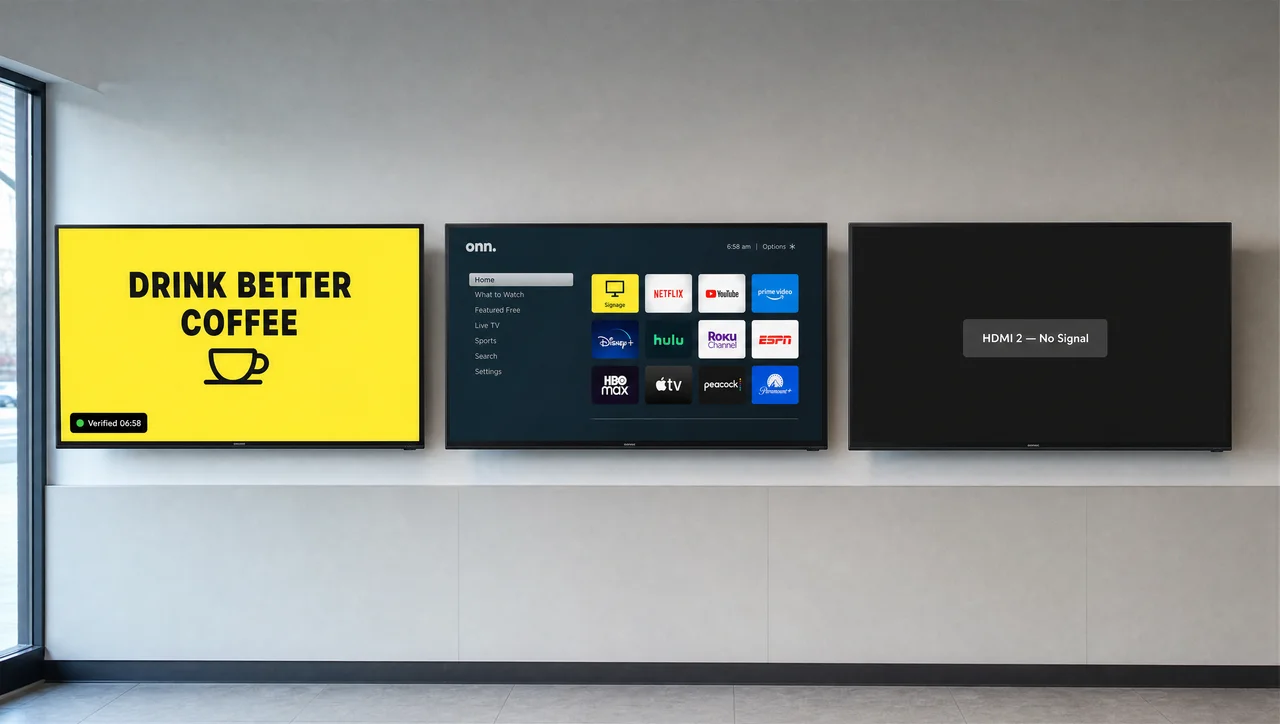
Digital signage TV software vendors all repeat the same sentence, and that sentence hides three different claims stacked on top of each other. Digital signage software works with any TV on three separate levels, and most product pages only measure the first one.
- Level 1 — the screen shows a picture. True for practically every TV built in the last fifteen years, and for older TVs too. If it has an HDMI input, an external device can feed it content. Nothing else is required.
- Level 2 — the app installs on the TV itself. Depends on the operating system and on the app store for that OS. Often it depends on the specific model number too, because two TVs from one brand rarely behave alike. This is where “any TV” starts to fall apart.
- Level 3 — the screen recovers by itself. This level asks whether content returns after a power cut, a firmware update or an overnight shutdown. Nobody should have to walk over with a remote. On consumer hardware, usually somebody does.
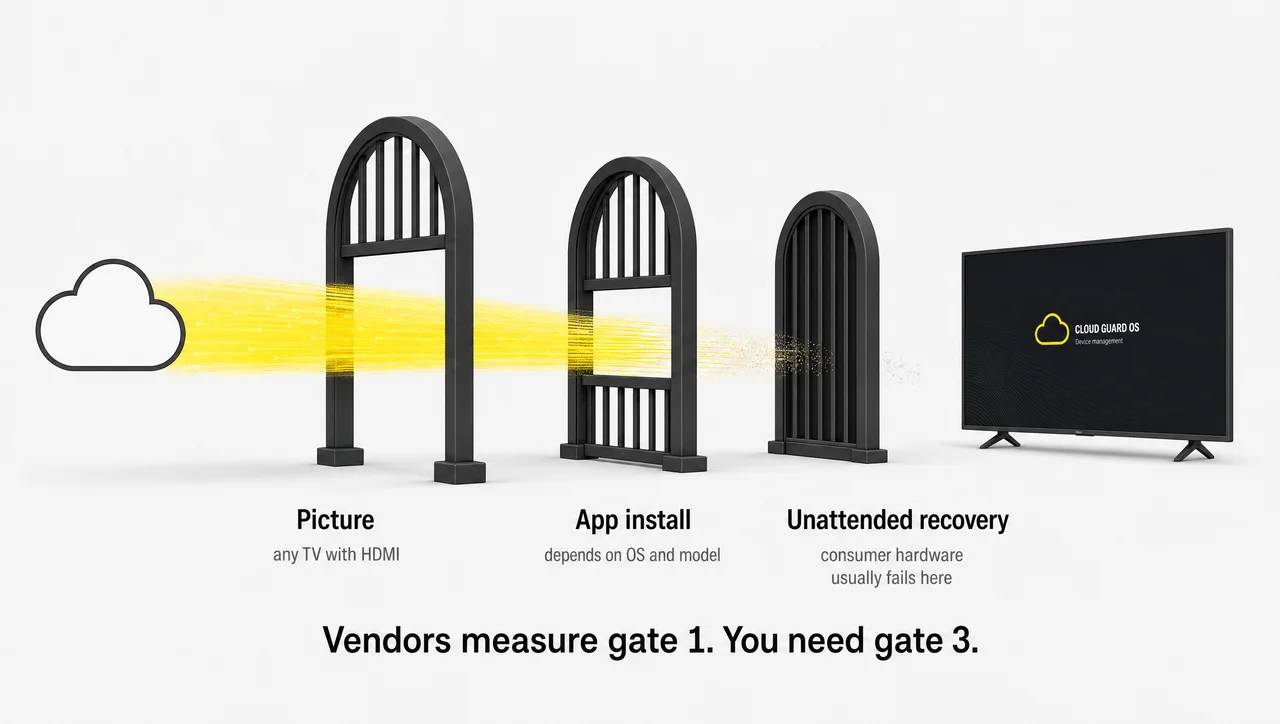
Digital signage software for TV lives or dies in the gap between Level 1 and Level 3. That gap is the subject of this guide. Café owners reading “works with any TV” hear Level 3 and buy Level 1, then wonder why the TVs go dark overnight.
⚠️ Reality check: “Compatible with your TV” almost never means “restarts on its own.” Compatibility describes installation; recovery describes operation. They are tested separately, and only one of them shows up in marketing.
However, the level a vendor means is rarely the level you need. That makes the next question a hardware one — which of the three screen categories you actually own.
Which TVs Can Run Digital Signage Software for TV
Digital signage software for TV runs on three categories of screen, and the category decides which setup paths stay open to you. Choosing tv digital signage software before you know which category you own is the most common way to buy hardware twice.
| Regular (non-smart) TV | Consumer smart TV | Commercial display | |
|---|---|---|---|
| Built-in OS and app store | None | Yes | Yes, signage-grade |
| Rated for 12–24 hrs/day | With care | Possible, not designed for it | Yes |
| Auto-start the signage app | No | Usually not | Yes |
| Remote reboot and power control | No | Limited or none | Full |
| Needs an external device | Always | Sometimes | Rarely |
| Typical brightness | 250–400 nits | 250–400 nits | 500 nits and up |
| Upfront cost | Low | Low to medium | 2–3× a comparable consumer model |
Non-smart TVs are monitors with a tuner attached. They have no operating system to install anything on, so content always arrives over HDMI from something else. TVs of this kind plug into any external device over HDMI and never compete with it for control of the picture. That is not a disadvantage: these TVs are the most predictable of the three. Playback runs on a device you control, not on firmware the manufacturer updates on its own schedule.
Consumer smart TVs sit in the middle, and they are where almost every disappointment happens. They have an OS and an app store, and they look identical to their commercial siblings on the wall. They were also engineered for someone watching three hours of television in the evening.
Commercial displays are the same panels with different firmware and a different duty rating. They launch the assigned app at boot, holds it in the foreground, ignores screensavers, and answers to scheduling and brightness commands over the network. The price gap between a consumer TV and a commercial display buys firmware behaviour, not picture quality.
Having settled the category, the next variable is the operating system — and that is where two identical-looking panels stop behaving identically.
Can You Use Digital Signage as a TV?
Commercial panels and televisions share hardware, and the signage app that runs on one will usually run on the other. That is why this question gets asked in both directions. The reverse direction has a different answer. Yes, you can use digital signage as a TV, with three caveats that catch people out.
Samsung, LG and the other commercial lines usually ship these panels without a broadcast tuner. These TVs have no coaxial input and no channel scan, so live broadcast has to arrive from a set-top box, a streaming stick or an IPTV feed over HDMI. Second, most such TVs have no consumer app ecosystem. There are no built-in streaming apps, no voice remote, often no remote at all in the box. Third, some models default to picture settings tuned for daylight retail rather than a dim room, and brightness and pixel-shift behaviour are the first things to change.
Digital signage software for TV is irrelevant in that scenario. For gaming and general viewing the panels work fine once a source is attached, and they are often more durable than the consumer equivalent. The trade is convenience: you supply the brains.
The same logic runs the other way. Digital signage software with live TV support lets you place a live channel or IPTV stream inside a content zone alongside your own graphics. A sports bar showing a match in the main zone with drink promotions in a sidebar is the standard case. What makes that work is not the TV. It is the software’s ability to treat a live input or stream as one more content type in the layout.
⚠️ Not to be confused with: a signage display used as a TV needs an external source for live channels. Digital signage software live TV features put a live feed inside your own layout. Different problems, different fixes.
Meanwhile, the direction most readers came for depends on something no spec sheet advertises: the operating system inside the panel.
TV Operating Systems: What Actually Runs Where
The operating system inside the panel decides which signage app you can install and how deeply that app can control the display. It also decides whether anything happens automatically at boot. Digital signage software for smart TV therefore behaves differently on each of them. The table is the short answer; the notes below explain the caveats.
| Platform | Native signage app | Auto-start after power loss | External device needed | Note |
|---|---|---|---|---|
| Android TV / Google TV | Yes, broadest support | Sometimes, after permission setup | Optional | Most flexible consumer option |
| Samsung Tizen (consumer) | Limited, model-dependent | Generally no | Recommended | App availability varies by model number |
| Samsung SSSP (commercial) | Yes | Yes | No | Built-in SoC handles playback |
| LG webOS (consumer) | Very limited | No | Yes | Consumer line lacks system access |
| LG webOS (commercial) | Yes | Yes | No | Built-in SoC, scheduling, brightness control |
| Amazon Fire TV / Fire OS | Yes | Partial | Often built in | Android-based, app from Amazon Appstore |
| Apple TV (tvOS) | Yes | Yes, with device management | Device is the player | Strong fit for managed fleets |
| Roku | Limited | No | Usually yes | Smallest signage app selection |
| Non-smart TV | Not applicable | N/A, device handles it | Always | Most predictable of all |
Android TV and Google TV
Found in Sony, TCL, Hisense, Philips and a long tail of budget brands. Digital signage software for Android TV has the widest app selection of any consumer platform. If a vendor supports smart TVs at all, Android is the platform they support first. The app installs from Google Play without sideloading.
The limitations are the ordinary consumer ones. The TV may switch inputs on its own, and the OS may push a firmware update in the middle of trading hours. The signage app will not sit in the foreground after a reboot until you grant it permission to draw over other apps. None of that is fatal; all of it needs a deliberate setup pass rather than an install and walk away.
Samsung Tizen and the Smart Signage Platform
Tizen runs on two entirely different product lines. The commercial Smart Signage Platform has a built-in system-on-chip that plays content directly, and it guarantees the app launches at startup and exposes screen scheduling and remote management. It needs nothing plugged into it.
Consumer Samsung televisions run Tizen too, and this is where the confusion is expensive. A signage app built for Samsung’s commercial platform will not install on a consumer Samsung TV — the app ecosystems are separate by design. Searching for a digital signage app for Samsung smart TV returns results aimed at the commercial line far more often than the consumer one.
⚠️ Reality check: “Available on Tizen” is a platform statement, not a model statement. Check your exact model number against the vendor’s supported list before you assume the app appears in the store on your specific TV.
LG webOS
LG splits webOS into consumer, hospitality and commercial signage lines, and only the commercial line grants the system-level access that signage needs. Commercial webOS displays carry an internal SoC, launch the app automatically and hold it in the foreground against screensavers and app switching. They also accept commands for scheduled power, remote brightness and screenshots of what is currently on screen.
Consumer LG TVs get none of that. App availability is thin, and there is no reliable auto-start after a reboot. If you already own consumer LG panels, plan on an external device rather than hoping for a native app.
Apple TV, Fire TV and Roku
Apple TV digital signage is a strong option that people overlook because the device is not a television. tvOS supports zero-touch deployment through mobile device management, so a box can be shipped to a location, powered on and configured without anyone technical on site. For fleets already standardised on Apple management tools, this is the least painful rollout path available.
Fire OS is Android underneath. The app comes from the Amazon Appstore and behaves much like Android TV, including on Fire TV Edition televisions. Roku TVs run a signage app only through the channel store, and the selection there is the thinnest of any platform on this list. If your screens are Roku models, plan for an external device from the start rather than searching the store and hoping.
That is why the setup path deserves its own section. The same operating system behaves differently depending on how you choose to run the content.
How to Use a TV for Digital Signage: Three Setup Paths
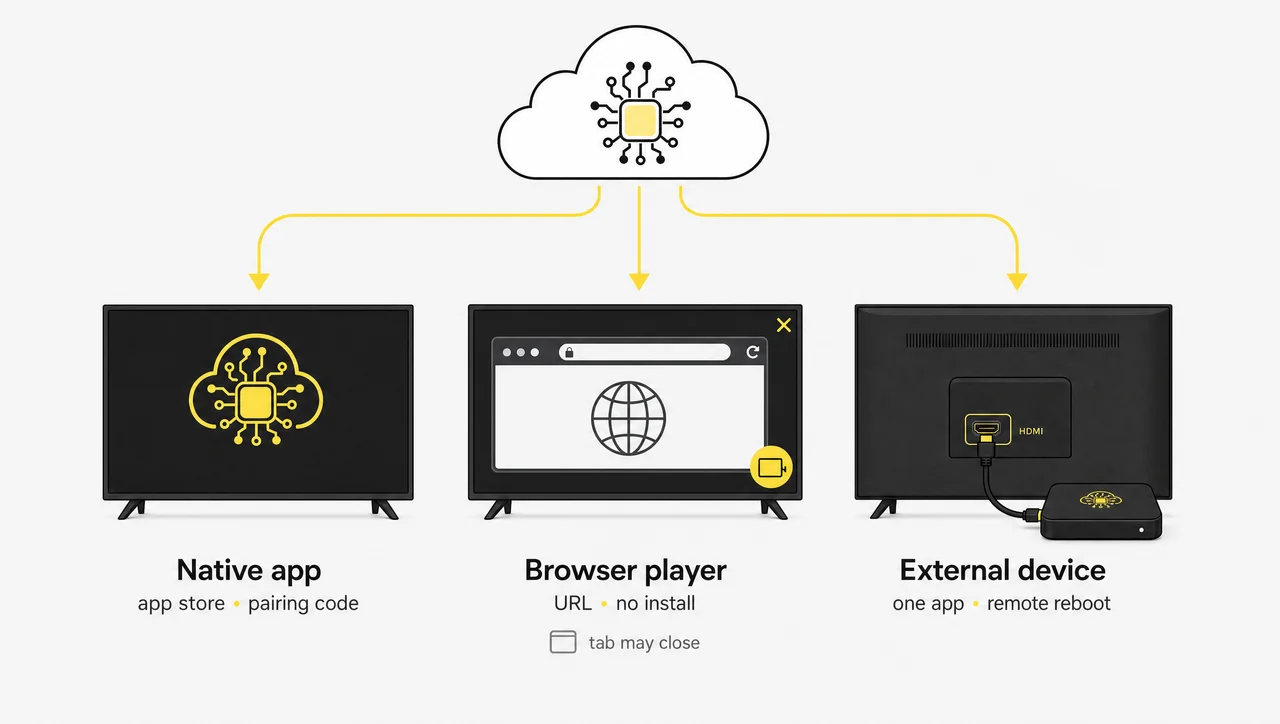
There are exactly three ways to run a signage app on a screen. Your TV’s category from the table above decides which of them are available to you. Digital signage software for TV follows an identical workflow in all three cases. A player runs on the TV or on a device attached to it and pairs with a cloud dashboard using a short code. It then downloads what you have scheduled and loops it.
Path 1 — Install the app on the TV
Best for commercial displays, Android TV and Fire TV. Open the TV’s app store, search for the vendor, install — this is how a digital signage app for smart TV normally arrives. Android TV, Fire TV and commercial panels all show a pairing code on screen. You enter that code in the dashboard and name the screen something you will recognise later. Every update from that point is remote. Most vendors publish a digital signage software for smart TV download link. It deep-links into the right store rather than offering a file to sideload.
This is the most stable option when it is available, because the app talks directly to the operating system instead of running inside a browser sandbox. On commercial firmware it is also the only path that gives you genuine auto-start.
Path 2 — Run a web player in the TV’s browser
Best for pilots, pop-ups and events. Most smart TVs ship a browser; most vendors offer a browser-based player at a fixed URL. Open the browser, load the player address, enter the pairing code, done — no installation at all. Bookmark the URL or set it as the browser home page so the screen loads it when the TV wakes.
The trade-offs are real and worth stating plainly. The browser has to stay open, and some TVs close idle tabs on their own. Offline caching is limited or absent, so a dropped connection can leave you with a blank page instead of a loop. A browser player is a good way to test a vendor and a poor way to run an unattended screen.
Path 3 — Add an external media device
Required for non-smart TVs, and the right answer whenever reliability outranks the cost of one more device. A small HDMI device takes over playback and leaves the TV as a display. That device can be an Android TV box, a Fire TV stick, an Apple TV, a compact PC or a purpose-built signage box.
The advantage that matters is control. The device runs one app and nothing else, and it can be rebooted remotely without touching the television, and it restores playback after a power cut on its own. It also decouples you from the TV’s firmware: when the manufacturer changes app behaviour in an update, your setup does not care.
In addition, the choice between these paths is less a technical decision than an operational one.
Smart TV App or External Device: How to Decide
Both paths work. The choice between a signage app on the TV and an external device comes down to two things: how many hours the screen runs, and how far away you are when it stops.
Use the TV’s own app when:
- You already own a compatible smart TV and want zero hardware spend
- You are running one or two screens
- The content is images, video and simple playlists
- Someone is on site every day who can restart the app in ten seconds
Use an external device when:
- The screen runs eight or more hours a day, every day
- You need multi-zone layouts or a video wall
- The screen must come back by itself after a power outage
- The location is not staffed by anyone who will notice a black screen
- Your TVs are consumer LG TVs, Roku TVs or older models with no usable app
Digital signage software for TV is enough on its own for a break-room screen. For a customer-facing screen that has to be live the moment the doors open, the external device pays for itself the first time it saves a site visit. That is the situation most digital signage solutions for business are built around. If you are unsure, start with the app — you can add a device later without changing your content or your account.
As a result, the useful question is not which path wins on paper, but which failures you are willing to live with.
Where “Any TV” Breaks: Five Failure Modes
Every failure below has the same root cause: consumer televisions do not report on themselves. The signage app running inside one has no way to say that it stopped. Samsung, LG and Android TV models each fail in their own way, and these are the five that generate support tickets.
1. The app does not come back after a power cut
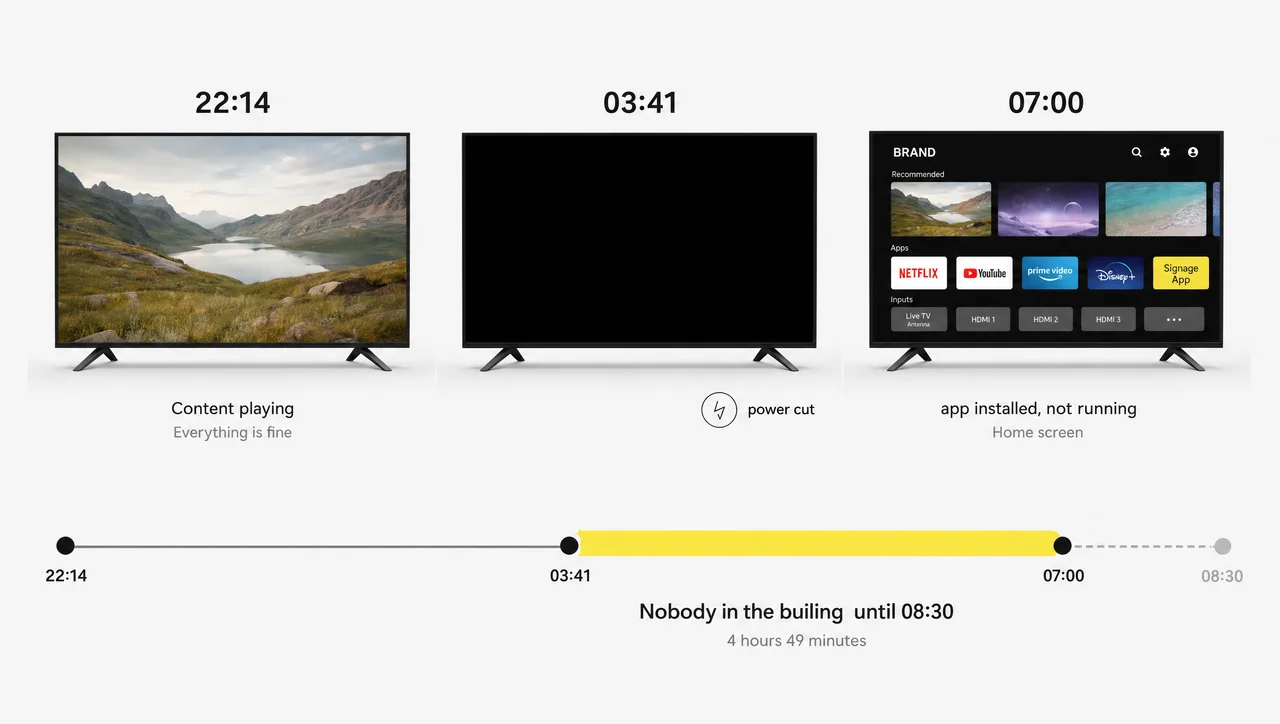
This is the failure that costs real money, because it is invisible until someone walks past the screen. TVs lose power, boot back up, and land on the home screen or on a different input instead of your content. TVs on the same firmware branch restart into different states, which is why one model recovers overnight and the next one does not. Behaviour varies between models of the same brand. Some auto-launch the assigned app, some launch only the manufacturer’s bundled apps, and no setting exposed to the user changes that. It comes down to whether the firmware on that model supports keeping a third-party app in the foreground.
On Android TV you can usually fix it: Settings → Apps → Special app access → Display over other apps → allow the signage app, then restart the TV. Some Google TV builds need more. Switch Quick Start on in Settings → Device Preferences, then open Safety Guard → Permission Shield → Auto Launch Permission. Close the auto manager, open the signage app and restart the set. If neither works on your model, the model is telling you it needs an external device.
2. Sleep timers, screensavers and idle shutdown
Consumer TVs are built to save power when nobody is watching, and to them a looping playlist looks a lot like nobody watching. TVs left idle wake into the home screen rather than back into the app. Energy-saving mode, sleep timers and screensavers all have to be switched off explicitly, and they sometimes come back after a firmware update. Browser players are hit hardest, since the browser has its own idle behaviour on top of the TV’s.
3. Storage and memory ceilings
Smart TVs allocate only a small slice of internal storage and RAM to third-party apps — often a few hundred megabytes. That is enough for a handful of images and short clips and not enough for a heavy video playlist cached for offline playback. An external SD card can extend storage on some models, which helps, but it does not raise the memory available to the app.
4. No real power management
Consumer TVs cannot be scheduled to switch themselves on before opening and off after closing. Power management is simply not exposed on Android TV or most other consumer platforms, so someone presses the button twice a day, or the screen runs continuously and ages faster than it should. Commercial displays solve this in firmware; consumer TVs need a controlled power supply outside the television.
5. Wrong input, cropped edges and burn-in
Three smaller problems that share a cause. After a power interruption TVs frequently wake on a different HDMI input, so the content is playing and nobody can see it. Overscan crops the edges of a layout and hides text and logos near the border; the fix is a picture-size setting named Screen Fit, Just Scan, Original or 1:1, depending on the manufacturer. And a static layout held on an OLED panel for twelve hours a day will burn in.
⚠️ Reality check: “Offline playback” means the device keeps looping content it already downloaded. It does not mean the screen can be set up, updated or recovered without a network. Cached playback buys you hours of grace, not independence.
Therefore the screen you buy next matters as much as the software you put on it.
Best TV for Digital Signage: What to Buy and What to Avoid
The best digital signage software for TV cannot rescue a panel that was never built to run twelve hours a day, so if you are buying rather than repurposing, start here. The shortlist is short. Samsung, LG, Sony and TCL each sell panels that pass and panels that do not. The criterion is not picture quality. It is whether the panel tolerates long hours and whether the OS lets an app own the screen.
- Sony Bravia (Android TV / Google TV) — the most stable consumer option, full Play Store access, long service life. The default choice when budget allows.
- Philips Android TV — affordable, durable, complete Android TV app ecosystem, widely available in Europe and the US.
- TCL Google TV — the value pick. Runs Google TV, broad app compatibility, acceptable brightness for indoor use.
- Hisense Android TV — similar positioning to TCL, good balance of price and panel quality.
- Xiaomi Mi TV and Mi Box — compact setups and small-format screens where a full-size TV does not fit.
- Amazon Fire TV and Fire TV Edition — Fire OS is Android-based, app installs from the Amazon Appstore, straightforward pairing.
- Samsung SSSP or LG commercial webOS — if the screen is customer-facing and runs all day, skip the consumer list entirely and buy the commercial panel.
Sony, TCL and Hisense models all clear the bar below. Target specifications for indoor use: 300–400 nits or higher, Full HD or 4K resolution, and Android TV or Google TV as the operating system. Choose an LED or QLED panel rather than OLED, and keep one HDMI input free in case you add an external device later.
⚠️ Reality check: avoid OLED for always-on signage regardless of how good the picture is. Static logos, fixed headers and unchanging price columns are exactly the content that burns into an OLED panel, and no software setting prevents it. LED and QLED are the durable choice here.
Beyond that, most readers hit the budget question before the hardware question.
Free Digital Signage Software for Smart TV: What You Actually Get
Free digital signage software for smart TV genuinely exists in three forms, and all three have a ceiling that shows up at a different moment. You can turn TV into digital signage free of charge, so it is worth knowing which model you are signing up for.
Permanently free tiers give you one to three screens per account with real functionality and a hard ceiling. They are genuine, and they are also the top of a funnel, and the limits usually bite on storage, on the number of apps or widgets, and on scheduling depth rather than on the screen count itself.
Full-feature trials run 14 to 30 days with everything unlocked. This is the honest way to test the compatibility questions in this guide, because you can run the power-cut test and the offline test on the exact TV you own before anything is paid for.
Self-hosted and open-source options cost nothing in licence fees and a great deal in setup. You supply the server, the updates and the troubleshooting. The recurring verdict from people who have tried it is that do-it-yourself rarely means simple.
⚠️ Reality check: “free forever” describes the licence, not the deployment. Free digital signage software for smart TV still needs a TV that auto-starts the app. If yours does not, the free tier has just been joined by a hardware purchase. Run the compatibility check below before you pick a plan.
In other words, the licence is the cheap part, and the test below is what decides whether any of it works.
A 10-Minute Compatibility Check Before You Pay
Do this on the actual screen that will carry the signage app, not on the spec sheet. Every step below maps to a failure mode above.
- Find the exact model number on the back of the TV, and note whether it belongs to the consumer or the commercial line. Brand alone tells you nothing.
- Search the TV’s own app store for the vendor you are considering. Availability on the platform is not availability on your model.
- Pull the plug. Power the TV off at the wall with content playing, wait thirty seconds, power it back on. Does your content return without touching a remote? This is the single most important test on the list.
- Kill the network for five minutes and watch whether playback continues from cache or the screen goes blank.
- Check the edges of your layout for cropping. Set the picture size to Screen Fit, Just Scan or Original if text is being cut off.
- Disable energy saving, sleep timer and screensaver, then leave the screen untouched for an hour and come back.
- Look at free storage available to apps, and compare it against the size of the playlist you intend to cache.
- Count the operating hours the screen will actually run per day and decide whether the panel is rated for it.
If step 3 fails, no software choice will fix it — you need an external device or a commercial panel. That holds whatever the product page claims about universal compatibility.
Specifically, when step three fails, the fix is hardware that watches the screen rather than software that assumes it.
How Decker Works With Any TV
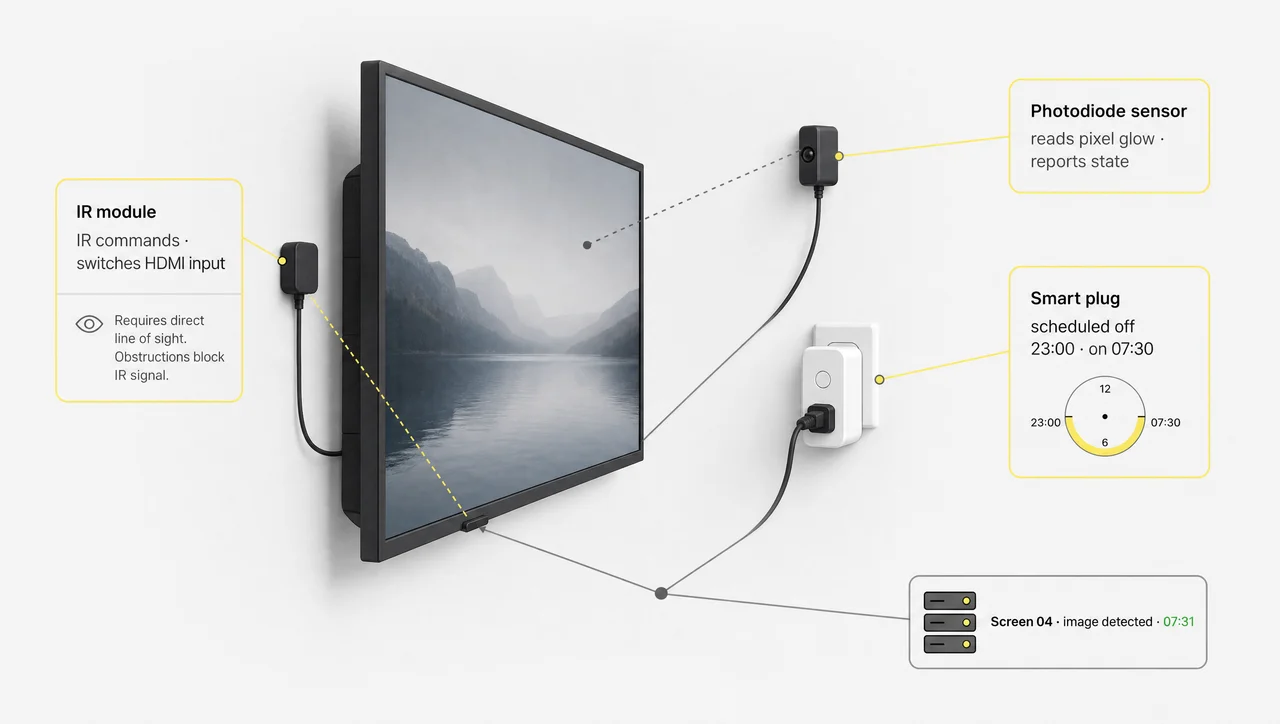
Everything above shares one root problem: consumer televisions will not tell you what they are doing, and no signage app running inside the set can report what the panel is actually showing. That is the gap digital signage software for tv from Decker is built to close. It closes it with hardware behaviour rather than with a compatibility promise.
Infrared control. Decker places a module beside the screen that sends commands to the television the way a remote does. When power is restored, the TV often wakes on the wrong source, and an operator sends a command and the set switches to the correct HDMI input, provided the model supports HDMI-CEC. That is why the approach works with practically any TV model on the market. It does not depend on whether the right app exists in that television’s store.
Photodiode monitoring. Consumer TVs have no built-in remote monitoring of their own. There is normally no way to know whether a screen is dark or simply showing the wrong thing. A sensor reads actual pixel glow off the panel and reports the state to the server. When the image disappears, recovery routines can start automatically. The distinction matters — the system confirms that content is on screen instead of assuming it.
Scheduled power. Decker manages sockets that cut power to the screens overnight and restore it before opening. Displays get a clean daily restart without anyone in the building, and screens lose the continuous-operation load that shortens panel life.
❗ Not to be confused with: infrared control needs line of sight between the module and the television’s receiver. In recessed housings, behind protective glass or on steeply angled ceiling mounts, plan for a commercial display with network control instead.
When Digital Signage TV Software Is Enough on Its Own
The control hardware is an add-on rather than a requirement, and there are four situations where your TVs get nothing extra from it.
- A single back-office screen someone passes every morning. A TV in a staff room or a back corridor restarts fine when whoever opens up presses two buttons. That changes the moment a second screen goes up or the TV starts facing customers.
- TVs that run a few hours a week. A meeting-room display or an occasional event screen has too short a duty cycle for scheduled power to pay for itself. Panel wear and overnight restarts are not your problem yet.
- Panels already running commercial firmware. Samsung SSSP and commercial LG webOS handle auto-start, scheduled power and remote brightness at the firmware level. The TV restarts the assigned app itself, so external control would duplicate what you already paid for — the software layer on top is all that is missing.
- One fixed image that has not changed in a year. If the same graphic has been up for several months and a dark day would go unnoticed, recovery is not urgent yet. That TV switches into the other column the first time it carries a price or an opening time.
Overall, the control layer earns its place wherever a dark screen costs something measurable, and the software layer earns its place everywhere else.
Before You Contact Anyone
Have the model numbers of the TVs in front of you, along with the signage app you are considering. The compatibility check above takes ten minutes per screen. It establishes whether the problem is software, hardware or the panel itself, and that answer changes what you should be asking for.
Next, the questions that come up most often at this point.
Questions and Answers
1 Can I turn any TV into digital signage?
Any television with an HDMI input can display scheduled content that a signage app pushes to it. Android TV, Google TV and Fire TV models can run the app directly; anything else needs a small HDMI device or the TV’s browser. The screen pairs with a cloud dashboard using a code shown on screen, and every update after that is remote.
2 Do I need a commercial display, or will a consumer TV do?
A consumer TV is fine for one or two indoor screens running limited hours with staff nearby. Buy a commercial display when the screen faces customers or runs more than eight hours a day, needs to sit in portrait orientation, or has to recover on its own after a power cut.
3 Does digital signage software work with TV models from Samsung and LG?
Partly, and the split is by product line rather than by brand. Samsung’s commercial platform and LG’s commercial webOS support native apps with reliable auto-start. Consumer models from both brands run the same operating systems, but they do not offer the same app ecosystem or startup behaviour, so they usually need an external device.
4 How do I make the app launch automatically on an Android TV?
Grant it permission to display over other apps in Settings → Apps → Special app access, then restart the television. Certain Google TV builds also require Quick Start to be enabled and the auto-launch permission granted in the Safety Guard app. Behaviour depends on the firmware version and the specific model.
5 Can I switch a smart TV on and off remotely?
Not natively. Consumer smart TVs and Android TV do not expose scheduled power control to outside systems. Switching on and off to a timetable requires either a commercial display or a controlled power supply outside the set.
6 What happens when the internet goes down?
A native app keeps looping the content it has already cached and re-syncs by itself when the connection returns. Browser-based players have limited or no offline support and may show a blank page instead. Test this during a trial by unplugging the network for five minutes.
7 Is there genuinely free digital signage software for TV?
Yes, in three forms. There are permanently free tiers limited to a small number of screens, full-feature trials of two to four weeks, and self-hosted open-source builds. The first two are the practical way to test compatibility on your own hardware; the third trades licence cost for setup and maintenance time.
8 Can this run a restaurant menu on the same screen as promotions?
Yes — that is the standard multi-zone layout, and it is what restaurant digital signage software for TV is built around. One zone holds the digital signage menu board for restaurant pricing, another holds promotions or a live feed. Each zone follows its own schedule, so breakfast and dinner rotate without anyone editing a file.