Loop Playlists in Digital Signage: How the Repeat Cycle Works


A loop playlist in digital signage is an ordered sequence of images, videos, web pages, and live widgets that a media player plays continuously from start to finish, then restarts automatically after the last item. In other words, the loop time is the sum of all item durations, and it should stay shorter than the time viewers spend near the screen.
Digital Signage Loop Playlist Definition
By definition, a digital signage loop playlist is a curated list of media items with a fixed play order and a set duration for each item, repeated continuously on one or more screens. The same object goes by several names. Some platforms call it a loop, some call it looped content, and others group several of them into a channel, much like a TV channel groups shows. All screens in a network run at least one digital signage playlist at any moment, even if that playlist holds a single image.
A music playlist set to repeat makes a useful comparison. The songs play in order, the last one hands back to the first, and nothing stops until someone changes the list. Signage loops repeat the same way, with one difference: each item carries its own on-screen time instead of a natural length.
Every loop playlist combines three parts:
| Component | What it controls | Example |
|---|---|---|
| Sequence | The order items appear in | Promo → menu highlight → store hours |
| Duration and timing | How long each item stays on screen | 8 s per image; a video plays its full native length |
| Continuous playback | The automatic restart after the last item | Item 1 returns right after item 6 ends |
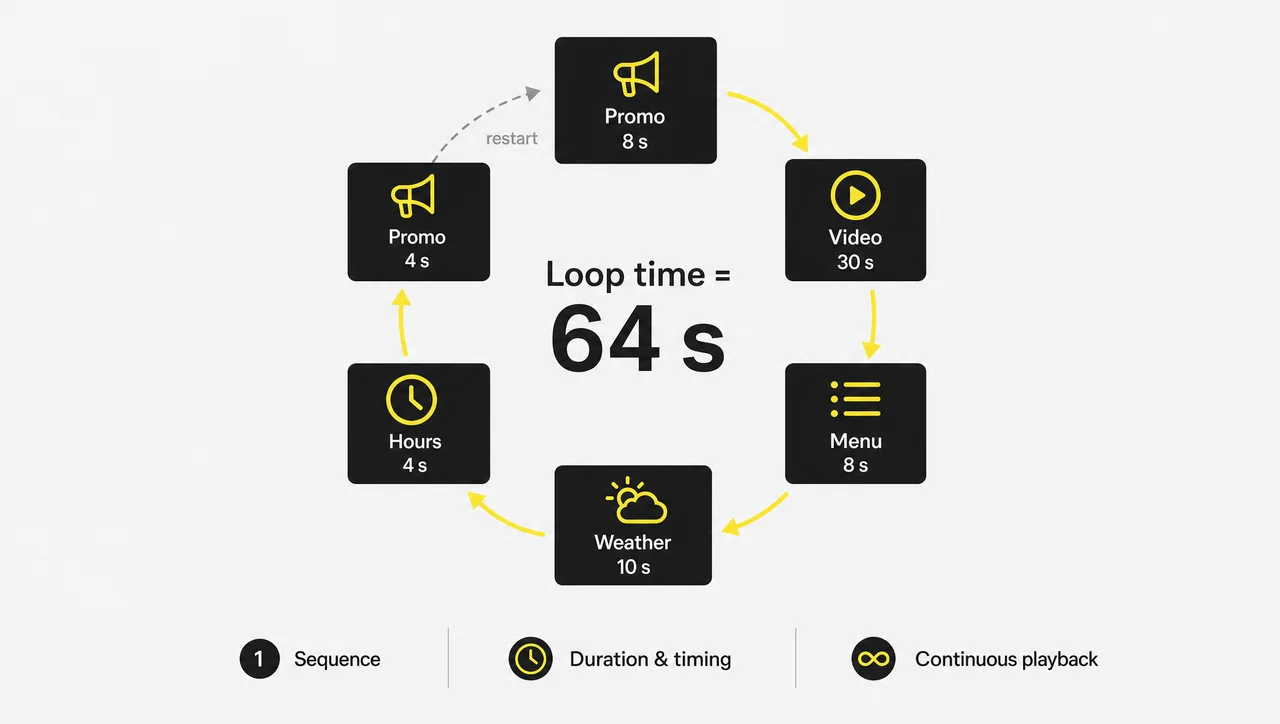
Static items, such as images and slides, follow the timer you set. Video items ignore that timer and run for their full native length, so a 45-second clip always takes 45 seconds of the loop. This rule matters later when you calculate loop time, because one long video can double the cycle without anyone noticing. Next comes the loop itself: how to count one full pass and how often each item returns.
What Is a Loop in a Digital Signage Playlist?
A playlist loop in digital signage is one complete pass through every item in the list, followed by an automatic repeat from the first item. The loop playlist sets what plays and in what order. The loop repeats that order and decides how long one full pass takes and how often each item comes back.
Loop time takes simple arithmetic: add the durations of every item. A playlist with item A for 15 seconds, item B for 30 seconds, and item C for 15 seconds produces a 60-second loop. From loop time, you get frequency:
- Plays per hour = 3,600 ÷ loop time in seconds. Short loops repeat each item more often: a 60-second loop shows it 60 times per hour, a 3-minute loop 20 times.
- 8 items × 8 seconds = a 64-second loop, which repeats about 56 times per hour.
- A 20-second ad in a 60-second loop appears 3 times per minute, or 180 times per hour, the same math digital out-of-home (DOOH) networks use to price screen time.
Every loop playlist follows one of three common logics. Sequential playlists play items back to back in a fixed order. Smart playlists rotate items by rules, tags, and weights, for example keeping two competing ads from playing next to each other. Predictive playlists update the order based on signals such as time of day or foot traffic. Many platforms also run nested playlists, a playlist inside a playlist: a sub-playlist completes one loop through its slides, then advances the parent playlist to its next item. Beyond that, the same repeating cycle has a second name that search results often confuse.
Content Loop Digital Signage Definition: Is It the Same as a Playlist Loop?
Yes: in digital signage, a content loop is the same thing as a playlist loop, a repeating rotation of media items whose loop time equals one full cycle. People who say “content loop” usually mean what viewers see on the wall. People who say “playlist loop” usually mean the object they edit in the CMS. Both terms describe the same loop playlist seen from two sides.
Most content loops rotate three to six content slots. A common structure puts a hero promotion first, then a product or service feature, then operational information such as hours, Wi-Fi details, or a queue notice. Each slot gets a fixed duration, and the whole rotation can switch by time of day or location through the content management system.
Not to be confused with: the marketing “content loop,” a strategy model where content creation, audience engagement, and amplification feed each other over weeks or months. That meaning has nothing to do with screen playback, even though several search results mix the two.
DOOH advertising adds a third, commercial meaning. On ad networks, loops are inventory: a 60-second loop with 6-second messages holds 10 slots, and many networks sell spots of 7.5 to 15 seconds inside a 60-second loop. DOOH loops typically repeat every 10–30 seconds on transit platforms and every 60+ seconds in premium transit environments. However, whatever the name, all loops reach viewers the same way: through a media player.
How a Loop Playlist Plays on a Screen
A loop playlist plays on a screen through a media player that stores the playlist locally, shows each item for its set duration, and starts again from the first item without a pause. The CMS sends the loop playlist to the player once. After that, playback does not depend on a live connection for every item, so screens keep looping during a short internet outage.
Four behaviors make up what viewers actually see:
- Local caching. The player keeps media files and the play order on the device. Cached loops keep playing when the network drops.
- Transitions. A fade, slide, or cut between items usually lasts 0.5–1.5 seconds. Using one or two transition styles across all loops keeps the rotation calm; mixing five effects makes it feel busy.
- Default and override. The loop serves as the default content and runs until a schedule change or an override replaces it for a set window, then resumes.
- Updates. Edited playlists update on the player automatically: it gets the change and starts the new version.
Myth: “Loops that run offline stay fully up to date.” Not true: playback continues from the local cache, but new items and edits cannot reach the screen until the network returns. A price changed during an outage stays old on that screen until it reconnects.
In Decker, the player receives only the changed fragments of a scene, not the whole scene. An updated value reaches the screen in 1–5 seconds, without a scene reload or flicker, and the offline cache keeps the loop playing if the connection drops. Our explainer on how digital signage works covers the full chain from CMS to player to display. Next, the item types inside a loop matter, because each one handles its on-screen time differently.
What Content Goes Into a Loop Playlist
A loop playlist can hold images, video, web pages, menus, and live data widgets, and each item type handles its on-screen time differently. Images and slides need a timer. Videos set their own length. Web pages and dashboards show for the set time and refresh their data in the background.
| Item type | Typical duration | How it behaves in the loop |
|---|---|---|
| Image or slide | 8–15 s | Follows the timer you set |
| Digital signage loop video | 15–60 s; ads 15–30 s | Runs its full native length |
| Animation | under 30 s | Runs through, then moves on |
| Web page or dashboard | 15–20 s | Timer-based; data refreshes on its own |
| Live feed (weather, news, social media) | 10–15 s | Shows new content on each pass |
| Menu or price screen | depends on reading time | Updates when prices change |
Live data feeds turn static loops into dynamic ones. A weather widget or news ticker inside a loop playlist shows fresh information on every pass without anyone editing the playlist.
Decker Player plays video in MP4, MKV, AVI, and MOV. Images in JPG, JPEG, PNG, GIF, BMP, and TIF and audio in MP3, AAC, WMA, FLAC, and Ogg play when the playback app handles that format. It also shows websites, menus with prices, and local files from USB, HDD, or TF card. Screens split into zones can also run a separate loop in each zone. As a result, the mix of item types sets the total loop time, which leads to the most practical question: how long a loop should be.
What Is the Best Length of a Digital Signage Loop?
The best length of a digital signage loop is shorter than the average dwell time at that screen, which puts most general-purpose loops at 2 to 5 minutes. Dwell time is how long a person stays within reading distance. Loops longer than the dwell time lose viewers before the rotation ends, and the items at the end of the list get almost no attention.
Industry guides disagree on one number, and they give 8–24 seconds for storefront windows, 2–4 minutes for lobbies, and 5–10 minutes for waiting areas. They disagree because they describe different places. Match loops to the location instead:
| Location | Viewer situation | Seconds per item | Loop length |
|---|---|---|---|
| Corridor, entrance, walkway | walking past, a few seconds | 3–5 s for icons, 5–7 s for headlines | 1–3 items |
| Storefront window | passing by | 6–8 s | 8–24 s |
| Retail floor, mall | 8–15 s of dwell | 6–8 s | 30–60 s |
| Office lobby | short stops | 8–10 s | 2–4 min |
| Café, QSR queue | waiting to order | 10–15 s | 45 s – 2 min |
| Clinic waiting room | 13.3 min on average (PatientPoint, 2024) | ~15 s | about 5 min |
| Transit hub | 3–5 min of dwell | 10–15 s | under 3 min |
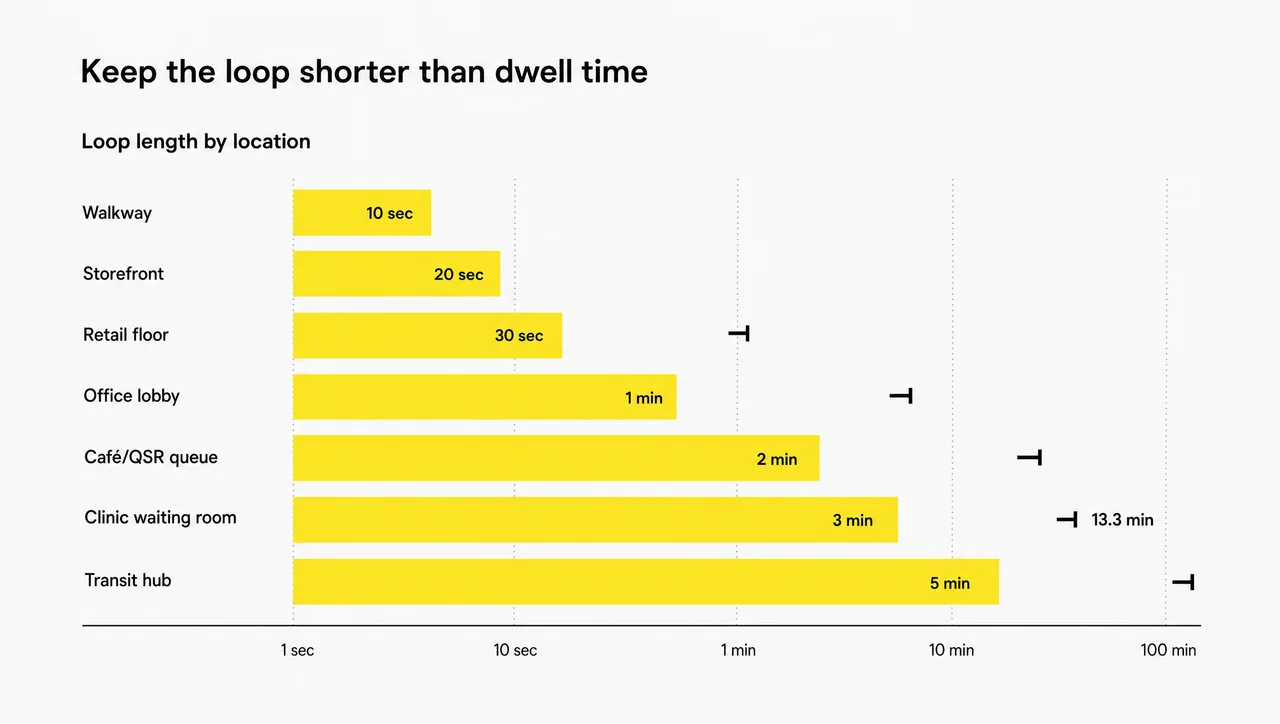
A clinic example shows the logic. Patients waited 13.3 minutes on average in 2024, so a 5-minute loop plays more than twice during a typical wait. Drive-thru lanes follow the same math: in the 2024 QSR Drive-Thru Report, total time averaged 375.67 seconds at McDonald’s and 479.42 seconds at Chick-fil-A, so a pre-sell board loop of 2–3 minutes repeats at least twice per car.
Three timing rules apply everywhere:
- 3-second rule. A viewer should get the main message of any item in 3 seconds or less. Focused attention on a screen often lasts only 1.5–4.6 seconds.
- Most important message first. The opening item gets the most views, because every viewer who arrives mid-loop still sees it within one cycle.
- Text limits by viewing distance. Use the 3×5 rule: three lines of five words, or five lines of three. Keep headlines at 72–144 pt and body text at 36–54 pt. Anything under 20 pt turns unreadable from a distance. Viewers stand 5–8 feet from a counter screen, 8–15 feet in a queue, and 15+ feet at an entrance, and each step back needs larger text and more seconds per item.
Myth: “Longer loops mean viewers see more content.” Not true: each viewer sees only the part of the loop that fits their dwell time. A 10-minute loop at a 2-minute counter shows each customer about 20% of the rotation.
However, loop length covers only half the plan, because schedules can replace the loop at set times.
Loop Playlist vs Scheduled Content
A loop playlist is the default content a screen repeats when no schedule applies, while scheduled content replaces that loop for a set time window and then hands the screen back. Loops and schedules work as layers, not alternatives.
Most platforms rank playlists by priority, from highest to lowest:
- Emergency messages
- Time-sensitive promotions
- Scheduled campaigns
- Time-of-day content, such as breakfast, lunch, and dinner menus
- The default loop
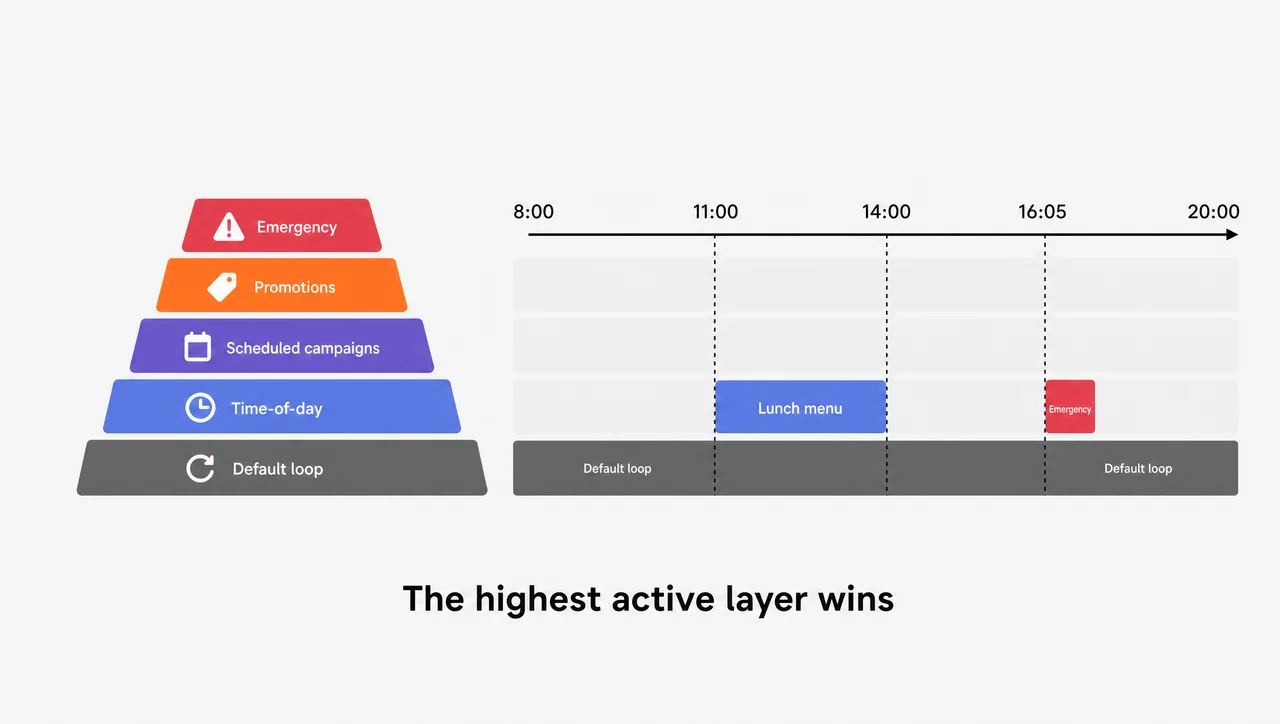
The highest active layer wins. When a scheduled campaign ends, the screen falls back to the next layer, and the default loop guarantees that the screen never goes blank. Each playlist item can also carry an expiration date, so a promotion rotates out of the loop by itself when the offer ends.
In Decker, you manage the time, duration, and sequence of every item and can show different offers on different screens by time of day, day of week, and location. Scheduling rules, dayparts, and screen groups sit among the platform’s features. In contrast, most loop failures come from how teams build the loop, not from scheduling.
Common Loop Playlist Mistakes
The most common loop playlist mistakes are loops longer than viewer dwell time, too few items that repeat until people stop noticing, and slides with more text than anyone can read in one pass. Each mistake needs a measurable fix.
| Mistake | What happens | Fix |
|---|---|---|
| Oversized playlists | Key messages rarely appear | Keep the loop under dwell time; move low-value items out |
| Under-filled playlists | Content feels repetitive | Add 3–6 distinct slots; refresh at least weekly |
| Items flip too fast | Nobody finishes reading | 8–12 s for most items; longer for dense data |
| Text-heavy slides | Viewers skip the item | 3×5 rule; one message per slide |
| Flashy transitions | Rotation feels chaotic | 0.5–1.5 s fades, one or two styles |
| Stale content | “Screen blindness”: the screen becomes invisible background noise | Update core messages weekly, feeds hourly |
| Untested loop time | One long video doubles the cycle | Check total running time after every edit |
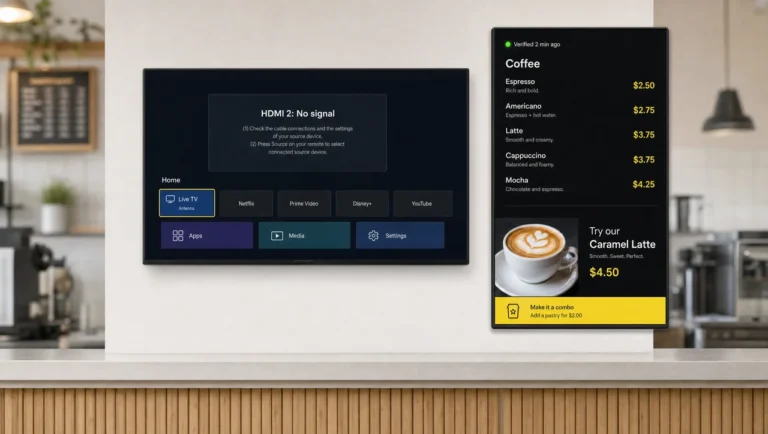
Published loops can still fail silently. A playback log records what the player sent to the display. It cannot show that the display was powered on, set to the right HDMI input, or free of a frozen image.
Myth: “Proof of play proves the screen showed the content.” Not true: a software log confirms the player played the file, not that a working display showed it to anyone. A screen switched to the wrong HDMI source still logs a perfect loop.
When a rotating loop is the wrong tool
Skip loops when viewers glance for under 3 seconds, when they drive the content by touch, when a message cannot wait for its turn, or when a full menu must stay readable:
- Dwell time under 3 seconds. On a highway-facing or walk-past screen, multi-item loops waste every item after the first. Show one static message instead.
- The viewer drives the content. Wayfinding, directories, and self-service ordering respond to touch, not a timer. Those belong on interactive kiosks and touchscreens.
- The message cannot wait for its turn. A new item in a 4-minute loop can take up to 4 minutes to appear. Safety alerts need a full-screen interrupt, covered in emergency alerts and screen takeover.
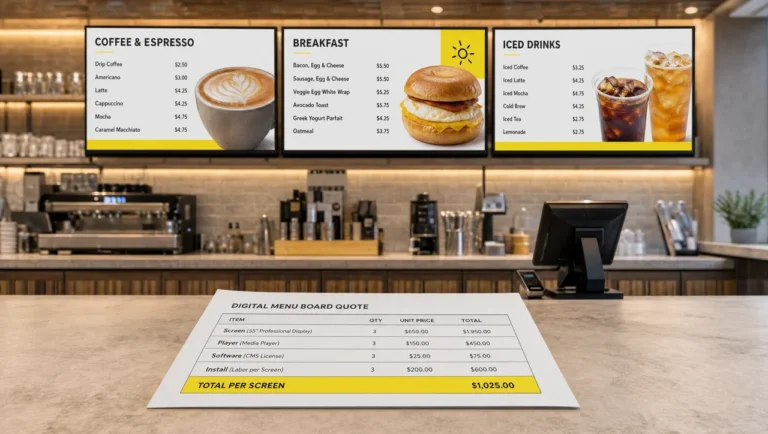
- The full menu must stay readable. If customers need 30 seconds or more to choose, rotating the main menu away hides prices mid-decision. Keep the menu static and loop only a promo zone next to it on your digital menu boards.
Overall, every fix above comes down to timing, focus, and proof that the loop runs, and the build process starts there.
How to Build a Loop Playlist in Decker
Building a loop playlist in Decker takes six steps, from uploading media to confirming that the loop is actually on screen. Any CMS handles the first five steps. In the sixth step, Decker adds hardware that checks the result instead of assuming it.
- Upload content. Add videos, images, menus, or promos to your Decker account.
- Set order and duration. Arrange the items and give each static item its on-screen time, then check the total running time against the dwell table above.
- Choose screens. Assign playlists to one screen or a screen group and set user roles for who can edit it.
- Add schedules if needed. Layer time-of-day or location rules over the default loop.
- Publish. Decker Player receives only the changes and shows them in 1–5 seconds, without flicker.
- Confirm playback. Decker Player shows the loop, and Decker Verifier confirms that it really shows on screen.
Decker Verifier works independently of the player. It monitors the state of both the player and the display, and it can remotely restart either device, switch the HDMI source back, and restore playback without a technician visiting the site. It also logs uptime for every screen, so a chain can see how many hours its screens really showed their loops in a month instead of guessing. Decker combines publishing, scheduling, and monitoring in one CMS.
Questions and Answers
1 What does “loop playlist” mean in digital signage?
It means a list of media items with a set order and duration for each item, played continuously and restarted automatically after the last item. The total of all durations gives the loop time.
2 Does a loop playlist keep playing without internet?
Yes. The media player caches the playlist and its files locally, so the loop continues during an outage. Edits and new items reach the screen only after the connection returns.
3 How many items should a loop playlist have?
Plan about 12–15 items for a 2-minute loop: divide the target loop time by 8–10 seconds per item. Most content loops work well with three to six distinct message types, rotated with variations.
4 Can one screen run more than one loop playlist?
Yes, but only one plays at a time. A schedule or channel switches between playlists by time, day, or location, and the default loop takes over whenever no other playlist holds the time slot.
5 How do I make a playlist repeat on a signage screen?
Signage playlists repeat by default after you assign them to a screen. You set the order and item durations, publish, and the player restarts from the first item after the last one, with no extra setting required.
6 Can you loop a YouTube playlist on digital signage?
On most platforms, yes, through a web page or video app item inside the loop. A streamed video cannot play from the local cache, so for screens that must keep running offline, upload the video file to the playlist instead.
7 Is a digital photo frame with auto loop play and repeat the same as digital signage?
No. A photo frame repeats a slideshow at a fixed interval from an SD card, USB drive, or cloud album, and each frame updates on its own. A signage playlist runs under remote management across many screens, with schedules, per-item timing, and playback monitoring. For one TV with rare updates, a USB loop can be enough; for several screens or weekly changes, a managed loop saves the site visits.
8 Is a content loop the same as a slideshow?
Not quite. A slideshow repeats local files in a fixed order, while a content loop is a managed playlist with per-item timing, schedules, and remote publishing to many screens.
9 How long should each slide stay on screen?
Most items work at 7–12 seconds. Use 3–5 seconds for icons in walkways, 10–15 seconds for text-heavy slides, and 15–20 seconds for dashboards. Videos play their full length.