
Decker Player: Android Digital Signage Media Player
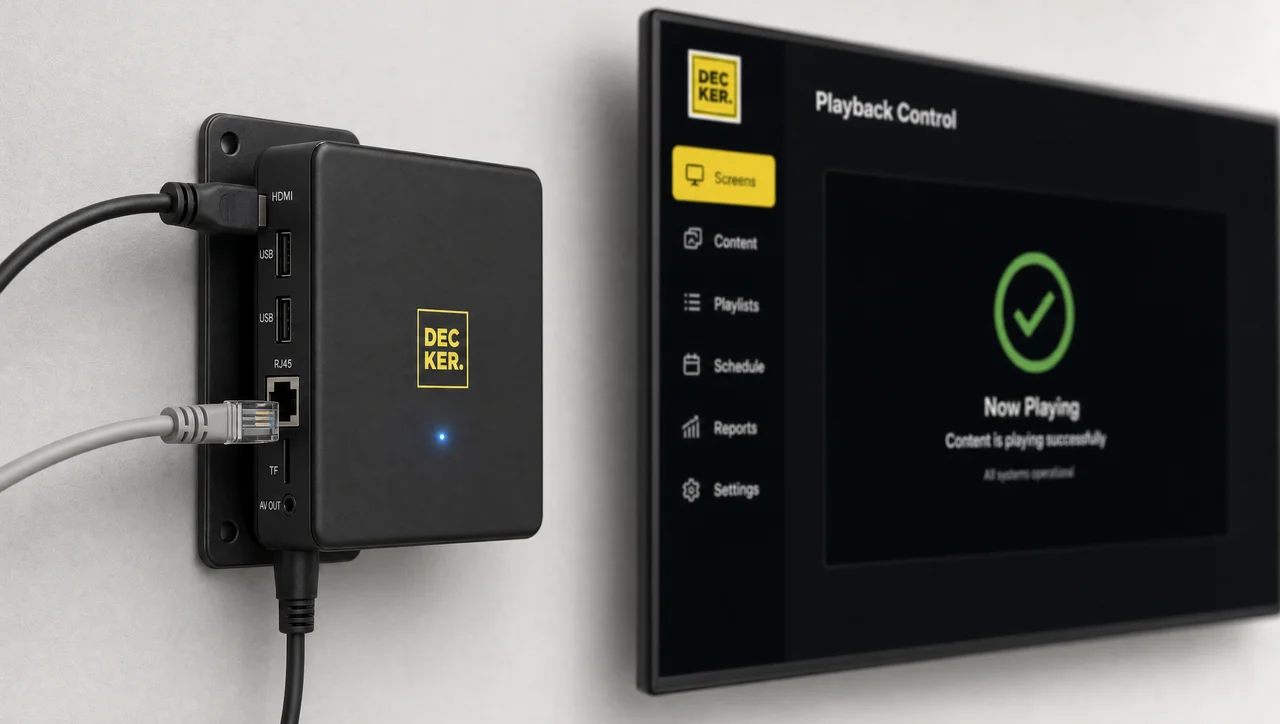
A digital signage player turns televisions into managed screens, and a digital signage player device is what makes the schedule real. Decker Player connects the display over HDMI, receives content and schedules over the network, and keeps playing from local cache when the link drops. However, the device only earns that job when it matches the load.



-
Android 10 HDMI 2.0A, Wi-Fi and Ethernet
Decker Player ships with the interface set a signage project needs, so that screens connect through standard ports instead of custom wiring.
-
1–5 seconds from a price change to the glass
Decker Player receives only the changed fragment, redraws that element, and leaves the rest of the scene untouched.
-
Offline cache playback survives a network drop
Decker Player stores each published file in internal memory, because a dark menu board is worse than a slightly older one.
What a Digital Signage Player Device Does at the Screen
A digital signage player device sits between the display and the platform that runs it, which is the part most screen projects underestimate. Televisions show whatever arrives on an input, and displays do not schedule, rotate, or update anything by themselves.
Decker Player fills that gap. Decker Player pulls each published file from the platform, holds it locally, and plays it on displays according to the rules the team set in the dashboard. Screens stop being separate devices with separate USB sticks and become points in one managed network.
Anyone new to the category can start with what a digital signage player is before comparing devices. Specifically, the rest of this page covers the Decker device itself.
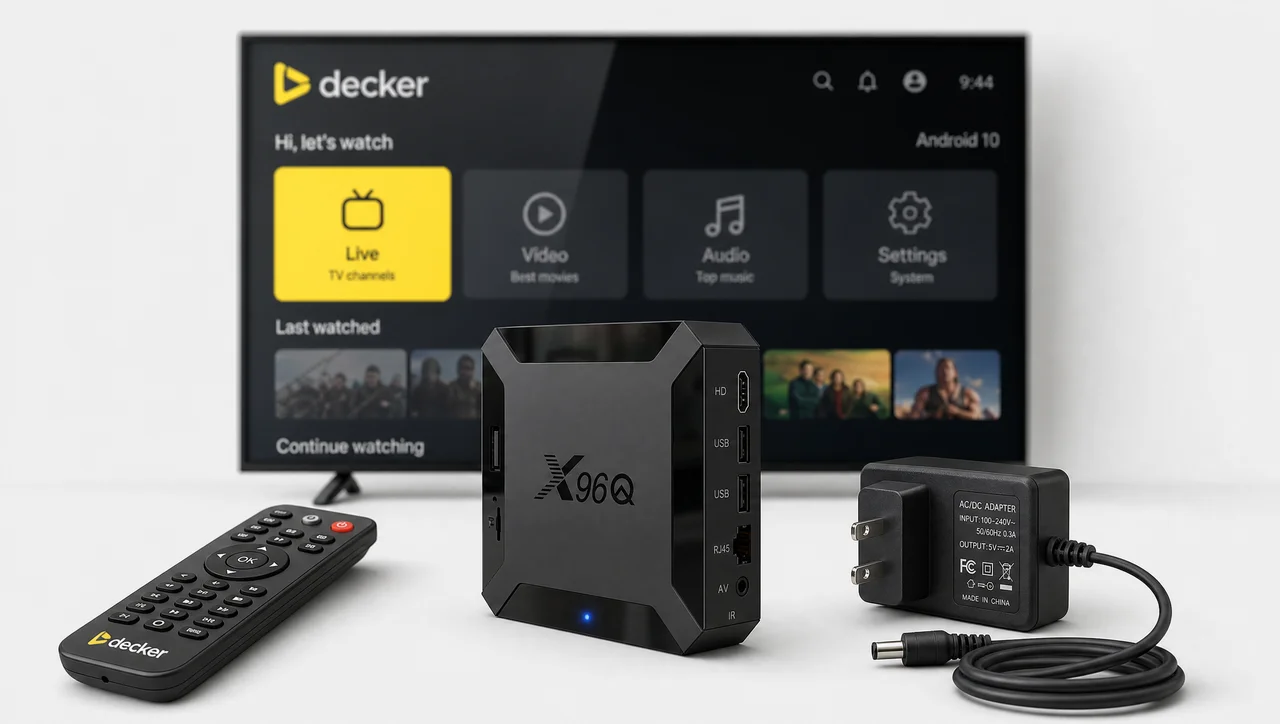
Android Digital Signage Player Built on X96Q
Decker runs one Android digital signage player in the United States, which is the X96Q on Android 10. Devices boot into the playback application, connect to the account, and join the screen group the team assigned to them.
-
Android as the playback layer
Android 10 runs the Decker playback application, which handles video, images, menus, and web content without a separate operating system for each screen type.
-
A box, not a built-in TV app
Decker Player works as an external device, so that screens keep their own firmware and the estate stays consistent even when televisions differ by brand and model.
-
One image across the estate
Decker configures every player the same way, because mixed devices turn routine updates across screens into individual troubleshooting.


Digital Signage Media Player Hardware, Spec by Spec
Decker Player hardware answers a practical question, which is what the media player actually does with the content screens show. The digital signage player hardware below is the standard Decker configuration for typical projects, and it sits alongside the rest of the hardware for digital signage that Decker builds and deploys itself.
| Parameter | X96Q | What it means for the project |
|---|---|---|
| CPU | Allwinner H313 Quad Core ARM Cortex-A53 | Baseline performance for standard playback |
| GPU | G31, OpenGL 3.2 | Graphics and video output |
| RAM | DDR3 1 GB, 2 GB option | Affects playback app stability and media handling |
| Storage | eMMC 8 GB, 16 GB option | Holds the app, cache, and files for offline playback |
| OS | Android 10 | Runs the Decker playback application |
| Display out | 1 × HDMI 2.0A, 4K×2K UHD | Connects to a TV, monitor, or menu board |
| Legacy out | 1 × AV OUT, 480i/576i | Reaches older displays with a standard video input |
| Network | Wi-Fi 802.11 b/g/n, RJ45 Ethernet | Receives content, schedules, and updates |
| Local media | 2 × USB, TF card up to 64 GB | Local files and extra storage |
| Control | IR receiver and remote | On-site setup and basic service |
| Power | DC 5V/2A | Runs from a standard adapter beside the screen |
| Size | 88.4 × 88.4 × 18.6 mm | Fits behind a panel or inside a mount |
Decoding covers H.265 up to 4K at 60 fps, H.264 and VP9 up to 4K at 30 fps, and the common 1080p formats below them. Therefore the port list and the codec list answer different questions, and the next section separates them.
⚠️ A 4K port is not a 4K guarantee. The output is 4K and the decoder handles 4K, but a heavy file with a high bitrate is a separate test. Decker checks the actual clips before a project goes live rather than promising resolution from a spec sheet.
How the Signage Media Player Updates a Screen in Seconds
A signage media player that reloads the whole scene makes every price change visible to guests, which is the part operators notice only after launch. Decker Player swaps one element instead: the platform sends the fragment that changed — one price, one line, one tile — and the device redraws that element in place.
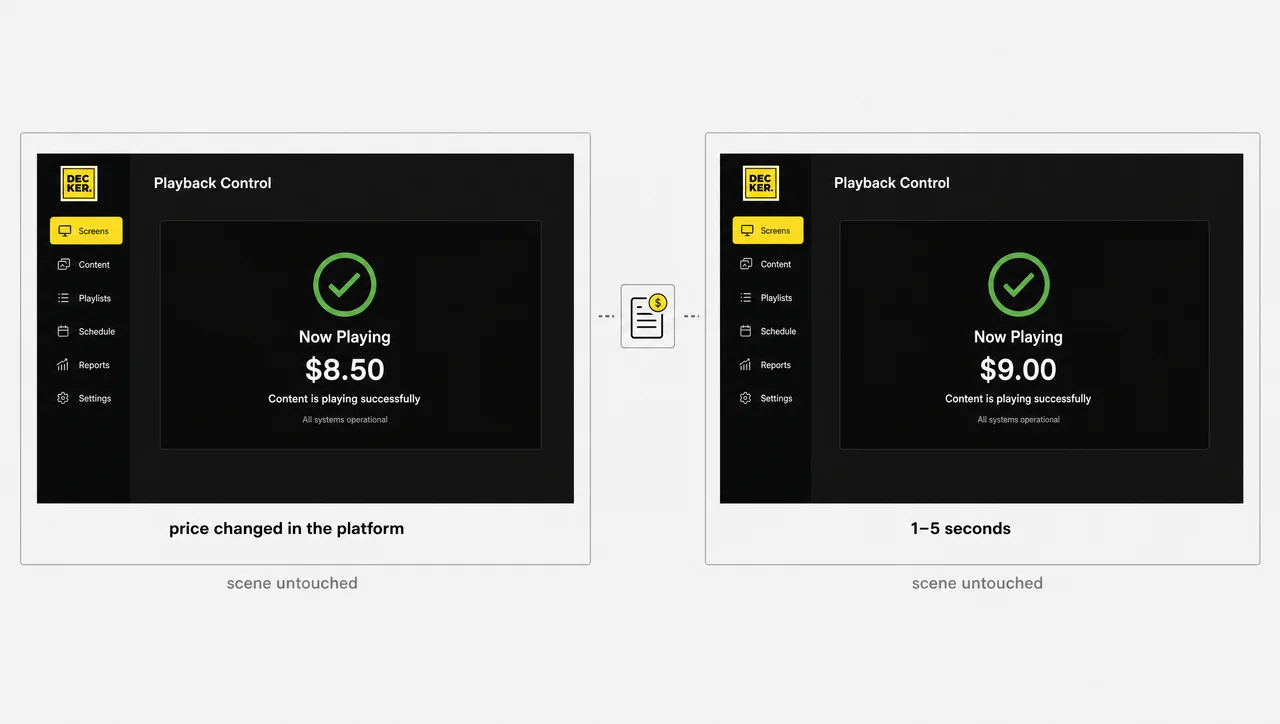
Nothing else moves. Fonts, layout, and the rest of the menu stay exactly as they were, so a queue at the counter never sees a blank panel or a flicker while the board reloads. The change reaches the glass in one to five seconds, and the network carries a fragment rather than a full file.
Therefore a mid-service price change costs nothing in attention, because the screen never announces that it updated.
Digital Signage Player for TV: HDMI, Network, Power
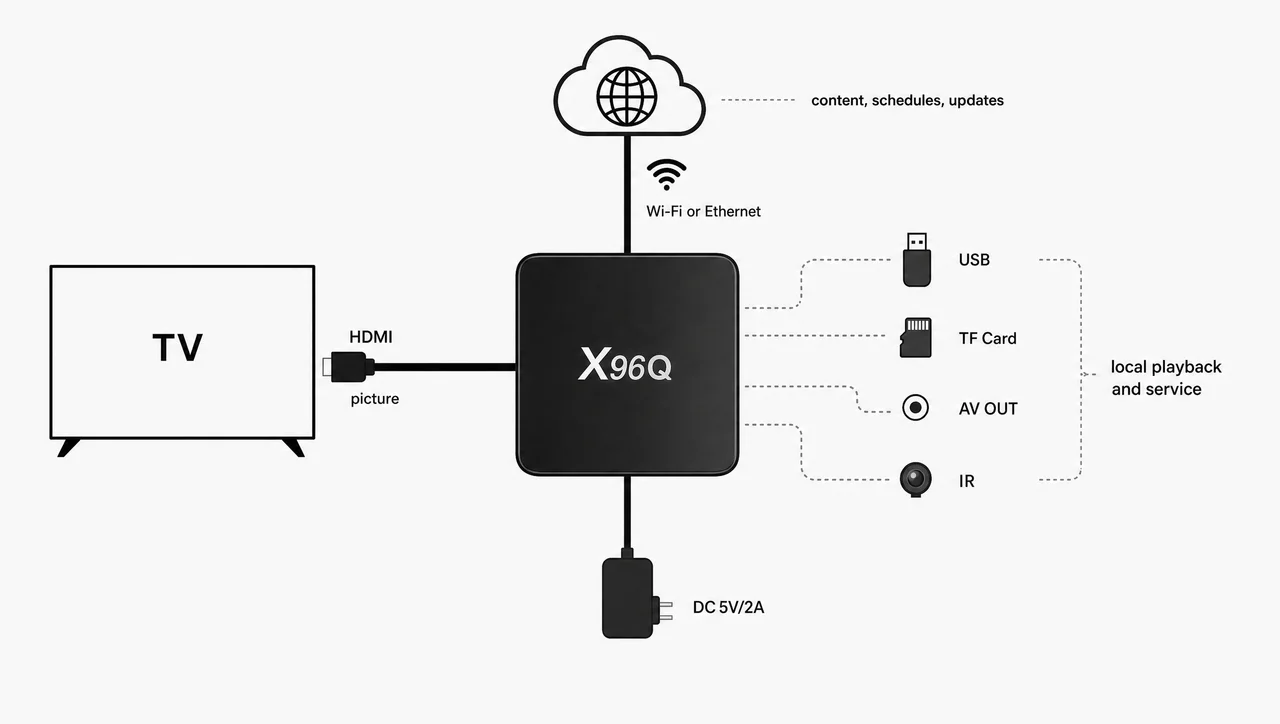
A digital signage player for TV connects through three cables and a network, which takes minutes rather than a service visit. The device works beside the screen and needs no modification to the panel.
-
HDMI to the display
Decker Player sends the picture over HDMI 2.0A, and the television shows clips, images, menus, and service messages on that input.
-
Wi-Fi or Ethernet
Decker Player receives content, schedules, and updates over the network. Ethernet suits sites that publish often, while Wi-Fi covers locations where cable runs are impractical.
-
Power beside the screen
Decker Player draws power from a standard DC 5V/2A adapter and starts playback when the location opens.
-
Local media and legacy ports
USB and TF card hold a local file set for standalone playback, AV OUT reaches older displays, and the IR remote covers setup on site, so that unusual installations still have a route in.


Signage Player Setup in Six Steps
Decker runs signage player setup as a sequence that ends when screens show the right material at the right time.
-
Step 1.
Match the device to the load
Decker checks the screens, the content, the network, and the operating hours, then confirms the configuration for the project.
-
Step 2.
Connect the player to the screen
A technician connects the device to the television or display over HDMI, and the screen becomes a working playback point.
-
Step 3.
Set up the account
Decker adds the screens to the dashboard, builds groups, and assigns access roles, so that publishing runs from one interface.
-
Step 4.
Assign the schedule
The platform sets times, days, and playback scenarios, and the screen follows them without anyone pressing start on site.
-
Step 5.
Publish to the player
Decker Player receives the published material and shows it on the display, which removes the trip to swap files on a stick.
-
Step 6.
Check and scale
Decker confirms what appeared on screen and adds new locations to the same groups, therefore the second store takes far less setup than the first.
Digital Signage Network Player vs Local USB Playback
A digital signage network player changes the economics of the estate, because updates stop being physical work. Local playback still has its place on a single screen with a file that rarely changes, and the table separates the two honestly.
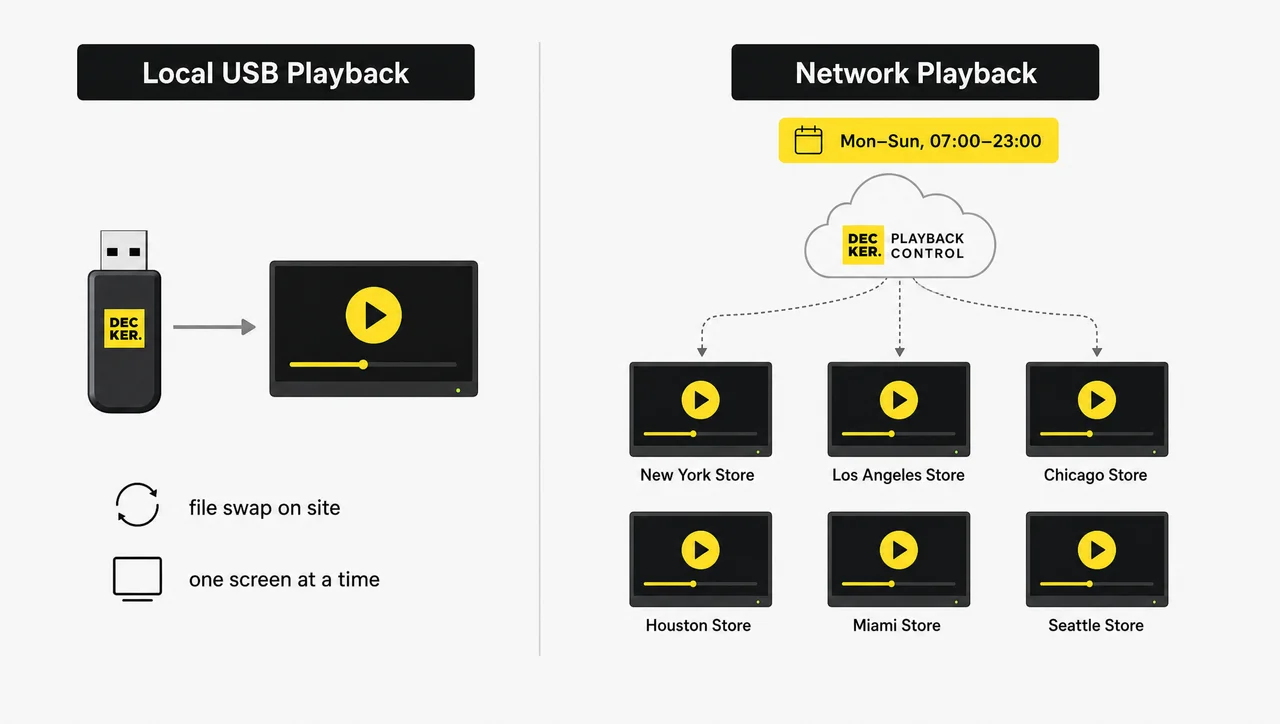
| Capability | USB or local playback | Digital signage network player with Decker |
|---|---|---|
| Content updates | ❌ File swap on site | ✅ Publish from the dashboard |
| Schedule | ❌ Limited to device settings | ✅ By time, day, and screen group |
| Several screens | ❌ Manual, one by one | ✅ Managed centrally |
| Playback check | ❌ Someone looks at the screen | ✅ Reported to the platform |
| Growth | ❌ Every new screen repeats the work | ✅ Groups carry the rules forward |
| Best fit | ❌ One screen, rare changes | ✅ Menus, promos, and multi-site networks |
Decker keeps both paths open on the same device: the media player runs from the network by default and falls back to cached files when the connection drops. As a result, a network outage slows updates without stopping the screen.
What the Advertising Media Player Plays on Screen
Decker Player plays what a business actually shows on screens, and the advertising media player handles each format that arrives in the publish queue.
-
Video
Decker Player plays promotional clips and loops in MP4, MKV, AVI, and MOV containers, with resolution, bitrate, and duration checked before launch.
-
Images
Decker Player shows slides, banners, and promotional stills in JPG, PNG, GIF, BMP, and TIF.
-
Menus and prices
Decker Player displays digital menus, price screens, and combo offers, and the platform decides which location sees which version.
-
Audio and web
Decker Player handles MP3, AAC, WMA, FLAC, and Ogg alongside web pages, because a digital signage advertising player rarely shows one format alone.


How the Player Works with the Decker Platform
A media player for digital signage is only half a system, which leaves publishing, scheduling, groups, and checks to the platform. Decker Player executes; the dashboard decides.
The Decker content management system publishes material to one screen, a group, or the whole network, and it drives POS-connected digital menu boards when prices change at the source. Access roles decide who publishes where, and every publish lands in an event log with a timestamp and an operator.
Playback and proof stay separate on purpose. Decker Verifier checks the panel independently, because a player that has frozen cannot report its own failure. In other words, the player device for digital signage shows the content and a second device confirms it appeared.
Right-Sized Hardware Instead of the Cheapest Box
A cheap digital signage player is the right call more often than vendors admit, and it is the wrong call in ways that only show up months later. Decker treats the choice as a load question rather than a price question.
The X96Q is an entry-level device, and Decker deploys it deliberately for standard playback: clips, images, menus, promotions, and service messages on a single screen or a modest group. That workload does not need industrial silicon, and paying for headroom nobody uses is its own kind of waste.
The opposite mistake costs more. A low cost digital signage player pushed into heavy 4K, a video wall, or round-the-clock duty stutters, overheats, or reboots at the worst moment, therefore the next section lists the cases where Decker specifies a different class outright.
When a Project Needs More Than the Base Player
Decker moves a signage player project to a higher hardware class in five situations that each carry a concrete trigger rather than a vague warning.
- Heavy 4K content. Decker tests resolution, bitrate, codec, clip length, and update frequency; a 4K file that plays smoothly in one encode stutters in another, so the clips decide the device.
- Video walls. Synchronised output across panels requires a different connection scheme, which the base configuration does not cover.
- Interactive screens. Touch scenarios need their own application and control logic, so Decker specifies that hardware separately.
- Round-the-clock operation. Continuous duty demands headroom in the device, power, network, and cooling, and Decker checks the load before launch rather than after the first failure.
- Complex web content. Live dashboards, web apps, and dynamic pages consume more resources than a playlist, so these run through a separate check.
In other words, Decker names the limit before a project meets it, which is cheaper for everyone than discovering it on a Friday evening.
Where a Signage Player Runs, From Menu Boards to Lobby Screens
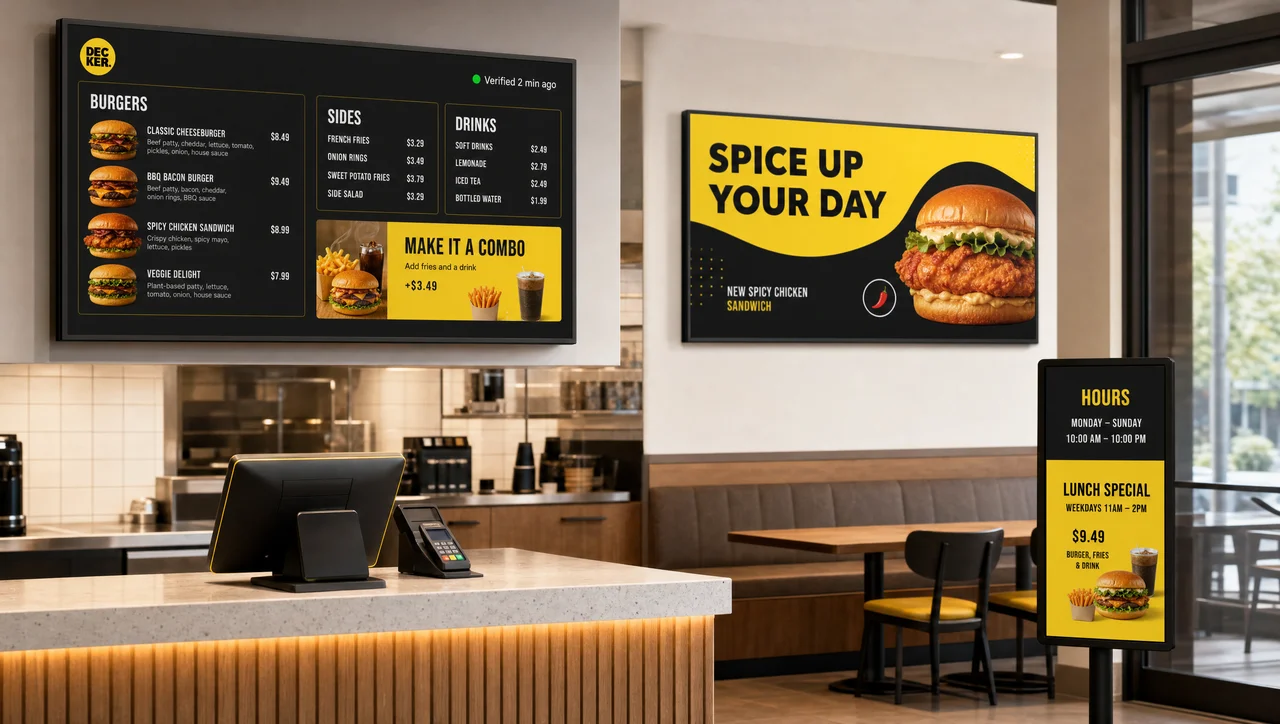
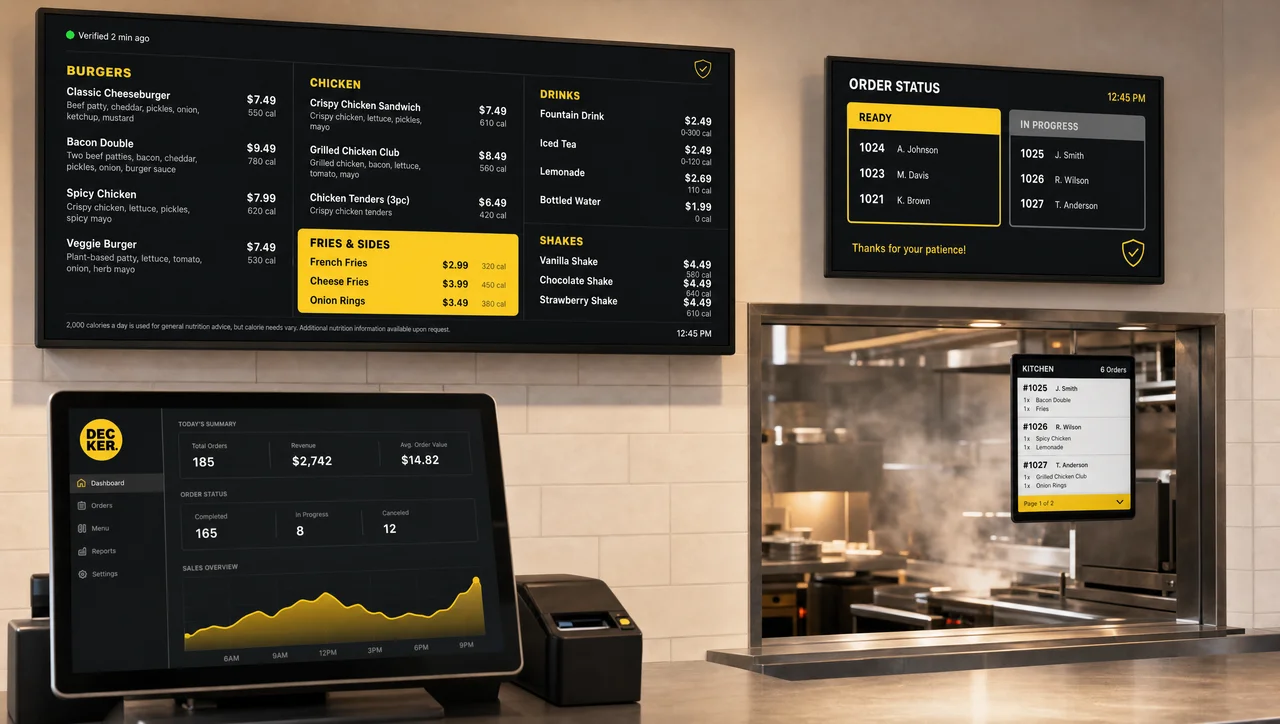
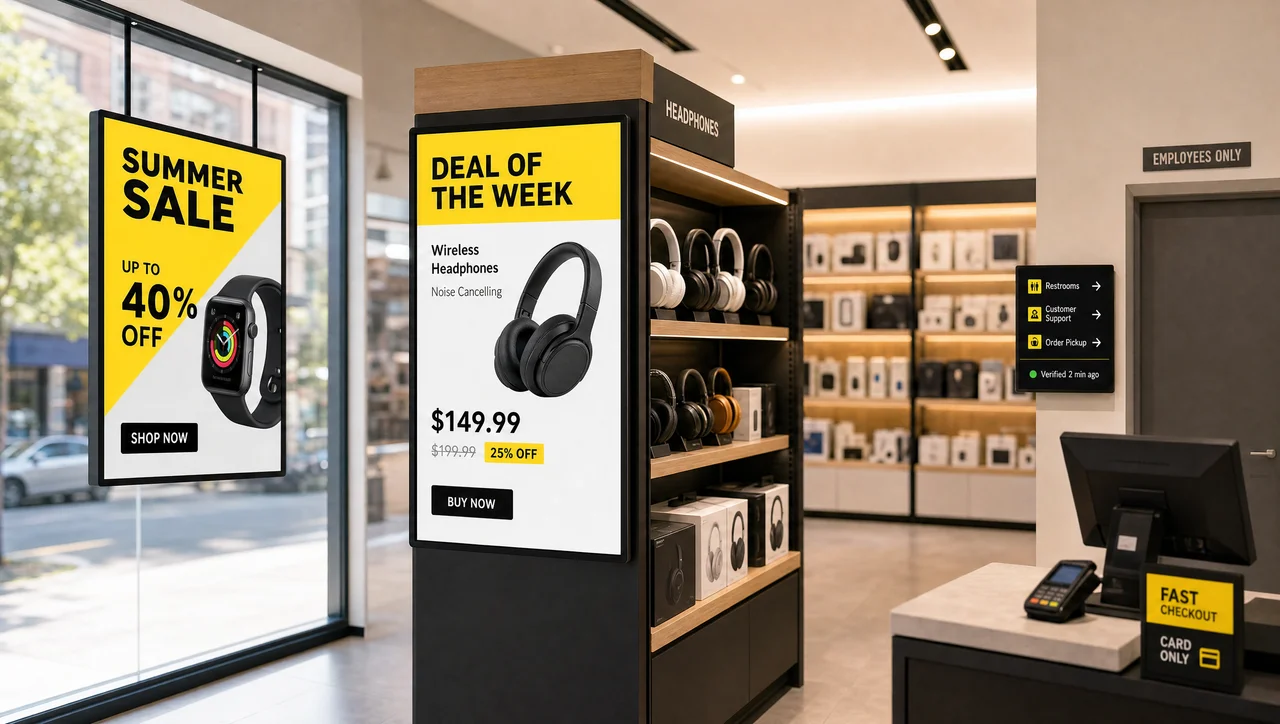
A signage player fits any business that changes what a screen shows, which covers far more than hospitality. Decker Player devices run the same way on a menu board, a promo wall, a lobby display, or a service screen, and only the content calendar differs. A digital signage player for restaurant menu boards simply carries the heaviest daily change load, so the examples below start there.
-
 Learn more
Restaurants
Menus, seasonal offers, and bar boards. Decker Player shows dishes and prices that change with the season.
-
 Learn more
QSR
Counter boards, combos, and stop-lists. Decker Player updates combos and pulls unavailable items on schedule.
-
 Learn more
Retail
Promos, campaigns, and store-level offers. Decker Player devices run campaigns per location, because head office keeps the calendar.
Answers About Digital Signage Players and Setup
What makes the best digital signage player for a business?
The best digital signage player is the one matched to the load, not the one with the longest spec sheet. Judge four things: whether the device plays your actual files without stutter, whether it updates remotely instead of by USB, whether it keeps showing content when the network drops, and whether anyone can confirm what appeared on screen. A device that covers the first three and skips the fourth leaves the estate half-managed.
Which media player should a small network choose?
A small network usually runs well on an entry-level Android device like the X96Q, provided the content is clips, images, and menus rather than heavy 4K. Decker checks the files and the schedule first, then confirms the configuration. Scaling later means adding the same device to the same groups, so the first choice does not lock the project in.
Does the player need the internet?
The player needs a connection for remote publishing, schedule changes, and updates. Without it, Decker Player keeps showing cached files on the screen, and the platform resumes publishing when the link returns. Sites with permanently unstable connectivity are worth fixing before the rollout, because scheduling is the point of a network player.
Is X96Q suitable for digital signage?
The X96Q suits standard signage: clips, images, menus, promotions, and announcements on a screen or a small group. It is an entry-level device by design. For heavy 4K, video walls, interactive screens, and 24/7 duty, Decker specifies a more capable class instead of stretching the base configuration.
Can I buy the signage player on its own?
Decker works as a managed project rather than a hardware shop, so the device is matched to the screen, the content, the schedule, and the network. Teams that already own players can still ask about compatibility, and Decker reviews the setup case by case.
How many players connect to one account?
One screen, a group, a chain, or a franchise network all run from the same dashboard. Decker groups devices by location, brand, or store type, so one rule reaches a set of sites instead of each screen in turn.
Is there a player API?
Decker exposes an API for integration with internal systems, which teams use to connect data sources and automate publishing. Setup runs with the Decker team during onboarding rather than as a self-service step.
Start With One Screen and See It Run
Idle screens sell nothing, therefore put a media player behind one that matters and watch a week of scheduled playback.


