Digital Signage vs TV: When You Can Use One as the Other


Yes, you can use digital signage as a TV, and a TV as digital signage, but each swap has limits. A signage display shows live TV once you add a cable box, tuner, or streaming device over HDMI. A normal TV runs signage through a media player, yet it is built for about 8 hours a day, while signage displays run 16–24.
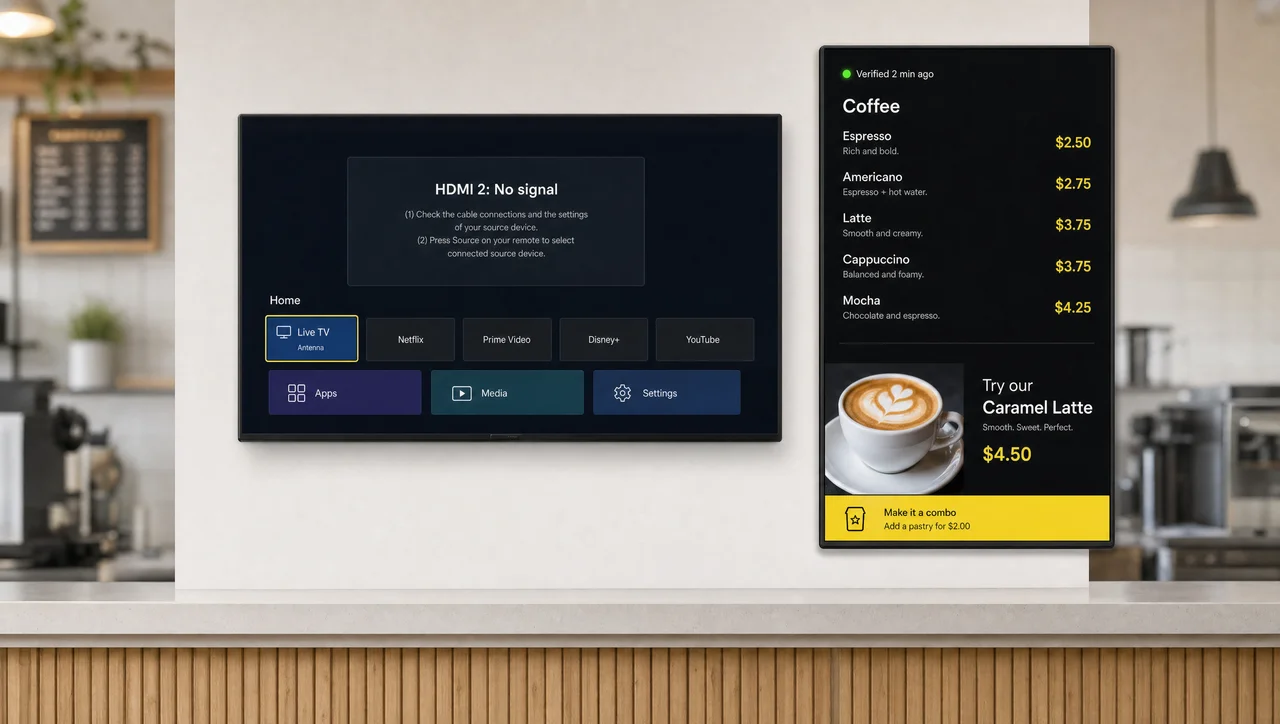
The question covers three different jobs, and each one fails in its own way:
| Your plan | What the screen does | What you must add | Typical failure |
|---|---|---|---|
| A signage display as a TV | Shows broadcast or streaming video | A tuner, cable box, or streaming device, plus sound and a way to control it | No built-in tuner, weak speakers |
| A TV as a signage screen | Shows business content on a schedule | A media player or app, a CMS, and a way to recover after power loss | The TV switches off or changes input during the day |
| One screen for both | Alternates live TV and signage | A mode owner, a switching method, and a scheduled return to signage | The broadcast ends and the screen never returns to signage |
Next, the differences between the two screen types explain why each swap works or fails.
Difference Between Digital Signage and TV: Commercial Display vs TV
The difference between digital signage and TV comes down to purpose: a TV serves home entertainment for a few hours a day, while a digital signage display is a commercial screen built for 16–24 hours of managed business content. In functionality, a TV shows what broadcast schedules and streaming apps provide. A signage screen shows what its owner publishes through CMS software, with scheduling by time, day, and location. A TV setup needs a screen, a tuner, and a remote. A signage setup is a system: a display, a media player, and CMS software.
At first glance, the two look alike. Both accept HDMI and both use LCD or LED technology. Signage displays carry more robust specs, and the differences sit inside the case and in the warranty:
| Parameter | Consumer TV | Digital signage display |
|---|---|---|
| Daily runtime | 6–8 hours | 16/7, 18/7, or 24/7 |
| Rated lifespan | about 15,000 hours | 50,000–60,000 hours |
| Brightness | 250–400 nits | 400–800 nits indoors; 2,500+ for windows |
| Screen finish | Glossy, made for dim rooms | Anti-glare on most models |
| Orientation | Landscape only | Landscape and portrait |
| Warranty for business use | Usually voided | Around 3 years, often on-site |
| Controls | Buttons and IR remote open to anyone | IR and button locks, RS-232, LAN control |
| Built-in player | Consumer apps | Signage system-on-chip on many models |
| Tuner and speakers | Included | Usually no tuner; basic speakers |
| Picture for movies and sports | Better contrast and motion | Tuned for brightness and legibility |
| Model availability | New models every year | Same model sold for 3–5 years |
Duty Cycle and Lifespan: Commercial Grade TV vs Consumer TV
A commercial grade TV or signage display is rated for 50,000 hours or more, about three times the 15,000 hours typical for a consumer TV. Some signage panels list around 60,000 hours. Commercial models reach those numbers because manufacturers engineered them for continuous public use: industrial-grade capacitors, metal cases that spread heat, and fans. Signage panels, meant to stay on 16 or 24 hours a day, need that margin. Consumer TVs run 6–8 hours of evening viewing in a typical home and have no formal duty rating.
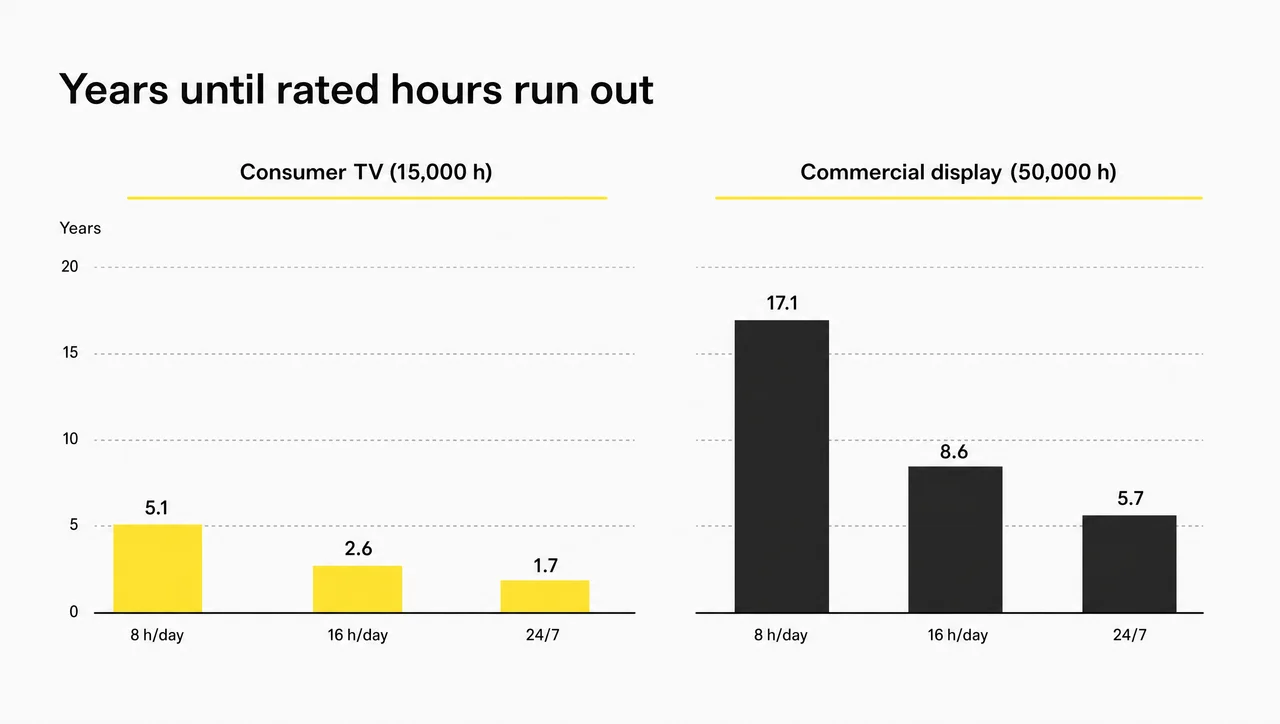
The hours add up fast. Screens that run 8 hours a day log 2,920 hours a year. At 16 hours a day they log 5,840, and at 24/7 they log 8,760. A consumer panel rated for 15,000 hours therefore uses up its life in about 2.6 years at 16 hours a day and 1.7 years at 24/7. A 50,000-hour panel lasts about 5.7 years around the clock.
Long-term testing shows how TVs age under load. In a three-year test of 100 TVs run for 18,000 hours each, reviewers at RTINGS recorded 20 complete failures and 24 partial ones. Edge-lit LCD models fared worst, with nearly 60% failing fully or partly. Eighteen thousand hours equals about three years for a signage screen that runs 16 hours a day.
Brightness: TV Nits vs Signage Display Nits
Most consumer TVs deliver 250–400 nits, while digital signage displays start around 450 nits and reach 700–800 indoors. Nits measure how much light a screen emits, and the right number depends on the room:
- 250–300 nits: offices and rooms with controlled lighting
- 350–500 nits: bright retail floors
- 500–700 nits: screens next to large windows
- 2,500+ nits: screens facing the street through glass
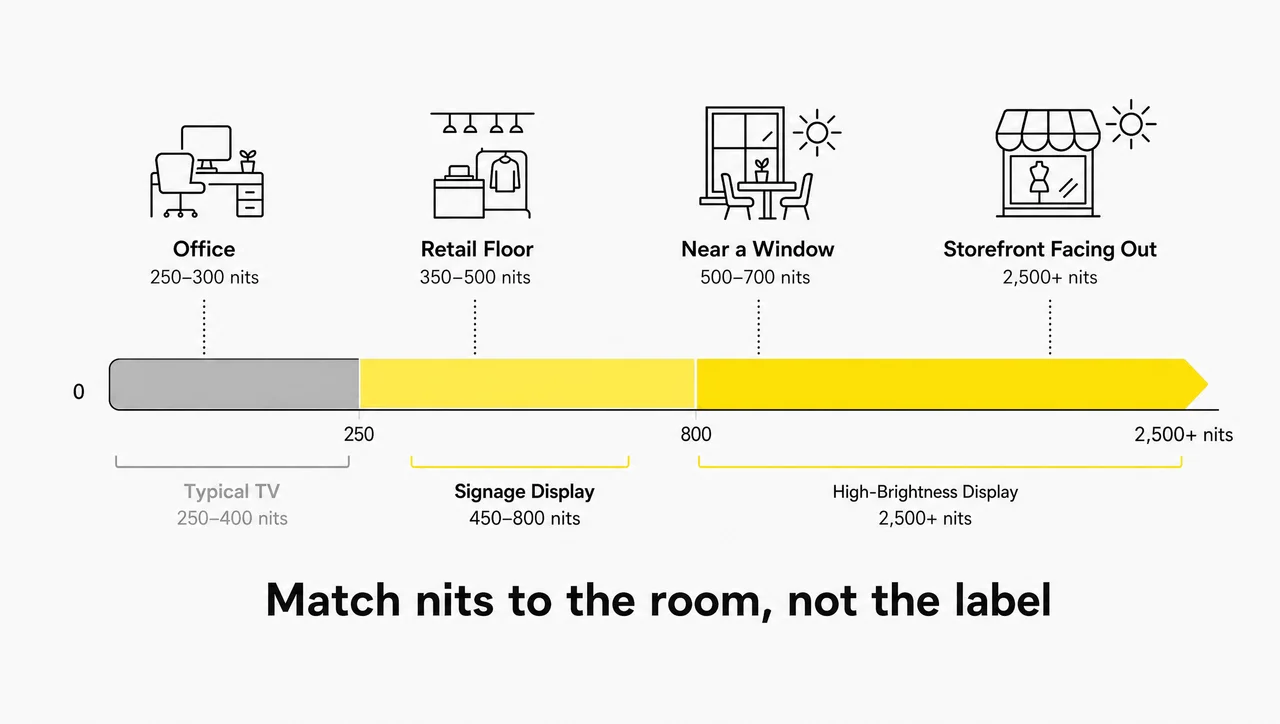
A standard 500-nit panel behind a sunny storefront window washes out within an hour, so street-facing windows need high-brightness models. Anti-glare coatings matter as much as nits in glass lobbies and elevator banks, and consumer TVs rarely have them.
“A commercial screen is always brighter than a TV.” Not true: some business TVs are rated at 300 nits and some signage models at 300–400 nits, the same range as a home TV. Check the nits on the spec sheet, not the “commercial” label.
Portrait Mode: Consumer TV vs Signage Display
You can physically mount a TV vertically, but consumer TVs are designed for landscape use only, and portrait mounting usually voids their warranty. Vents in a TV sit where heat rises in landscape. Turned on its side, the TV traps heat along one edge, and the panel wears unevenly. Signage displays add venting for portrait mode. Even then, limits apply: one popular signage series drops its maximum operating temperature from 40 °C (104 °F) to 35 °C (95 °F) in portrait, and its 86-inch model runs in landscape only.
Commercial Display vs TV Warranty
Consumer TV warranties usually exclude business use, while commercial displays carry business warranties of about three years. Samsung’s standard US TV warranty lasts 12 months and does not cover TVs used in businesses, hotels, or restaurants. LG’s TV warranty excludes “commercial or industrial use, offices.” Commercial displays average three years, often with advance exchange or on-site repair. Samsung’s standard warranty also excludes screen burn-in. Consumer TVs that run in a restaurant or store therefore lose coverage the day they go up.
Controls and Locks: TV Remote vs Signage Display
A consumer TV exposes its power button, input button, and IR sensor to anyone with a remote, while a signage display can lock them. Signage displays add IR sensor locks, button locks, USB and Wi-Fi port covers, RS-232 serial control, and LAN control. That tamper-proofing matters in any public space. RS-232 control lets a control system power the display on, switch inputs, and check status. A living-room remote works for a staffed break room. It does not work for an unattended lobby, where any visitor can change the input.
Once screens join the network, each one becomes an IT asset. Plan who owns it, how it updates, when its software support ends, and who gets the alert when it fails.
Commercial TV: The Middle Option Between TV and Signage
A commercial TV, or business TV, sits between a home TV and a signage display: it keeps a TV tuner but adds a 16/7 rating and a business warranty. Samsung’s business TV line, for example, is rated for 16/7 use at 300 nits, includes a terrestrial and cable tuner, and carries a 3-year warranty, with 43-inch models selling for about $349. For sports bars and waiting rooms that need live TV, a business TV is often a better fit than either a home TV or a tuner-less signage display. Next comes the first direction of the swap: a signage display used as a home TV.
Can You Use a Digital Signage Display as a TV at Home?
You can use a digital signage display as a TV at home once you connect a streaming box, cable receiver, or computer over HDMI, but signage displays are missing the built-in tuner and much of the home-theater picture quality. Most commercial signage panels lack a standard TV tuner or coaxial input. In practice, a signage display works like a large, durable monitor.
What you give up:
- Live TV. Without a tuner, you need an external source. One popular 55-inch signage display has no integrated tuner at all. In North America, many cable companies also block third-party tuners, so you depend on the operator’s box.
- Picture for movies. Signage panels prioritize brightness and legibility over deep contrast, color accuracy, and viewing angles, so TVs generally look better for films.
- Gaming. Most signage panels run at 60 Hz, with weaker HDR support and higher input lag than gaming TVs.
- Sound. Built-in speakers cover alerts and little else. A 55-inch signage model may ship with two 10-watt speakers, fine for alerts and weak for films.
- Easy control. Many signage displays lack a standard consumer remote, and input switching takes more menu steps.
In return, you gain endurance. The panel runs 16–24 hours a day, shows no smart-TV ads, and often has DisplayPort and factory color calibration. On some models, the setup menu even unlocks an app store. A good deal on a signage display can cost less than a comparable TV. However, a used signage panel may have run around the clock for two years before you bought it.
A signage display at home makes sense as a big monitor for a PC or streaming box when the price is right. For broadcast TV, films, and gaming, a consumer TV gives a better result with less setup, and it costs less: 55-inch TVs sell for $300–500, while a comparable signage display costs $800–1,450 or more. However, a business that needs live TV on a signage display follows a different setup.
How to Use a Digital Signage Display as a TV
To use a digital signage display as a TV, connect a TV source that outputs HDMI: a cable or satellite receiver, a streaming device, a TV tuner, or a computer. Businesses use three setups:
- A source straight into the display. Plug a cable box, satellite receiver, or streaming device into an HDMI port. Match the source’s resolution and refresh rate to what the display accepts.
- A media player with a live input. The TV source connects to a media player, and the player connects to the display. The CMS then shows the live feed next to promotions, menus, or announcements.
- Signage software with streaming or time switching. The display shows ads during the day and switches to a live program in the evening, or runs TV-style content in a scheduled loop.
Plan three more things before the first broadcast: a sound path (a soundbar or room audio), a control method, and a lawful source. A dual ATSC 3.0 network tuner for over-the-air channels costs around $200.
A black picture has a common cause. If the receiver’s menu appears but the program turns black, the problem is usually HDCP, the copy protection that authenticates every device between the source and the screen. Every splitter, switch, and extender in the chain must support it, and 4K content requires HDCP 2.2. Test the final installed cable route, not a short cable on the bench, and never try to bypass the protection. Stop and call a qualified installer if a fix would mean opening the display, changing mains wiring, or improvising a mount. In contrast, the reverse swap, a regular TV running signage, fails for different reasons.
Digital Signage vs Normal TV: Can a Regular TV Run Signage?
Regular TVs can run digital signage through a media player or a signage app, but normal TVs are rated for 6–8 hours of home use, not the 16–24 hours of signage. Any TV with an HDMI port can show content from a dedicated media player, and many smart TVs can run a signage app directly. In a digital signage vs normal TV comparison, the screen itself works. The two differ in reliability.
A regular TV is a reasonable choice when:
- The screen serves staff only, such as sales numbers in a back office or break-room notices
- It runs a few hours a day, well under the TV’s rated use
- The room has controlled lighting and no direct sun
- The screen hangs in landscape
- A failure costs little and someone on site can fix it
A regular TV is the wrong choice for 24/7 operation, customer-facing menus, safety information, window-facing screens, and portrait mounting. Inexpensive smart TVs in the $100–400 range can run a single TV menu board at 8 hours a day and 7 days a week, but not a full shift at a busy counter.
Smart TVs fail on automation, not on the panel. Signage apps must start on their own after power-up, and several smart-TV platforms block that. In 2024, a Fire OS security update (7.6.6.9) stopped third-party apps from launching on boot on many Fire TV sticks and Fire TV-based televisions. At least one major signage software vendor dropped Fire TV support by October 2024. Many smart TVs also store only a few hundred megabytes of content. An external player avoids both problems, and most cost $50–200. With a player, digital signage software works with any TV that has an HDMI port, whatever platform the TV itself runs.
Myth: “If signage plays during setup, the TV is ready for business.” Not true: a short demo proves only that the picture appears once. It does not prove the TV survives a power cut, a firmware prompt, or an auto-off timer on day three.
As a result, the failures worth planning for come from the TV’s own settings.
Why a Consumer TV Stops Showing Signage Mid-Shift
Consumer TVs stop showing signage because home features that save power turn them off, change their input, or cover the screen with menus while nobody is watching. These features protect the owner of a living-room TV. On a menu screen, each one creates a blank screen:
- Auto power-off timers. Samsung TVs ship with Auto Power Off turned on by default and switch off after four hours without a remote press or when the input signal stops. LG TVs switch off after two hours with no button presses. A signage screen never gets remote presses, so it goes dark in the middle of lunch.
- HDMI-CEC. This feature, called Anynet+ on Samsung and SIMPLINK on LG, lets connected devices control the TV. A player that sleeps or restarts can switch the TV off or change its input.
- Power outages. After a power flicker, a TV often comes back on its home screen or a different HDMI input instead of the signage source. Someone on staff then has to find the remote and switch it back.
- Updates and prompts. Firmware updates, sign-in prompts, and app crashes cover or stop the content.
- No remote monitoring. A consumer TV cannot report its status. The office learns about a dark screen from a customer or a store manager, sometimes days later.
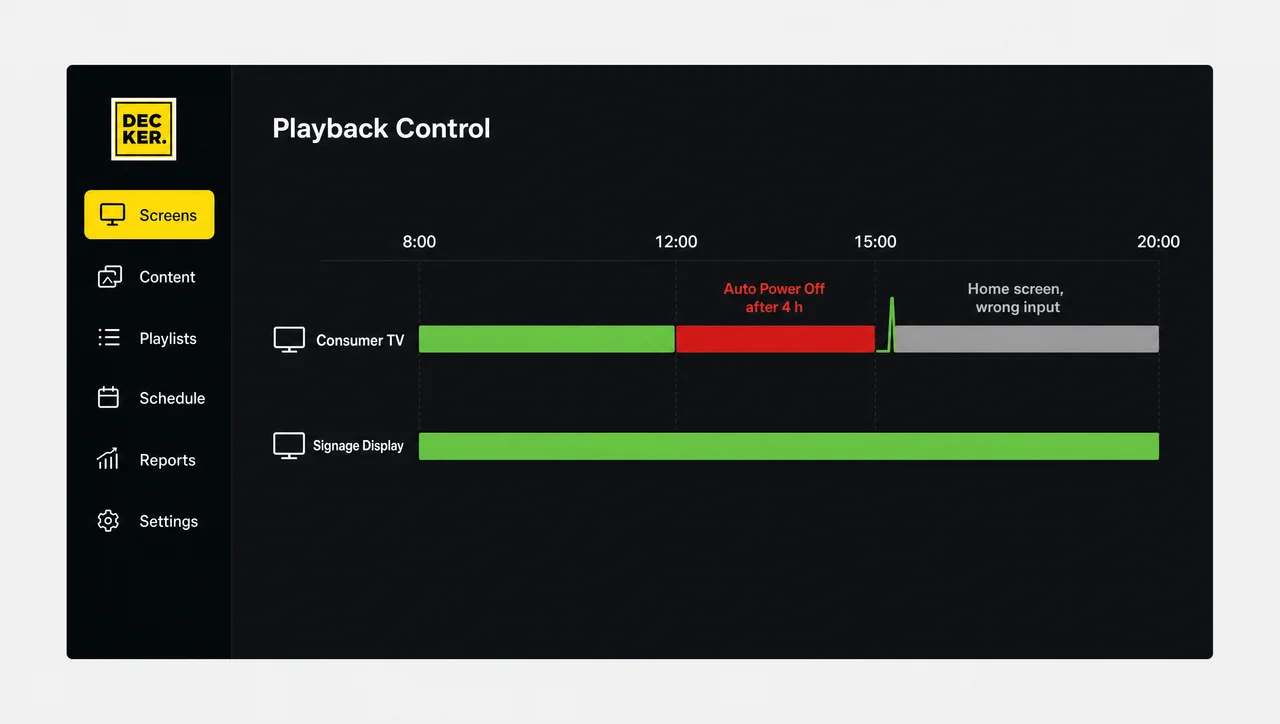
Commercial displays handle unattended use: they lock inputs and buttons, schedule power, and report status over the network. On a consumer TV, the same risks must be handled set by set, and each setting checked again after every firmware update. Beyond single-purpose screens, many venues want live TV and signage on the same display.
Showing Live TV and Signage on the Same Screen
One screen can show live TV and digital signage when a media player that has a live input, a zoned layout, or a schedule switches between the two. Restaurants and bars show a game while promoting food and drinks on the same screen. Waiting rooms mix news with announcements. Offices pair a news channel with company updates.
Three methods work:
- Live-input player. The cable or satellite box feeds the player, which places the live feed inside a signage layout.
- Zones. The screen splits into areas: live TV in the largest zone, specials and a ticker in the others.
- Time-based switching. Promotions run during the day, and the screen switches to a broadcast in the evening.
Dual-use screens need rules. Name one person who owns the mode, set when the screen returns to signage after a broadcast, and decide who can change the volume and captions. The most common failure looks simple: the game ends, and the screen stays on the wrong input for the rest of the week.
“A streaming or cable subscription lets a business show programs to customers.” Not true: a subscription by itself does not grant the right to show programs to the public. Residential plans usually forbid it, so check the service terms or use a business account.
Next, running any screen all day raises the question of wear.
Running a TV as Signage 24/7: Burn-In, Heat, and Power
You can leave a TV on 24/7, but a consumer TV running static signage all day risks image retention, overheating, and a short life. Menu screens are the hardest case, because prices, logos, and headers stay in the same place for hours.
Screen burn-in and image retention are two different problems:
| Image retention | Burn-in | |
|---|---|---|
| What it is | A faint ghost of a static image | A permanent mark in the panel |
| Typical panels | LCD, including LED-backlit LCD | OLED (and old plasma) |
| Does it go away? | Usually fades after the content changes | No |
Four habits reduce the risk on all screens: keep static elements on screen for no longer than about 4 hours, change the layout every 15–30 minutes, turn on pixel shift, which moves the image by 1–2 pixels every few minutes, and turn the screen off outside business hours. Lower brightness helps too: running a panel at 60% brightness extends its life by about 50% compared with 100%.
Myth: “Commercial displays never burn in.” Not true: commercial LCD panels resist image retention much better, but static content still leaves traces, and OLED panels can burn in whatever label they carry.
Heat adds a second risk. Consumer TVs run on basic cooling sized for evening viewing. Signage displays add fans and metal cases, and even they list a maximum operating temperature of about 40 °C (104 °F) in landscape.
Power costs matter less than most people expect. An average 55-inch TV uses about 77 watts. Running it 24/7 takes about 675 kWh a year, or roughly $97 at the February 2026 US average commercial rate of 14.37 cents per kWh. A replacement TV costs more than several years of electricity. As a result, total cost over several years matters more than the power bill.
TV vs Signage Display Cost Over 5 Years
In digital signage vs TV cost, the TV wins on day one and usually loses by year five, because consumer TVs that run signage need replacing every one to three years. Pricing starts in the TV’s favor: a 55-inch 4K consumer TV sells for $300–500, and a comparable commercial display costs $800–2,500. Consumer TVs also need a media player to run signage, which a signage display with a built-in player does not.
| Cost item | Consumer TV | Commercial display |
|---|---|---|
| 55″ screen, upfront | $300–500 | $800–2,500 |
| External media player | $50–200 | $0 on models with a built-in player |
| Replacements over 5 years | 1–3 | usually 0 |
| Warranty in business use | Usually void | About 3 years |
| 5-year hardware cost | $1,250–2,400+ | $600–2,500 |
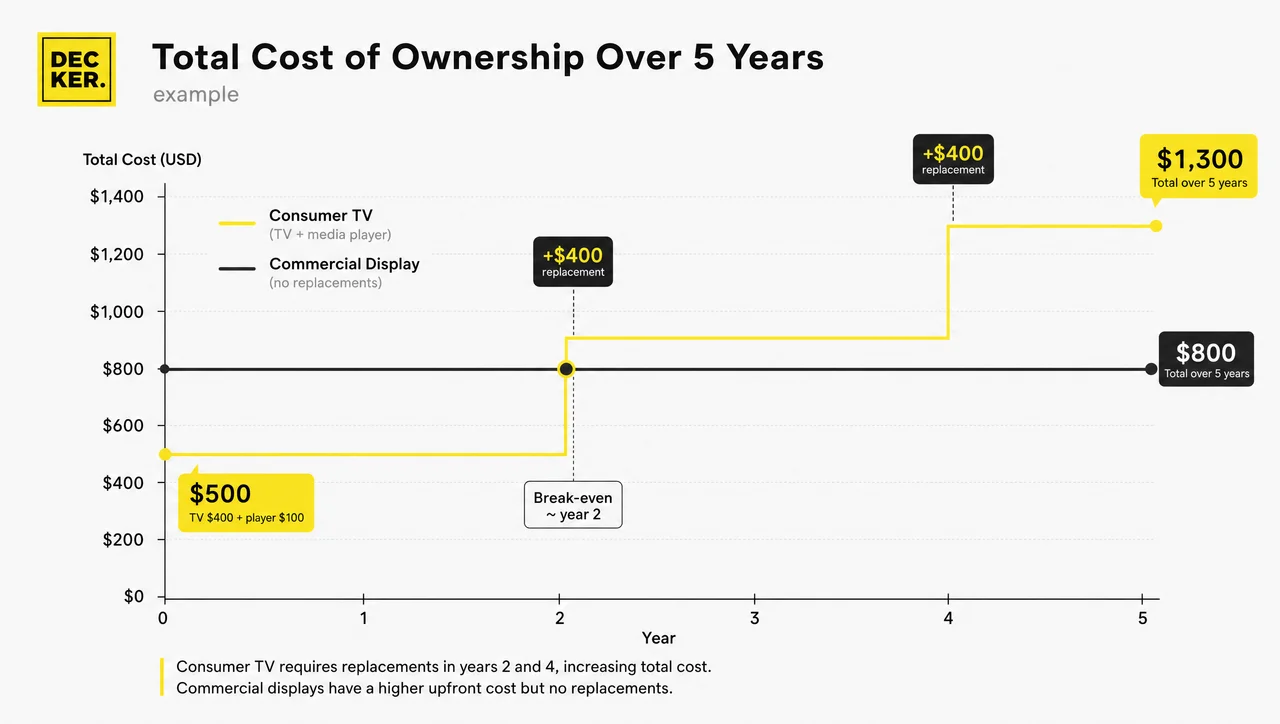
Industry estimates of the 5-year total vary with daily hours. At 12 hours a day, one estimate puts both options at roughly $1,200–2,500 once TV replacements are counted. Another puts the TV at $1,250–2,200 against $600 for a basic commercial display. Hidden costs widen the gap: staff time spent resetting screens, technician visits, and lost sales while a menu screen is dark. Overall, the cheaper screen on day one is not always the cheaper screen over five years.
Digital Signage Display vs TV: Pros, Cons, and Which to Choose
The digital signage display vs TV pros and cons come down to one trade: TVs are cheaper and play movies better, while signage displays run longer, brighter, and under remote control. Over years of business use, signage displays hold the better track record for durability and performance, while TVs win in the living room. A CMS also manages hundreds of signage displays from one account, while every TV needs its own remote.
| Digital signage display | Consumer TV | |
|---|---|---|
| Pros | 16–24-hour operation, higher brightness, portrait support, remote management, business warranty, locked controls, one screen for many content types | Lower price, better picture for films and sports, built-in tuner and remote, simple setup |
| Cons | Higher upfront cost, needs a network for updates, time to learn the CMS, usually no tuner | 6–8-hour rating, warranty void in business, auto-off timers, no portrait mode, image-retention risk |
Match the screen to the job:
| Scenario | Best choice |
|---|---|
| Home viewing | Consumer TV |
| Break room with occasional viewing | Existing TV plus a source |
| One- or two-screen pilot | TV plus a media player with auto-start |
| Lobby signage with occasional live events | Commercial display plus a controlled live source |
| Sports bar or waiting room with live TV all day | Business TV, or a signage display plus a live-input player |
| Daily menus, directions, and staff notices | Signage display rated 16/7 or 24/7 |
| Vertical screens | Signage display rated for portrait |
| Storefront window | High-brightness display, 2,500+ nits |
| Chain of locations | One standard commercial model with central management |
Signage displays also replace TVs well in office receptions, retail showrooms, restaurants and cafés, hotels, gyms, school and college campuses, and clinic waiting areas, where live content mixes with brand messages. Brightness, size, and orientation set screen compatibility for each space, so shortlist display models only after you know the room.
When a Commercial Display Is Not Worth It
A commercial display is not always the right purchase. Skip it in these cases:
- The screen runs under 6 hours a day. A TV stays within its rating, and a $300–500 set costs less than half as much.
- The viewing is staffed and occasional. In a break room with a remote at hand, a failure costs a minute of someone’s time.
- The main use is movies, sports, or gaming. A consumer TV has better contrast, motion handling, and sound for the same money.
- The plan is a short test. For a pilot of one or two screens over a few weeks, reuse an existing TV with a player, and record every failure before buying commercial hardware.
Therefore, if a TV fits your space, test it before it goes live.
How to Test a TV Before Using It for Signage
Before a consumer TV goes live as a signage screen, run it through ten failure checks that cover the final setup, not a quick demo on a desk. Record the expected result, the actual result, and who fixes each failure.
- Cold start. From power-off, the screen reaches the right content without manual steps.
- Target content. The real playlist, menu, or broadcast plays in full.
- Protected content. If you show TV or streaming, HDCP passes on the installed cable route.
- Format. Framing, orientation, and text size stay readable at the required resolution.
- Audio and captions. Sound and captions survive a source change and a restart.
- Mode switch. Staff can switch between signage and TV with the approved method.
- Scheduled return. After a broadcast, the screen returns to signage by itself.
- Network loss. Content keeps playing without internet and recovers when it returns.
- Power loss. After power returns, the input, volume, app, and content come back correctly.
- Ordinary reset. A regular employee can restore the screen without special passwords.
Add two checks for consumer TVs: leave the screen running for 5 hours without touching the remote to catch auto-off timers, and turn off HDMI-CEC. Do not average the results. A failed power-loss or auto-off check alone disqualifies the TV for unattended signage. Next, here is how Decker automates most of these checks.
How Decker Runs Signage on TVs and Commercial Displays
Decker runs signage on both consumer TVs and commercial displays by pairing a media player that plays content with a separate device that confirms the screen is actually showing it. The pair removes the weak points of consumer TVs described above.
Decker’s Android-based media player connects to any screen over HDMI and receives content over Wi-Fi or Ethernet. It gets only the changed parts of a scene, so an updated price reaches the screen in 1–5 seconds without flicker, and its offline cache keeps playback going when the connection drops. Because the player handles startup, a TV’s app limits and small storage stop mattering.
Decker Verifier works independently of the player. It monitors the state of both the player and the display, controls power for both devices, switches the HDMI source back when a TV wakes on the wrong input, and restores playback without a technician visiting the site. It also logs uptime for all screens, so a chain knows how many hours each screen really showed content in a month. As a result, most checks in the test above, including cold start, power loss, and wrong input, become automatic.
Questions and Answers
1 Can you use digital signage as a TV?
Yes. A signage display that has an HDMI input works as a TV once you connect a cable box, satellite receiver, streaming device, or TV tuner. Add a soundbar for better audio, because most signage speakers sound thin.
2 What do I need to use a signage display as a TV?
You need a TV source, such as a tuner, receiver, or streaming device, plus an HDMI cable, a sound path, and a way to switch inputs. Many signage displays have no standard consumer remote, so plan the control method too.
3 Can I use a regular TV for signage?
Yes, with a media player or a signage app, for light use of a few hours a day. For customer-facing screens that run 12–24 hours, a commercial display lasts longer and keeps its warranty.
4 Does using a consumer TV in a business void the warranty?
Usually, yes. Major TV brands exclude business, commercial, and office use from their consumer warranties, so a warranty rarely covers a TV that fails in a restaurant or store.
5 Can I use a Fire TV Stick to run signage on a TV?
Not reliably anymore. A 2024 Fire OS update stopped third-party apps from starting automatically on many Fire TV devices, so a signage app may not come back after a power cut. A dedicated media player avoids the problem.
6 Do I need internet to run signage on a TV?
You need internet to publish updates, but not to keep playing. Most media players cache content locally and keep the screen running during an outage, then pick up changes once the connection returns.
7 How long does a commercial display last compared with a TV?
Commercial displays last 50,000–60,000 hours, about 5.7 years or more of nonstop use. Consumer TVs last about 15,000 hours, which a 24/7 screen burns through in under two years.
8 Is signage better than cable TV for a business?
For your own messages, yes: signage shows the menus, promotions, and news you choose, on your schedule. For live channels, you still need a TV source, which you can combine with signage on one screen through a live-input player.
Sources
- Why you shouldn't use consumer TVs for commercial digital signage (Samsung Insights)
- My TV switches itself off (Samsung support)
- TV intermittently powers on/off (LG support)
- LG TV limited warranty
- RTINGS TV longevity test (FlatpanelsHD)
- Amazon security update and Fire TV signage (invidis)
- Screen burn-in
- Commercial electricity rates 2026 (EIA data)
- Consumer TV, Business TV, or Signage Display: A Screen-by-Screen Buying Framework