How to Update a Menu for a Restaurant in 2026: POS to Letter Boards



To update a menu for a restaurant, change it in your POS first, then on changeable menu boards, printed menus, screens, Google and delivery apps, and brief staff before service. The order matters: a POS edit takes minutes, a letter board takes minutes per line, and Google can take 24–48 hours to show the change.
Before any edit, decide what changes and when it takes effect. The hard part of a menu update is rarely the change itself. It is the gap between channels: a new price in the register, an old one on the wall board, a third on Google. This guide covers each channel in order, from the POS to letter boards, and shows where a POS-connected screen saves time and where a board is still enough. Next come the steps in the order that keeps menus consistent.
How to Update a Menu for a Restaurant, Step by Step
To update a menu for a restaurant, make the change in the one system that feeds the others, your POS, and then carry the same change to every place guests read the menu, in a fixed order. Owners who change menu prices on the board first and in the register later end up charging a price the guest never saw. US menu prices rose 3.4% year over year as of August 2026, according to the National Restaurant Association, so most kitchens now change prices several times a year, not once.
- Decide the change and its effective date. Write down the item, the old value, the new value, the start time and who approved it.
- Recheck the plate cost. A new price starts from what the dish costs today, not from last year’s invoice.
- Update the POS. The register, kitchen tickets and online ordering read from it.
- Update what hangs in the room. Printed menus, changeable menu boards, table tents and screens at the counter.
- Update online channels the same day. Google Business Profile, your website, delivery apps and the page behind your table QR codes.
- Brief the staff and check. Tell servers and cashiers what changed and from when, then check one order end to end.
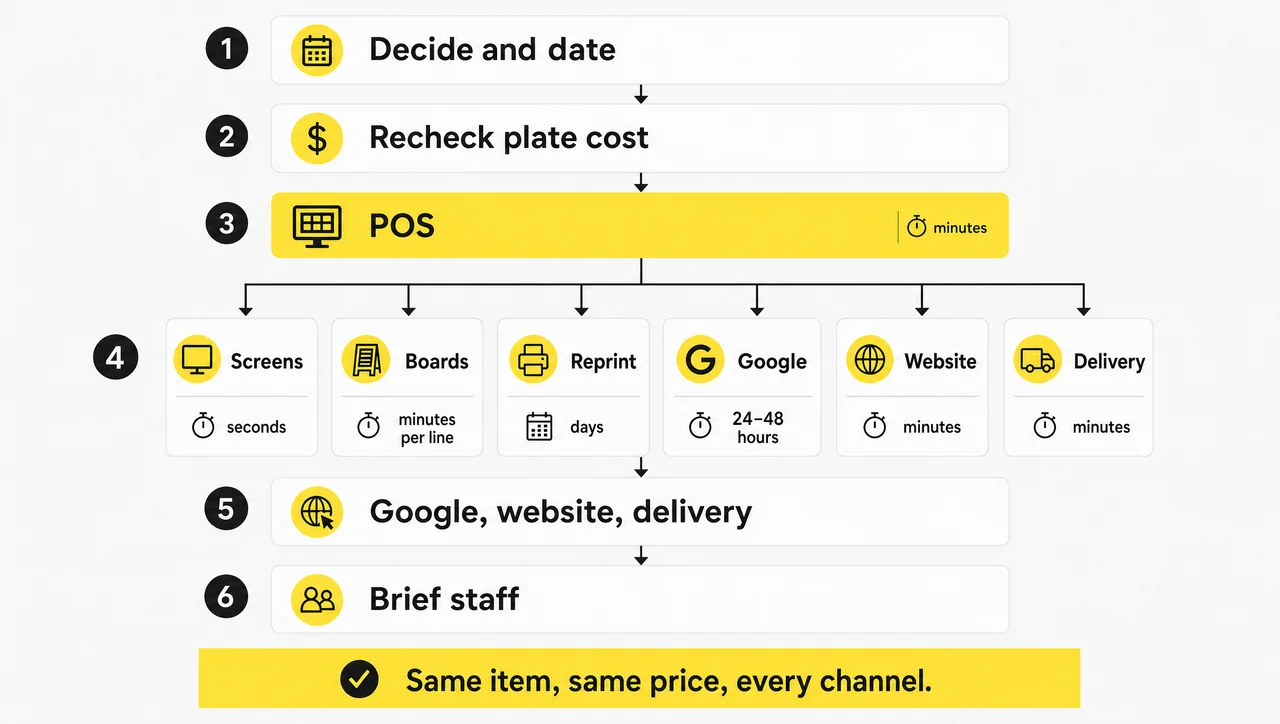
The order matters most when you change the menu for a date in the future. Some POS systems let you save a change and publish it later, so a price can switch at opening on Monday without anyone logging in at 6 a.m.
Decide What Needs to Change
Start with data, not taste. Pull the sales report from your POS to see which dishes sell and which sit, ask servers which items guests skip or modify, and ask the line which dishes slow the rush. Then reprice anything whose plate cost has moved.
A new dish should not go straight onto the permanent menu. Run it as a special for two or three weeks first: if it sells and the kitchen can make it the same way every time, it earns a permanent spot. A special is also the cheapest way to change the menu without reprinting it.
What to Change First: Prices, Items or Sold-Out Dishes
Menus change at different speeds, and each kind of change belongs to a different person.
| Change | How often | Update first in | Usually owned by |
|---|---|---|---|
| Prices | whenever plate costs move, at least quarterly | POS | owner or general manager |
| Sold-out (86’d) items | daily | POS and online ordering | shift manager |
| Daily specials | daily to weekly | specials list or screen | chef |
| Seasonal dishes | 2 to 4 times a year | POS, then all printed and online menus | chef and owner |
| Order of items and categories | at each full review | printed menu and boards | owner |
| Bulk changes across many items | a few times a year | spreadsheet or bulk edit in the POS | manager |
The faster a change repeats, the less it should depend on reprinting. Prices and sold-out items change weekly or daily, so they belong in systems that update in minutes. Next, the POS, where every change should start.
Update the Menu in Your POS First
Your POS is the source of truth that holds the menu: a price changed there reaches the register, the kitchen and online ordering, while every menu guests read on paper and walls has to follow it. That is why the edit menu step in the POS always comes before anything else, and why a menu that lives only in a design file drifts out of date.
How the edit works depends on the system, but the logic is shared:
- Menus and categories are different things. In Square, categories handle reporting and kitchen routing, while menus decide what guests see, in which channel and at what hours. A menu can be set to show on the POS, online ordering, kiosks and delivery apps such as DoorDash and Uber Eats.
- Bulk edits save hours. Square lets you select several items and change the name, price, description or modifiers at once, instead of opening each item.
- Saving is not publishing. In Toast, a saved change reaches staff and guests only after it is published. You can publish right away or schedule it, and a restaurant group can publish one change to several locations at once.
- Copies do not bring their channels along. When you duplicate a menu in Square, delivery channels such as DoorDash are not added to the copy automatically, so check them before the copy goes live.
If you searched for how to update a post menu for a restaurant, you most likely meant the POS menu: the change starts there, and the rest of this guide covers what comes after.
Changing the POS does not update everything. Printed menus, letter boards, Google listings and delivery menus that are not connected to your POS keep the old price until someone changes them by hand.
Handle Sold-Out (86’d) Items Without Confusing Guests
A dish that runs out mid-shift needs a different fix than a dish that is gone for good. For a short outage, mark the item sold out in the POS and online ordering so guests cannot order it. For an item gone for weeks, remove it from every channel. Say what replaces it in plain words: “Short rib sold out tonight; brisket available” helps a guest more than a vague apology.
At close, restore every item that is back in stock. A forgotten sold-out flag creates the opposite problem: guests cannot order a dish the kitchen is ready to make.
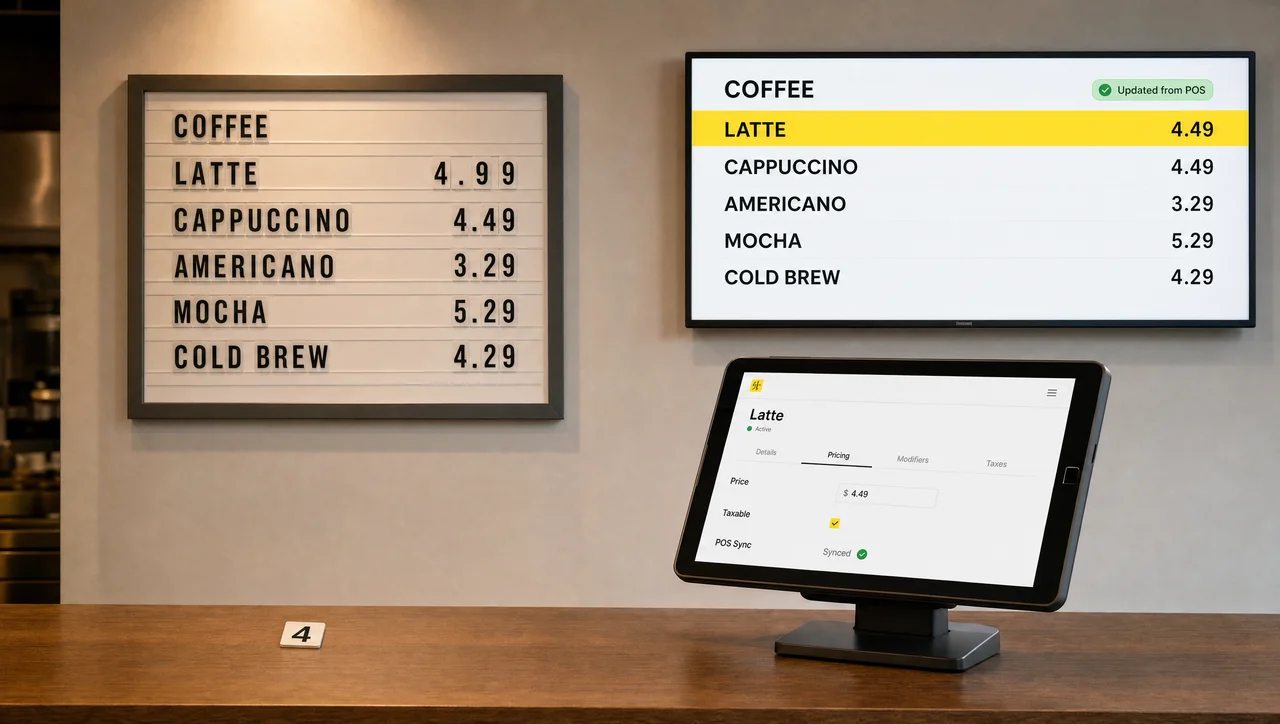
On screens connected to the POS, this step can disappear. In Decker, an item marked out of stock in the POS drops off the screen on its own, and a new price shows up in 1–5 seconds.
Change the menu once, show it on every screen. Decker pulls prices and sold-out items from Toast, Square or Clover; as a result, screens update without a reprint. One screen stays free forever; paid features run free for 30 days on up to 5 screens. Book a demo
How to Update Your Restaurant Menu on Google
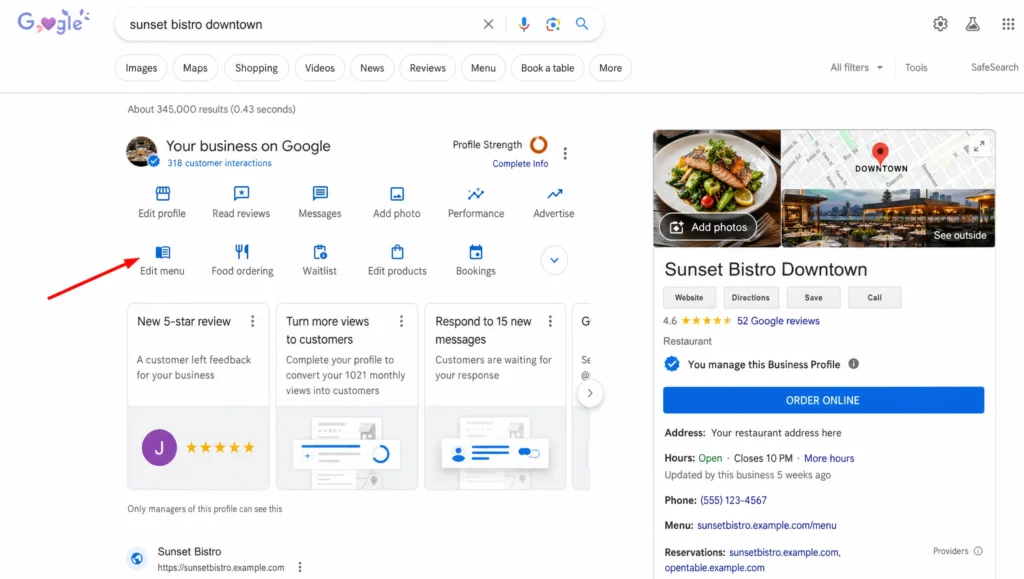
To update your restaurant menu on Google, open the Business Profile that lists your restaurant, select Edit menu, change the section, item, description or price, and save; the change can take 24–48 hours to appear on Search and Maps. Many guests see menus on Google before they see your own website, so an old price there turns into an argument at the counter.
The menu editor is available to food and drink businesses. Guests who find your Business Profile see the items under Menu, so the editor is the place to keep dishes, descriptions and prices current. Two limits apply: if your menu comes in through the Business Profile API, the editor may not appear in your profile, and a change across several profiles at once also has to go through the API.
Step 1. Open Edit Menu in Your Business Profile
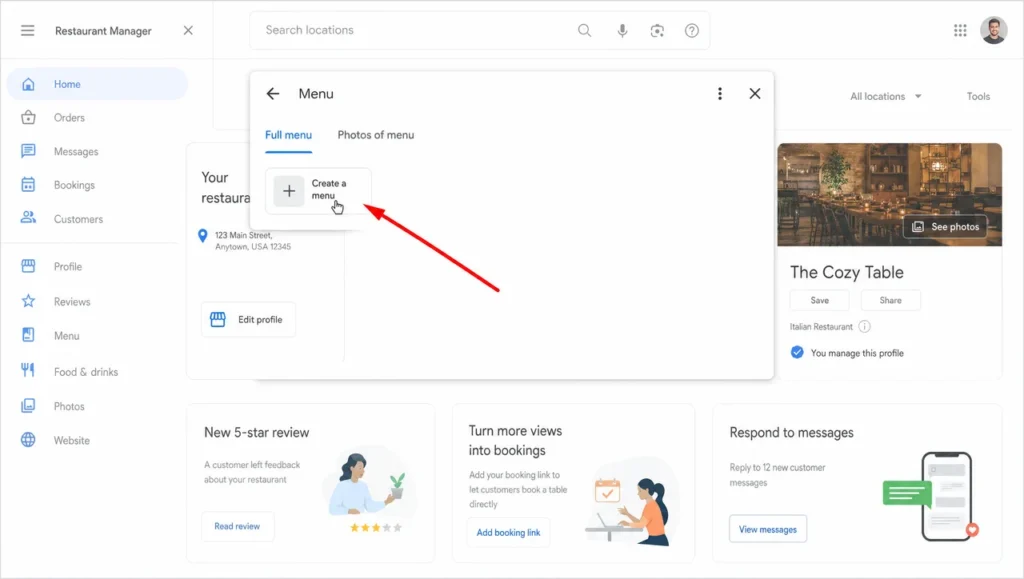
Go to your Business Profile and, above the search results, select Edit menu. The Menu window has two tabs, Full menu and Photos of menu; if the profile has no menu yet, select Create a menu to start one.
Some businesses see an offer to copy menu data from an existing source, such as an ordering or menu provider. Select Copy, and you can then add, delete and edit the sections, items, descriptions and prices it brings in. To check where that data comes from before you accept it, click the provider’s name under “Add these menu items?”.
Step 2. Group Dishes Into Menu Sections
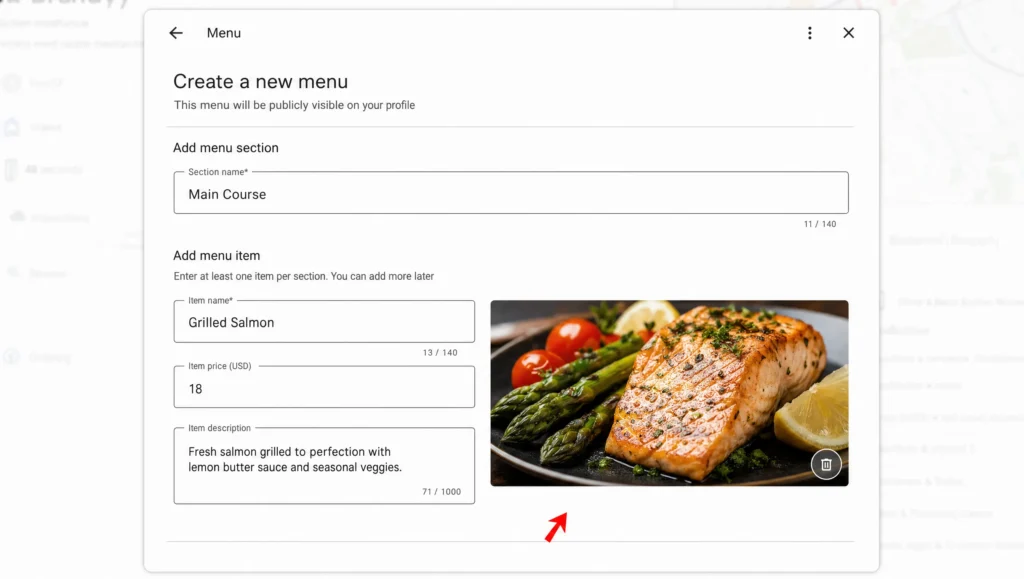
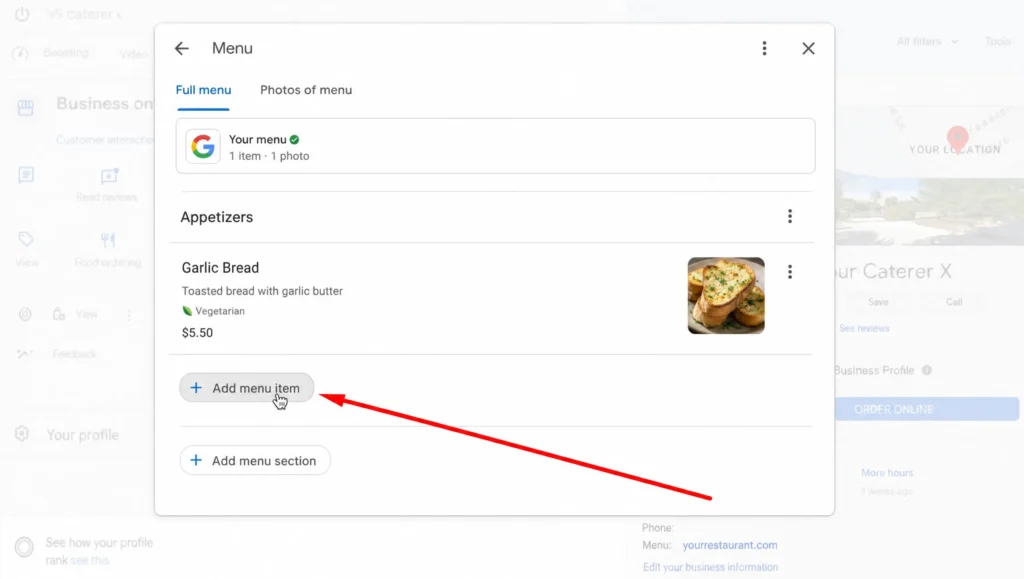
Sections keep the Google menu organized the way guests read it: appetizers, main courses, desserts, drinks. Select Add menu section, enter the section name and at least one item for it, then select Save; Google asks for one item per section and lets you add more later. Use the same section names as your printed menu and boards, so a guest who checks Google on the way in finds the dish where they expect it.
Step 3. Add or Edit Menu Items and Prices
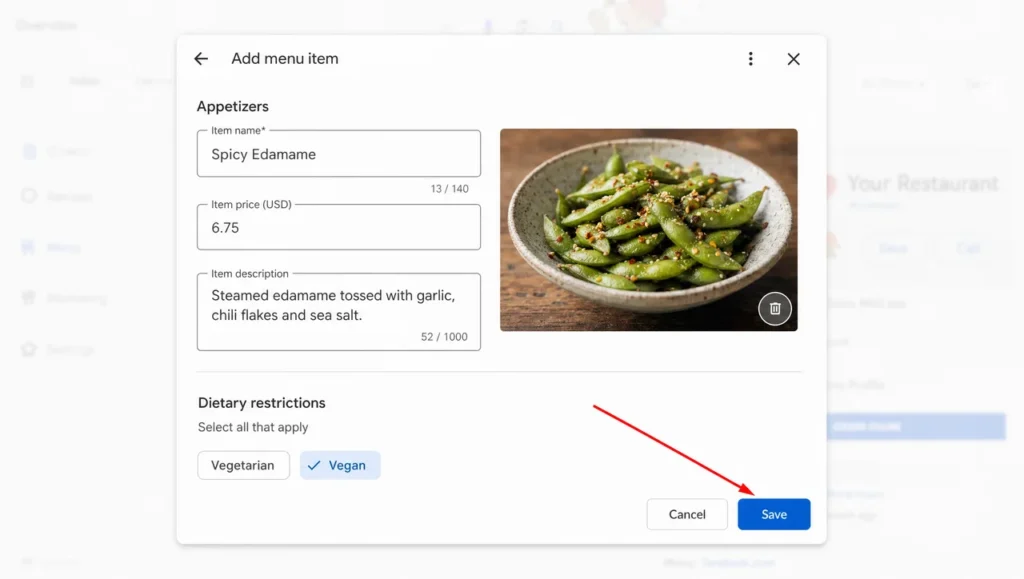
To add a dish, select Add menu item under the right section, enter the name, the price and a short description, and select Save.
The same form lets you add a photo of the dish and mark it vegetarian or vegan, which guests see next to the item. To change a price or a description, select the item, enter your changes and select Save. Enter the new price the day you decide it, not the day it starts, because of the publishing delay below.
Step 4. Delete Items or Whole Sections
Open Edit menu and stay on the Full menu tab, where every section is listed with its dishes.
- To delete one dish, select the dish name in its section. The item info opens in the same form you used to add it. Scroll to the bottom of the item info, select Delete, then select Delete again in the confirmation window.
- To delete a whole section, select the section name, for example Appetizers. At the bottom of the section info, select Delete, then confirm that you want to remove the section and all of its items.
Deleting a section removes every dish inside it, so move any dish you want to keep to another section first.
Step 5. Check the Confirmation and Allow 24–48 Hours
After you select Save or Delete, Google shows a notification in the menu editor. Read it before you close the Menu window:
- “Your menu has been updated. The updates will be published shortly.” The change is accepted and will appear on Search and Maps.
- “Something went wrong. Please try again.” Open Edit menu, make the same change again and wait 24 hours. If the same message returns, contact Google Business Profile support.
Google does not update your menu instantly. Changes can take 24–48 hours to show on Maps and Search, so edit the Google menu on the day you decide a change, not on the day it takes effect.
Other Ways Google Shows Your Menu
The editor is not the only source Google uses, and each one can show an old price:
- Menu from a photo or PDF. Google can build a detailed menu from a photo or PDF with AI, but the whole menu has to fit on one page and one photo.
- Menu photos. Guests can upload photos of your menu too. An old photo with last year’s prices can stay in the profile long after the change, so check menu photos after every price update and add a current one.
- Menu link. Add or edit the URL of the menu on your own site; if several menu sources exist, you can select the preferred one.
- Menu transcription. Google may copy menu data from your website into the profile. If that data is wrong, edit or delete the item in the editor, or opt out of transcription if you do not want it.
- Popular dishes. Restaurants can review and edit the dishes Google highlights as popular.
Delivery Apps, Your Website and QR Codes: Keep Prices Matched
- Delivery apps. If your POS does not sync the menu to DoorDash, Uber Eats and other apps, change each one by hand on the same day.
- Website. Website menus built as page text are faster to change than a PDF. After every edit, open the page on a phone to check prices and line breaks.
- QR codes on tables. The code should point to a page that always shows the current menu, not to a PDF file. When a new PDF gets a new web address, every printed code still sends guests to the old file.
- Social media last. Post about a new dish only after the website and Google show it, so guests who click through see the same price.
Beyond online channels, the menus hanging in the room need the same change.
Changeable Menu Boards for Restaurants
Changeable menu boards are wall, hanging or counter boards with removable letters and numbers, so staff can change a price or swap a dish by hand without reprinting the board. They sit between a printed panel and a screen: cheap to buy, quick to change for one item, slow for a full menu.
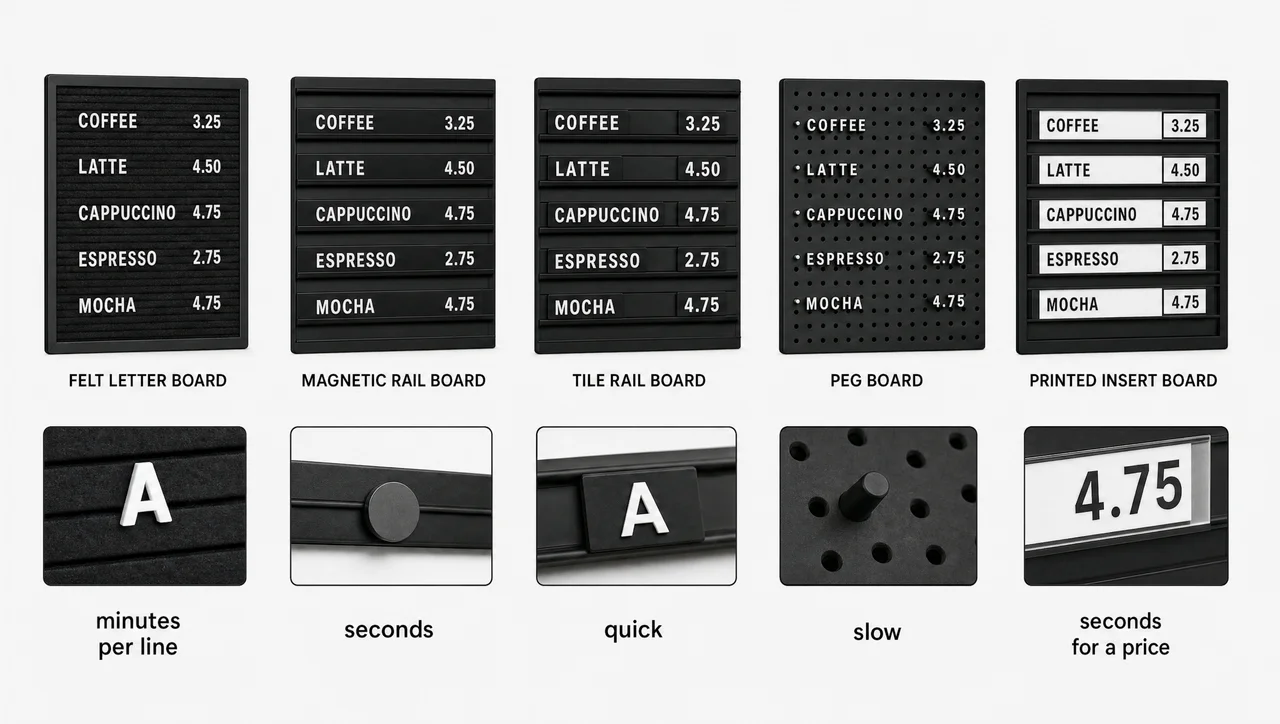
Menu boards with changeable letters come in five common types:
| Type | How letters attach | Update speed | Good fit |
|---|---|---|---|
| Felt letter board | plastic letters pressed into grooved felt | a few minutes per line | cafés, bakeries, daily specials |
| Magnetic board | magnetic letters or tiles on metal rails | fastest; letters stay aligned | counters with frequent price changes |
| Tile or rail board | printed tiles slide into horizontal rails | quick, very uniform look | bars, breweries, coffee shops |
| Peg board | letters with pegs set into a perforated board | slower, very secure | vintage-style shops, diners |
| Price-strip board | fixed printed menu with changeable or erasable price strips | seconds for a price, reprint for a new dish | QSR counters, food trucks |
Prices depend on size and frame. One maker of changeable menu letter boards lists felt and peg boards at around $240–$260, magnetic boards around $380 and tile boards around $440. Rail boards from other makers start near $199, and custom boards with changeable price strips from about $299. A common 24 × 30-inch felt board ships with roughly 900 to 1,000 letters, numbers and symbols.
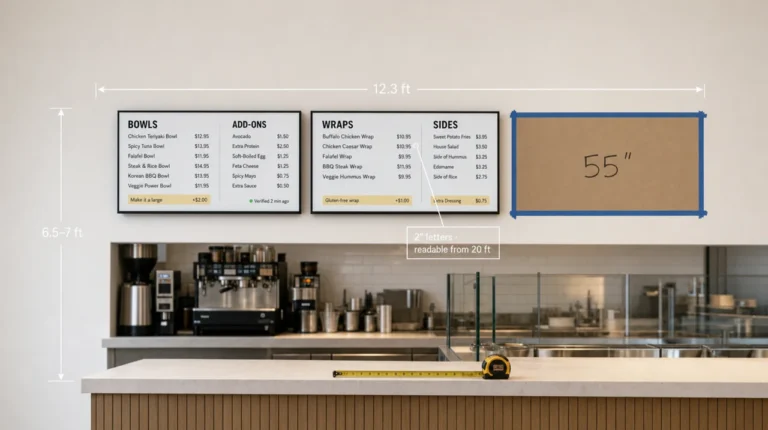
Two numbers decide whether changeable letter menu boards work in your room. Letters need about 1 inch of height for every 10 feet between the guest and the board, and you need spare digits: prices use the numbers 0 to 9 far more than any letter.
How to Change Letters on a Menu Board Fast
On menu boards, changeable letter sets reward preparation more than speed.
- Sort letters before you need them. A tray with one slot per character turns a ten-minute search into a one-minute change.
- Buy extra digits. Order an additional set of numbers; prices run out of 1s, 5s and 9s first.
- Plan the line on paper. Write the new line, count the characters and check it fits before you pull anything off the board.
- Change the board before opening, never during a rush.
- Keep one item per line and drop the dollar sign; guests read the number, and the board saves characters.
Changeable Menu Displays and Letter Boards: Which Type Fits Your Venue
| Venue | Board that fits | Why |
|---|---|---|
| Coffee shop | felt or magnetic | drinks and sizes change rarely, specials change daily |
| Bakery or deli | felt board for items of the day | short list that changes every morning |
| Bar or brewery | tile or magnetic rail board | the tap list changes weekly |
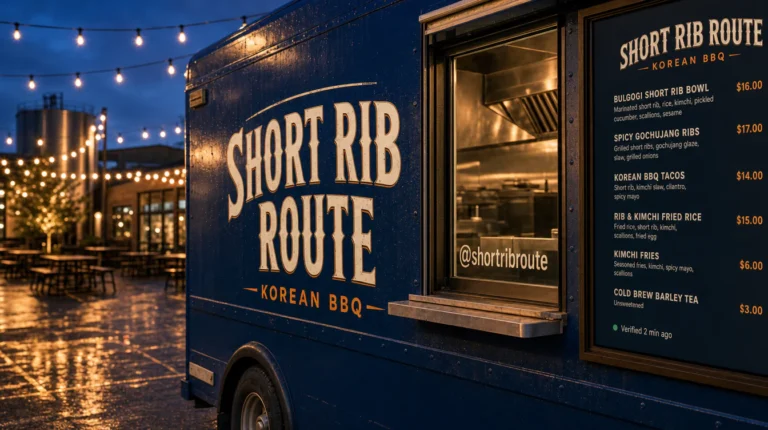
| Food truck | outdoor price-strip or magnetic board | wind, rain and a long reading distance |
| Quick-service counter | price-strip board or POS-connected screen | limited-time offers and dayparts change too often for letters |
Menus that hang on pegs or rails suit menus that change monthly, quarterly or seasonally. When the change comes weekly or daily, the time spent at the board adds up. In contrast, an electronic menu board on a counter screen takes the change straight from the POS.
Changeable Letter Boards vs POS-Connected Screens
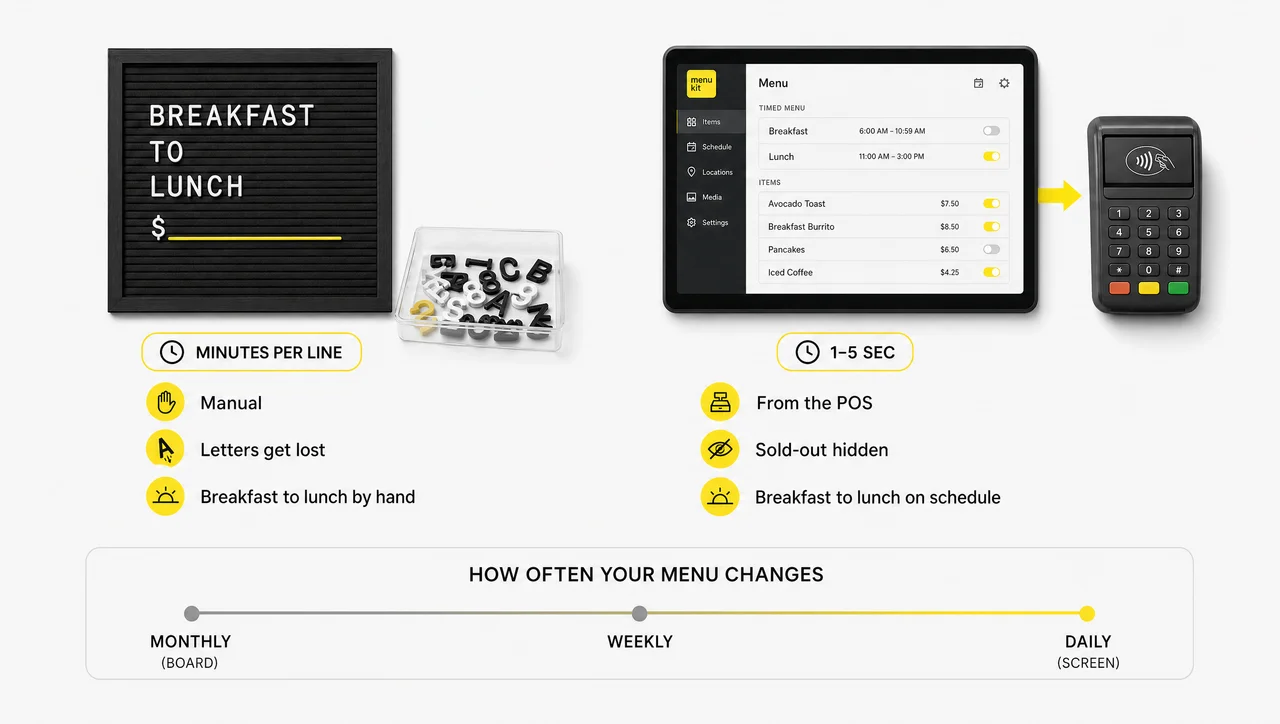
A changeable letter board is a menu that costs little up front, but every change is manual work at the board; a screen costs more to start, yet it takes the change from the POS in seconds and can switch menus by time of day. The right choice depends on how often your menu changes, not on how the board looks. The start-up cost of a screen falls further when the TV already on your wall runs digital signage software made for any TV.
| Factor | Letter board | Printed panels | POS-connected screen |
|---|---|---|---|
| Cost to start | low | medium | higher |
| One price change | minutes by hand | a reprint | seconds from the POS |
| Breakfast to lunch | swap lines by hand | two sets of panels | on a schedule |
| Sold-out item | cover or remove letters | sticker or marker | hidden automatically |
| Calories for chains | extra lines of letters | printed in | shown with the item |
| Wear | lost and broken letters | faded panels | screen and player upkeep |
Chains with 20 or more locations under the same name must show calories for standard items on menus and menu boards, according to FDA menu labeling rules. The type of board does not change that: on a letter board, every calorie count is another line of characters to keep current.
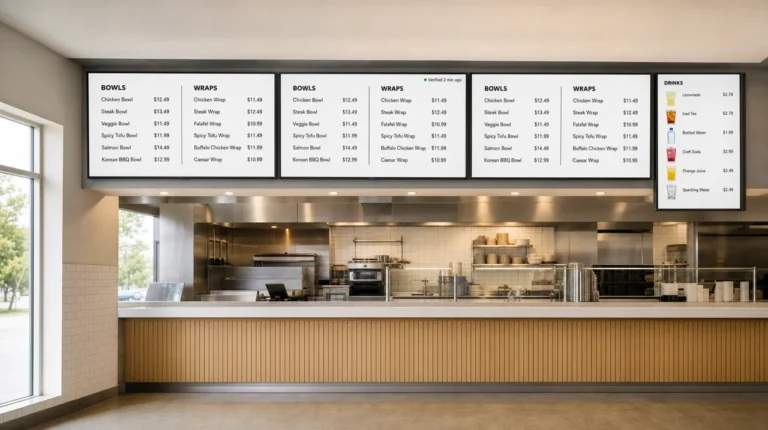
When prices, dayparts and limited-time offers change every week, a screen tied to the POS usually pays off. POS-connected digital menu boards for restaurants take prices from Toast, Square or Clover, switch breakfast to lunch on schedule and hide sold-out items. In the Burger Shop case in Downtown Los Angeles, four screens at the counter were connected to the POS, and menu updates went from days or weeks to minutes.
When a Letter Board Is Still Enough
- Your menu changes less than once a month. A good board costs less than any screen plan over several years.
- You run one location with a short list. A café with 15 items and a specials line can keep a board current in minutes.
- There is no power or network where the board hangs. Outdoor walls and some food truck windows are easier with letters.
- Nobody will look after a screen. A screen showing last month’s prices does more harm than a board that is a day behind.
Overall, the more often your menus change, the stronger the case for a screen, especially across several stores.
Keeping Menus in Sync Across Multiple Locations
Across several locations, keep one master menu that every store shares and let prices vary by location group, so a new item is added once and a regional price changes in one place. Managing thirty near-identical copies is how chains end up with a different price in every store.
- One master menu, several price levels. Instead of duplicating the menu for every store, keep one item list and assign prices by region or location group. Toast and Square both let one menu serve several locations and channels.
- Print from one template. For printed menus, a designer can link each price in the master layout to a spreadsheet. Change the price in the sheet, export, and every location gets its own version without rebuilding the design.
- Date every version. Put the version date on each printed menu, with a short line that prices are subject to change. It settles disputes when a guest arrives with an old takeout copy.
- Google profiles for every store. Changing the menu on many Business Profiles at once requires the Business Profile API; the editor works one profile at a time.
- Group screens by location. With digital signage for restaurants managed from one account, one change can go to a group of stores that share a price, while the rest keep theirs.
For a growing brand, the menu update process has to work the same way on a Tuesday morning in store one and store thirty. The earlier it is centralized, the less there is to untangle later. Similarly, seasonal changes go smoother when menus share one master list.
How Chefs Create Seasonal Menu Changes
Chefs create seasonal menu changes by planning around the ingredient calendar, testing new dishes as specials that run for a few weeks, costing them, and swapping a few items at a time while the core of the menu stays the same. Seasonal menus are small, planned updates, not new menus.
Large chains plan far ahead. First Watch develops each seasonal menu over about 18 months: the culinary team pitches roughly 50 ideas, narrows them to 12, and tests them for three months. The seasonal menu changes four times a year, while the core menu changes about once every five years. An independent kitchen moves faster, but the logic holds:
- Start from what the season brings. List the ingredients that will be cheap and at their peak in the next quarter.
- Keep the favorites and vary around them. If guests come for your burgers, add a seasonal topping instead of replacing the burger.
- Test as a special. Run the new dish for two or three weeks and watch how it sells.
- Cost it before it goes on the menu. A seasonal ingredient can double in price at the edges of its season.
- Swap a few items, not the whole menu. Add the new dishes, retire the ones that did not sell, and keep the categories where guests expect them.
Drinks follow the same rhythm. A seasonal cocktail or coffee list is the easiest place to change the menu every quarter, because it rarely needs new equipment or new suppliers.
Give every special an expiry date. A special with no end date becomes a stale promise within weeks, so remove it after its last service or move it to the permanent menu. As a result, the checklist below closes every change the same way.
Menu Update Checklist for Every Channel
A menu update is finished only when every channel that guests use, from the POS, printed menus and boards to Google and delivery apps, shows the same item at the same price, and the staff know it. Run this list after each change:
- The change is published in the POS, not only saved.
- Printed menus are replaced or have an insert.
- Changeable menu boards and counter screens show the new line.
- The Google Business Profile menu is updated and the menu photos are current.
- The website menu is updated and checked on a phone.
- Each delivery app shows the new price.
- Table QR codes open the live menu page.
- New dishes have allergen information and, for raw or undercooked items, the consumer advisory.
- Servers and cashiers know what changed and from when.
- At close, temporary sold-out flags and expired specials are removed.
Who Owns Each Change and When
A clear owner for each step keeps menus accurate and prevents most mistakes. The owner or general manager approves prices; the chef supplies dish names, descriptions and allergens; one person enters the change; a second person checks prices and allergens before they go live. Keep a backup editor for days off, and give each person their own login instead of a shared password.
A short daily routine keeps the menu current:
- Before opening: check prices, stock and planned specials.
- Before the rush: open the public menu on a phone and scan the top categories.
- At close: remove temporary notes and list the changes needed for tomorrow.
Mistakes That Leave Channels Out of Sync
- Posting on social media before the website and Google are updated. Guests click through and see the old price.
- No effective date. Staff do not know whether the new price applies to the table seated at 5:55.
- Editing during peak service. Rushed edits change the wrong item.
- Forgotten sold-out flags. Dishes stay hidden after the delivery arrives.
- Uploading a new PDF behind an old QR code. The code keeps opening the old file.
- Copying a menu without its channels. The copy is live in the dining room and missing from delivery.
Timing is a separate decision: most kitchens reprice at least quarterly, refresh seasonal dishes two to four times a year and review the full menu every one to two years. Either way, a menu update goes faster when every channel reads the same list.
Questions and Answers
1 How do you change letters on a menu board?
Plan the new line on paper, then pull the old letters from the menu board and set the new ones, which usually starts with the price. Keep letters sorted in a tray, buy extra digits, and make changes before opening. On a magnetic or rail board, a single price takes a few seconds; a full felt board can take half an hour.
2 How do I update my restaurant menu on Google?
Open your Google Business Profile, select Edit menu, then add or change sections, items, descriptions and prices and select Save. Changes can take 24–48 hours to appear on Search and Maps. Check the photos of your menus as well, because guests can upload pictures of old menus.
3 How do I remove a menu from my Google Business Profile?
Open Edit menu and delete the sections you no longer offer; deleting a section removes all of its items. Remove or change the menu URL in the profile, and if Google copies an outdated menu from your website, opt out of menu transcription. For an old menu photo posted by a guest, report it and upload a current photo.
4 How long does it take to change a restaurant menu?
To update the menu in the POS takes minutes, and publishing can be scheduled. Google can take 24–48 hours, a reprint takes days, and a changeable letter board takes minutes per line. Screens connected to the POS show a new price within seconds.
5 Should a small café use a letter board or a screen?
A letter board fits a café whose menu changes less than once a month and has a short specials line. A screen makes sense once prices, seasonal drinks and breakfast-to-lunch switches change every week, or when the café opens a second location.