Best TV for a Restaurant Menu: How Many Screens, What Size, How Bright


The best TV for a restaurant menu is usually two to four matching LED screens, 43 to 55 inches, at 350–500 nits indoors or 700+ nits facing a window. A home set handles about 8 hours a day; longer days need a commercial screen. Below: the setup by venue, from screen count and size to brightness and class.
Best TV for Menu Display by Venue: The Short Answer
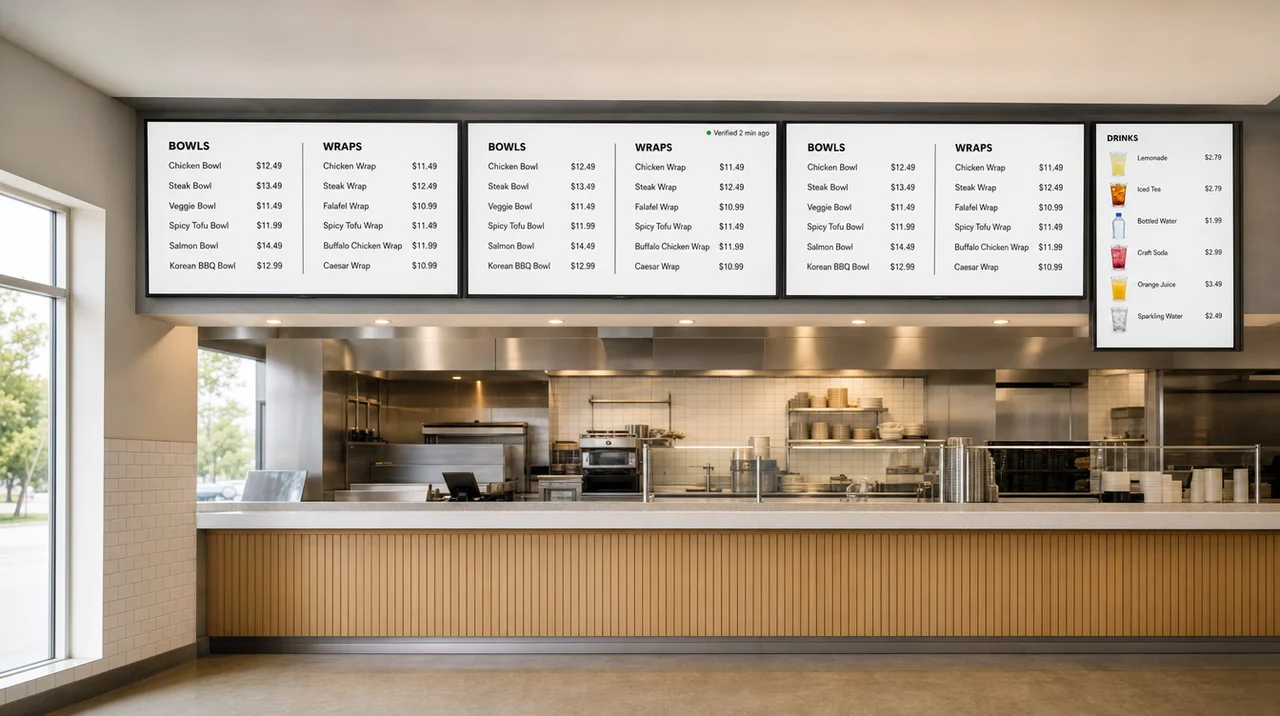
The best TV for menu display is an LED screen sized for the farthest guest and rated for your hours. The screen is the hardware half of digital menu boards, and it decides whether guests can read the prices at all. Owners usually ask four things at once: how many screens, what size, how bright, and whether a regular set will do. The table answers all four for the most common counters.
| Venue | Viewing distance | Screens | Size | Orientation | Brightness | Screen class | Per screen |
|---|---|---|---|---|---|---|---|
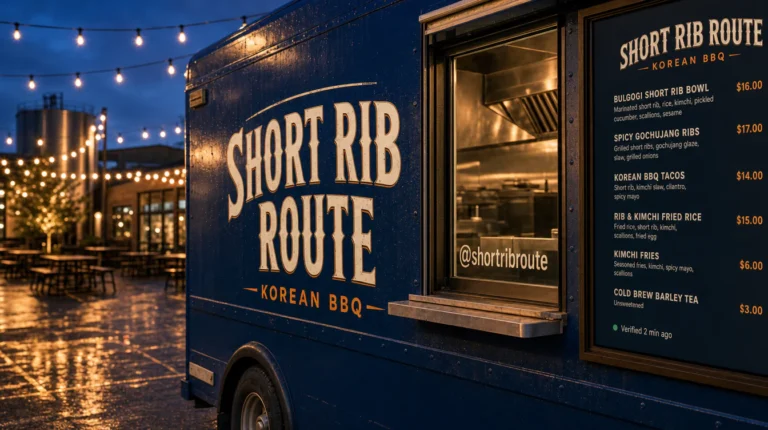
| Food truck | 3–15 ft | 1–2 | 32–43″ | Portrait beside the window, landscape above it | 500–700 nits behind glass; 2,500+ in direct sun | Home TV in shade; outdoor-rated in sun | $150–300; $3,500+ outdoor |
| Coffee shop counter | 6–12 ft | 2–3, plus 1 portrait drinks screen | 43″ | Landscape row + 1 portrait | 350–450 nits | Home TV if open 8–10 h | $150–400 |
| QSR or fast casual counter | 10–25 ft | 3–4, plus 1 promo screen | 50–55″ | Landscape | 400–500 nits | Commercial 16/7 or 24/7 | $700–1,300 |
| Bar or taproom | 10–30 ft, dim room | 1–2 | 55–65″ | Landscape, or portrait tap list | 300–400 nits, dimmed at night | Home TV up to 8 h, else business TV | $300–900 |
| Food court bay 20–30 ft wide | 10–20 ft | 3 | 50–55″ | Landscape row | 400–500 nits | One model from one batch | $300–1,300 |
| Counter facing a window | Any | As above | As above | — | 700–2,500 nits | High-brightness commercial | $1,200–3,000+ |
Drive-thru lanes are a separate category: outdoor menu panels run at 2,500–4,000 nits and cost $3,500–8,000 per screen before installation.
To pick any TV for menu board use outside these rows, start with one rule from sign making: 1 inch of letter height for every 10 feet of distance. The menu board size guide applies that rule to wall widths and mounting heights. The sections below explain each column, starting with the panel.
LCD, LED, QLED or OLED: Which TV for Menu Boards Won’t Burn In?
LED and QLED TVs are LCD panels that resist permanent burn-in, while OLED panels do not, so static menus belong on LED. This is the question owners argue about most, often after a salesperson claims that only QLED is safe.
Almost every TV sold today is an LCD with an LED backlight, which stores label “LED.” A QLED set adds a quantum-dot layer in front of that backlight for richer color, so it remains an LCD. OLED works differently: each pixel makes its own light and slowly wears out, and pixels that show the same price for months wear faster than their neighbors.
| Panel | What a static menu causes | Does it go away? |
|---|---|---|
| LCD with LED backlight (“LED”) | Image retention, a faint ghost of the layout | Yes, after the content changes or the screen rests |
| QLED (LCD with quantum dots) | Same as LED | Yes |
| Mini-LED (LCD with many small LEDs) | Same as LED | Yes, but you pay for contrast a menu does not need |
| OLED | Burn-in, a permanent mark | No |
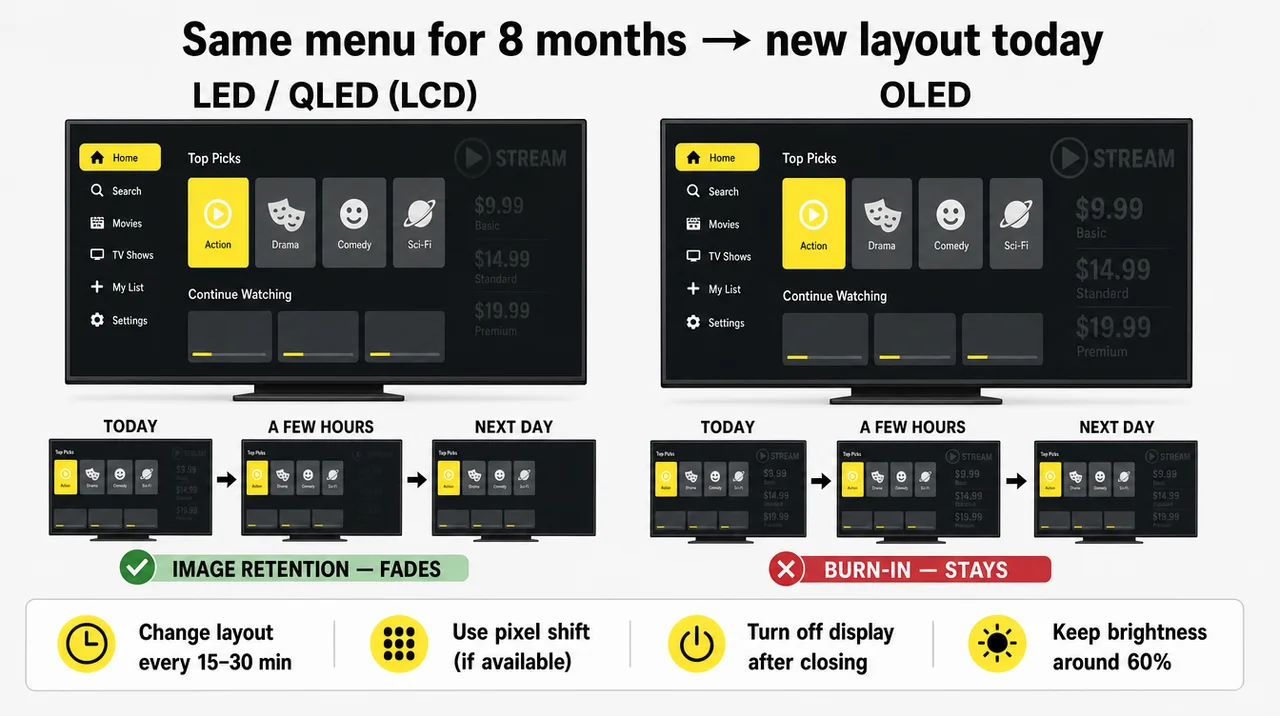
OLED’s real strengths are deep blacks and fast motion, and neither matters for a list of prices. In RTINGS’ long-term test, OLED TVs held up well overall, yet every one developed burn-in under a logo left on screen for the whole test, which is exactly what a menu does. Some buying guides still recommend OLED models for restaurant menus, yet OLED is the one panel type to avoid for static content.
Four habits prevent retention on any LCD screen:
- Change the layout every 15–30 minutes, even if only the promo tile moves.
- Turn on pixel shift where the screen offers it.
- Switch the screen off after closing.
- Run it at about 60% brightness where the room allows, which extends panel life by roughly half compared with 100%.
⚠️ “QLED won’t burn in, but LED will” is not true: both are LCD panels with the same backlight, and the quantum-dot layer changes color, not wear. Pay extra for QLED only if you want brighter color.
With the panel settled, the next decision is how many screens and how large.
One 55-Inch TV or Several Smaller Screens?
Pick the screen count from how many items the back of the line must read, then pick the size from that distance. A single large screen looks impressive from the door and still fails if the person at the back of the line cannot read the prices.
Letter height sets the limit. At 1 inch per 10 feet, item names need 1.2 inches at 12 feet and 2 inches at 20 feet. Our estimate below assumes one line per item, a 1.6× line spacing, and 75% of the screen height for items, with the rest for headers and photos:
| Back of the line | Letter height | Items per column, 43″ landscape | Items per column, 55″ landscape |
|---|---|---|---|
| 8 ft | 0.8″ | about 12 | about 15 |
| 12 ft | 1.2″ | about 8 | about 10 |
| 20 ft | 2″ | about 5 | about 6 |
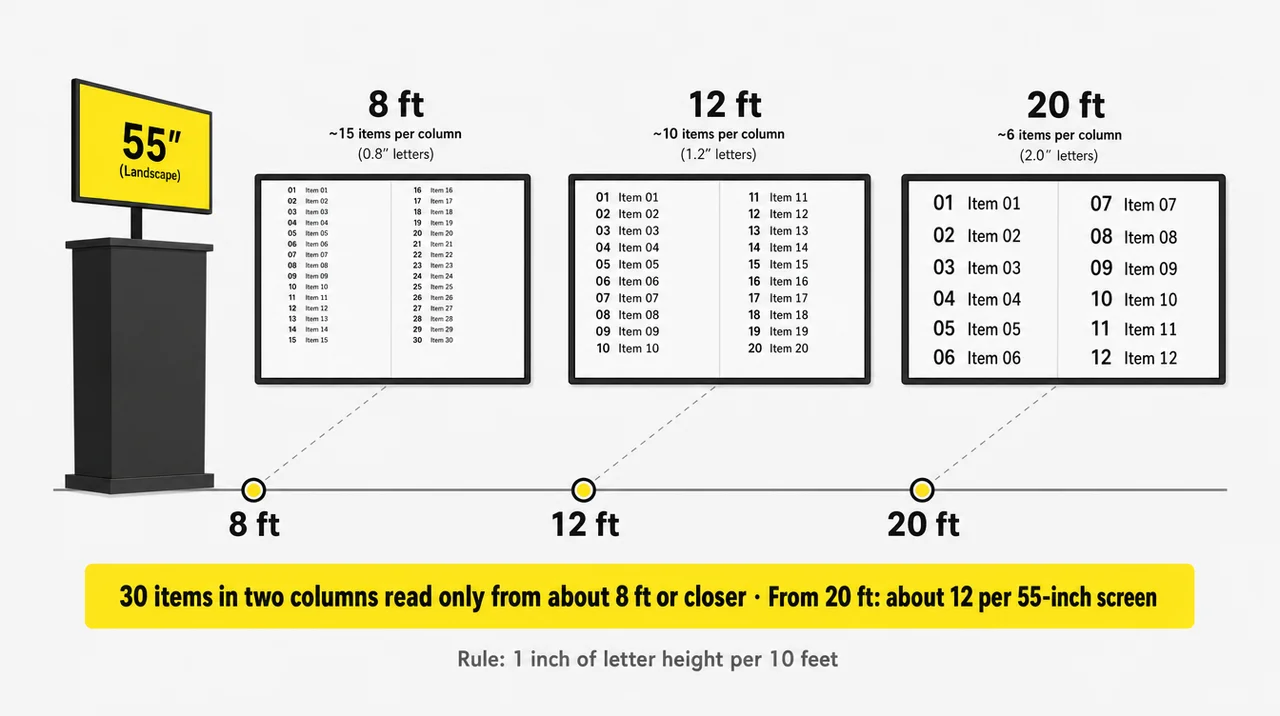
Two columns double those numbers. So a 55-inch screen read from 20 feet holds about 12 items in two columns, not 30. If your menu has 40 items and the line stands 15–20 feet back, you need three or four screens split by category, not one bigger TV.
⚠️ “Up to 30 items per screen is fine” is not true for most counters: 30 items in two columns read clearly only from about 8 feet or closer. From 20 feet, plan on about 12 per 55-inch screen.
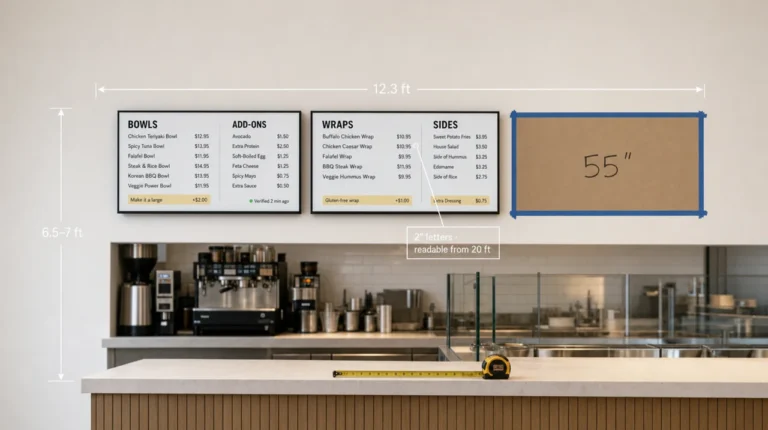
Width settles the “will it look ridiculous” worry. A 55-inch screen is about 48 inches wide, a 50-inch about 44, and a 43-inch about 37.5. Three 55-inch screens in a row span about 12 feet, three 50-inch about 11, and three 43-inch about 9.4. On a counter 20–30 feet wide, a row of three 55-inch screens fills less than half the wall, while three 43-inch screens read from 15–20 feet fit only five or six items per column.
Mounting height pushes size up as well. Screens above a service counter sit above eye level and are read at an angle, so they need larger type than a screen at head height. Portrait screens suit narrow spots: a 55-inch screen turned vertical is about 27 inches wide and 48 inches tall, which fits a drinks list or tap list next to a door. For wall-by-wall layouts and mounting heights, see how digital menu board size changes with the space. Next comes the class of screen.
Regular TVs or Commercial Screens: Are Four Cheap TVs Better Than One?
Regular TVs suit menus that run up to about 8 hours a day, while 16/7 and 24/7 commercial screens suit longer days. The right class depends on daily hours and the number of screens in a row, not on the brand. A TV for menu use in a café open 7 a.m. to 3 p.m. faces a very different load than one in a QSR open until midnight.
| Class | Rated hours a day | Rated life | Brightness | Business-use warranty | Typical 55″ price |
|---|---|---|---|---|---|
| Home TV | 6–8 | about 15,000 h | 250–400 nits | Usually void | $230–500 |
| Business TV | 16/7 | not always published | about 300 nits | About 3 years | $510–700 |
| Commercial screen, 16/7 | 16/7 | 30,000 h on some models | about 400 nits | About 3 years | about $800 |
| Commercial screen, 24/7 | 24/7 | 50,000–60,000 h | 500+ nits | About 3 years | $1,260–1,700 |
The argument for cheap TVs is real. Four home 55-inch TVs at about $300 each cost $1,200, about the same as one 24/7 commercial screen on sale at $1,260. If one breaks, you buy another the same afternoon.
The math changes with hours. A 15,000-hour home TV lasts about 5 years at 8 hours a day, 2.9 years at 14 hours, and 2.6 years at 16 hours. A 16/7 commercial screen rated for 30,000 hours lasts about 5 years at 16 hours a day. In a three-year test of more than 100 TVs run for 18,000 hours each, RTINGS recorded 20 complete failures and 24 partial ones, and edge-lit LCD models failed soonest.
The price comparison also leaves out four costs:
- Color mismatch. A replacement TV in a row of three rarely matches the other two, because models change every year while commercial models stay on sale for 3–5 years.
- Dark-screen days. Every hour the menu above the counter is dark at lunch costs orders.
- Warranty. Samsung’s US TV warranty covers only noncommercial use, and LG’s excludes commercial use and offices, so a home TV in a restaurant loses coverage on day one.
- Power control. Home TVs of one brand share one IR code, so a single remote turns one on and another off. Commercial screens add separate power commands and RS-232 control.
Cheap TVs make sense for one or two screens, short days, and a manager on site. A row of three or more screens open 12+ hours a day, or several locations, makes the commercial screen cheaper per year of service. The full comparison of commercial display vs a regular TV covers lifespan and warranty in depth.
⚠️ “A commercial screen is always brighter than a TV” is not true: Samsung’s business TV line is rated at about 300 nits, the same range as many home TVs. Check the nits on the spec sheet, not the label.
Brightness, Resolution and Other Specs That Matter
Brightness, a matte finish, and portrait support matter more for a menu than 4K, HDR, or smart features. Any TV for menu display gets judged from the line, so the specs below decide whether guests read it.
| Spec | What to pick | Why |
|---|---|---|
| Brightness | Dim bar 250–350 nits; dining room 350–500; bright room 400–700; facing a window 700–2,500; direct sun 2,500+ | Glare washes out a 300-nit screen near glass |
| Finish | Matte or anti-glare, such as a 25% haze finish | Glossy home TVs reflect windows and ceiling lights |
| Resolution | 1080p is enough from 8 feet; 4K is now the cheap default | From 8 feet the eye cannot tell 1080p from 4K on a menu |
| Content size | Export at the screen’s exact resolution: 1920×1080 for Full HD, 3840×2160 for 4K | Rescaled images blur small text |
| Orientation | Portrait only if the spec sheet allows it | Home TVs are built for landscape, and portrait mounting usually voids their warranty |
| Row of screens | One model number and one batch, thin bezels | Mixed models show different colors side by side |
| Inputs and control | HDMI; RS-232 or separate power commands for 3+ screens; auto-off and HDMI-CEC that can be turned off | LG TVs switch off after about 4 hours without a remote press |
| Mount | VESA pattern; a bracket rated for portrait if needed | Most menu mounts are VESA-based |
| Heat | Most home TVs are rated for 32–104°F; commercial screens commonly for 0–40°C (32–104°F) | Mount away from fryer and flat-top exhaust |
| Speakers | Not needed | Menus run silent; skip the soundbar |
Heat deserves one more line. Portrait mounting lowers the safe temperature of some commercial screens from 40°C to 35°C, so a vertical screen above a hot line needs extra clearance.
⚠️ “A menu board needs 4K” is not true: from 8 feet or more, 1080p looks the same for text and food photos. Most 40–43-inch TVs ship in 4K anyway, so take it when the price matches, and export content at the screen’s native resolution.
How Does the Menu Get on the Screen?
A menu reaches a TV three ways: a USB slideshow, an app on a smart TV, or a player plugged into HDMI. The route decides who walks to the screen when a price changes.
| Route | Remote updates | After a power cut | Schedules | Video | Weak spot |
|---|---|---|---|---|---|
| USB slideshow | No | Many TVs return to the home screen or another input | No | Yes, MP4 | A walk to the screen with a new stick for every change |
| App on a smart TV | Yes | Depends on the TV platform | Usually | Yes | App support ends; TV timers switch the screen off |
| Player in the HDMI port | Yes | Starts on its own and plays from cache | Yes | Yes | Needs one free HDMI input |
The USB route works for one static screen. Export each slide at the screen’s exact resolution. PNG keeps text sharper than PDF or JPEG on TVs that read it, and JPEG is the safe fallback. A 12-foot USB extension cable costs about $10 and keeps the stick reachable from the counter.
Smart TV apps add remote updates, but their support ends sooner than the panel wears out. Fire TV sticks sleep after 20 minutes without input, and Fire OS 7.6.6.9 and Fire OS 8 stopped many signage apps from starting on their own.
A player in the HDMI port turns any TV into a plain display, including older sets without smart features. That is why owners who tried apps often move to a mini PC, a Raspberry Pi, or a signage player. Short MP4 clips between menu pages play fine on all three routes. The step-by-step guide on how to turn a TV into digital signage covers each setup and the TV settings that keep it on.
Why Menu Text Looks Blurry on a TV (and How to Fix It)
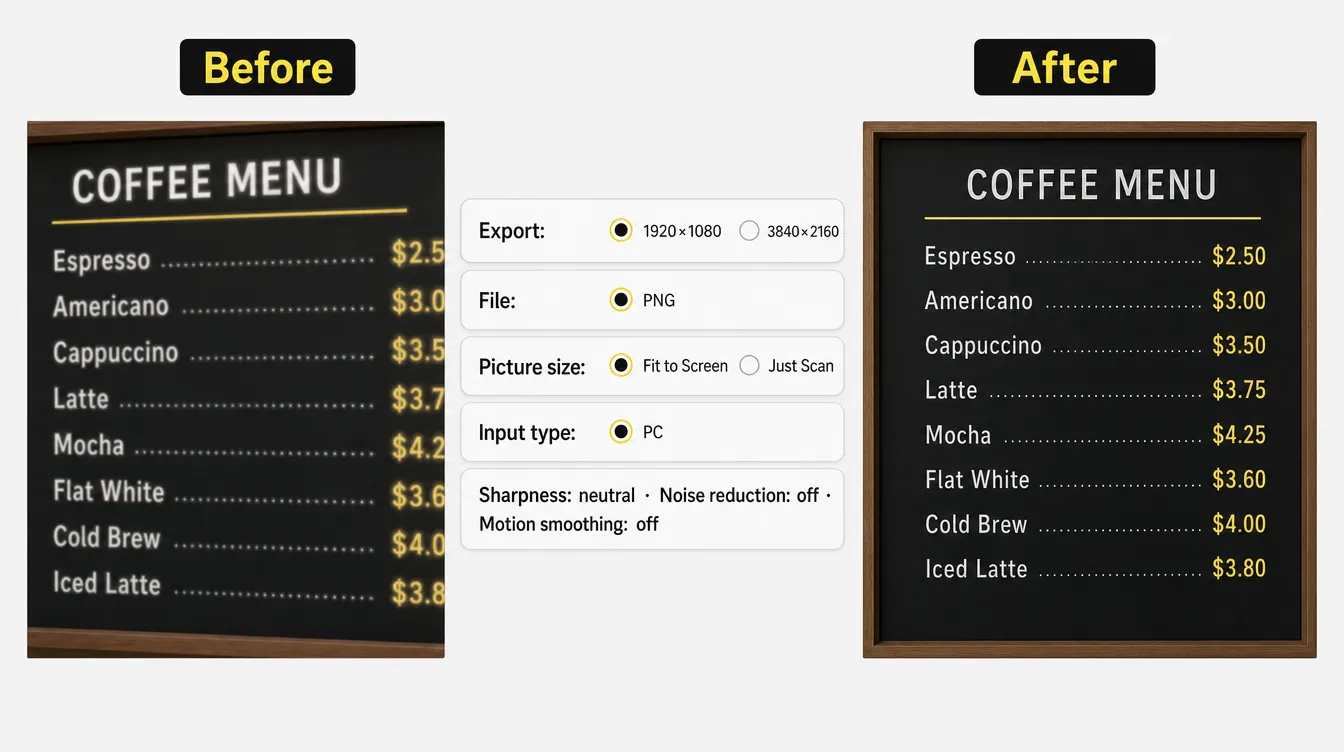
Menu text looks blurry when the TV rescales and sharpens the image, and five picture settings fix it. Home TVs process the picture for movies, which softens thin letters and adds halos around prices. Test every new screen before opening, because two TVs of the same size can treat the same file differently.
- Export at the exact resolution. 1920×1080 for Full HD, 3840×2160 for 4K, so the TV never resizes the image.
- Use PNG. PDFs and compressed JPEGs blur small type on many TVs.
- Turn off overscan. Overscan zooms the image a few percent and cuts the edges. On Samsung, go to Settings → All Settings → Picture → Picture Size Settings and turn on Fit to Screen (Screen Fit on older models). On LG, set Picture → Aspect Ratio to Original, or turn on Just Scan where the menu offers it. On Sony, set Display Area to Full Pixel. If your menu uses other names, search the picture settings for “size,” “aspect,” or “overscan.”
- Mark the input as a PC. On many Samsung and LG sets, setting the HDMI input’s device type or icon to PC switches the TV to its PC mode, which drops much of the movie processing. Menu names vary by model year, so test the result on the real menu.
- Lower sharpness and noise reduction. Set Sharpness to its neutral value and turn off noise reduction and motion smoothing.
Font weight matters as well: thin and script fonts lose strokes from across the room, so keep item names in a regular or bold weight.
Running Several Screens: Power, Remotes and Updates From Offsite
Three or more screens behind one counter need a power schedule, separate power control, and remote updates instead of one shared remote. A single screen forgives manual work. A row of four multiplies every walk to the wall.
The shared remote is the first problem. Home TVs of one brand answer the same IR code, so pressing power turns one screen on and the next one off. Commercial screens add separate on and off commands, and RS-232 lets a controller switch each screen on its own. A power schedule removes the remote entirely: screens switch on before opening and off after closing.
Remote updates come next. Cloud signage software lets an owner change prices from home or a phone and schedule breakfast, lunch, and dinner menus by time of day. With a POS connection, prices and sold-out items flow to the screens on their own, so an 86’d item disappears without anyone touching the menu.
The last problem is the screen nobody watches. A cook at the grill does not see the menu above the counter, and a TV that went dark after an auto-off timer can stay dark through lunch. Multi-screen counters need something that notices and restores a black screen, and the last section shows how Decker handles it.
Best TVs for Restaurants in 2026: Picks by Budget and Venue
The best TVs for restaurants in 2026 fall into four tiers, from $150 home sets for short days to 24/7 commercial screens. Compare model numbers rather than brand names, because one brand sells both a $150 home set and a 24/7 commercial panel. Prices below were checked at US retailers on October 16, 2026, and change weekly.
Budget Pilot: One or Two Screens, Short Days
For a first TV for restaurant menu use, 43-inch LED sets cost about $150–210. At Walmart, examples include the onn 43S4V1 (4K, $148), the TCL 43Q31K (1080p QLED, $178), and the Hisense 43R6E3 (4K, $208). They fit a café open 8 hours or a pilot before a full rollout.
Bar or Café Open Up to 16 Hours
Samsung’s 55-inch business TV, the BE55FX-H, is rated for 16/7 at 300 nits with a 3-year limited warranty and sells for about $700; the 55-inch model of Samsung’s BED-H line lists at $510 when in stock. LG’s 55UR340C is rated for 16 hours a day, 7 days a week, at 400 nits and 30,000 hours, and includes RS-232 control and a 3-year limited warranty. It lists at $813 on LG’s business store and sells for about $800 elsewhere, but stock is limited, so confirm availability before planning a whole row around it.
QSR Counter, Open to Close
Samsung’s QM55C is a 55-inch commercial screen rated for 24/7 at 500 nits, runs in landscape or portrait, operates from 0 to 40°C, and has a 25% haze matte finish. Resellers list it at $1,260–1,290 against a $1,660 list price, with a 3-year warranty.
Windows, Storefronts and Drive-Thru
Screens facing a window need 700–2,500 nits, and outdoor menu panels need 2,500–4,000 nits, a sealed housing, and theft protection. Outdoor units cost $3,500–8,000 each before installation.
Screens to Skip
- OLED, because static prices burn in.
- Flagship Mini-LED and premium sets that cost $900–3,500, because you pay for contrast and motion a menu never uses.
- 720p sets, unless guests read the screen at arm’s length.
- Glossy screens near windows.
- Mixed models in one row.
- Older Fire TV-based picks, many of which are discontinued and share the Fire OS auto-start problem.
Buy every screen in a row at once, from one retailer and one batch. Black Friday and Cyber Monday bring the deepest discounts on home TVs.
How to Choose the Best TV for Digital Menu Boards: 9 Checks
Choose the screen with nine checks in order: distance, items, hours, brightness, panel, finish, model, inputs, and warranty. Each check has a number, so the answer does not depend on a salesperson.
- Measure the back of the line. Size the screen at 1 inch of letter height per 10 feet.
- Count the items per screen. About 6 per column on a 55-inch screen read from 20 feet.
- Count daily hours. Up to 8 for a home TV, 16 for a 16/7 model, more for 24/7.
- Check the brightest hour. 350–500 nits for a dining room, 700+ facing a window.
- Choose an LED or LCD panel. Skip OLED.
- Choose a matte finish near windows and ceiling lights.
- Use one model number and one batch for each row.
- Check the inputs. HDMI, auto-off and HDMI-CEC that can be turned off, and RS-232 or separate power commands for three or more screens.
- Read the warranty and the specs. Business use covered, rated for 32–104°F, and portrait allowed if you mount vertically.
How Much Each Screen Costs, From Home TV to 24/7 Display
Each screen for the menu costs about $150 to $1,700 before installation, depending on its size and class. A mount, a network run, a player, and power come on top of that price.
| Item | Typical cost |
|---|---|
| Home TV, 43″ | $150–210 |
| Home TV, 55″ | $230–500 |
| Business TV, 55″ | $510–700 |
| Commercial screen 16/7, 55″ | about $800 |
| Commercial screen 24/7, 55″ | $1,260–1,700 |
| Outdoor menu panel | $3,500–8,000 |
| Network cable run to the screen | $300–1,500 |
| Power for a 55″ screen running 24/7 | about $95 a year |
Owners report real totals in this range: three 43-inch TVs and a mini PC for about $650, or an imported all-in-one kit for $1,000–2,000 with slow support across time zones. Software, players, and installation add their own lines, which the breakdown of what digital menu boards cost adds up screen by screen.
When You Don’t Need New Screens for Your Menu
New screens for the menu do not pay off in four cases, and each one has a clear number. A printed board costs less if the menu changes less than once a quarter and lists 15 items or fewer. A single static screen in a venue open under 8 hours a day runs fine on a home TV with a USB stick, without software or a player. A counter where nobody stands more than 6 feet away needs no row of large TVs: one 32-inch screen or a printed board covers it. And if the drive-thru brings most of your orders, the budget belongs to outdoor screens at 2,500+ nits, not to TVs inside.
How Decker Runs Your Menu on Any of These Screens
Decker runs a menu on any TV or commercial screen with HDMI through a small player, so the screen choice stays yours. The Android media player for menu screens connects over HDMI and receives the menu over Wi-Fi or Ethernet. It gets only the changed parts of the menu, so a new price reaches the screen in 1–5 seconds, and its offline cache keeps the menu on screen when the internet drops.
On the Professional plan, prices and sold-out items sync from Toast, Square, Clover, or an Excel sheet, and breakfast and lunch menus switch on a schedule. Decker Verifier works independently of the player: it controls power for the screen and the player, switches the TV back to the right HDMI input, and logs uptime for every screen. That solves the shared-remote and dark-screen problems from multi-screen counters, and Verifier’s screen monitoring for menu boards alerts the owner when a screen goes black.
In the Burger Shop case in Downtown Los Angeles, four screens at the counter were tied to the POS, and menu updates went from days or weeks to minutes. The same setup runs digital menu boards for restaurants from one café to a full counter.
Questions and Answers
1 How big should the screens above the counter be?
A 43-inch screen reads well up to about 12 feet, and a 50–55-inch screen up to about 25 feet. Size the text at 1 inch of letter height for every 10 feet, then add screens if the items do not fit.
2 Can I use a regular TV as a menu board?
Yes, for up to about 8 hours a day. Within that limit, the best TV for a restaurant menu can be an ordinary LED set with HDMI. For 12–24 hours a day, a 16/7 or 24/7 commercial screen lasts longer and keeps its warranty.
3 Will an LED TV burn in with a static menu?
No. LED TVs are LCD panels, which show only temporary image retention that fades after the content changes. Permanent burn-in affects OLED. Changing the layout every 15–30 minutes and turning screens off at night prevent retention.
4 Is 4K worth it for a menu board?
Not for readability: from 8 feet or more, 1080p looks the same on a menu. Most 43-inch TVs now ship in 4K at little extra cost, so take it if the price matches and export content at 3840×2160.
5 Can I just put my menu on a USB stick?
Yes, for one screen with a menu that rarely changes. Export PNG or JPEG images at the screen’s exact resolution. Every price change still means a walk to the screen, and many TVs do not return to the slideshow after a power cut.
6 Should menu boards be vertical or horizontal?
Landscape suits the main row above the counter. Portrait suits drinks lists, tap lists, narrow walls, and the panel beside a food truck’s serving window. Mount a screen vertically only if its spec sheet allows portrait, because most home TVs are designed for landscape.