What Is POS Digital Signage? Point of Sale Displays and POS Integration Explained


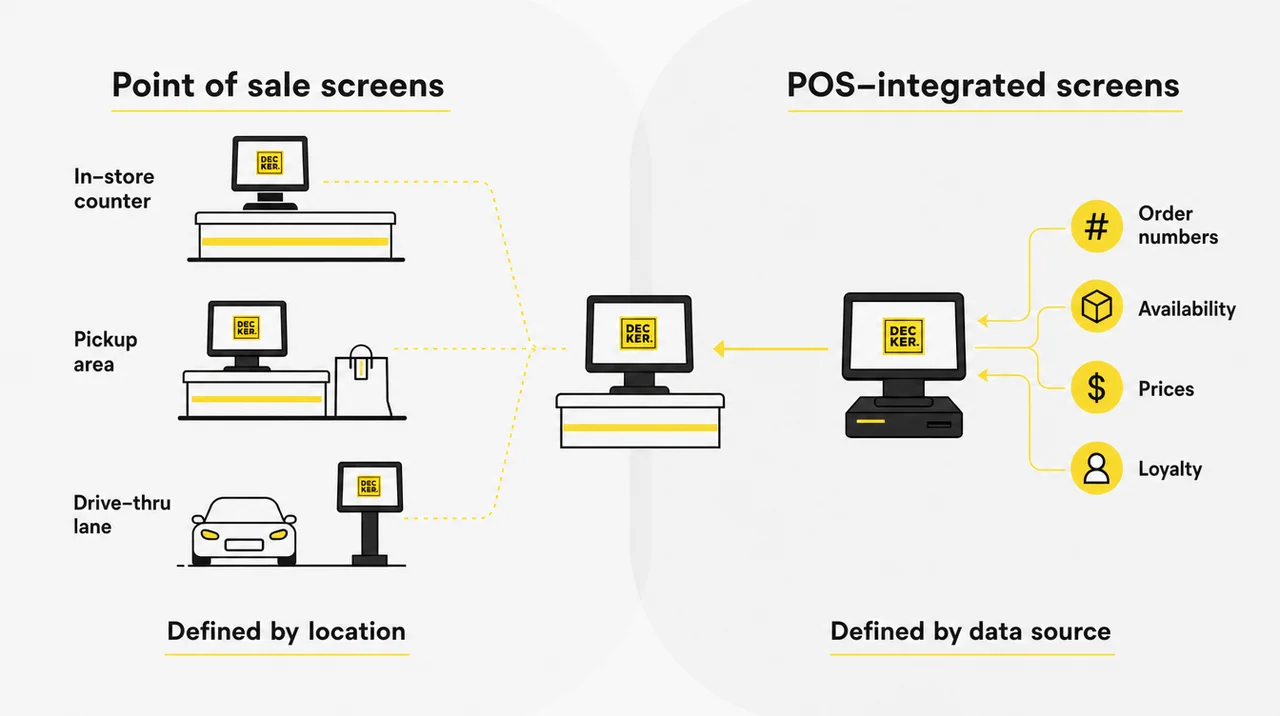
What is a POS digital signage setup? It means two things: screens placed at the point of sale, where guests order and pay, and screens that take data from the POS system, such as order numbers and prices. Most restaurants use both. Below, each meaning gets its own section.
What Is a POS Digital Signage? One Term, Two Meanings
POS digital signage is a screen at the point of sale, including any screen that takes its data from the POS system. The first meaning is about where the screen hangs, the second about where its content comes from. Vendors use the same three letters for both, so ask which one a proposal covers.
| Point of sale screens | POS-integrated screens | |
|---|---|---|
| Defined by | Location: counter, drive-thru window, pickup shelf, c-store checkout | Data source: the POS system |
| Shows | Promotions, upsells, brand content, reviews, QR codes, menus | Order numbers, availability, prices, sales data, loyalty offers |
| Updated by | A person in the content management system (CMS), or a schedule | The POS, automatically |
| Main risk | Content goes stale | The integration is switched on but never tested |
Hardware makers add a third use. Their “POS digital signage displays” are POS terminals with a second screen facing the guest, or wall-mounted displays made for the register area. The hardware section covers that equipment separately.
POS digital signage runs the part of a wider screen network where money changes hands; the broader definition of digital signage covers players, CMS and screens beyond the counter.
POS vs POP vs POSM: The Terms Vendors Mix Up
Restaurant vendors borrowed these retail terms without the definitions:
- POS (point of sale) marks where the guest pays or picks up the order: the counter, the drive-thru window, the c-store register.
- POP (point of purchase) marks where the guest decides: the queue in front of the counter, the cooler with drinks, the end of an aisle.
- POSM (point of sale materials) covers the signs, displays and screens placed in those spots, printed or digital.
In a quick-service restaurant, the screen above the counter serves as POP and POS at once, because guests decide and pay a few steps apart. That overlap confuses buyers.
Two counter screens don’t count as signage by default. A customer-facing display shows the order, tax, tip and payment, so it belongs to the POS; it becomes signage only when it runs promotions between orders. A kitchen display system reads orders from the POS too, but only the kitchen crew sees it.
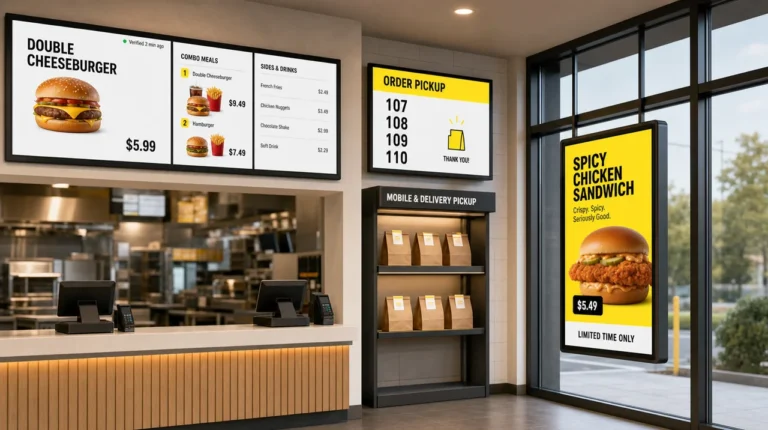
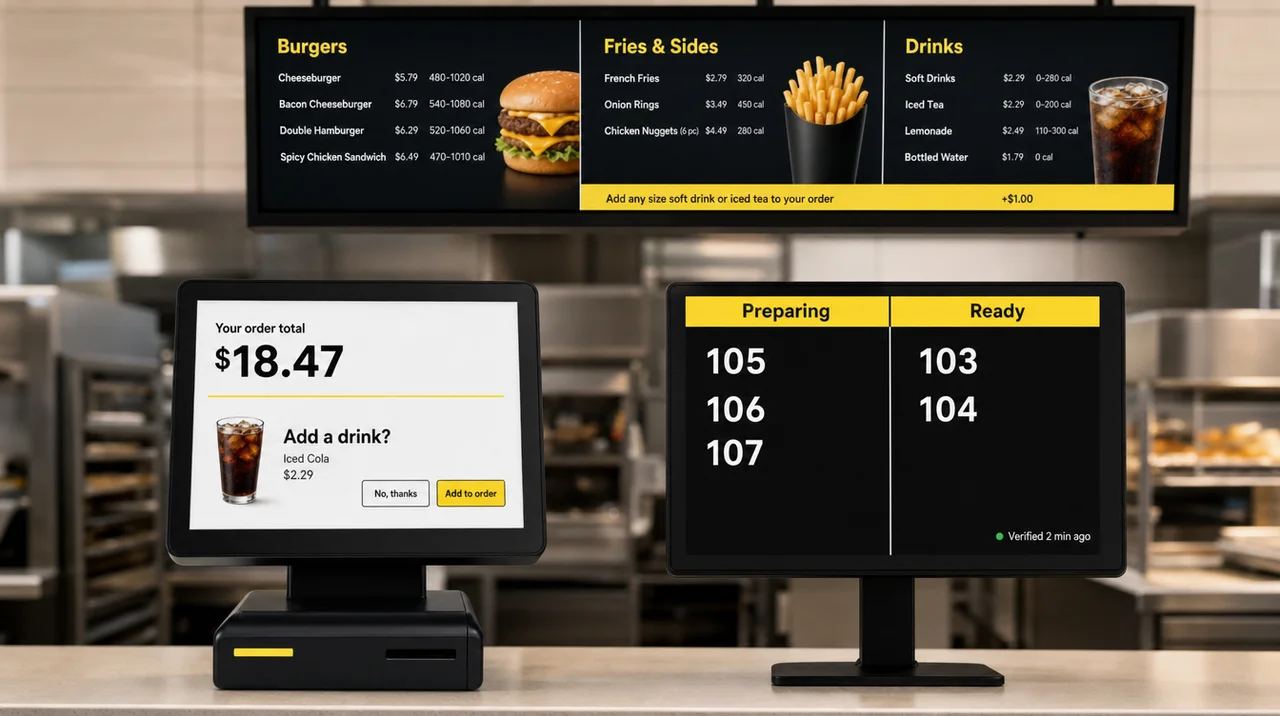
POS digital signage is not just a menu board on a TV. A menu screen covers one of seven screen types a food and drink business can connect to its POS. The others show order status, confirm drive-thru orders and run on the terminal display. Next, the placement guide shows where each screen hangs.
Point of Sale Digital Signage: Screens Where Guests Decide
Point-of-sale digital signage is a screen that sits where guests order, wait or pay, the last moments to change the ticket. Most searches for a digital signage POS point of sale setup mean this location-based kind of POS digital signage.
Digital Point of Sale Signage by Placement
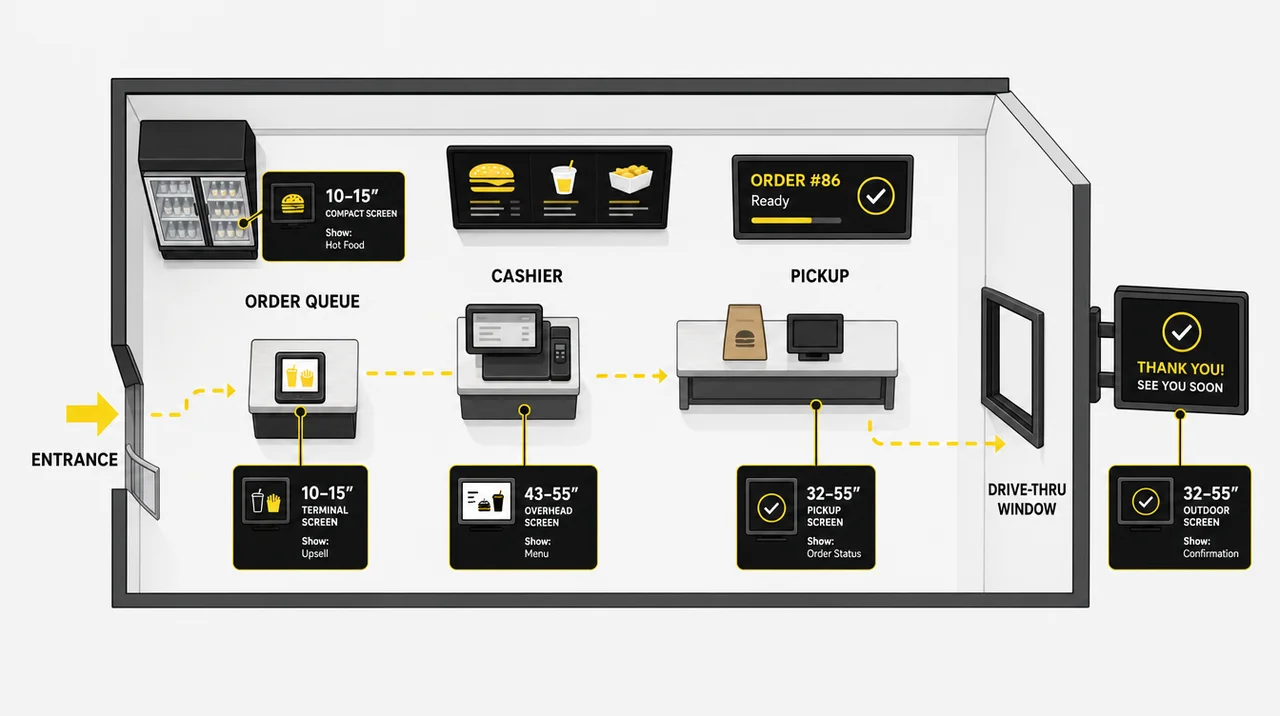
Screen size follows viewing distance:
| Placement | Typical screen | What to show |
|---|---|---|
| On or next to the terminal | 10–15 inches | Order total, add-on offer, loyalty sign-up |
| Pickup area and waiting zone | 32–55 inches | Order status, promotions, reviews, QR codes |
| Drive-thru lane | High-brightness outdoor display | Menu and order confirmation |
| Above the counter | 43–55-inch screens, often in sets of 2–4 | Menu, combos, limited-time offers |
| C-store cooler, end cap or checkout | Compact or shelf-edge screens | Hot food, cold drinks, coffee and pastry bundles |
What Content Works at the Point of Sale
A digital signage point of sale screen gets seconds of attention, so each message should ask for one small decision:
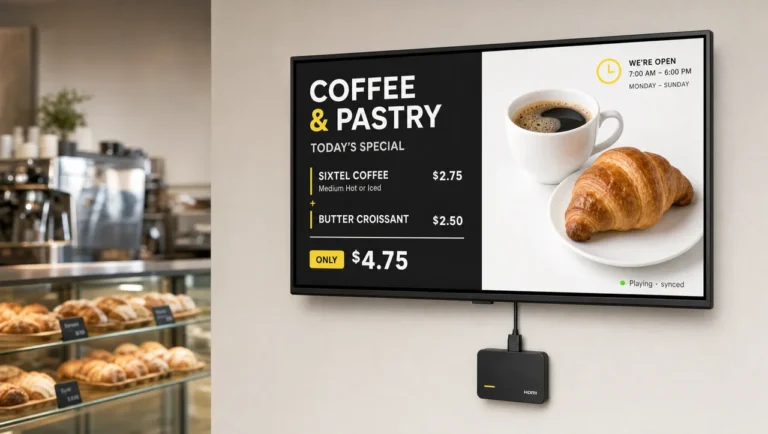
- Upsells and bundles: fries and a drink with a burger, a dessert with a lunch order, a pastry with a coffee.
- Limited-time offers with a countdown to the end date.
- Social proof: star ratings, short reviews and a QR code to join the loyalty program.
- Dayparts: breakfast, lunch and late-night content that changes by itself on a schedule.
- Live availability: “only three left” or “sold out” messages, which only work if the data comes from the POS.
Why Retailers Are Adding Point-of-Sale Digital Signage at Checkout
According to Modern Retail, grocery and pharmacy chains turn POS digital signage at the checkout into a media channel. CVS planned about 11,000 digital screens for 2026, with ads on POS screens at roughly 7,000 stores. Kroger moves in-store screens beyond its pilot in 2026. Hy-Vee had more than 10,000 screens across 400-plus stores by late 2024, and Grocery TV runs in more than 6,500 stores across 120-plus retailers.
In grocery, the checkout screen sells space to brands (retail media). In a restaurant, it sells the restaurant’s own add-ons.
“74% of purchase decisions are made at the point of sale” is not a number to plan around. Versions from 70% to 82% circulate in vendor articles without the original study, year or sample. Build the business case on your own sales data. That is why the second meaning, POS data on screen, matters more than placement alone.
POS Integrated Digital Signage: When the Register Feeds the Screen
POS integrated digital signage is signage that takes its data from the register, so the POS system stays the single source of truth. Without that link, a screen shows what someone last typed into the CMS. With it, the screen shows what the POS knows now, and that link saves staff time.
| Data from the POS | What changes on screen | Screen |
|---|---|---|
| Order number and status | “Preparing” moves to “Ready” | Order status board at pickup |
| Order contents | The guest checks the order before paying | Drive-thru confirmation, terminal display |
| Loyalty member ID | A personal offer based on past orders | Customer-facing display |
| Item sales | Promotions follow what actually sells | Promo screen in the dining room |
| Availability | Sold-out items hide or get a label | Every screen that shows products |
| Prices and timed promotions | Daypart and happy hour prices | Menu screens, promo screens |
| Stock levels (c-store, grocery) | Deals on what is on the shelf now | Cooler and checkout screens |
Two Ways POS Screens Get Their Data
Some platforms run a promo screen next to the register on a schedule and never read POS data. Others read POS data and change the screen when it changes. Vendors sell both as POS digital signage, so check which one a quote covers.
Suppliers differ too. A POS vendor’s own signage module means one contract, but the screens work only with that POS. A separate signage platform keeps the screens if you switch registers.
Loyalty shows the second model at work. A guest gives a phone number at checkout, and the terminal shows an offer based on past orders, while a nearby screen explains the program to non-members. Menu screens follow the same rule, because the price on screen must match the receipt. Digital menu boards POS integration keeps menu prices in step with the register as a separate setup built only for the menu. Next, the five-link chain shows how data moves from the POS system to the screen.
How POS Integration for Digital Signage Works
POS integration for digital signage is a chain that moves one register change to every connected screen through five links. A break in any of them stops the change, so know what each does before buying POS digital signage.
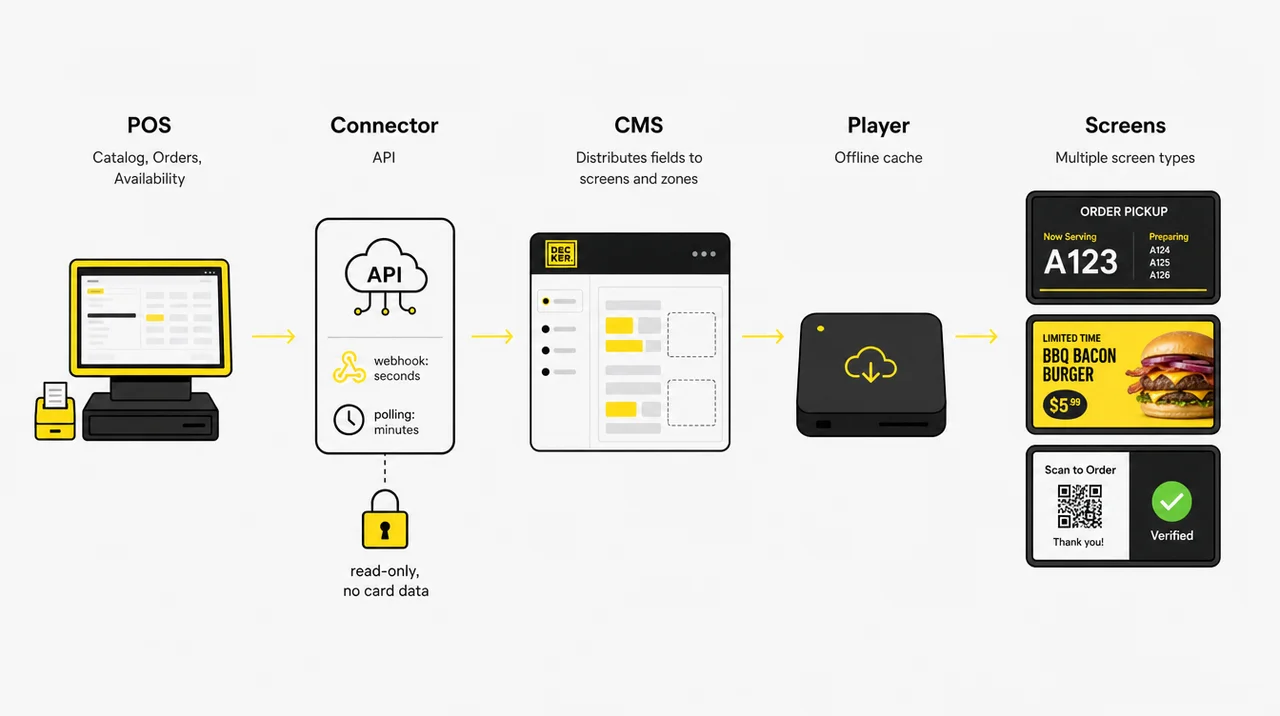
- POS data. Orders, statuses, the item catalog, availability and loyalty records live in the POS.
- Connector. The signage platform reads that data through the POS vendor’s API. Square, for example, sends a catalog.version.updated webhook when the catalog changes, and the platform then fetches only the changed items.
- CMS. The content management system decides which field goes to which screen and which zone on it: an order number to the pickup board, a stock level to the cooler screen.
- Player. A media player behind each screen receives the update and keeps the last version in local storage.
- Screen. The display shows the change, and a playback check confirms the screen runs and shows the right content.
Webhooks vs Polling
With a webhook, the POS announces each change, and screens update within seconds. With polling, the platform asks the POS every few minutes, so the delay equals the interval. Square’s developer documentation describes both methods for digital signage and other outside systems that sync with its catalog.
Integration Methods Compared
| Method | Speed | Reliability | Who maintains it | Fits |
|---|---|---|---|---|
| Native connector to a cloud POS | Seconds | High | Signage vendor | Toast, Square, Clover and other cloud POS |
| Middleware or central menu manager | Seconds to minutes | High if the middleware is monitored | Middleware vendor | Chains that already run one |
| Spreadsheet or CSV export | Minutes to hours | Medium | Your team | POS without an open API |
| Local agent for an on-premise POS | Minutes | Medium | IT or integrator | Older servers in the back office |
| Manual entry in the CMS | Hours to days | Low | Store managers | One screen, a short menu |
What Happens When the POS or the Internet Goes Down
A good setup degrades gracefully instead of going dark:
- The player keeps showing the last version from its offline cache.
- Fields show the last known value, not a blank space or an error.
- The team gets an alert if a screen goes dark, because a black screen at the counter looks worse than no screen.
- Once the connection returns, the platform catches up on every change it missed.
A screen that keeps playing offline does not keep updating. Playback continues from local storage, but new orders, prices and sold-out items reach the screen only after the network is back.
Security: Keep Signage Out of Card Data
POS digital signage never needs card numbers. A digital signage connector needs only read-only access to statuses and the catalog, through its own minimum-rights access token. Keep screens and players off the network segment that handles card data: the PCI Data Security Standard puts every system connected to card data in audit scope.
“Once the POS is connected, the screens update on their own forever.” Item IDs change after a menu rebuild. Tokens expire, and players lose the network. Retest after every POS update, menu rebuild or network change. As a result, check compatibility next.
Digital Signage POS Compatibility: What to Check First
Digital signage POS compatibility depends on access, and most cloud POS systems that US restaurants use share data through an API or app marketplace. Toast lists partners for digital menu screens, Square offers menu and signage apps in its App Marketplace, and Clover runs its own app market.
Check five things before buying screens or software:
- Access. Does your POS have an open API or a marketplace app for the signage platform you want?
- Data. Which fields does it share: orders, statuses, catalog, availability, loyalty?
- Speed. Does the connection use webhooks (seconds) or polling (minutes)?
- Older systems. An on-premise POS system usually needs a local agent or a spreadsheet export.
- Ownership. Who on the team owns the data in the POS? That person effectively runs the screens.
If the team still installs the POS, connect signage last: a step-by-step QSR POS rollout plan adds screens after the menu, kitchen and payments are stable.
Common POS Integration Mistakes
- Assuming every POS has an open API. Some older and closed systems share data only through exports.
- Skipping a fallback. Without an offline cache and alerts, a dropped connection blacks out the counter screen mid-rush.
- Leaving data without an owner. The screen repeats every POS error, from a typo to an item that should be hidden.
- Never retesting. Integrations break quietly after a POS update, a menu rebuild or a router swap.
Once the POS system passes these checks, pick the screens a restaurant actually needs next.
See Every Counter Screen Run From One Account.
Connect one store, put the pickup board, the promo screen and the menu on one platform, and test it before you move to the next store. Decker’s 30-day trial covers up to five screens with no card required. Start with Decker
POS Digital Signage in Restaurants, QSR and Cafes
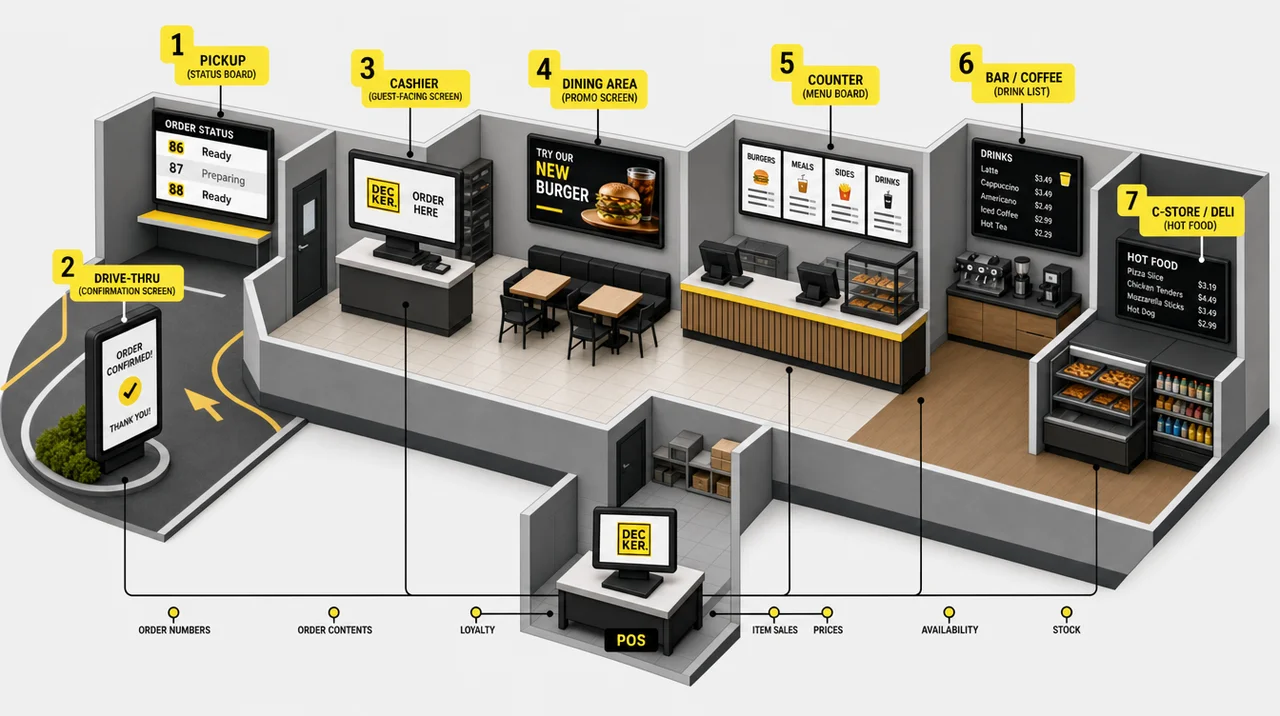
In restaurants, POS digital signage is the set of screens that guests see while they wait, order and pay, from counter to pickup shelf. Each zone needs a different screen and a different piece of POS data.
Restaurant Digital Signage POS Integrations by Screen
| Zone | Screen | Data from the POS | What the restaurant gets |
|---|---|---|---|
| Pickup | Order status board | Order numbers | Fewer “is my order ready?” questions at the counter |
| Drive-thru | Order confirmation screen | Order contents | Fewer wrong orders at the window |
| Register | Customer-facing display | Order, loyalty | Upsells and loyalty sign-ups |
| Dining room | Promo screen | Item sales | Promotions for what actually sells |
| Counter | Menu screen | Prices, availability | The price on screen matches the receipt |
| Bar or coffee bar | Tap list or drinks screen | Availability | A kicked keg leaves the screen |
| C-store or grocery deli | Hot food screen | Stock levels | Deals timed to what is in the warmer |
Triggers Beyond Price
Screens can also switch by time of day, day of week, weather, a live game in bars, stock levels or the dates of a limited-time offer. Full-service restaurants often add a waitlist screen fed by their reservation app rather than the POS.
Who Controls What in a Chain
Headquarters usually controls templates, brand content and national promotions, while each store manages local deals and sold-out items inside approved layouts. Franchise locations stay on brand without waiting for head office to hide an item that ran out.
How Decker Fits
Decker runs the counter, pickup and dining room screens from one account. Decker Player, an Android digital signage media player, connects to any TV over HDMI, and POS data from Toast, Square, Clover or a spreadsheet reaches the screen in 1–5 seconds. Decker Verifier, a device for digital signage with remote management on site, works independently of the player: it confirms each screen shows content, restarts the screen or player remotely and logs uptime for every display.
For the menu itself, Decker’s digital menu boards for restaurants cover layouts, dayparts and sold-out items. Promotions, entertainment and the rest of the room run on the other screens in a restaurant from the same account. Next comes the hardware behind these screens.
POS Digital Signage Displays and Hardware
POS digital signage displays are screens that range from a 10-inch terminal display to a TV over the counter. Each needs content, software and a player, either built in (a system-on-chip) or an external media player over HDMI.
Customer-Facing Displays and 10-Inch L-Type POS Tablets
An L-type POS terminal has a staff screen and a smaller guest screen, often around 10 inches. Square Register ships with a customer display, and Toast sells a guest-facing display. During an order it shows items, total, tip and payment; between orders it can run promotions or a loyalty sign-up for the one guest at the register.
Mini PCs for Retail POS and Digital Signage
One mini PC can run the POS software and a signage screen at once. That saves a device but creates one point of failure: if the PC freezes, the register and the screen go down together. A separate player per screen keeps a busy counter running.
Media Players on Standard TVs
Most restaurants run a TV or commercial display with a media player over HDMI, online through Wi-Fi or Ethernet. Commercial displays carry ratings for 12–24 hours a day, which suits screens that run from opening to close. Drive-thru screens need high brightness for direct sun.
Managing Screens Remotely
Past two or three screens per store, remote management decides how much staff time they take. Look for remote restarts, live status for every screen, a locked single-app mode, role-based access for store and head office, and pilot one store before rolling out.
| Hardware type | Typical size | Where it sits | What it shows | Main risk |
|---|---|---|---|---|
| Customer-facing display | ~10–15 in | On the terminal | Order, tip, loyalty, promos between orders | Only one guest sees it |
| All-in-one POS with second screen | 10–15 in | Counter | Same as above | Tied to one POS vendor |
| Mini PC running POS and signage | Any | Counter | Register and one signage screen | One point of failure |
| TV or commercial display with player | 32–55 in | Above counter, pickup, dining room | Menu, order status, promotions | Dark screen nobody notices |
| Outdoor high-brightness display | 46–55 in | Drive-thru lane | Menu, order confirmation | Glare, heat, weather |
With the hardware in place, the next change happens in how staff work.
What Digital Signage POS Integration Changes for Operators
Digital signage POS integration is what turns the register into the only place staff update, and every counter screen follows it. The change mostly reshapes who does what during a shift.
- Pickup and confirmation run themselves. Order numbers and order contents appear without anyone typing them in.
- Sold-out items leave every screen, not just the POS, so guests stop ordering what the kitchen cannot make.
- Promotions follow real sales and stock, not a plan written a month earlier.
- Every location shows the same brand and the same data, with local deals kept inside approved templates.
- The print cycle disappears: no ordering, shipping, hanging and removing posters for every new offer.
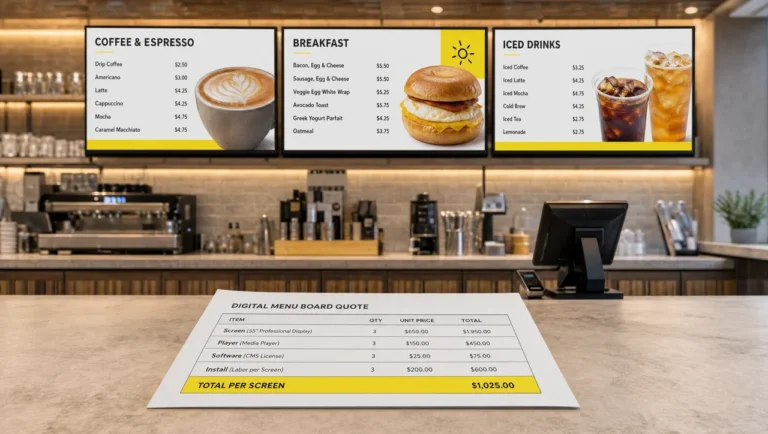
Costs depend on screen count, existing hardware and the software plan; a digital signage cost breakdown walks through each line. Beyond today’s setup, the category keeps moving.
The Future of POS Digital Signage
Future POS digital signage is moving from showing what the register knows to reacting to it in real time. Four shifts already show:
- Retail media at checkout. CVS planned ads on POS screens at about 7,000 stores in 2026, and grocery chains sell checkout screen time to consumer brands.
- One data source for every screen. The terminal display, the pickup board and the promo screen read from the same POS instead of three separate files.
- Content that reacts to the order. A terminal can suggest a drink to a guest who ordered food only, or a reward to a loyalty member close to the next tier.
- Proof of play as a standard. Chains and advertisers increasingly want evidence that a screen was on and showing the right content, not just a log that the file was sent.
AI-generated upsell suggestions will likely come next, but no independent data yet shows how much they lift sales at the counter. However, not every business needs any of this yet.
When You Don’t Need POS Digital Signage
A single store with one screen and fewer than 15 items that change less than once a quarter can update that screen by hand. If orders are handed over at the counter with no waiting area, an order status board has nothing to do. A POS without an API or a spreadsheet export gives signage nothing to connect to, so integration waits for a POS upgrade. Without stable internet at the counter and a player with an offline cache, a POS-fed screen goes stale or dark more often than a printed sign. Overall, the rest of this guide fits most counters with a queue and a cloud POS system.
Key Takeaways
Screens at the point of sale and screens fed by the POS are one setup that most restaurants need in full.
- The location meaning covers the counter, pickup, drive-thru and c-store checkout.
- The data meaning covers order numbers, availability, prices, sales and loyalty flowing from the POS to the screen.
- An integration has five links: POS data, connector, CMS, player and screen.
- Most cloud POS can feed signage through an API or an app marketplace; older systems need an export or a local agent.
- Offline cache, remote monitoring and read-only access keep the setup reliable and outside card data.
Questions and Answers
1 Can digital signage integrate with POS systems?
Yes. Digital signage can integrate with POS systems that share data through an API or an app marketplace, which covers most cloud POS used by US restaurants. The screens then change when the POS data changes. Older on-premise systems connect through a spreadsheet export or a local agent.
2 Is POS digital signage the same as a digital menu board?
No. A digital menu board is one screen within POS digital signage. The others show the order on the terminal, pickup status, drive-thru confirmations and dining room promotions.
3 Is a POS display the same as a POP display?
Not quite. A POP display sits where the guest decides, such as the queue or a cooler; a POS display sits where the guest pays or picks up. A POP display can be printed, while signage at the POS in this sense always runs on a screen.
4 What data can a POS send to digital signage?
A POS can send order numbers and statuses, order contents, availability, prices, item sales, stock levels and loyalty IDs. It never sends card data, because a well-built integration reads only the catalog and statuses.
5 What happens to the screens if the internet goes down?
The player keeps showing the last version from its offline cache, and updates arrive once the connection returns. A good platform also alerts the team if a screen goes dark.
6 Do Toast and Square have customer-facing screens?
Yes. Square Register ships with a customer display, and Toast sells a guest-facing display. Other screens, such as status boards and promo displays, connect through partner apps.
7 What screen size works best at the counter?
Use 10–15 inches on the terminal, where the guest stands at arm’s length, and 32–55 inches at pickup and above the counter. Drive-thru lanes need high-brightness outdoor displays.
8 Can the screens show different promotions by time of day?
Yes. Dayparts in the signage CMS switch breakfast, lunch and late-night content on a schedule, and timed promotions set in the POS can change the screen automatically.
9 Do I need a separate player for every screen?
Usually yes, for a standard TV. A commercial display may have a built-in system-on-chip; otherwise each screen needs a media player over HDMI. One mini PC for the register and a screen works, but one failure takes down both.
10 How much does a POS screen setup cost?
The cost covers screens, players, mounting and a per-screen software subscription, plus any POS integration fees. Existing TVs and a cloud POS with an open API keep it lower; new commercial displays and an on-premise POS push it higher.