
TV Menu Board Setup: Put Your Restaurant Menu on the TV You Own
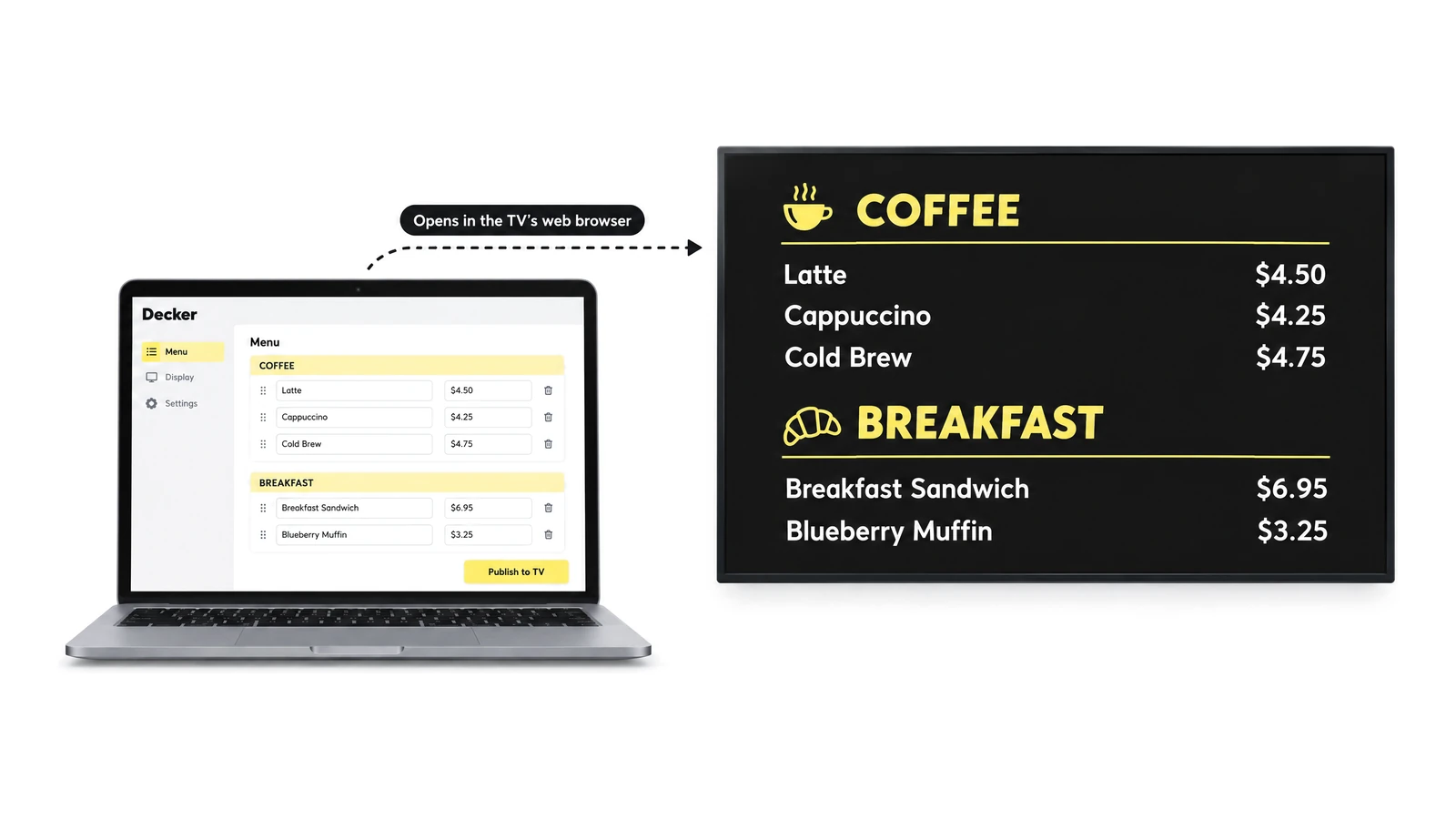
How to make a digital menu on a TV comes down to three moves: build it from a template in a browser account, open it in the TV’s built-in web browser and publish. Prices and sold-out items then change from a phone, and Decker keeps one screen free forever, so a café runs its menu on the TV it already owns.



All it takes to start: a TV and a browser
- No device to buy
- Runs in the TV's own web browser
The menu opens in the smart TV’s built-in browser and keeps playing from cache when the Wi-Fi blinks.
- 1 screen free
- Free forever, no card on file
Build, schedule and publish a menu on one TV at no cost and with no end date.
- 1–5 seconds
- From a POS price to the TV
Beyond the free screen, Professional redraws a new Toast, Square or Clover price on its own line, with no reload.
How to Put a Menu on a TV: Three Ways Compared
You can put a menu on a TV in three ways: a USB stick with menu images, a laptop that casts slides, or a browser account that publishes the menu straight to the TV, and only the third updates without a walk to the screen.
The same three routes answer how to display a menu on a TV in a café, a bar or a quick-service counter, and each one makes a different kind of TV menu display. The route decides who fixes the board when a price changes in the middle of lunch:
| USB stick | Laptop casting slides | Browser account (Decker) | |
|---|---|---|---|
| What you need | A TV that plays photos from USB | A laptop that stays on near the TV | A smart TV with a web browser, or a small player |
| Changing a price | Edit, export, carry a new stick to each TV | Edit the slide on that laptop | Edit on a phone; the TV follows |
| Breakfast to lunch | Someone swaps the files | Someone switches decks | A schedule by hour and day |
| When Wi-Fi drops | Not affected | Casting stops | Keeps playing from cache |
| Five TVs in two stores | Five trips with five sticks | Five laptops | One publish |
| Cost to start | A USB stick | A laptop you own | One screen free |
A stick is enough for a menu that changes twice a year. Once prices move every week or items sell out by 2 p.m., the browser route saves the trips, which is why Decker’s digital menu boards start from it. The steps below follow that route; the USB method gets its own section further down.
How to Set Up a Digital Menu Board on a TV in 4 Steps
How to make a digital menu on TV with Decker takes four steps and about 15 minutes when you start from a template. Every step happens in a browser on a laptop or a phone, so a smart TV needs no app store, no USB stick and no set-top box.
-
Step 1.
Create a free account and pick a template
Create a free account and pick a template Sign up with an email and no card. Choose a layout made for a counter, a café or a bar, or upload the menu you already designed in Canva or PowerPoint as an image or a short video.
-
Step 2.
Add your items and prices
Type categories, items and prices into the layout. On Professional, connect Toast, Square or Clover instead, so prices come from the register; any other register can send them through an Excel sheet.
-
Step 3.
Open the menu on the TV
On the smart TV, open the built-in web browser and link the screen to your account. A TV without a browser, or a site where the internet drops every day, runs the menu through Decker Player or the Android TV app.
-
Step 4.
Publish and check it from the line
Press publish, then stand where guests queue and read the prices. Change one test price on your phone and watch the TV follow. Name the TV menu board by its place, such as Counter left, before you add the next TV.
The Four Steps at a Glance
Every TV menu board that Decker runs goes live through the same four moves: a layout, your items and prices, the TV’s web browser and one publish. Print the picture or keep it on the phone of whoever opens the café, and the next screen takes the same route.
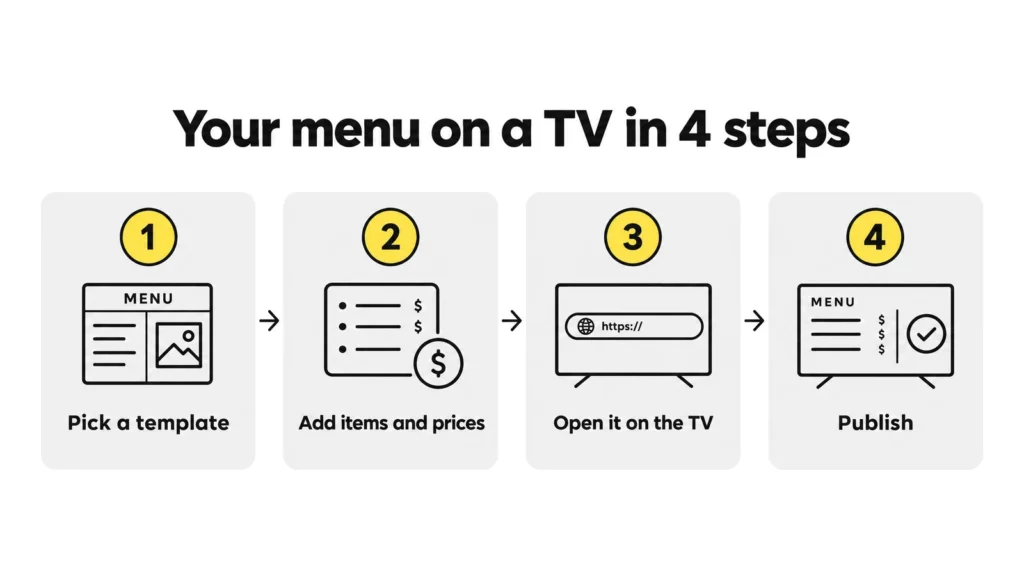
Nothing in the four steps needs an app store, a set-top box or a designer, and a second TV repeats steps 3 and 4 only. Next, the same result without an account, from a USB stick.
How to Display Menu on TV Using USB
To display a menu on a TV using USB, export each menu page as a JPEG at the TV’s resolution, copy the files to a stick and start the TV’s photo slideshow; it costs nothing, but every change means another trip to the screen. Five steps cover it:
- Design each page at 1920×1080 for a Full HD TV or 3840×2160 for a 4K TV, in landscape.
- Export the pages as JPEG files, the image format TVs read most reliably.
- Name the files in play order, such as 01-breakfast.jpg and 02-lunch.jpg.
- Copy them to a stick formatted as FAT32, then plug it into the TV.
- Open the TV’s photo viewer, start the slideshow and set it to repeat.
“Any TV with a USB port can play a menu” is not true. On some lower-priced models, the USB port only supplies power, and many consumer TVs forget the USB source once switched off, so someone restarts the slideshow every morning.
A USB menu for TV suits one screen whose menu changes a few times a year. Decker accepts the same JPEG files, so a USB menu moves into the account unchanged and gains live prices later. Next comes the layout, which decides whether guests can read the board at all.
TV Menu Design That Reads From the Line
A TV menu design works when a guest 10 feet from the screen reads every price in one glance. That single test sets the letter size, the contrast and the number of items per screen, whether the file comes from Canva, PowerPoint or a Decker layout:
-
Canvas at 1920×1080, landscape
Set Canva or PowerPoint to 1920×1080 pixels, the 16:9 shape of a Full HD TV, so nothing gets cropped or letterboxed. Use 3840×2160 only when the TV is 4K.
-
1 inch of letter height per 10 feet
Guests 10 feet away need prices at least 1 inch tall, and 20 feet needs 2 inches. Measure from the spot where people decide, not from the door.
-
Contrast of at least 4.5:1
Use light text on a dark background or the reverse. Busy food photos behind prices drop the contrast below that line, so keep photos beside the prices, not under them.
-
About 15–20 lines per screen
Split a longer menu across more TVs: a 3 TV digital menu board can carry mains, sides and drinks on separate screens, each readable on its own.
-
Rotation of 1 second per word
A rotating promo slide needs about one second per word and never less than 5–10 seconds. Keep prices on a screen that does not rotate.
-
Canva files go in as they are
Export a Canva TV menu as PNG, JPEG or MP4 and upload it to Decker unchanged. Next, rebuild the price lines as live fields, one category at a time.


Change Prices on the TV Restaurant Menu From Your Phone
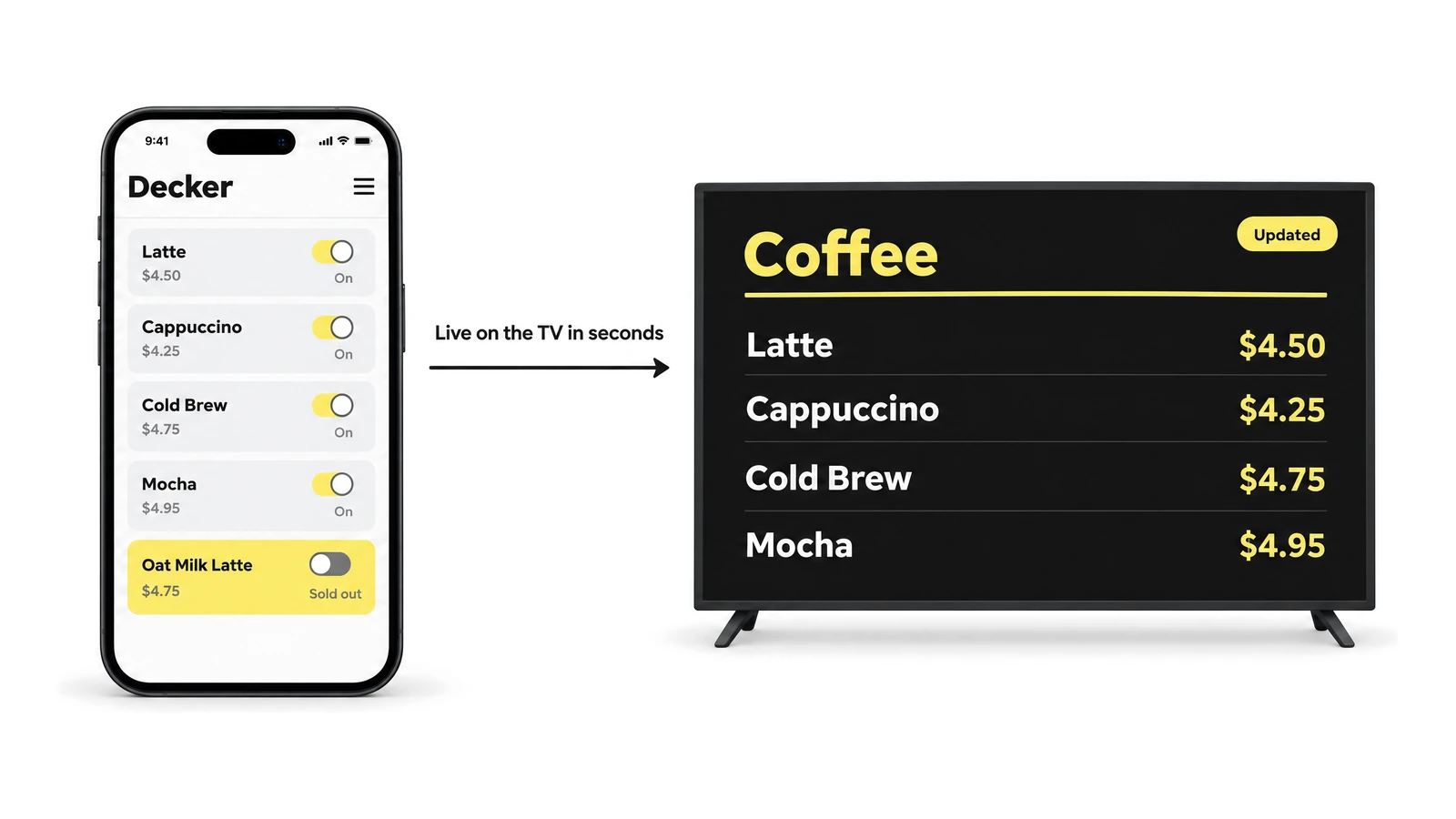
Decker keeps a TV restaurant menu tied to your menu data, so a new price, a sold-out item or the switch to lunch reaches the TV without anyone touching it. The account opens on a laptop for layout work and on a phone for quick fixes at the counter.
-
Prices from Toast, Square or Clover
On Professional, authorize the register once. A new price redraws only its own line on every TV in 1–5 seconds, with no flicker; the guide to how register prices reach the menu maps each field.
-
Excel for any other register
Upload a price sheet, and the menu on every TV follows. Upload a new version whenever prices change.
-
Sold-out items leave the screen
Mark an item unavailable in the register or the account, and it drops off the restaurant menu on the TV screen until it is back in stock.
-
Breakfast, lunch and happy hour on a schedule
Set each menu by hour and weekday, and the TV switches at 11 a.m. on its own. Opening-hours schedules come with Essential, daypart automation with Professional.
-
One publish for several TVs
Group the TV menu boards above one counter and publish once. In addition, each store keeps its own prices under one shared layout.


Go Live Before the Next Shift
Start on one free screen: pick a layout, add your items and open the menu in the TV’s browser. The 14-day trial adds POS prices and dayparts on up to 5 screens, with no card.
Keep the Screen On Through Every Shift
A menu on a TV lasts a full shift when three things are handled: the TV’s power-saving timers, the internet connection and someone who notices a dark screen. Decker covers the last two, and the first takes five minutes in the TV’s settings:
-
Turn off auto power-off and sleep timers
LG TVs switch off after about 4 hours without a remote command, and Samsung keeps Auto Power Off under Settings → General → Eco Solution. Turn both off before opening day.
-
Turn off HDMI-CEC
CEC lets connected devices switch the TV off or change its input. Samsung calls it Anynet+, and LG calls it SIMPLINK.
-
The menu plays from cache
When the Wi-Fi blinks, the browser keeps showing the last published menu, and new changes arrive once the connection returns.
-
A player for weak internet
Where the internet drops every day, Decker Player, a palm-sized Android digital signage media player on HDMI, or the Android TV app runs the menu instead of the browser. The same player runs a digital menu board TV that has no browser of its own.
-
A dark screen gets noticed
Decker Verifier, built into the player or mounted next to the TV, spots a black screen or a frozen player, restarts it and switches a lost HDMI input back.


Restaurant Menu on a TV Screen for Free: What You Get
Decker runs a restaurant menu on one TV screen free forever, with media, playlists and schedules and no card on file, which covers a café with one digital TV menu above the counter.
On the free screen, you upload a finished menu image or video, build a playlist and set when it plays. A second TV, the menu editor and live POS prices sit on paid plans billed per screen, and each plan adds a layer to the same TV menu board software: Essential brings the editor and layouts, while Professional adds register prices, sold-out hiding and dayparts. The same account also runs promo loops and opening-hours signs, because Decker is digital signage software built for restaurant counters first.
The 14-day trial opens every paid feature on up to 5 screens without a card, so you can test POS prices on real TV menu boards before choosing a plan. The TV itself, the wall mount and the electricity stay your own costs either way. Beyond that, one café’s story shows what changes after the switch.
How Crave Cafe Took Its TV Menu Off USB Drives

Challenge
The TVs at Crave Cafe in West Hills, Los Angeles, showed static menu images loaded from USB drives. Every change went through a designer in Photoshop, so the menu on the screens was refreshed roughly every two weeks.
Solution
The café moved the menu into Decker's web account. Staff edit items, prices and photos in a browser, and every connected TV picks up the change, with no designer or stick involved.
Results
As a result, a change that used to wait around two weeks now shows on the TVs within a couple of minutes, and no single specialist holds the keys to the menu.
One Setup for Every Kind of Counter
-
 Learn more
Quick-service counters
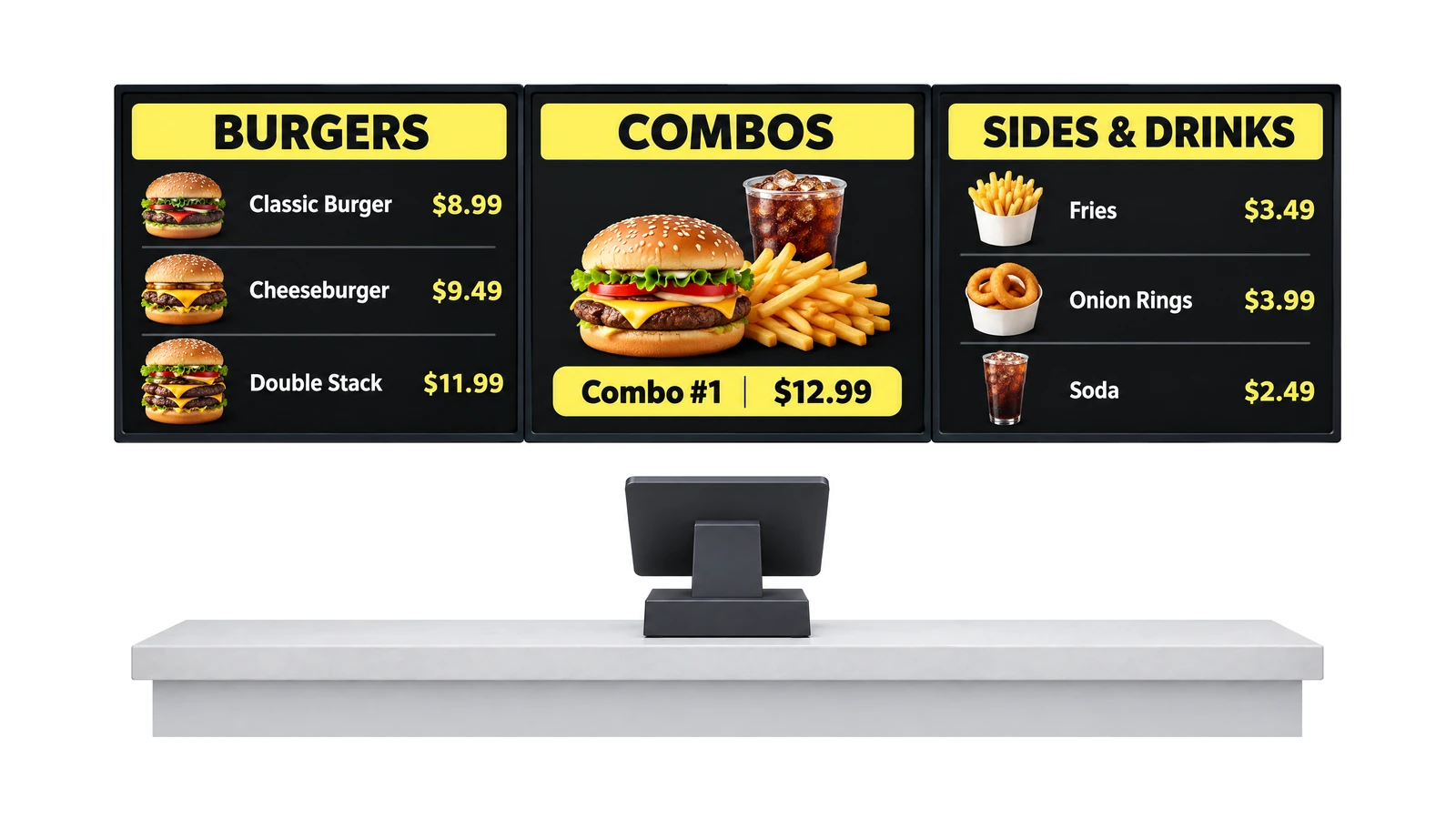
Combos and prices that follow the POSFast lines need prices that change at once on every TV above the register.
-
 Learn more
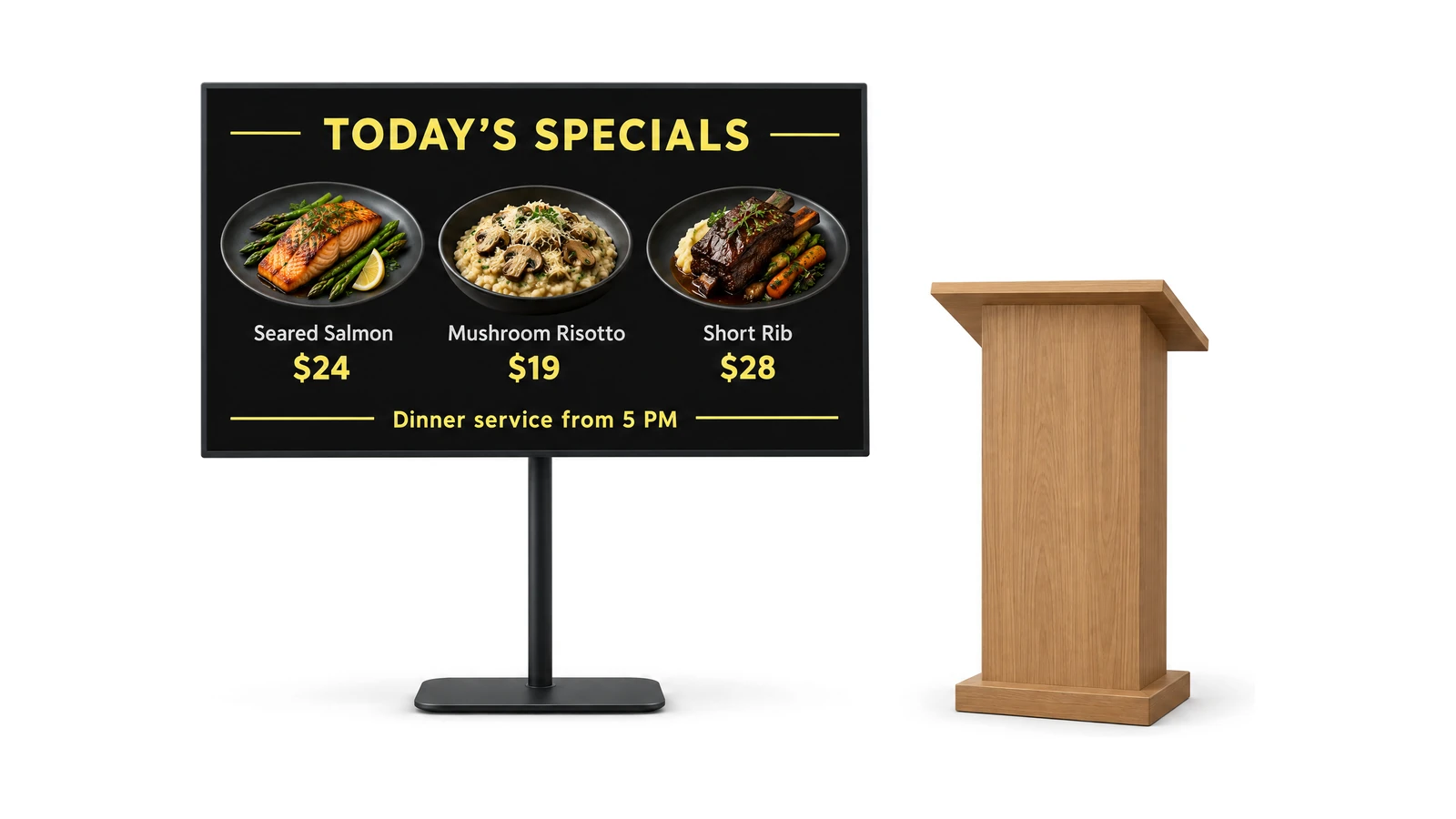
Full-service restaurants
Specials and wine lists by the entranceA restaurant TV menu by the host stand shows specials and switches for dinner.
-
 Learn more
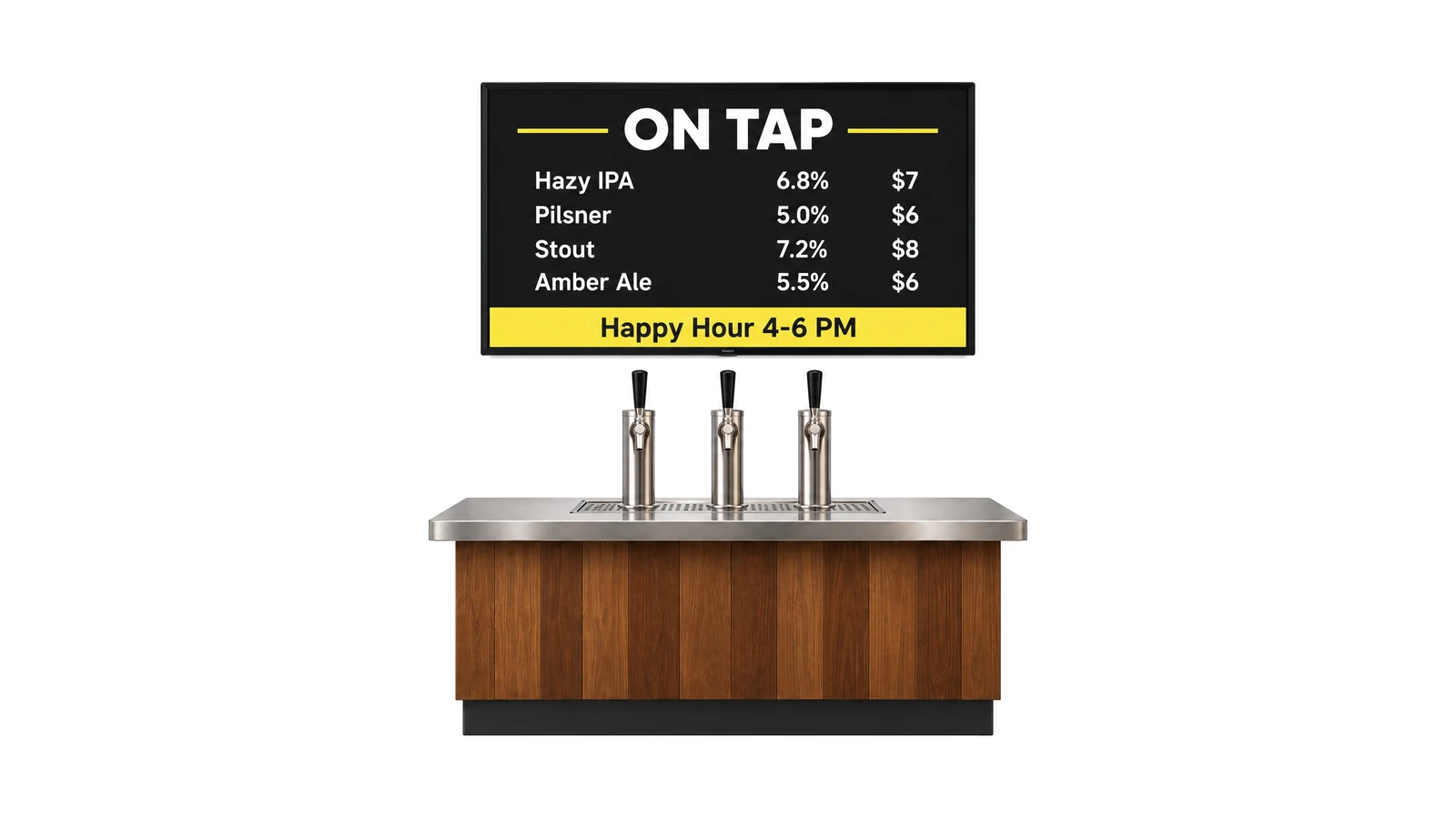
Bars and pubs
TV menu boards for bar drinks and tapsTap lists, pour prices and happy hour that switch on schedule.
-
 Learn more
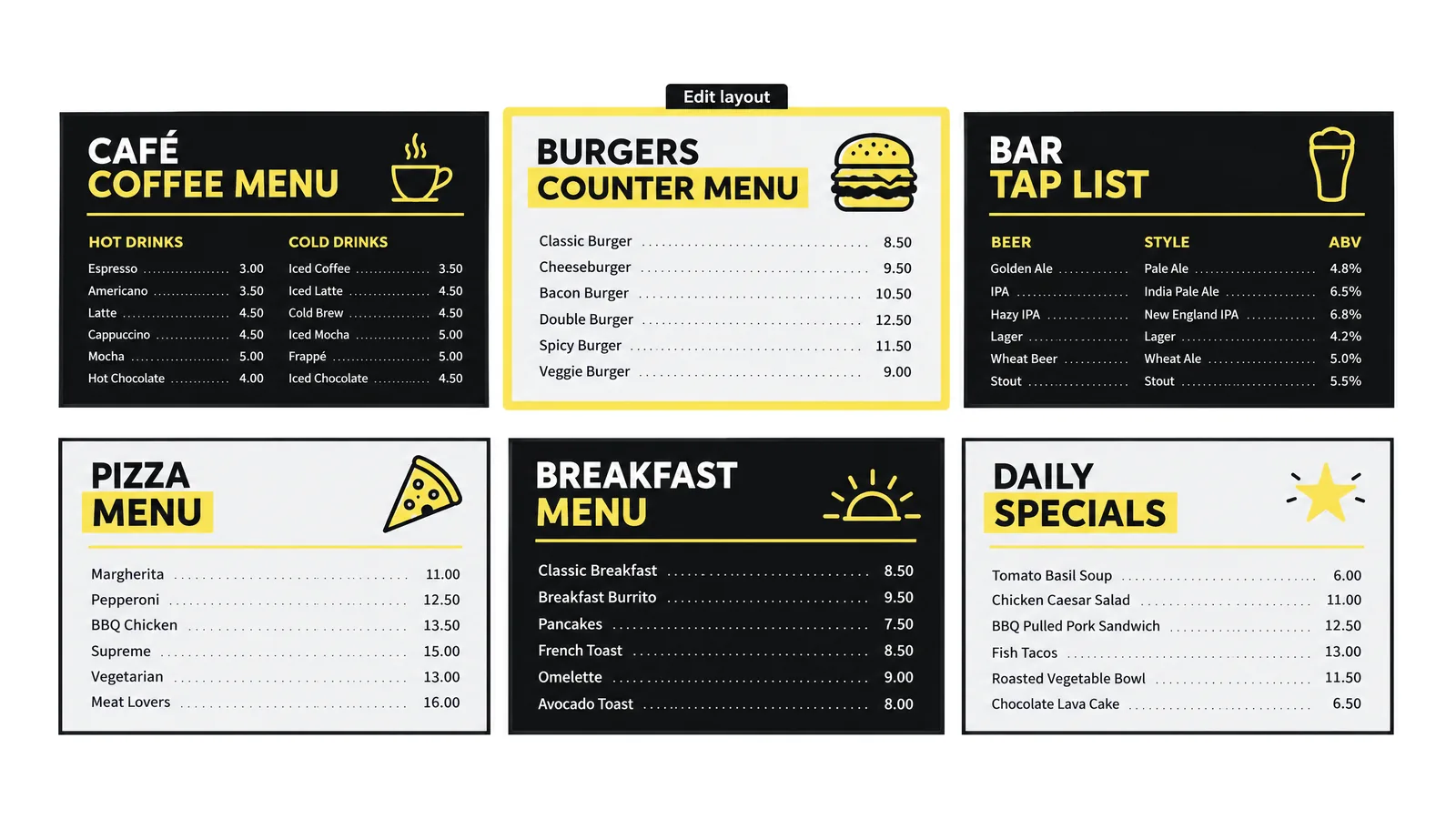
Menu templates
Ready layouts for counters, cafés and barsStart from a layout sized for a TV and swap in your items.
-
 Learn more
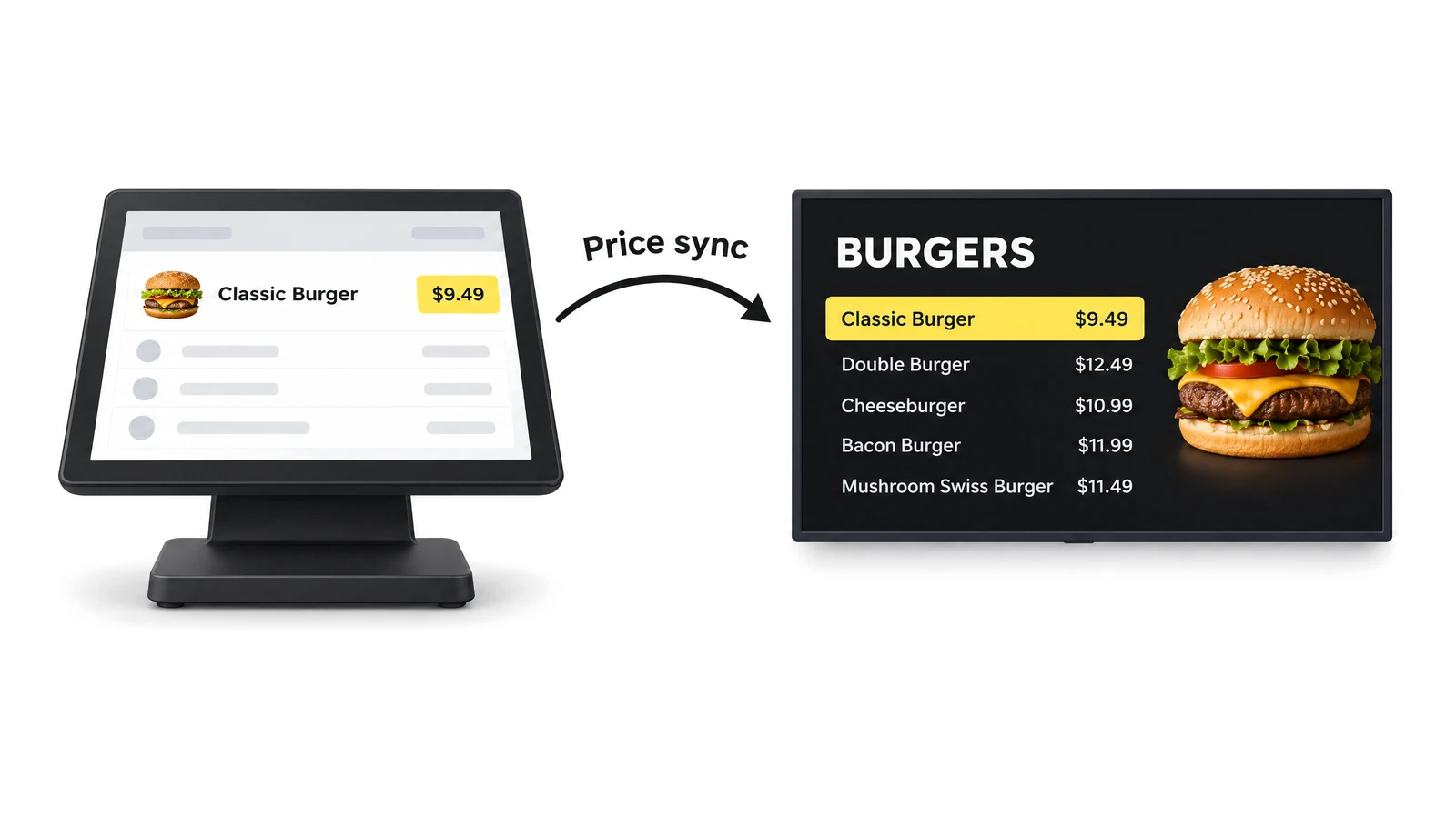
POS price sync
Register prices on the TV in 1–5 secondsBeyond layouts, Toast, Square and Clover feed prices and sold-out items to the TV.
Questions Owners Ask Before Launch
How do I put a menu on a TV without a computer?
Open it in the TV’s own web browser. That is how to make a digital menu on TV with Decker: you build the menu once on a phone or laptop, and the smart TV plays it from its browser, so no computer stays next to the screen. On a TV without a browser, a USB stick or Decker Player does the same job.
Can I use a regular TV that is not smart?
Yes. Any TV with an HDMI input works: Decker Player plugs into the HDMI port and runs the menu, which turns an older set into a menu TV that only has to display it. A USB stick works too, as long as the TV’s USB port plays photos and does more than charge.
What happens to the menu if the Wi-Fi goes down?
The TV keeps showing the last published menu from cache, and new changes arrive when the connection returns. If the internet drops every day, run the menu through Decker Player or the Android TV app instead of the browser.
What resolution should a menu image be for a TV?
Use 1920×1080 pixels for a Full HD TV and 3840×2160 for a 4K TV, both in landscape. For a TV mounted in portrait, turn the canvas to 1080×1920 and set that screen to portrait in Decker.
Can the TV show breakfast and lunch menus at different times?
Yes. A schedule sets each menu by hour and weekday, so breakfast leaves the screen at 11 a.m. without anyone touching the TV. Opening-hours schedules come with Essential, and automatic dayparts with Professional.
How many TVs does a full menu need?
One TV screen menu holds about 15–20 lines at a readable size. A short café menu fits on one screen; a burger counter with combos, sides and drinks usually needs two or three TVs side by side, each with one category.
What does it cost per screen?
One screen is free forever on Decker, with no card. Each extra screen is billed per month on a paid plan, and the per-screen rates depend on the plan. You also pay for the TV, the mount and, where the internet is weak, a Decker Player.
When does a café not need a TV menu board?
A café whose prices change fewer than 2 times a year and never runs out of an item can loop the menu from a USB stick at no cost. A counter with no Wi-Fi or Ethernet within reach of the TV cannot receive updates, so a printed board does the same job. A TV that would face a sunny window gets washed out and needs a brighter commercial display first. A café that takes every order through QR codes at the table, with no screen above the counter, has nothing for the menu to run on.
Start on Your Own TV Today
Open a free account, build or upload the menu and open it in the TV’s browser. One screen stays free, and the 14-day trial adds live prices on 5 screens. Next come the questions owners ask most.


