What Is a Digital Directory? How Directory Boards Work and What They Cost


A digital directory is a screen in a lobby, by the elevators or at a front desk that lists the tenants, rooms and services in a building and updates from a browser instead of a reprint.
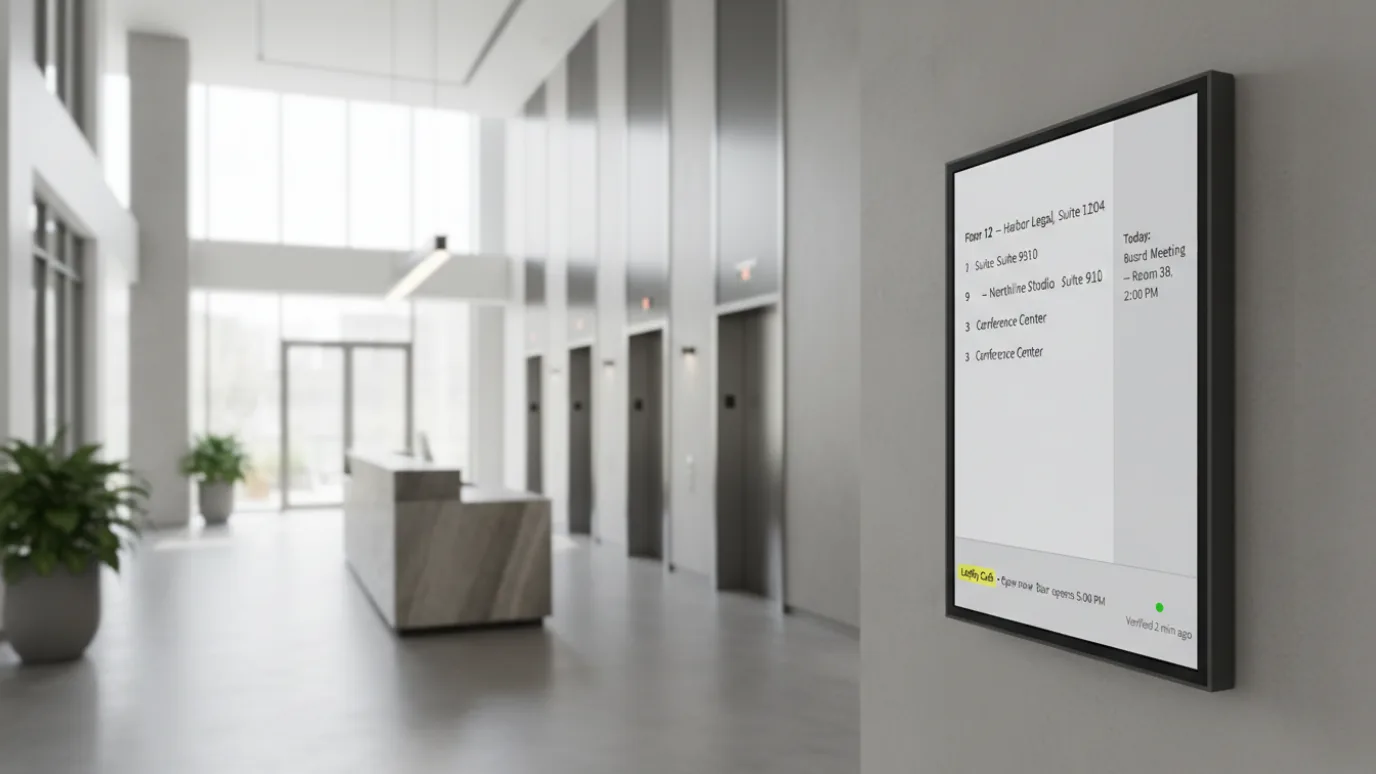
A digital directory is a screen in a lobby, by the elevators or at a front desk that lists the tenants, rooms and services in a building and updates from a browser instead of a reprint. It covers tenants, suites, departments and even the hotel restaurant. Most run on an ordinary TV with cloud software; in contrast, touch screen kiosks add search and maps at several times the price.
What Is a Digital Directory?
A digital directory is an electronic screen that lists the people, businesses or rooms in a building and updates remotely within minutes. It replaces the glass-case tenant board, where every move meant ordering an engraved strip and finding the key. Staff type the change into cloud software, and all directory screens in the building pick it up.
The screen hangs where visitors stop first: the entrance, the elevator bank, a reception desk. Digital directories show floors, departments, today’s events and building notices next to names and suite numbers. They run as one use of digital signage, the wider category of screens run from software, and whether one works depends less on the screens than on the list behind them.
Other Names You Will See
- Digital building directory — the usual term in offices and multi-tenant properties.
- Electronic directory or electronic directory board — the older generic name; an electronic building directory names the same device.
- Lobby directory or tenant directory — named after where it hangs or what it lists.
- Building directory digital signage — a directory running as one zone of a wider screen network.
- Interactive directory or touchscreen directory — a version with search, categories and often a map.
Screen Directory vs Online Business Directory
Not to be confused with: an online business directory, a searchable website of a town’s shops and services run by a chamber of commerce or a city. It shares the name, but it lives on the web, not on a lobby wall. Next comes what sits behind the screen in the building.
How a Digital Directory Board Works: Screen, Player and Software
A digital directory board runs on three parts: a screen, a player that stores the layout, and cloud software. The player connects over HDMI or runs inside a smart TV, checks the cloud for changes every few minutes and caches the last version. An update reaches the lobby screens in minutes. A short internet outage leaves the current list on screen, not a blank one.
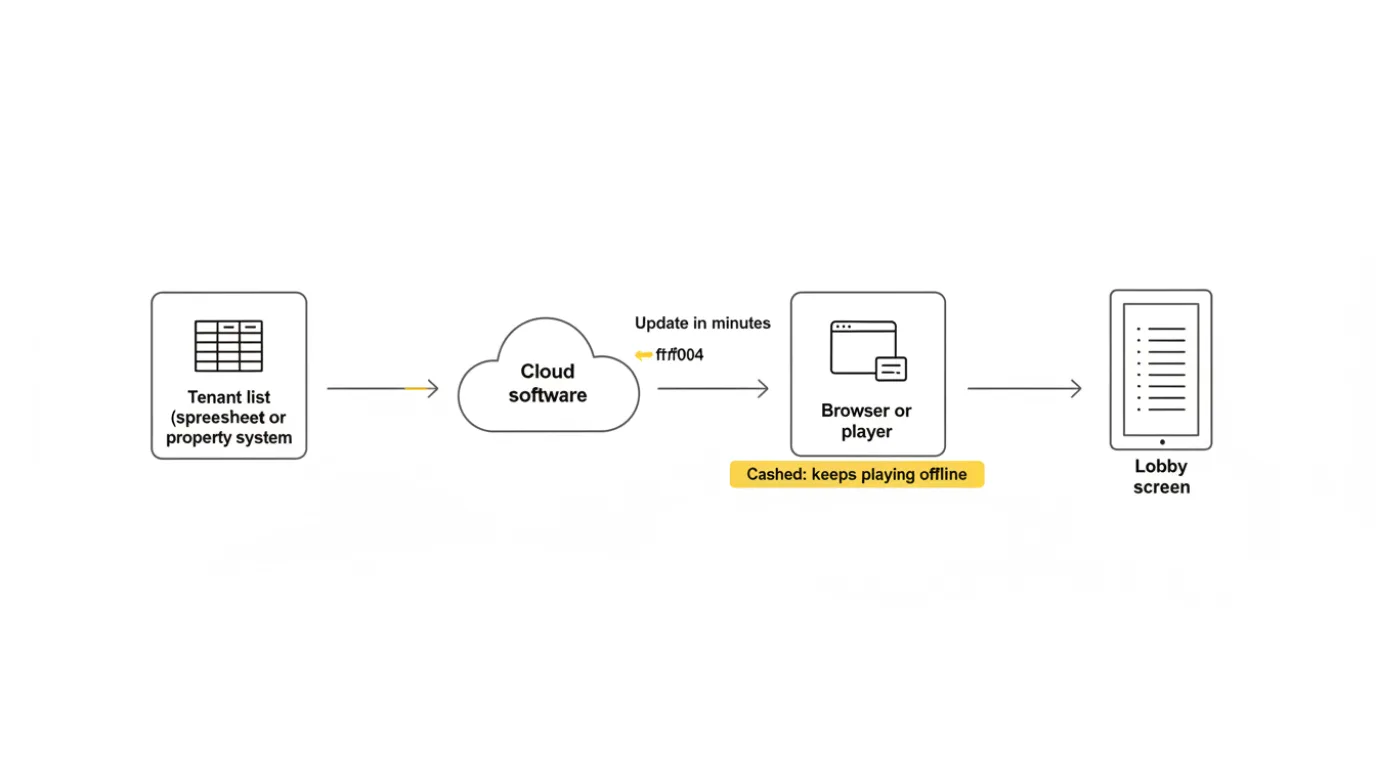
- Screen. A consumer TV handles most indoor lobbies; a commercial display suits a bright entrance or 24-hour use.
- Player or TV app. Plays and stores the layout and reports the screen’s online status.
- Software. Holds templates, listings, schedules and screen status, the job digital signage CMS software does for every screen in a building.
- Connection. Wi-Fi or Ethernet brings updates; the cache covers short outages.
- Touch layer, for interactive directories only. A touch overlay, a kiosk enclosure and search or map software.
What a Digital Directory Display Shows
A digital directory display keeps the names in a fixed zone and rotates everything else around them.
| Zone | What it shows | How often it changes |
|---|---|---|
| Main list | Tenants, suite numbers, floors, departments | When someone moves in or out |
| Side panel | Today’s events, meeting rooms, visiting hours | Daily |
| Bottom strip | Time, weather, transit departures | Automatically |
| Rotation | Building news, amenities, restaurant and bar hours, ads | On a schedule |
| Alert layer | Evacuation notices, closures, maintenance | Instantly, over everything else |
In hotels, malls and food halls the rotation answers the question guests ask right after “where”: where to eat, and which counters still serve. Next comes the bigger choice: read the list or touch it.
Static Display vs Touch Screen Directory: Which One You Need
Most buildings need a static display; a touch screen building directory pays off only for big lists or multi-floor routes. A list sorted by name or floor serves everyone in the lobby at once and has no glass to smudge. A touch screen directory serves one visitor at a time, but it can search, filter by category and draw a route.
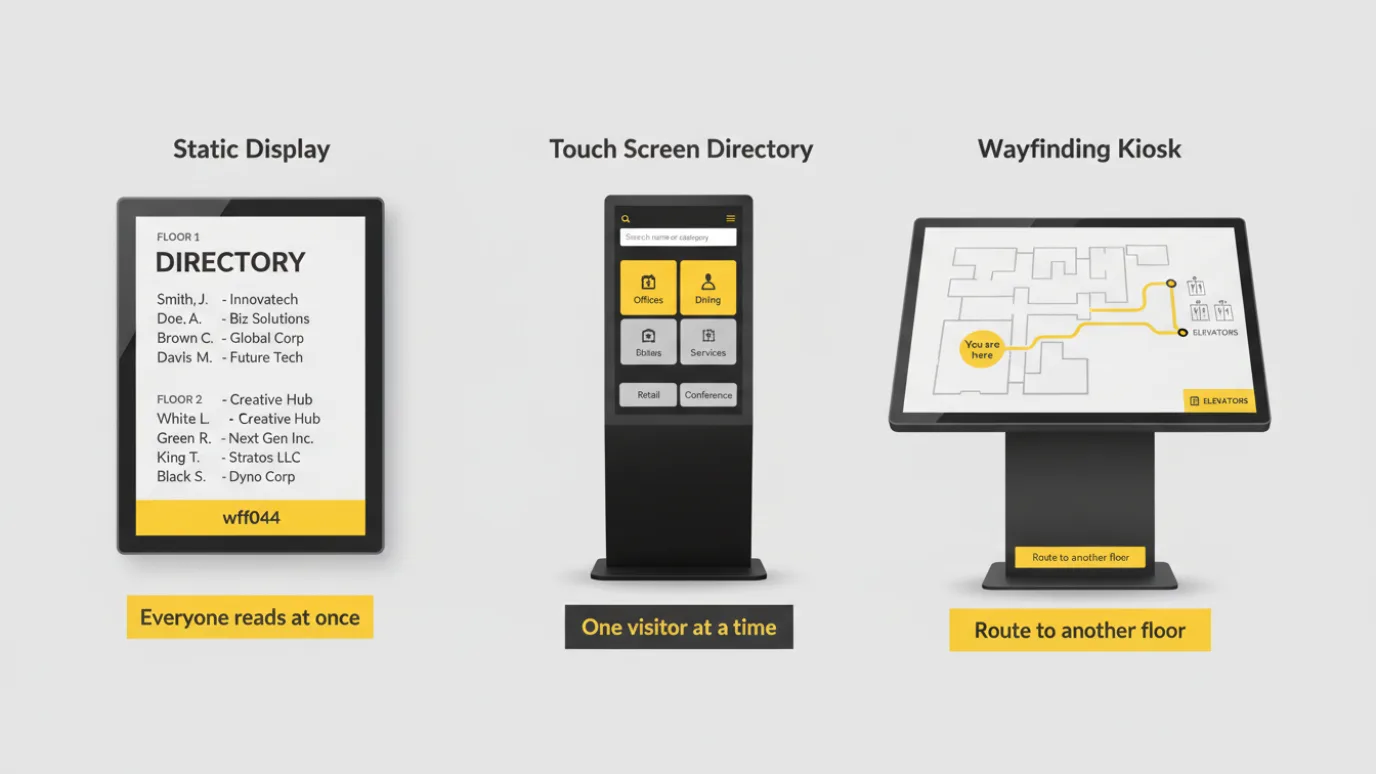
| Static display directory | Touch screen directory | Wayfinding kiosk | |
|---|---|---|---|
| How visitors find a name | Scan an alphabetical or floor list | Type or tap a category | Search, then follow a route |
| People served at once | Everyone in the lobby | One | One |
| Typical hardware | 43–55″ TV in portrait plus a player or app | 21.5–55″ touch screen in an enclosure | 55–75″ kiosk, often outdoor-rated |
| Best fit | A list that fits on 1–3 pages, 1–2 entrances | Campuses, hospitals, large office parks | Malls, airports, multi-level complexes |
| Main risk | A very long list stops fitting | Wear, smudges, kiosk accessibility | Price and keeping floor plans current |
Touch screen directories use capacitive glass, which reacts to a light touch and supports pinch and zoom, or resistive glass, which works with gloves and costs less but reads touches less precisely.
⚠ “Every digital directory should be a touch screen” is not true: a list sorted by floor lets a visitor find a name in seconds and serves the whole lobby at once. Touch adds an enclosure, search software and a surface to clean.
When Interactive Directories Are Worth It
Interactive directories earn their price when the list runs to several hundred names, when visitors search by category such as doctors or restaurants, or when one lobby serves towers with different elevator banks. Visitors struggle most when the route changes floors, and interactive digital directories route them there. A 2024 Scientific Reports study followed 149 participants through six tasks each in virtual multilevel buildings. What people could see of the building, together with what they expected, shaped how efficiently they reached another floor. A route on a map helps there; a scrolling list does not. Touch directories also switch languages on request and send the route to a phone by QR code. They log every search, and searches that return nothing show which names visitors expect but cannot find.
Directory Software vs Digital Signage Software
Digital signage software schedules content, with the tenant list as a layout staff edit. Directory software stores a model of the building, with floors, units and routes as records, so one tenant change updates the search, the map and the mobile view together. One building with one entrance runs well on signage software; routes between floors call for directory software.
ADA Rules for a Touchscreen Directory
The 2010 ADA Standards treat a directory as an exempt sign. We checked the U.S. Access Board’s guide to ADA signs on November 25, 2026: its list of exempt signs names building addresses and directories, along with occupant names, menus and temporary signs. Signs for permanent rooms, such as room numbers and restrooms, still need raised characters and Grade 2 braille under section 216.2. Directional signs must meet the visual character rules of section 703.5.
⚠ “A digital directory replaces the ADA signs in a building” is not true: the screen is exempt, but every permanent room still needs a tactile sign with braille by the door. A touchscreen offers nothing that a visitor with low vision can read by touch.
Touch kiosks follow a separate track. On September 21, 2022 the U.S. Access Board issued an advance notice of proposed rulemaking for self-service kiosks, docket ATBCB-2022-0004. It asked about speech output, tactile controls, reach ranges and use from a seated position. A directory saved as a flat image also gives screen readers no text, so a text-based layout serves both types better. Beyond the rules, the venue decides what the list covers.
Where Digital Directories Are Used
Digital directories run wherever visitors arrive without knowing the way, from office lobbies to food halls. The list changes by venue, and so does the choice of display or touch.
| Venue | What the list covers | Usual format |
|---|---|---|
| Office building, multi-tenant property | Companies, floors, suite numbers, visitor check-in | Display |
| Coworking floor | Companies and meeting rooms on that floor | Small display |
| Hospital, medical office building | Departments, physicians, visiting hours | Display or touch |
| University campus | Buildings, lecture halls, events | Display with a map |
| Hotel or resort | Restaurants, bar, pool, conference rooms, events | Display |
| Mall, food court, food hall | Stores, food counters, hours, promotions | Touch, often with ads |
| Airport or transit station | Gates, baggage claim, services | Touch or large displays |
| Stadium, convention center | Concessions, sections, sessions, booths | Display |
| Government building | Offices, hours, public notices | Display |
Hospitals add visiting hours and department moves, the same pattern that runs through digital signage for healthcare facilities.
In a hotel, a food hall or a stadium, the directory doubles as a guide to food: which counters are open, when the bar starts serving and when lunch ends. Those lines change by the hour, so venues schedule them instead of editing them by hand. Overall, the reasons to retire a printed board stay the same in every venue.
Why Replace a Static Building Directory
Electronic directory boards end the reprint cycle: one edit in the software reaches all lobby screens. A static board costs money and staff time with every move; a digital building directory costs a few minutes at a keyboard.
- A tenant move becomes a two-minute edit. No engraved strips, no glass case, no ladder.
- One update reaches every board. Every lobby and every building shows the same list.
- The screen carries today. Meeting rooms and events sit next to the permanent list.
- The front desk answers fewer questions. Guests find the restaurant or the suite themselves.
- The lobby looks maintained. A prospective tenant sees a current list, not blank slots.
Try it on the TV already in your lobby. Open the directory in the TV’s browser, paste your tenant list and watch it go live in minutes. Decker is free for 14 days on up to 5 screens, no credit card. Start free
Next comes the question every building manager asks before switching: the budget.
How Much Does a Digital Directory Cost?
A digital directory costs one-time hardware plus a monthly software fee per screen, and touch raises the hardware share most. Published vendor prices that we reviewed in November 2026 fall into five bands:
| Setup | One-time cost | Ongoing cost |
|---|---|---|
| TV the building already has, plus an app or browser player | $0 for hardware | Software per screen per month |
| New consumer TV ($200–500) plus a media player ($219–699) | About $450–950 per screen | Software per screen; plans start around $14 a month |
| Packaged non-touch directory | From about $1,495–2,199 | Software usually extra |
| Medium or large kiosk-style directory | From about $2,495 | Software usually extra |
| Touch screen directory | $1,500–5,000 per unit before software | Touch software from about $1,338 per display per year |
Add mounting, installation and a service plan for complex software. A strip directory looks cheaper until you count every tenant change. The digital signage cost breakdown covers the same lines for screens in general.
Six Questions to Ask a Vendor Before You Buy
- How fast does one change reach every screen, and who on your team can make it?
- Can the list come from the spreadsheet or property system you already run?
- Does the screen keep the last list when the internet drops?
- How does the player stay safe on the building network: automatic updates, user roles, no open inbound ports?
- Can the touch version speak and work from a seated position?
- Who keeps the floor plans and the tenant data if the contract ends?
⚠ “The hardware is a one-time purchase, so the directory has no running cost” is not true: the screen and player are paid once, but the software that updates them is a subscription per screen. Budget both lines before comparing quotes. Next, the steps that keep that budget from paying for a stale screen.
How to Set Up a Directory Board in 7 Steps
Set up a directory board by naming the list owner first, then the screen, the playback and the layout. Projects that start with hardware often end with a screen that falls out of date within a year.
- Name the owner of the list. Give the content to one role in facilities, not a committee. Write down who edits it and how fast a change must appear.
- Pick one source of truth. Use the spreadsheet, property management system or room-booking platform that already holds the list, with no second hand-typed copy. Give each room one name on the door, the website and the screen.
- Split fixed and moving lines. Keep floors, stairs and elevators on a permanent sign and give the screen the names that move. A list that fits on 1–3 pages stays a display, not touch.
- Choose the screen. Portrait suits a list of names, and 43–55 inches suits most lobbies. Wall mounts save floor space, freestanding kiosks suit glass lobbies, and commercial-grade panels handle 24-hour use; a TV already on the wall can become the directory.
- Connect playback. Run the layout in the TV’s browser or app, or plug in a player over HDMI. Then pull the network cable and confirm it keeps playing.
- Build the layout. Start from a template with your logo and colors, keep the list in a fixed zone and move events, weather and promotions to another.
- Schedule, monitor and audit. Set the rotation, turn on monitoring for all screens, and once a quarter walk from the directory to the third destination on the list.
⚠ “Once the screen is installed, the directory keeps itself current” is not true: the screen shows whatever list it is given. With no owner, a bright screen sends visitors to the wrong floor more convincingly than an old printed board.
Design Rules That Make a Directory Readable
- One sort order. Alphabetical or by floor; mixing the two causes the most common design mistake.
- High contrast and large type. Names should read from a comfortable standing distance.
- Suite next to name. The eye should not travel across the screen to match them.
- Pages, not smaller type. If the list runs past one screen, page through it on a timer.
- Stillness for the list. Motion belongs in a separate zone.
Run steps 4–7 from one account. Connect the screen, build the layout from a template and turn on monitoring for the screens in every lobby you manage. 14 days free on up to 5 screens, no credit card. Start free
As a result, the only open question concerns the platform that runs those steps.
How Decker Runs Building Directories in Hotels, Food Halls and Lobbies
Decker runs a display directory in a TV’s built-in browser and keeps hours, open counters and listings current. The lobby TV needs no extra device. Decker Player or the Android TV app covers sites where the internet drops every day.
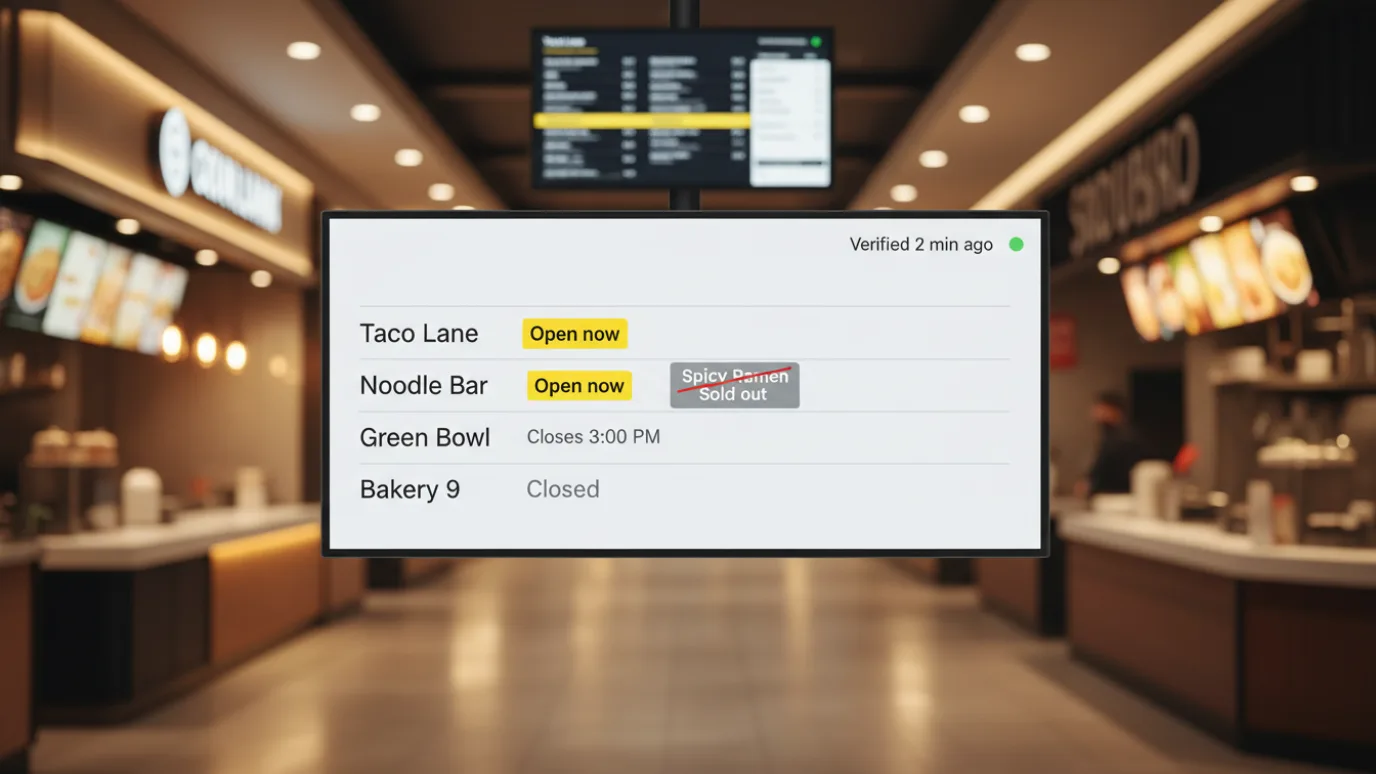
- Lists and hours. Staff edit the list in a browser on a laptop or phone, and schedules switch the side panel between breakfast, lunch and bar hours.
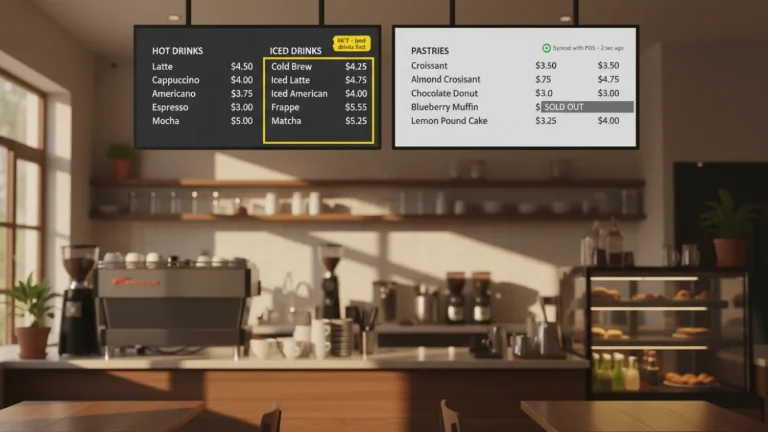
- Sold-out items from the register. On the Professional plan, Decker reads prices and availability from Toast, Square or Clover, or from an Excel sheet, so a food hall directory marks what each counter has sold out.
- Many buildings, one account. Updates reach the screens in one location, a group or every site at once.
- Proof the screen is on. Decker Verifier, built into the player or mounted next to the screen, confirms that screens show content, restarts a screen or player remotely and logs uptime.
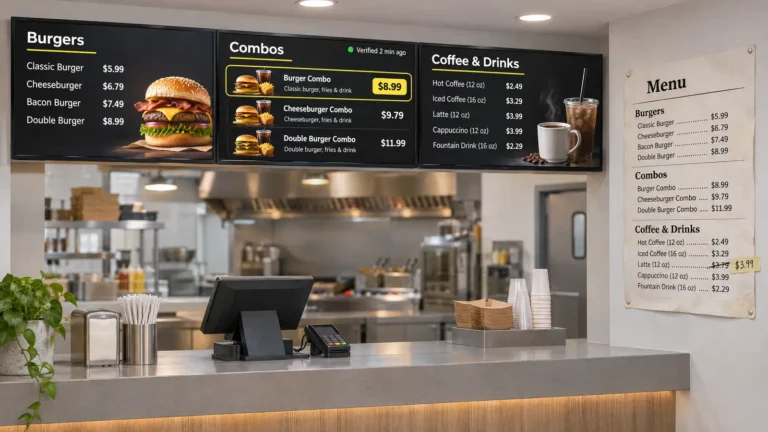
The menus above each counter run on the same account as digital menu boards for restaurants, so the directory and the menus never disagree about sold-out items. However, some buildings need none of this.
When You Don’t Need a Screen Directory
A printed board serves some buildings just as well as a screen. A one-floor building with six tenants or fewer and a single entrance reads fine from a sign. A list that changes less than once a year, like apartment ranges in a residential core, gains nothing from a screen. If no single person will own the list, the screen will show out-of-date names within a year. The tactile room signs that ADA section 216.2 requires stay on the doors either way. And if the wall has no power or network within reach, running both can cost more than the directory itself. In other words, screens pay off only where the list moves and someone owns it.
Next come short answers to the questions asked most often.
Questions and Answers
1 What is a directory in a building?
It is the list of who and what is inside, usually by the entrance or the elevators. A digital directory shows that list on a screen that staff update from a browser.
2 Do touch screen directories work better than display boards?
Only in large or complex buildings. A display sorted by name or floor serves the whole lobby at once; touch pays off on campuses, in hospitals and malls, and where visitors search by category.
3 Should a directory screen be portrait or landscape?
Portrait fits a long list of names; landscape works when the list shares the screen with a map or events.
4 How do I update names on directory boards?
Edit the list in the software or in the source spreadsheet. The screens update within minutes, and digital directory boards in every lobby show the same list. Buildings with frequent moves link the screens to the system that already holds the tenant list.
5 Does a lobby directory have to meet ADA rules?
The 2010 ADA Standards exempt building directories from the sign rules, but permanent rooms still need tactile signs with braille. Touch kiosks fall under a separate Access Board rulemaking that began in 2022.
6 What are the downsides of a screen directory?
It needs power, a network connection, a software subscription and someone who owns the list. Without an owner it goes stale, and a touch version adds cleaning and wear.
7 Is a directory screen the same as wayfinding signage?
Not quite. A directory answers what is where; wayfinding answers how to get there. A touch kiosk with a map does both, while a display directory usually does the first.
Sources
- U.S. Access Board — Guide to the ADA Standards, Chapter 7: Signs
- Federal Register — Self-Service Transaction Machines and Self-Service Kiosks, Advance Notice of Proposed Rulemaking (Sept. 21, 2022)
- Scientific Reports — The role of strategic visibility in shaping wayfinding behavior in multilevel buildings (2024)